
Protectli V1210-2
Protectli Vault V1210-2 Port Micro Appliance/Mini PC User Manual
Model: V1210-2 | Brand: Protectli
1. Inleiding
This manual provides essential information for the proper installation, operation, and maintenance of your Protectli Vault V1210-2 Port Micro Appliance/Mini PC. Please read this manual thoroughly before using the device to ensure optimal performance and safety. The Protectli Vault V1210-2 is a compact, fanless mini PC designed for network security applications such as firewalls, routers, and other open-source software solutions.
2. Veiligheidsinligting
- Ensure the device is placed on a stable, flat surface with adequate ventilation.
- Moenie die toestel aan water, vog of uiterste temperature blootstel nie.
- Gebruik slegs die kragadapter wat by die toestel voorsien is.
- Moenie probeer om die toestel self oop te maak of te herstel nie. Verwys alle diens na gekwalifiseerde personeel.
- Disconnect the power supply before cleaning or moving the device.
3. Pakketinhoud
Verifieer dat alle items in jou pakket teenwoordig is:
- Protectli Vault V1210-2 Micro Appliance
- Power Adapter with regional plugs
- USB Tipe-C Konsolekabel

Image: Contents of the Protectli Vault V1210-2 package, including the device, power adapter with various regional plugs, and a USB Type-C console cable.
4. Hardeware verbyview
4.1 Voorpaneel
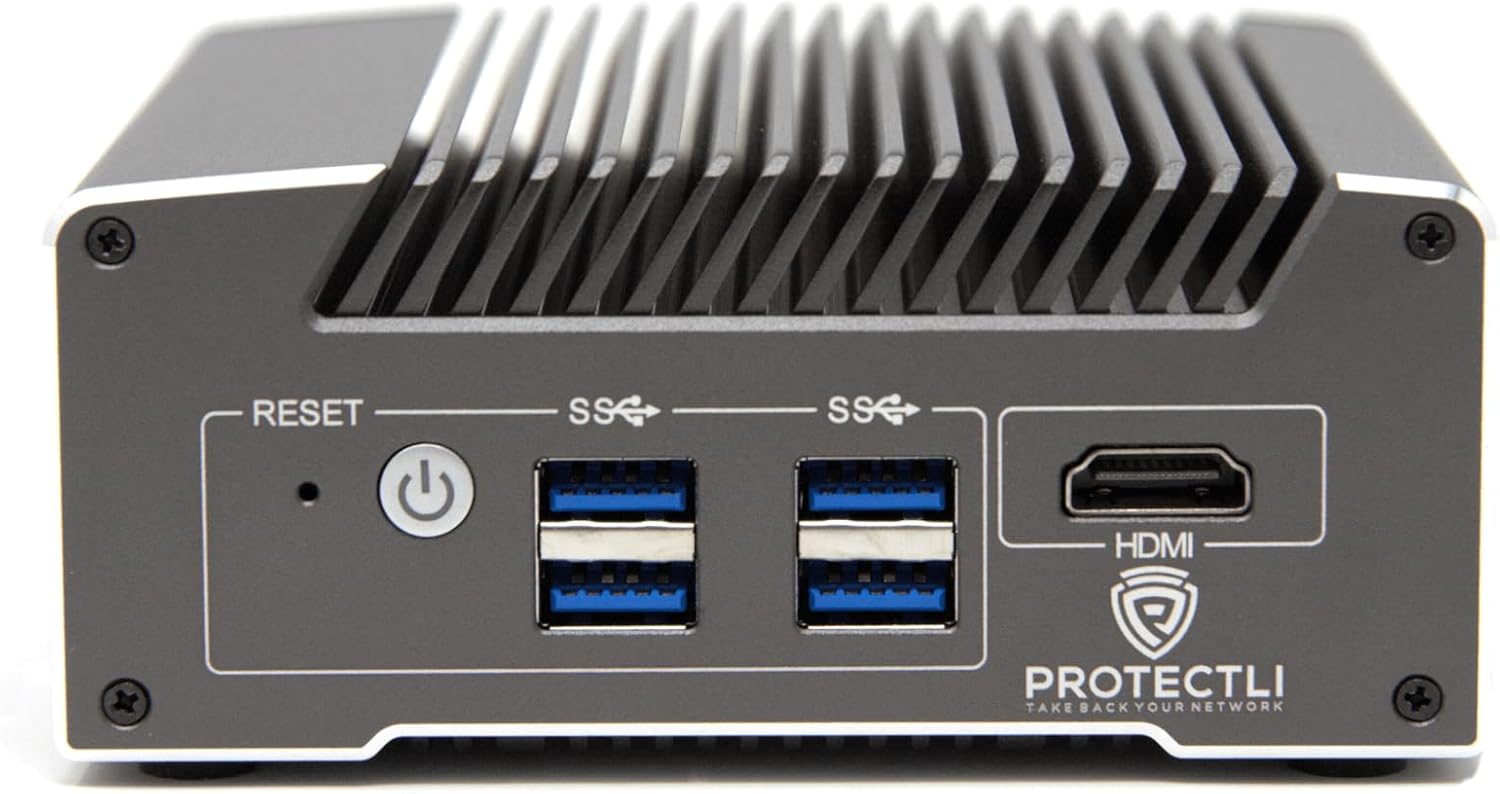
Beeld: Voorkant view of the Protectli Vault V1210-2, showing the Reset button, Power button, two USB 3.0 ports, and an HDMI port.
- Herstel-knoppie: Word gebruik om die toestel te herbegin.
- Kragknoppie: Druk om die toestel aan/af te skakel.
- USB 3.0-poorte (x2): Vir die koppeling van USB-toestelle soos sleutelborde, muise of eksterne berging.
- HDMI-poort: For connecting a display monitor.
4.2 Agterpaneel

Beeld: Agter view of the Protectli Vault V1210-2, showing the 12V DC power input, two 2.5G Ethernet ports, a USB Type-C console port, and LED indicators.
- 12V DC-kraginvoer: Koppel die meegeleverde kragadapter hier aan.
- 2.5G Ethernet Ports (x2): For network connections. These are Intel I226-V NICs.
- USB Type-C Console Port: For serial console access, typically used for initial setup or debugging.
- LED-aanwysers:
- Power LED (Green): Indicates power status.
- Storage Activity LED (Red): Indicates eMMC or NVMe storage activity.
4.3 Interne Komponente
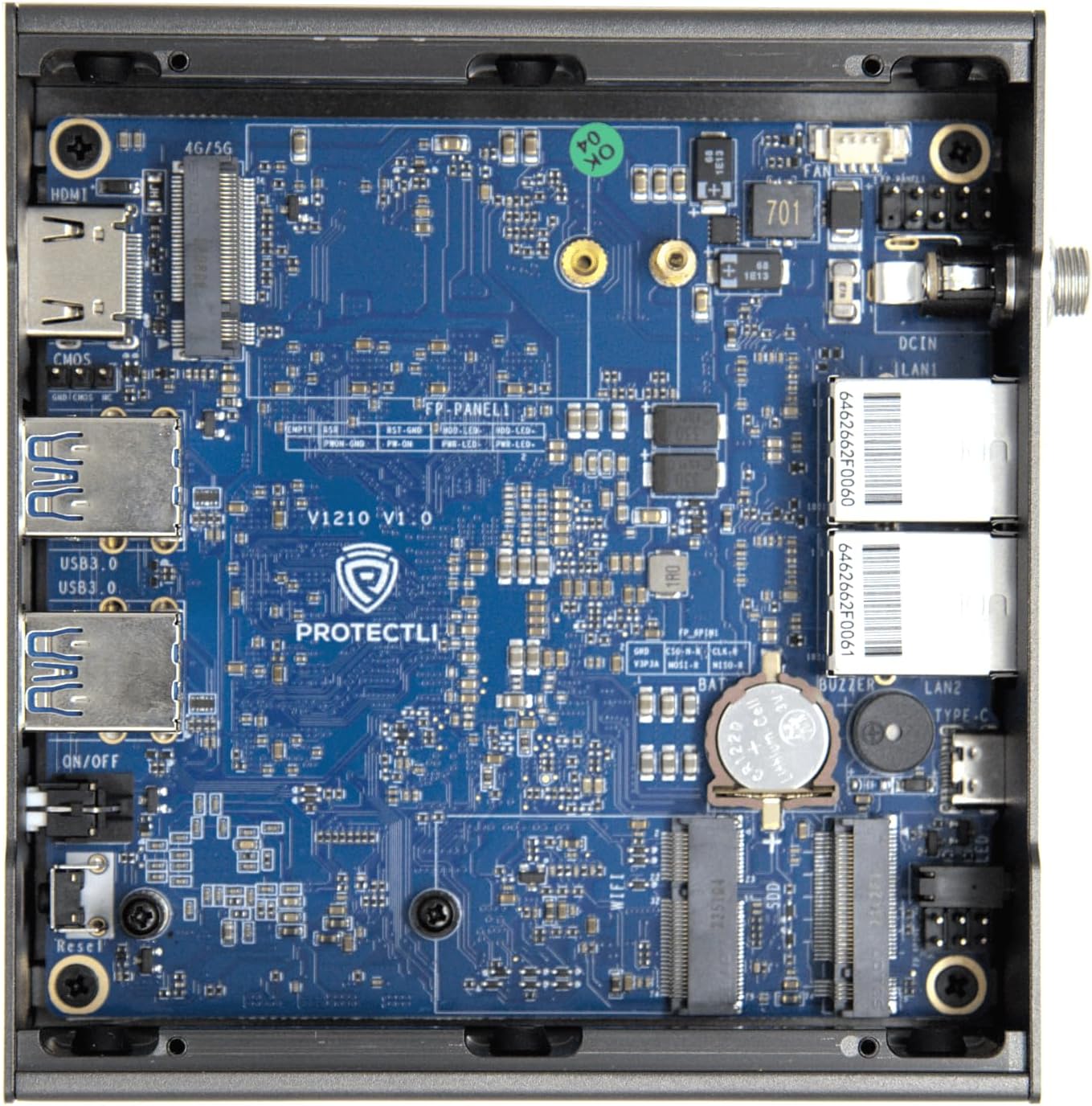
Beeld: Intern view of the Protectli Vault V1210-2, showing the motherboard with integrated RAM, eMMC storage, and M.2 slot for optional NVMe SSD.
- Intel N5105 Quad Core CPU: Processor for the device.
- 4 GB LPDDR4 RAM: On-board system memory.
- 32GB eMMC-berging: On-board flash storage for the operating system.
- M.2 Slot: For optional NVMe SSD expansion (not included in this configuration).
5. Opstelinstruksies
Follow these steps for initial setup of your Protectli Vault V1210-2:
- Koppel randapparatuur: Connect a monitor to the HDMI port, a keyboard and mouse to the USB 3.0 ports.
- Netwerk konneksie: Connect your internet source (e.g., modem) to one of the 2.5G Ethernet ports. Connect your local network (e.g., switch or computer) to the other 2.5G Ethernet port.
- Kragverbinding: Connect the provided 12V DC power adapter to the power input port on the rear panel, then plug the adapter into a power outlet.
- Krag aan: Press the power button on the front panel. The device will power on, and the power LED will illuminate.
- Bedryfstelsel installasie: The Protectli Vault V1210-2 does not come with a pre-installed operating system. You will need to install your preferred open-source firewall or routing software (e.g., OPNsense, pfSense, VyOS) via a USB installation medium. Refer to the specific software's installation guide for detailed steps.
- Aanvanklike konfigurasie: After OS installation, follow the software's instructions for initial network configuration. You may need to use the USB Type-C console port for advanced setup or debugging if direct display output is not sufficient.
6. Bedryfsinstruksies
Once your operating system is installed and configured, the Protectli Vault V1210-2 operates as a dedicated network appliance. Its fanless design ensures silent operation, making it suitable for various environments.
- Normale werking: The device is designed for continuous operation. Ensure it has adequate airflow around its heatsink chassis.
- Kragfietsry: To safely power off the device, use the shutdown procedure within your installed operating system. If the system is unresponsive, press and hold the power button for 5-10 seconds to force a shutdown.
- BIOS-toegang: To access the AMI BIOS settings, press the DEL knoppie herhaaldelik tydens opstart.

Image: Diagram illustrating various applications for the Protectli Vault, including VPN Router, Firewall, Hypervisor, Backup WAN, Industrial IoT, Home Automation, Remote Office, and Managed IT Providers.
7. Onderhoud
- Skoonmaak: Use a soft, dry cloth to clean the exterior of the device. Do not use liquid cleaners or aerosols. Ensure the heatsink fins are free from dust buildup to maintain optimal cooling.
- Sagteware-opdaterings: Regularly update your installed operating system and software to ensure security and performance. Refer to your software's documentation for update procedures.
- Firmware -opdaterings: Periodically check the Protectli website for BIOS/firmware updates for your V1210-2 model. Follow the provided instructions carefully when performing firmware updates.
8. Probleemoplossing
Algemene kwessies en oplossings:
- Toestel skakel nie aan nie:
- Maak seker dat die kragadapter stewig aan beide die toestel en 'n werkende kragpunt gekoppel is.
- Verifieer dat die kragaansluiting funksioneel is.
- Try a different power adapter if available (ensure it matches voltage en amperage specifications).
- Geen vertoonuitvoer nie:
- Check the HDMI cable connection to both the device and the monitor.
- Maak seker dat die monitor aangeskakel is en op die korrekte invoerbron gestel is.
- Try connecting to the device via the USB Type-C console port for serial console access to diagnose display issues.
- Netwerkverbindingsprobleme:
- Verify Ethernet cables are securely connected to the 2.5G NIC ports.
- Check the link/activity LEDs on the Ethernet ports.
- Ensure your operating system's network configuration is correct.
- Restart your modem/router and the Protectli Vault.
- Bedryfstelsel begin nie:
- Ensure the boot order in the BIOS is correctly configured for your installed OS or installation medium.
- If installing from USB, ensure the USB drive is bootable and properly formatted.
- Re-attempt OS installation if necessary.
Vir verdere hulp, verwys asseblief na die Protectli Store of kontak kliëntediens.
9. Spesifikasies
| Kenmerk | Spesifikasie |
|---|---|
| Model | Protectli Vault V1210-2 |
| Verwerker | Intel N5105 Quad Core CPU (2.0 GHz, Turbo 2.9 GHz) |
| RAM | 4GB LPDDR4 (on-board) |
| Berging | 32GB eMMC (on-board) |
| Netwerk koppelvlakke | 2x Intel I226-V 2.5G NICs |
| USB-poorte | 4x USB 3.0 Tipe-A |
| Konsolepoort | 1x USB Type-C Console |
| Video-uitset | 1x HDMI (Max Resolution: 3840 x 2160) |
| BIOS | AMI BIOS |
| Afmetings (LxBxH) | 4.5 x 4.5 x 2 duim (115 x 115 x 50 mm) |
| Gewig | 1.81 pond (0.82 kg) |
| Bedryfstelsel | No OS pre-installed (Compatible with Linux-based firewall/router OS) |
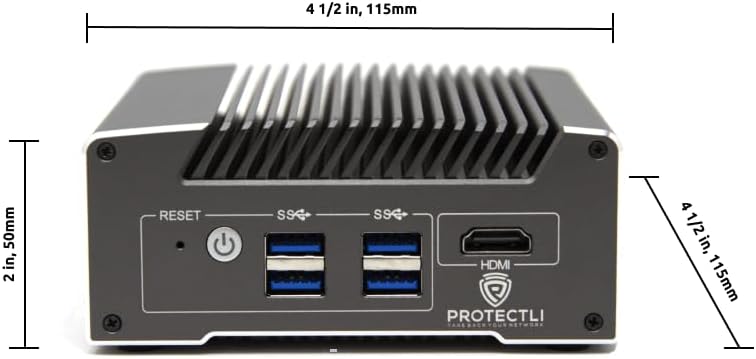
Beeld: Voorkant view of the Protectli Vault V1210-2 with dimensions indicated: 4 1/2 inches (115mm) width and 2 inches (50mm) height.
10. Waarborginligting
Protectli offers a 30-day money-back guarantee for the Vault V1210-2. For detailed warranty terms and conditions, please refer to the official Protectli webwebwerf of kontak hul kliëntediens.
Extended protection plans may be available for purchase separately:
- 2-jaar beskermingsplan
- 3-jaar beskermingsplan
11. Ondersteuning
For technical assistance, troubleshooting, or general inquiries, please contact Protectli's US-based support team. They are available to help resolve any issues you may encounter.
- Besoek die amptenaar Protectli Store on Amazon vir produkinligting en hulpbronne.
- Explore the Protectli Knowledge Base for extensive documentation and articles.

Image: Features of Protectli products, highlighting open-source readiness, coreboot support, 4G LTE failover, and US-based support.
Ask a question about this manual
Ask about setup, troubleshooting, compatibility, parts, safety, or missing instructions. Manuals+ will review the question and use this page’s manual context to help answer it.