
1. Produk verbyview
The SCULPFUN RA Pro Max is a versatile 4-in-1 multi-function rotary module designed for laser engraving machines. It combines a chuck rotary and a roller, offering adaptability for engraving a wide range of objects including rings, spherical items, cylindrical objects, and irregular shapes. Its durable metal structure and 180° adjustable angle provide stability and flexibility for various engraving tasks.
Video 1: Oorview of the SCULPFUN RA Pro Max Rotary Chuck features and capabilities.
2. Sleutel kenmerke
- Durable Metal Structure: Constructed from anodized aluminum alloy and high-strength brass for corrosion resistance, stability, and long-term reliability.
- Easy and Convenient Setup: Features a shared motor for roller and chuck, quick disassembly, and plug-and-play connectivity via adapter cables to the Y-axis stepper motor interface.
- 180° verstelbare hoek: Allows free adjustment for processing large objects, with an angle line for easy viewing and flexible positioning.
- Multi-function Rotary Module: Includes 3 sets of jaw attachments (stepped, L-shaped, hexagonal) and a dual wheel extension bracket for engraving irregular shapes like wine glasses, baseballs, and handled mugs.
- Wye verenigbaarheid: Compatible with LightBurn and LaserGRBL software, and SCULPFUN S6/S6 Pro/S9/S10/S30 series/S30 Ultra series/SF-A9 laser engravers. Includes a measuring tape and mini level for precise object placement.
3. Pakketinhoud
Verifieer dat al die items wat hieronder gelys word, in jou pakket ingesluit is:

Beeld 1: Gedetailleerd view of all components included in the SCULPFUN RA Pro Max package.
- SCULPFUN RA Pro Max Rotating Module Body
- L-shaped Jaws (3 sets)
- Stepped Jaws (3 sets)
- Hexagonal Jaws (3 sets)
- Stootstok
- Dual Wheel Bracket
- Motorverbindingskabel
- Motor Adapter Cable
- Machine Risers (4 pieces)
- M5 Nuts, Screws
- M2, M2.5, M3 Allen Keys
- M3 skroewe
- Maatband
- Mini-vlak
- Gebruikershandleiding
4. Veiligheidsinligting
Always wear appropriate safety goggles when operating the laser engraver. Ensure the work area is well-ventilated. Keep hands and loose clothing away from moving parts. Do not leave the machine unattended during operation. Refer to your laser engraver's manual for additional safety guidelines.
5. Opstelling en installering
This section provides detailed instructions for setting up your SCULPFUN RA Pro Max Laser Rotary Roller with your laser engraver.
Video 2: Comprehensive installation guide for the SCULPFUN RA Chuck Rotary Roller with SF-A9 and S9 laser engravers, covering chuck and roller modes, angle adjustment, and software settings.
5.1. Attaching the Rotary Module
- Place the rotary module on a stable surface beneath your laser engraver.
- Ensure the module is positioned centrally within the engraving area.
5.2. Connecting to Laser Engraver
- Locate the Y-axis stepper motor interface on your laser engraver.
- Connect the provided adapter cable to the Y-axis interface.
- Connect the rotary module's motor cable to the adapter cable.
5.3. Adjusting for Different Objects
The RA Pro Max offers multiple configurations for various object shapes:
- Chuck Mode (Jaws): Use the L-shaped, stepped, or hexagonal jaws to securely hold irregular, spherical, or ring-shaped objects. The jaws can be installed in forward or reverse positions to accommodate different object sizes.
- Rolmodus: For cylindrical objects like pens or tumblers, remove the jaws and install the roller. Adjust the roller's position using the two adjustable gears for objects with diameters between 5-198mm.
- 180° verstelbare hoek: The chuck can be tilted up to 180 degrees to engrave objects at various angles, useful for items with handles or unique geometries. Use the angle markings on the side for precise adjustment.
- Dual Wheel Bracket: For extra-long cylindrical objects, attach the dual wheel bracket to provide additional support and stability during engraving.

Image 2: The RA Pro Max configured for different object types, including chuck and roller modes.

Image 3: Demonstration of the 180° adjustable angle feature for versatile engraving.
6. Bedryfsinstruksies
This section outlines how to operate the SCULPFUN RA Pro Max with common laser engraving software.
6.1. Software Setup (LightBurn)
- Open LightBurn software.
- Gaan na Laser Tools > Rotary Setup.
- Kies Chuck or Roller depending on your setup.
- Aktiveer Rotary.
- Stel Rotasie-as to Y Axis.
- Measure the object's diameter and circumference using the provided measuring tape.
- Input the correct mm per rotation value. This value depends on your specific laser engraver model and the rotary module. Refer to your laser engraver's documentation or SCULPFUN support for precise values.
- Voer die in Voorwerp deursnee en Omtrek.
- Klik OK.
- Gaan na Edit > Machine Settings.
- Confirm or adjust the Y Direction pin invert ($3) setting to ensure correct rotation direction. For some SCULPFUN models (e.g., SF-A9), this might need to be set to 'True' for chuck mode and 'False' for roller mode, or vice-versa. Test rotation to verify.
- Klik Skryf to save settings to the machine.
- Place your object securely in the rotary module.
- Use the mini level to ensure the object is level.
- Adjust the laser focus as needed for the object's surface.
- Frame your design to check alignment before starting the engraving process.
6.2. Software Setup (LaserGRBL)
- Open LaserGRBL software.
- Connect to your laser engraver via the correct COM port.
- Gaan na Grbl > Grbl Configuration.
- Pas die Y-axis travel resolution ($101) based on your rotary module and object. This value is crucial for accurate engraving. Calculate it by dividing the steps per rotation of your engraver's Y-axis motor by the circumference of your object. For example, if your engraver's Y-axis is 13000 steps/mm and your object's circumference is 192mm, the resolution would be 13000/192 ≈ 67.7 steps/mm.
- Klik Skryf instellings te stoor.
- Import your image and set engraving parameters (speed, power, etc.).
- Ensure the laser mode is set to M4 - Dynamic Power for optimal results with rotary engraving.
- Place your object securely in the rotary module.
- Use the mini level to ensure the object is level.
- Adjust the laser focus as needed for the object's surface.
- Run a test frame to check alignment before starting the engraving process.
7. Onderhoud
Regular maintenance ensures optimal performance and longevity of your rotary module.
- Skoonmaak: Periodically clean the rotary module, especially the jaws and rollers, to remove dust, debris, and engraving residue. Use a soft, dry cloth. Avoid abrasive cleaners.
- Smering: Lightly lubricate moving parts (e.g., roller bearings, chuck mechanism) with a suitable lubricant as needed to ensure smooth operation.
- Inspeksie: Regularly inspect all components for wear, damage, or loose connections. Tighten any loose screws. Replace worn parts promptly.
- Berging: When not in use, store the rotary module in a clean, dry place away from direct sunlight and extreme temperatures.
8. Probleemoplossing
Indien u probleme ondervind, verwys na die volgende algemene probleme en oplossings:
- Rotary beweeg nie:
- Gaan alle kabelverbindings na om seker te maak hulle is veilig.
- Verify that the rotary function is enabled in your engraving software (LightBurn/LaserGRBL).
- Ensure the Y-axis stepper motor interface on your engraver is functioning correctly.
- Incorrect engraving size/distortion:
- Double-check the 'mm per rotation' or Y-axis travel resolution settings in your software. Ensure the object diameter and circumference are accurately measured and entered.
- Verify that the object is securely held and not slipping during engraving.
- Object not level:
- Use the provided mini level to ensure the object is perfectly horizontal or at the desired angle. Adjust the rotary module or object supports as needed.
- Jaws/Roller not holding securely:
- Ensure the correct jaw type is selected for the object's shape.
- Tighten the jaws sufficiently without over-tightening and damaging the object.
- For roller mode, ensure the object is centered and the rollers are adjusted to the correct width.
9. Spesifikasies
| Spesifikasie | Waarde |
|---|---|
| Produk afmetings | 11.81 x 3.94 x 5.51 duim |
| Item Modelnommer | SCULPFUN RA Pro Max |
| Item gewig | 3.92 pond |
| Vervaardiger | SCULPFUN |
| Chuck Jaw Range (L-shaped) | Min 47mm, Max 116mm |
| Chuck Jaw Range (Stepped) | Min 10mm, Max 109mm |
| Chuck Jaw Range (Hexagonal) | Min 10mm, Max 102mm |
| Rotary Roller Diameter Range | Min 5mm, Max 198mm |
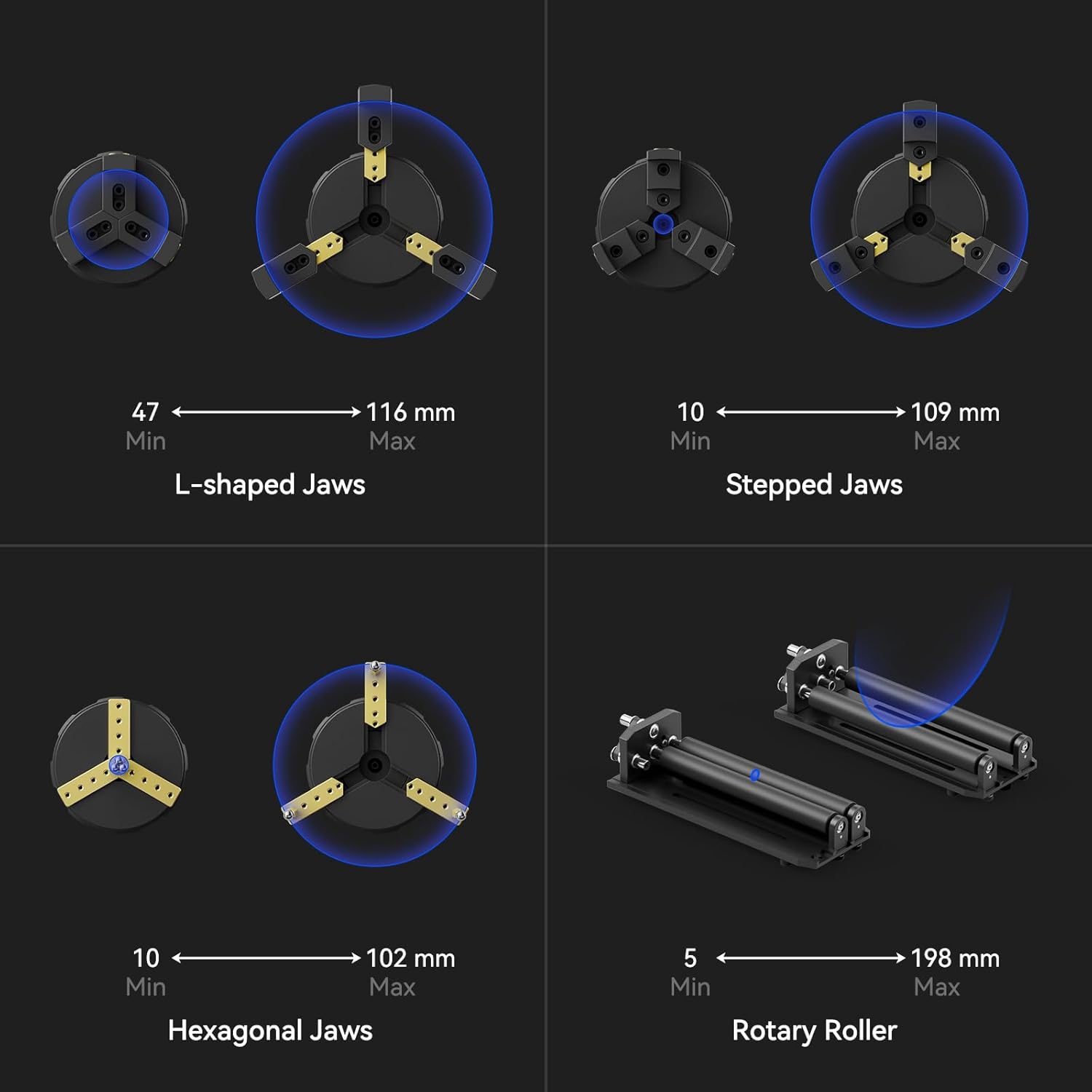
Image 4: Minimum and maximum dimensions for various jaw types and the rotary roller.
10. Waarborg en Ondersteuning
The SCULPFUN RA Pro Max Laser Rotary Roller comes with a standard manufacturer's warranty. For specific warranty details, technical support, or service inquiries, please contact SCULPFUN customer service directly. You can typically find contact information on the official SCULPFUN webwebwerf of deur jou aankoopplatform.