
Inleiding
Welcome to the user manual for your new XIXIMENG R35 Plus Retro Handheld Game Console. This guide provides essential information for setting up, operating, maintaining, and troubleshooting your device to ensure an optimal gaming experience.
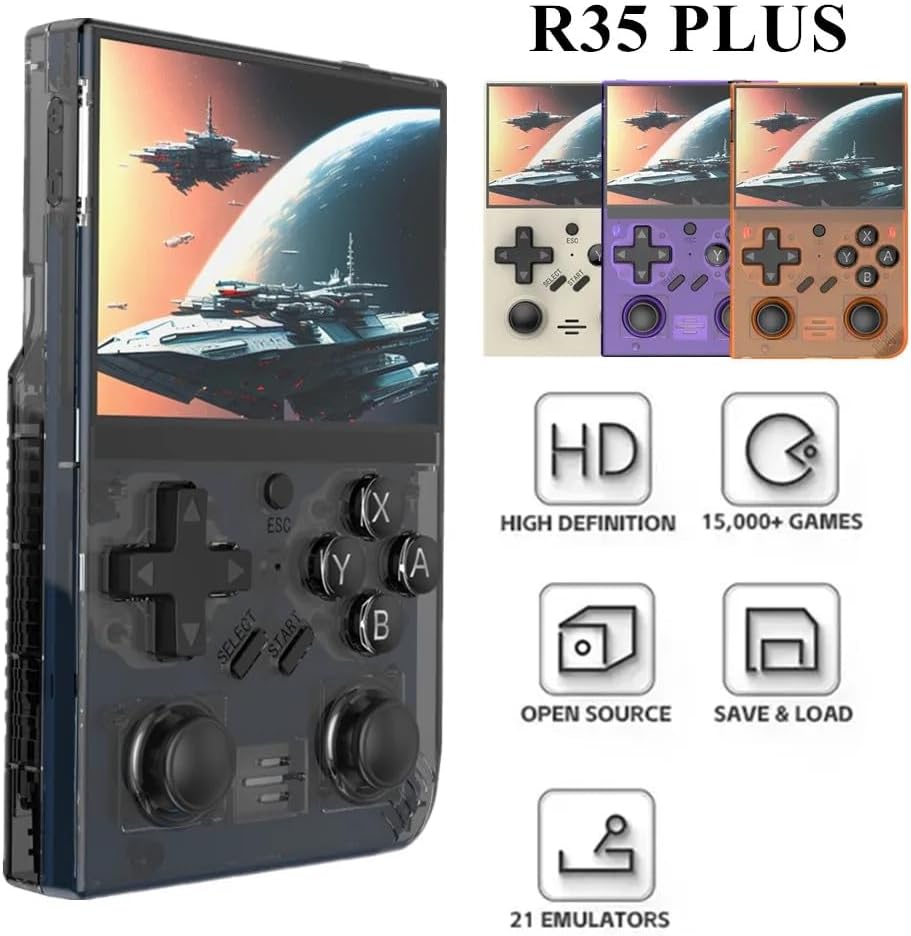
Image: The R35 Plus console showcasindie ontwerp en belangrikste kenmerke daarvan.
Produk verbyview
The R35 Plus is a portable retro gaming console featuring a 3.5-inch IPS screen, a 64-bit quad-core processor, and an open-source system. It comes pre-loaded with over 15,000 games and supports expansion via a TF card. Below is a detailed diagram of the console's buttons and ports.
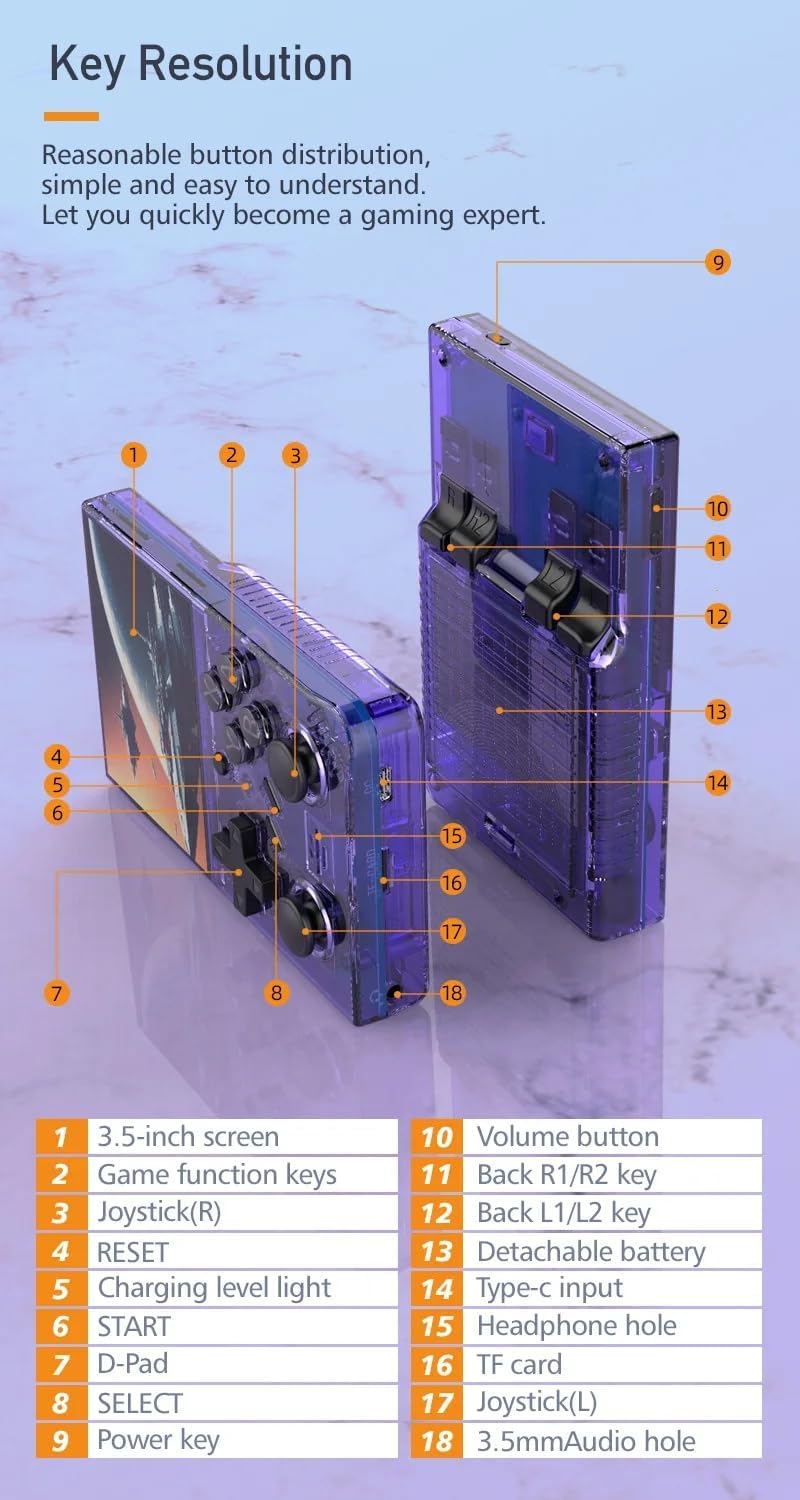
Image: Labeled diagram of the R35 Plus console's controls and ports.
- 3.5 duim skerm
- Game function keys (A, B, X, Y)
- Joystick (Right)
- RESET-knoppie
- Charging level light
- START-knoppie
- D-pad
- SELECT -knoppie
- Aan / uit-sleutel
- Volume knoppie
- Back R1/R2 keys
- Back L1/L2 keys
- Afneembare batterykompartement
- Tipe C-invoerpoort
- Koptelefoongat
- TF-kaartgleuf
- Joystick (Left)
- 3.5mm Audio hole
Opstelling
Charging the Console
Before first use, fully charge the console. Connect the console to a power source using the provided Type-C cable. The charging level light will indicate the charging status. A single full charge provides up to 6 hours of gameplay.

Image: The R35 Plus console's battery compartment and battery.
Invoeging van die TF-kaart
Locate the TF card slot (labeled 16 in the diagram) on the console. Gently insert the pre-loaded TF card or your own compatible TF card into the slot until it clicks into place. Ensure the card is inserted correctly to avoid damage.
Skakel aan/af
To power on, press and hold the Power key (labeled 9 in the diagram) until the screen illuminates. To power off, press and hold the Power key until the shutdown options appear on the screen, then select "Power Off".
Bedryfsinstruksies
Basiese kontroles
The R35 Plus features a D-Pad (labeled 7), dual joysticks (labeled 3 and 17), and action buttons (A, B, X, Y, labeled 2), along with L/L1/R/R1 keys (labeled 11 and 12) on the back for enhanced gameplay.
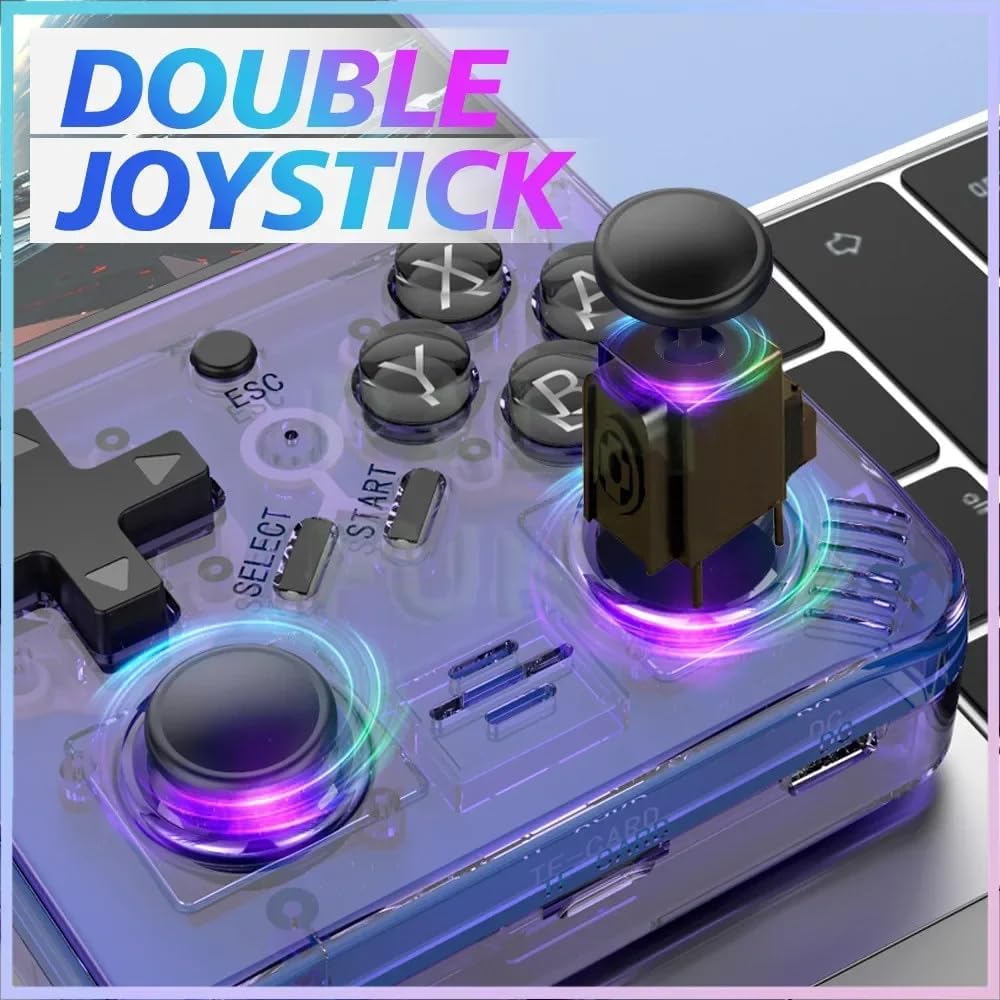
Image: The R35 Plus console's dual joysticks.

Image: The R35 Plus console's crystal buttons.
Navigeer die stelsel
Use the D-Pad or joysticks to navigate through the system menus. The A button typically confirms selections, while the B button cancels or goes back to the previous screen.
Speel Speletjies
Select a game from the main menu. The console supports over 21 emulators, allowing you to play a wide variety of retro titles. Game controls will vary depending on the emulator and game.
Saving and Loading Game Progress
Most emulators on the R35 Plus support save states. Refer to the specific emulator's in-game menu or documentation for instructions on how to save and load your game progress. This often involves a combination of system buttons (e.g., SELECT + START) to access the emulator menu.
Koppel aan eksterne toestelle
The console includes a 3.5mm audio jack (labeled 15 and 18 in the diagram) for connecting headphones or external speakers, allowing for private listening or enhanced audio experience.
Onderhoud
Skoonmaak
Use a soft, dry, lint-free cloth to clean the console's exterior. Avoid using liquid cleaners, solvents, or abrasive materials, as these can damage the finish or internal components.
Berging
Store the console in a cool, dry place away from direct sunlight, extreme temperatures, and high humidity. When not in use for extended periods, it is recommended to store it in its original packaging or a protective case.
Battery sorg
To prolong battery life, avoid fully discharging the battery frequently. Charge the console regularly, even if not in use for extended periods. Do not expose the battery to extreme heat or puncture it.
Probleemoplossing
Konsole skakel nie aan nie
- Ensure the battery is charged. Connect the console to a power source using the Type-C cable and allow it to charge for at least 30 minutes before attempting to power on again.
- Try a different Type-C cable and power adapter to rule out faulty accessories.
Games Not Loading or Crashing
- Verify that the TF card is properly inserted into its slot. Remove and reinsert it firmly.
- Kontroleer of die spel files are corrupted or incompatible with the installed emulators. Try loading other games to isolate the issue.
- Ensure the console's firmware is up to date, if applicable.
Screen Issues (e.g., unresponsive, flickering)
- Probeer om die konsole weer te begin.
- Maak seker dat die skerm skoon en vry van fisiese skade is.
- As die probleem voortduur, kontak kliëntediens.
Spesifikasies
| Kenmerk | Detail |
|---|---|
| Skerm grootte | 3.5 duim |
| Resolusie | 640 x 480 |
| Stelsel | Open Source, 64-bit Quad-Core Processor |
| Ingeboude speletjies | 15000+ |
| TF Kaart Uitbreiding | Up to 64GB (15000+ games) |
| Ondersteunde emulators | 21 |
| Battery kapasiteit | 3000mAh |
| Batterylewe | Tot 6 uur |
| Laaipoort | Tipe-C |
| Oudio poort | 3.5 mm koptelefoonaansluiting |
| Kontroles | D-Pad, Dual Joysticks, A/B/X/Y Buttons, L/L1/R/R1 Buttons |
| Produk afmetings | 6.37 x 1.41 x 5.5 duim |
| Item gewig | 3.2 onse |
| Materiaal | Plastiek |
Ondersteuningsinligting
For further assistance, technical support, or warranty inquiries, please refer to the manufacturer's official website or contact their customer service directly. Please have your product model and ASIN gereed wanneer u ondersteuning kontak.
- Vervaardiger: XIXIMENG
- Model: R35 Plus
- ASIN: B0D25ZFGS9