
1. oorview
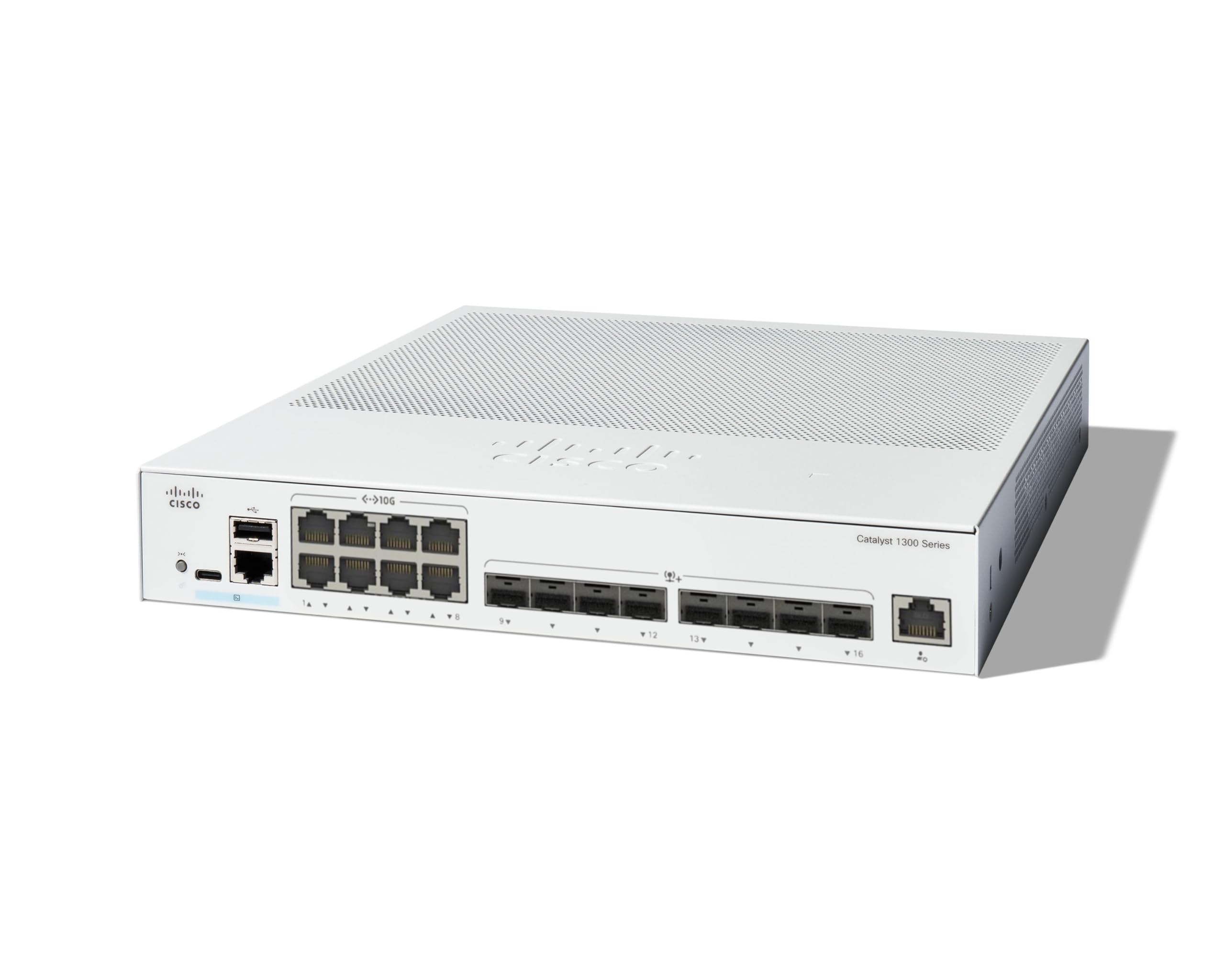
The Cisco Catalyst 1300-16XTS is a fully managed switch designed to provide reliable and secure connectivity for small business networks. This switch offers full Layer 2/3 capabilities, an intuitive web dashboard, advanced networking features, and Power over Ethernet Plus (PoE+) support.
Sleutel kenmerke sluit in:
- Skakel poorte: 8 ports 10G Copper + 8x 10GE SFP+ ports + 1x GE Management Port.
- Vereenvoudigde bestuur: Intuïtiewe Cisco Business mobiele toepassing en plaaslike web interface for setup, management, and monitoring.
- Verbeterde sekuriteit: IP-MAC port binding and IPv6 First Hop Security for network protection.
- Energiedoeltreffendheid: Optimizes power usage, compliant with IEEE 802.3az Energy Efficient Ethernet.
- Business Ready: No subscription or licenses required, includes limited lifetime hardware warranty and complimentary 1-year technical support.
2. Pakketinhoud
Verifieer dat jou pakket die volgende items bevat:
- Cisco Catalyst 1300-16XTS Managed Switch unit
- Kragkabel of adapter
- USB Tipe C-kabel
- Monteer hardeware
Indien enige items ontbreek of beskadig is, kontak asseblief u verskaffer of Cisco-ondersteuning.
3. Opstelling
Follow these steps to set up your Cisco Catalyst 1300-16XTS Managed Switch:
- Koppel krag: Connect the power adapter to the switch's power input and then plug the power cord into an electrical outlet. Ensure the power LED on the switch illuminates.
- Koppel aan router/netwerk: Use an Ethernet cable to connect one of the switch's 10G copper ports (or SFP+ ports with appropriate transceivers) to your router or existing network infrastructure.
- Koppel toestelle: Connect your network devices (e.g., computers, servers, wireless access points) to the remaining available ports on the switch.
- Initial Configuration (Mobile App):
- Laai die Cisco Business-mobiele toepassing van jou toestel se toepassingswinkel af.
- Launch the app and follow the on-screen instructions to create your site and add your switch.
- The app will guide you through basic configuration, including setting up site credentials and adding wired/wireless devices.
- Initial Configuration (Web UI): Alternatively, you can access the switch's web-gebaseerde gebruikerskoppelvlak (Web UI) by connecting a computer directly to the switch and navigating to its default IP address (refer to the Quick Start Guide for details).

4. Bedryfsinstruksies
Once the switch is powered on and connected, it will begin forwarding network traffic. For advanced configuration and monitoring, use the following tools:
- Cisco Business Mobiele Toepassing: Provides real-time monitoring of device status, network activity, and connected clients. It also allows for basic actions like rebooting devices and upgrading firmware.
- Web Gebruikerskoppelvlak (Web UI): Offers comprehensive configuration options for all Layer 2/3 features, including VLANs, QoS, security settings, and port management.
- Cisco Besigheidsdashboard: For managing multiple Cisco Business devices across different sites, the Dashboard provides a centralized platform for monitoring, configuration, and troubleshooting.
Refer to the detailed documentation available via the QR code on the product packaging or the Cisco support website for in-depth configuration guides.
5. Onderhoud
To ensure optimal performance and longevity of your Cisco Catalyst 1300-16XTS switch, consider the following maintenance practices:
- Firmware -opdaterings: Regularly check for and apply the latest firmware updates to benefit from new features, performance improvements, and security patches.
- Omgewingstoestande: Ensure the switch is operated within its specified temperature and humidity ranges. Avoid placing it in direct sunlight or near heat sources.
- Fisiese inspeksie: Periodically inspect the switch for any physical damage, loose cables, or excessive dust accumulation. Clean vents and ports as needed to maintain proper airflow.
- Rugsteunkonfigurasie: Rugsteun gereeld jou skakelaarkonfigurasie om dataverlies in geval van onverwagte probleme te voorkom.
6. Probleemoplossing
If you encounter issues with your switch, try these basic troubleshooting steps:
- Geen krag: Verify that the power cord is securely connected to both the switch and the electrical outlet. Check the power adapter and outlet for functionality.
- Geen netwerkverbinding:
- Check the Ethernet cables connecting devices to the switch and the switch to the router. Ensure they are securely plugged in and not damaged.
- Observe the link/activity LEDs on the switch ports. A solid green or amber light typically indicates a valid connection, while a blinking light indicates activity. No light may suggest a cable or device issue.
- Verifieer IP-adresinstellings op gekoppelde toestelle en die skakelaar.
- Stadige prestasie:
- Check for excessive network traffic or loops using the switch's management interface.
- Ensure all devices are connected at their optimal speed (e.g., 10G devices to 10G ports).
- Consider updating firmware.
- Toegang tot Bestuurskoppelvlak: As jy nie toegang tot die Web UI or mobile app, ensure your device is on the same network segment as the switch or connected directly. Verify the switch's IP address.
For more complex issues, refer to the comprehensive troubleshooting guides on the Cisco support webwebwerf of kontak tegniese ondersteuning.
7. Spesifikasies
| Kenmerk | Detail |
|---|---|
| Handelsmerk | Cisco |
| Modelnommer | C1300-16XTS |
| Aantal poorte | 16 (8x 10G Copper, 8x 10GE SFP+) + 1x GE Management Port |
| Data-oordragtempo | 80 Gigabit per sekonde |
| Skakel Tipe | Bestuurde netwerkskakelaar |
| Koppelvlak | PoE, SFP |
| Itemafmetings (L x B x H) | 10.55 cm L x 11.81 cm B x 1.73 cm H |
| Item gewig | 3.6 kilogram |
| Tipe Materiaal van die omhulsel | Koper |
| UPC | 889728521482 |
8. Waarborg en Ondersteuning
The Cisco Catalyst 1300-16XTS Managed Switch comes with a Beperkte Lewenslange Hardewarewaarborg, which includes return-to-factory replacement. Additionally, you receive 1-year complimentary phone support to the Small Business Support Center.
For technical assistance, warranty claims, or to access additional resources, please visit the official Cisco support website or contact the Small Business Support Center.