
Spedal CL797
Spedal CL797 2-in-1 Wireless CarPlay & Android Auto Adapter User Manual
Model: CL797
1. Inleiding
The Spedal CL797 2-in-1 Wireless CarPlay & Android Auto Adapter converts your vehicle's existing wired CarPlay or Android Auto system into a wireless connection. This device allows for seamless integration of your smartphone's features, including navigation, music, and communication, directly onto your car's infotainment display without the need for physical cables. Enjoy enhanced convenience and a clutter-free driving experience.

Figure 1: The Spedal CL797 adapter, showcasing its 2-in-1 wireless CarPlay and Android Auto capabilities.

Figure 2: The compact and lightweight design of the Spedal CL797 adapter, shown next to a smartphone for scale.
2. Pakketinhoud
Verifieer dat alle items in die pakket teenwoordig is:
- Wireless Adapter (Spedal CL797)
- USB-A Data Cable
- USB-C datakabel
- Gebruikershandleiding

Figure 3: Contents of the Spedal CL797 package, including the wireless adapter, USB-A cable, USB-C cable, and user manual.
3. Spesifikasies
| Kenmerk | Detail |
|---|---|
| Produk afmetings | 2.17 x 1 x 3.14 duim |
| Item gewig | 2.46 onse |
| Modelnommer | CL797 |
| Verbindingstegnologie | USB |
| Draadlose kommunikasie standaard | Bluetooth |
| Ondersteun Bluetooth-tegnologie | Ja |
| Eerste Beskikbare Datum | 31 Maart 2024 |
4. Verenigbaarheid
The Spedal CL797 adapter is designed for vehicles equipped with factory-installed wired CarPlay or Android Auto systems. It is compatible with a wide range of car models from 2017 onwards.
4.1. Wireless CarPlay Compatibility
- Supports iPhone 6 or above.
- Vereis iOS 10 of hoër.
4.2. Wireless Android Auto Compatibility
- Supports phones with Android 11 or above.
- Some Samsung and Google phones with Android 10 and Android 9 are also supported.
- Note: Huawei devices may not be compatible.

Figure 4: Visual representation of the Spedal CL797's wide compatibility with various car brands and smartphone operating systems.
4.3. Vehicle Compatibility Charts
For detailed compatibility lists, please refer to the official CarPlay and Android Auto websites. Below are videos demonstrating how to check compatibility.
Video 1: This video demonstrates how to check CarPlay compatibility for various car models. It provides a visual guide to ensure your vehicle supports wired CarPlay, which is a prerequisite for using the Spedal CL797 adapter.
Video 2: This video illustrates how to verify Android Auto compatibility for different car models. It guides users through the process of confirming their vehicle's wired Android Auto support, essential for the Spedal CL797 adapter's functionality.
5. Opstelinstruksies
Follow these steps for initial setup of your Spedal CL797 adapter:
- Koppel die adapter: Plug the Spedal CL797 wireless adapter into your car's USB or USB-C port using the provided data cable. Ensure your car's infotainment system is turned on.
- Activate Phone's Wireless Features: On your smartphone, enable both Wi-Fi and Bluetooth.
- Koppel met Bluetooth: Soek vir the Bluetooth device named "smartBox-****" (the asterisks represent a unique identifier) in your phone's Bluetooth settings. Select it and confirm the pairing request. Grant any necessary permissions for contacts and notifications.
- Outomatiese verbinding: After successful pairing, the adapter will automatically connect to your car's infotainment system, and the CarPlay or Android Auto interface will appear on your car's screen within a few seconds.

Figure 5: A visual guide illustrating the three easy steps for setting up the Spedal CL797 adapter: Plug, Bluetooth Pair, and Use.

Figure 6: Detailed steps on connecting the wireless adapter to your car's USB port, activating Wi-Fi and Bluetooth on your smartphone, and pairing the devices.
5.1. Android Auto Connection Video Guide
Video 3: A step-by-step video guide on how to connect your Android smartphone to your car's infotainment system wirelessly using the Spedal CL797 adapter.
5.2. Apple CarPlay Connection Video Guide
Video 4: This video provides a visual walkthrough of connecting your Apple iPhone to your car's infotainment system wirelessly via the Spedal CL797 adapter.
6. Bedryfsinstruksies
6.1. Outomatiese herverbinding
Once the initial pairing is complete, the Spedal CL797 adapter will automatically reconnect to your smartphone when you start your car. This process typically takes 5-10 seconds, providing a seamless transition to your wireless CarPlay or Android Auto interface.
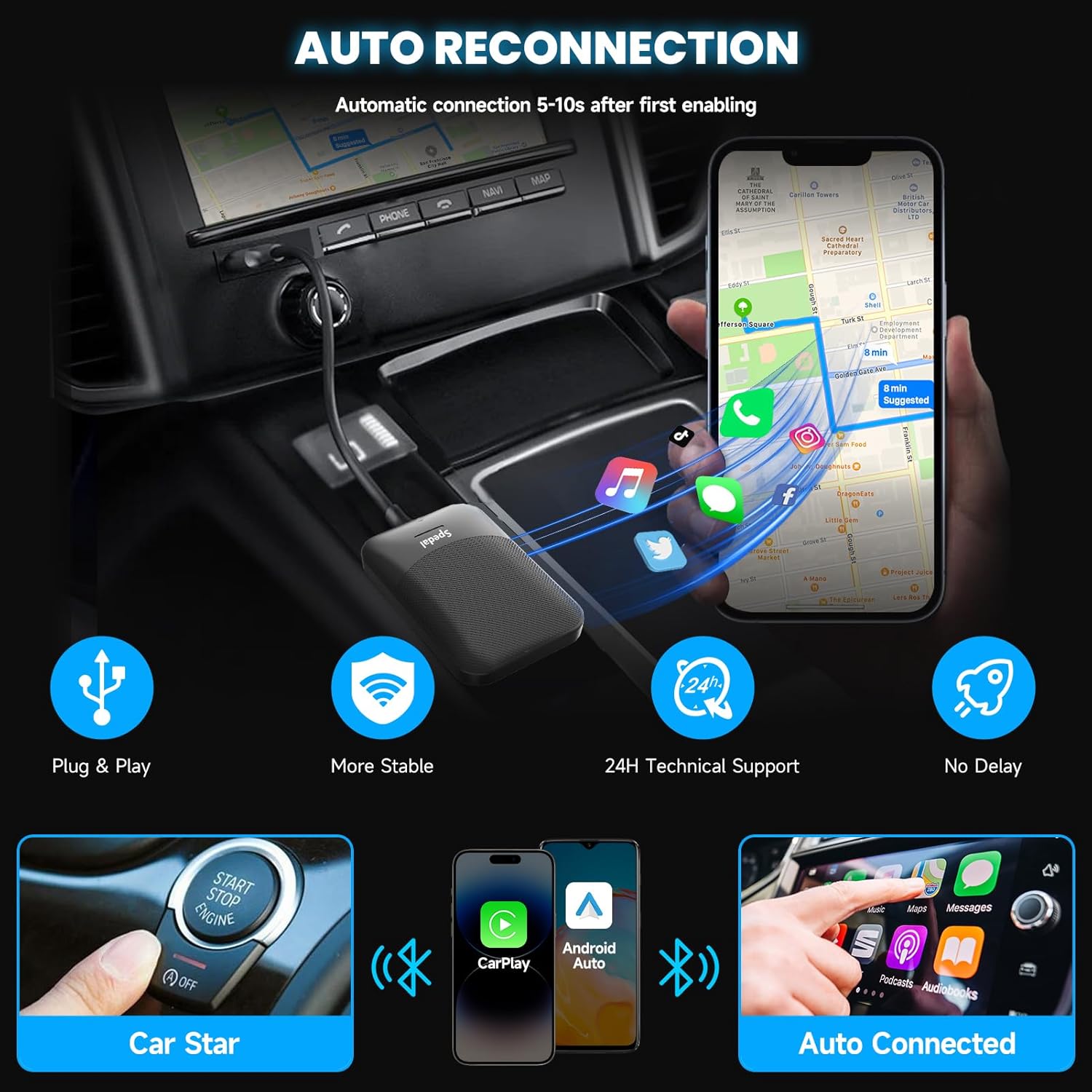
Figure 7: Illustration of the automatic reconnection feature, showing the adapter connecting to a smartphone and displaying CarPlay on the car screen after the car starts.

Figure 8: The auto-reconnect function ensures that after the first pairing, the adapter automatically connects for subsequent uses, displaying Apple CarPlay.
6.2. Supported Applications
The adapter supports all original CarPlay and Android Auto applications, allowing you to access navigation, music, phone calls, and messages directly from your car's display.

Figure 9: Display of various supported applications within CarPlay and Android Auto, including navigation, music, phone calls, and messages.
6.3. Stembeheer
Utilize your car's voice assistant (Siri for CarPlay, Google Assistant for Android Auto) for hands-free control. This feature enhances driving safety by allowing you to manage navigation, make calls, and play music using voice commands.

Figure 10: A driver using voice commands like "Hey Siri" or "Hey Google" to control functions, emphasizing safe driving with the Spedal CL797 adapter.
6.4. Original Car Control Retention
The Spedal CL797 adapter maintains compatibility with your vehicle's original control methods, including steering wheel controls, touch screen, and OEM knob controls, for a familiar user experience.

Figure 11: Demonstrates how the Spedal CL797 adapter allows users to retain original car controls such as steering wheel buttons, touch screen, and OEM knobs for interacting with CarPlay/Android Auto.

Figure 12: This image highlights the seamless integration of the Spedal CL797 with existing car controls, including steering wheel, touch screen, and OEM knob, along with voice assistant support.
7. Probleemoplossing
If you encounter issues with your Spedal CL797 adapter, refer to the following common problems and solutions:
- No Connection / Device Not Recognized:
- Ensure the adapter is securely plugged into the car's USB port.
- Verify that your car's wired CarPlay/Android Auto system is active.
- Check if your phone's Wi-Fi and Bluetooth are enabled.
- Herbegin jou motor se inligtingstelsel en jou slimfoon.
- Try a different USB port in your vehicle, if available.
- Intermittent Connection / Disconnections:
- Ensure there are no other Bluetooth devices interfering with the connection.
- Check for any software updates for your car's infotainment system or your smartphone.
- If the issue persists, try re-pairing the device by forgetting the Bluetooth connection on your phone and repeating the setup steps.
- Audio or Call Quality Issues:
- Adjust the volume settings on both your car's system and your smartphone.
- Ensure your phone is not connected to multiple Bluetooth audio devices simultaneously.
- If experiencing echoes or low volume during calls, check your phone's audio output settings.
- Lag or Delay in Response:
- Ensure your smartphone has a stable Wi-Fi connection (used for data transfer, even if Bluetooth initiates the connection).
- Close unnecessary applications running in the background on your smartphone.
- A slight delay is normal for wireless connections compared to wired, but significant lag may indicate an issue.
- "Password" Prompt During Pairing:
- The adapter typically does not require a password. If prompted, try entering "0000" or "1234". If this does not work, ensure you are selecting the correct Bluetooth device ("smartBox-****") and consult customer support.
8. Onderhoud
To ensure the longevity and optimal performance of your Spedal CL797 adapter, follow these maintenance guidelines:
- Hou skoon: Wipe the adapter with a soft, dry cloth to remove dust and debris. Avoid using liquid cleaners or abrasive materials.
- Vermy uiterste temperature: Do not expose the device to extreme heat or cold, as this can affect its internal components.
- Behoorlike berging: When not in use for extended periods, store the adapter in a cool, dry place away from direct sunlight.
- Hanteer versigtig: Vermy om die toestel te laat val of om dit aan sterk impakte te onderwerp.
- Sagteware-opdaterings: Kontroleer die vervaardiger se gereeld website or contact customer support for any available software updates for the adapter, which can improve performance and compatibility.
9. Waarborg en ondersteuning
Spedal offers comprehensive support for its products:
- Online Response: 24-hour online response for inquiries.
- Retourbeleid: 30-dae terugkeerbeleid.
- Produk waarborg: 12-month product warranty.
Tegniese Ondersteuning
For technical assistance, software updates, or any other support needs, please contact Spedal customer service.
Kontak e-pos: support@spedaltech.com

Figuur 13: oorview of Spedal's customer support, including 24-hour online response, 30-day return policy, and 12-month product warranty.