
1. Inleiding
Thank you for choosing the Mecer 23.8 Inch Full HD LED Monitor. This manual provides essential information for setting up, operating, and maintaining your monitor. Please read it thoroughly before use to ensure proper functionality and longevity of your device.
This monitor features a 23.8-inch Full HD (1920 x 1080) display, offering crisp and clear visuals. It incorporates TFT LED panel technology for energy efficiency and vibrant colors, with a 16:9 aspect ratio suitable for widescreen viewing. Connectivity options include VGA and HDMI, making it compatible with various devices. Built-in speakers provide basic audio, and wide 178° viewing angles ensure comfortable use. With a 2ms response time, it is suitable for general computing and multimedia consumption.
2. Veiligheidsinligting
- Kragbron: Gebruik slegs die kragadapter wat saam met die monitor voorsien word. Maak seker dat die kragaansluiting behoorlik geaard is.
- Ventilasie: Moenie ventilasie-openinge blokkeer nie. Laat voldoende spasie rondom die monitor vir behoorlike lugvloei om oorverhitting te voorkom.
- Plasing: Place the monitor on a stable, flat surface. Avoid placing it in direct sunlight, near heat sources, or in environments with excessive dust or humidity.
- Skoonmaak: Disconnect the power cord before cleaning. Use a soft, dry cloth for the screen and a slightly damp cloth for the casing. Vermy die gebruik van skuurmiddels of oplosmiddels.
- Vloeistofblootstelling: Keep liquids away from the monitor. If liquid enters the monitor, disconnect power immediately and contact qualified service personnel.
- demontage: Moenie probeer om die monitor self uitmekaar te haal of te herstel nie. Verwys alle diens na gekwalifiseerde dienspersoneel.
3. Pakketinhoud
Kontroleer asseblief die inhoud van die pakket om seker te maak dat alle items teenwoordig is:
- Mecer 23.8 Inch LED Monitor
- Monitorstaander (basis en nek)
- Kragadapter en kabel
- HDMI kabel
- VGA-kabel
- Gebruikershandleiding (hierdie dokument)
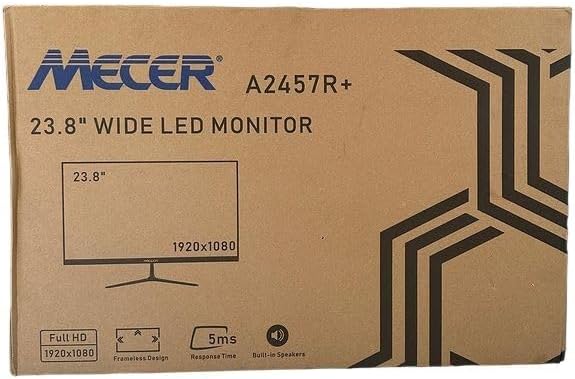
Prent 3.1: The monitor packaging box, indicating the model A2457R+ and key features like 23.8" display, Full HD 1920x1080 resolution, frameless design, 5ms response time, and built-in speakers.
4. Opstelling
4.1. Montering van die monitorstaander
- Verwyder die monitor- en staanderkomponente versigtig uit die verpakking.
- Heg die staandernek aan die monitorpaneel vas deur die lippe in lyn te bring en stewig te druk totdat dit in plek klik.
- Attach the stand base to the stand neck, securing it with the provided screw (usually hand-tightened).
- Plaas die gemonteerde monitor op 'n stabiele, plat oppervlak.

Prent 4.1: Voorkant view of the Mecer 23.8 Inch LED Monitor with its stand assembled, ready for connection.
4.2. Koppel aan 'n rekenaar
The monitor supports both HDMI and VGA connections. Choose the appropriate cable for your computer.
- HDMI-verbinding: Connect one end of the HDMI cable to the HDMI port on your computer's graphics card and the other end to the HDMI port on the monitor. HDMI transmits both video and audio signals.
- VGA-verbinding: Connect one end of the VGA cable to the VGA port on your computer's graphics card and the other end to the VGA port on the monitor. VGA transmits only video signals.

Prent 4.2: Agter view of the Mecer 23.8 Inch LED Monitor, showing the input ports including HDMI and VGA, as well as the power input.
4.3. Kragverbinding
- Connect the power adapter cable to the DC IN port on the back of the monitor.
- Steek die kragadapter in 'n muuraansluiting.
5. Bedryfsinstruksies
5.1. Skakel aan/af
Press the power button, typically located on the bottom right side or rear of the monitor, to turn the monitor on or off. The power indicator light will illuminate when the monitor is on.
5.2. Invoerbronkeuse
If you have multiple devices connected, you may need to manually select the input source. Use the monitor's control buttons (usually located near the power button) to navigate to the input selection menu and choose between HDMI or VGA.
5.3. On-Screen Display (OSD)-kieslys
The OSD menu allows you to adjust various display settings. Use the monitor's control buttons to:
- Gaan na die OSD -kieslys.
- Navigate through menu options (e.g., Brightness, Contrast, Color Settings, Input Source).
- Adjust values or select options.
- Verlaat die OSD-kieslys.
Algemene verstelbare instellings sluit in:
- Helderheid/kontras: Pas die algehele helderheid en die verskil tussen ligte en donker areas aan.
- Kleurinstellings: Adjust color temperature, RGB values, or select preset color modes.
- Aspekverhouding: Change between 16:9, 4:3, or other available options.
- Oudio: Adjust volume for the built-in speakers.
5.4. Ingeboude luidsprekers
The monitor includes built-in speakers for basic audio output. If using an HDMI connection, audio will be transmitted automatically. For VGA connections, ensure your computer's audio output is configured correctly. Adjust the volume through the OSD menu or your computer's operating system.
6. Onderhoud
6.1. Skoonmaak van die monitor
- Ontkoppel altyd die monitor van die kragtoevoer voordat u dit skoonmaak.
- Skerm: Vee die skerm liggies af met 'n sagte, pluisvrye lap. Vir hardnekkige merke, vee liggiesampen the cloth with water or a specialized screen cleaner (ensure it's alcohol-free and ammonia-free) and wipe carefully. Do not spray liquid directly onto the screen.
- Casing: Gebruik 'n sagte, droë lap om die monitor af te veeasing. Indien nodig, 'n effense damp 'n Lap kan gebruik word, gevolg deur 'n droë lap.
6.2. Berging
Indien die monitor vir 'n lang tydperk gestoor word, ontkoppel alle kabels, pak dit in sy oorspronklike verpakking (indien beskikbaar) en bêre dit op 'n koel, droë plek weg van direkte sonlig en uiterste temperature.
7. Probleemoplossing
As jy probleme met jou monitor ondervind, raadpleeg die volgende algemene probleme en oplossings:
- Geen krag:
- Maak seker dat die kragkabel stewig aan die monitor en die muursok gekoppel is.
- Verifieer dat die kragpunt funksioneer deur 'n ander toestel aan te sluit.
- Check if the power adapter is working correctly.
- Geen sein:
- Maak seker dat die videokabel (HDMI of VGA) stewig aan beide die monitor en die rekenaar gekoppel is.
- Verify that the correct input source is selected on the monitor (via the OSD menu).
- Check if your computer is powered on and outputting a video signal.
- Try a different video cable if available.
- Beeld is vaag of verwring:
- Maak seker dat die monitor se resolusie op sy oorspronklike resolusie (1920 x 1080) in jou rekenaar se skerminstellings gestel is.
- Adjust the monitor's OSD settings for brightness, contrast, and sharpness.
- For VGA connections, use the 'Auto Adjust' function in the OSD menu if available.
- Geen klank van ingeboude luidsprekers nie:
- Maak seker dat die monitor se volume nie gedemp of te laag gestel is in die OSD-kieslys nie.
- Gaan jou rekenaar se klankuitvoerinstellings na om seker te maak dat die monitor as die terugspeeltoestel gekies is.
- If using VGA, ensure your computer's audio is routed to an external speaker system, as VGA does not carry audio.
8. Spesifikasies
| Kenmerk | Spesifikasie |
|---|---|
| Handelsmerk | Mecer |
| Modelnommer | A2457R+ |
| Vertoon grootte | 23.8 duim |
| Resolusie | 1920 x 1080 piksels (Vol HD) |
| Tipe vertoon | LED (TFT LED Panel) |
| Aspekverhouding | 16:9 |
| Reaksie Tyd | 2 millisekondes |
| Herlaaitempo | 75 Hz |
| Viewing Hoeke | 178° Horisontaal / 178° Vertikaal |
| Konnektiwiteit | 1x HDMI, 1x VGA |
| Ingeboude luidsprekers | Ja |
| Kleur | Swart |
| Produk Afmetings (D x B x H) | 560D x 42W x 410H millimetres |
| Spesiale kenmerke | High performance intelligent multi-frequency scanning, Micro Computer digital technology control, no radiation, no glare, Comply with VESA DPMS international power saving regulation, Support DDC 1/2B and Windows PNP Plug and Play |
9. Waarborg en Ondersteuning
This Mecer monitor comes with a 1 jaar beperkte waarborg vanaf die aankoopdatum. Bewaar asseblief u bewys van aankoop vir waarborgeise.
For technical support, service, or warranty inquiries, please contact your retailer or the authorized Mecer service center in your region. Do not attempt to repair the product yourself, as this may void your warranty.