
Natec SH4F
Natec FURY SHOBO SH4F RGB MIDI TOWER PC-kas Gebruikershandleiding
Model: SH4F | Brand: Natec
1. Inleiding
Welcome to the user manual for your Natec FURY SHOBO SH4F RGB MIDI TOWER PC Case. This guide provides essential information for the proper assembly, installation, operation, and maintenance of your new computer chassis. Please read this manual thoroughly before beginning installation to ensure optimal performance and longevity of your components.
2. Veiligheidsriglyne
- Ontkoppel altyd die kragtoevoer van die muursok voordat u enige komponente binne die rekenaarkas installeer of verwyder.
- Handle components with care to avoid damage from electrostatic discharge (ESD). Consider using an anti-static wrist strap.
- Keep small parts, such as screws, away from children.
- Verseker behoorlike ventilasie rondom die rekenaarkas om oorverhitting te voorkom.
- Do not expose the case to extreme temperatures, humidity, or direct sunlight.
- Avoid placing heavy objects on top of the case.
3. Pakketinhoud
Verifieer asseblief dat alle items in u pakket teenwoordig is:
- Natec FURY SHOBO SH4F RGB MIDI TOWER PC Case
- Accessory box (containing screws, cable ties, and other small parts)
- Gebruikershandleiding (hierdie dokument)
4. Produk verbyview
The Natec FURY SHOBO SH4F is a MIDI TOWER PC case designed for gaming and general-purpose computing, offering ample space for components and efficient cooling. It features a modern design with RGB lighting.
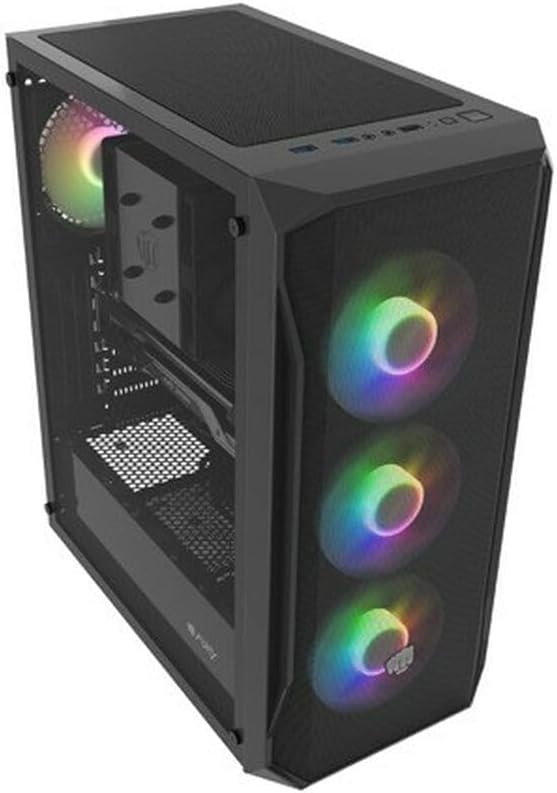
Figuur 4.1: 'n Hoekige view of the Natec FURY SHOBO SH4F RGB MIDI TOWER PC Case, showcasing its black metal and tempered glass construction. The front panel features a mesh design with three illuminated RGB fans, and a single RGB fan is visible at the rear exhaust. The top panel includes I/O ports and a mesh filter.
4.1 Voorste I/O-paneel
- Kragknoppie
- Herstel-knoppie
- USB 2.0-poort (x1)
- Oudio-aansluitings (koptelefoon/mikrofoon)
- RGB Control Button (if applicable)
4.2 Interne uitleg
The case supports Micro ATX and Mini ATX motherboards and features a bottom-mounted power supply bay. It includes dedicated areas for storage drives and efficient cable management.
5. Setup and Component Installation
Follow these steps to install your PC components into the FURY SHOBO SH4F case.
5.1 Voorbereiding van die Saak
- Plaas die kas op 'n plat, stabiele oppervlak.
- Remove the side panels. Typically, the tempered glass side panel is secured with thumbscrews.
5.2 Moederbord installasie
- Install the I/O shield (if not pre-installed on your motherboard) into the rear opening of the case.
- Ensure the motherboard standoffs are correctly aligned for your Micro ATX or Mini ATX motherboard. Adjust or install additional standoffs if necessary.
- Plaas die moederbord versigtig op die afstandhouers en belyn die skroefgate.
- Secure the motherboard with the provided screws. Do not overtighten.
5.3 Kragtoevoerinstallasie
- Locate the power supply bay at the bottom rear of the case.
- Slide your power supply unit (PSU) into the bay from the rear of the case, ensuring the fan faces downwards (if the case has a bottom vent) or upwards.
- Bevestig die PSU met skroewe van die agterkant van die kas.
5.4 Installasie van stoorskyf
Refer to your case's specific drive bay design for 2.5" SSDs and 3.5" HDDs. Typically, these involve trays or direct screw mounting.
5.5 Expansion Card Installation (e.g., Graphics Card)
- Verwyder die nodige PCI-E-gleufdeksels van die agterkant van die kas.
- Insert your expansion card into the corresponding PCI-E slot on the motherboard.
- Secure the card with a screw or the case's retention mechanism.
5.6 Kabelbestuur
Gebruik die uitsparings en vasmaakpunte agter die moederbordbak om kabels te lei en vas te maak. Dit verbeter lugvloei en estetika.
5.7 Connecting RGB Fans
The pre-installed RGB fans typically connect to a central RGB controller or directly to your motherboard's RGB headers. Consult your motherboard manual for specific RGB header locations and software control. Ensure all fan power cables are connected to appropriate fan headers on the motherboard or a fan hub.
6. Bediening van jou rekenaarkas
6.1 Aan-/afskakel
After all components are installed and cables connected, plug your power supply into a wall outlet. Press the power button on the front I/O panel to turn on your system. To turn off, use the operating system's shutdown function or press and hold the power button for several seconds.
6.2 RGB-beligtingsbeheer
If your case features an RGB control button on the front I/O panel, press it to cycle through various lighting modes and colors. For advanced customization, use your motherboard's RGB software (e.g., ASUS Aura Sync, MSI Mystic Light, Gigabyte RGB Fusion) if the fans are connected to compatible headers.
7. Onderhoud
Gereelde onderhoud help om optimale werkverrigting te verseker en verleng die lewensduur van jou rekenaarkomponente.
7.1 Skoonmaak van die stoffilter
The FURY SHOBO SH4F case includes dust filters (e.g., on the top and bottom). Periodically remove and clean these filters by rinsing them with water and allowing them to dry completely before re-installing. This prevents dust buildup and maintains airflow.
7.2 Buite Skoonmaak
Vee die buitekant van die kas af met 'n sagte, damp lap. Vermy skuurmiddels of oplosmiddels wat die afwerking of geharde glas kan beskadig.
8. Probleemoplossing
Indien u probleme ondervind, raadpleeg die volgende algemene stappe vir probleemoplossing:
- Geen krag: Ensure the power supply is properly connected to the wall outlet and the motherboard. Check all internal power cables (24-pin ATX, 8-pin CPU, GPU power). Verify the power button cable is correctly connected to the motherboard's front panel header.
- Waaiers draai nie: Check if fan power cables are securely connected to the motherboard or fan hub. Ensure the power supply is functioning.
- RGB-beligting werk nie: Verify RGB cables are correctly connected to the RGB controller or motherboard header. If using a button, try cycling through modes. If using software, ensure it's installed and configured correctly.
- Oorverhitting: Ensure all fans are spinning correctly and oriented for proper airflow (intake/exhaust). Clean dust filters and internal components. Verify CPU cooler and GPU cooler are properly installed.
9. Spesifikasies
| Handelsmerk | Natec |
| Reeks | SH4F |
| Modelnommer | NFO-2154 |
| Soort saak | Midi-toring |
| Moederbordversoenbaarheid | Micro ATX, Mini ATX |
| Kleur | Swart |
| Materiaal | Metaal |
| Produkafmetings (LxBxH) | 19.69 x 16.93 x 9.84 duim (50 x 43 x 25 cm) |
| Item gewig | 9.46 pond (4.3 kilogram) |
| Kragtoevoer Monteringstipe | Onderste berg |
| Verkoelingsmetode | Lug |
| Aantal USB 2.0-poorte | 1 |
10. Waarborg en Ondersteuning
Natec products are manufactured to high-quality standards. For information regarding warranty terms and conditions, please refer to the warranty card included with your product or visit the official Natec website. If you encounter any issues not covered in this manual or require further assistance, please contact Natec customer support through their official channels.
Vervaardiger: Natec