
Inleiding
The ZEBRONICS Z310 NVMe Micro-ATX Motherboard is designed for modern computing needs, supporting Intel 6th, 7th, 8th, and 9th Generation Processors with an LGA 1151 socket. It features DDR4 memory support up to 2666 MHz, an NVMe M.2 slot, 5.1 channel audio, and various connectivity options including USB 3.0, SATA, RJ45 LAN, and HDMI. This manual provides essential information for the proper installation, operation, and maintenance of your motherboard.
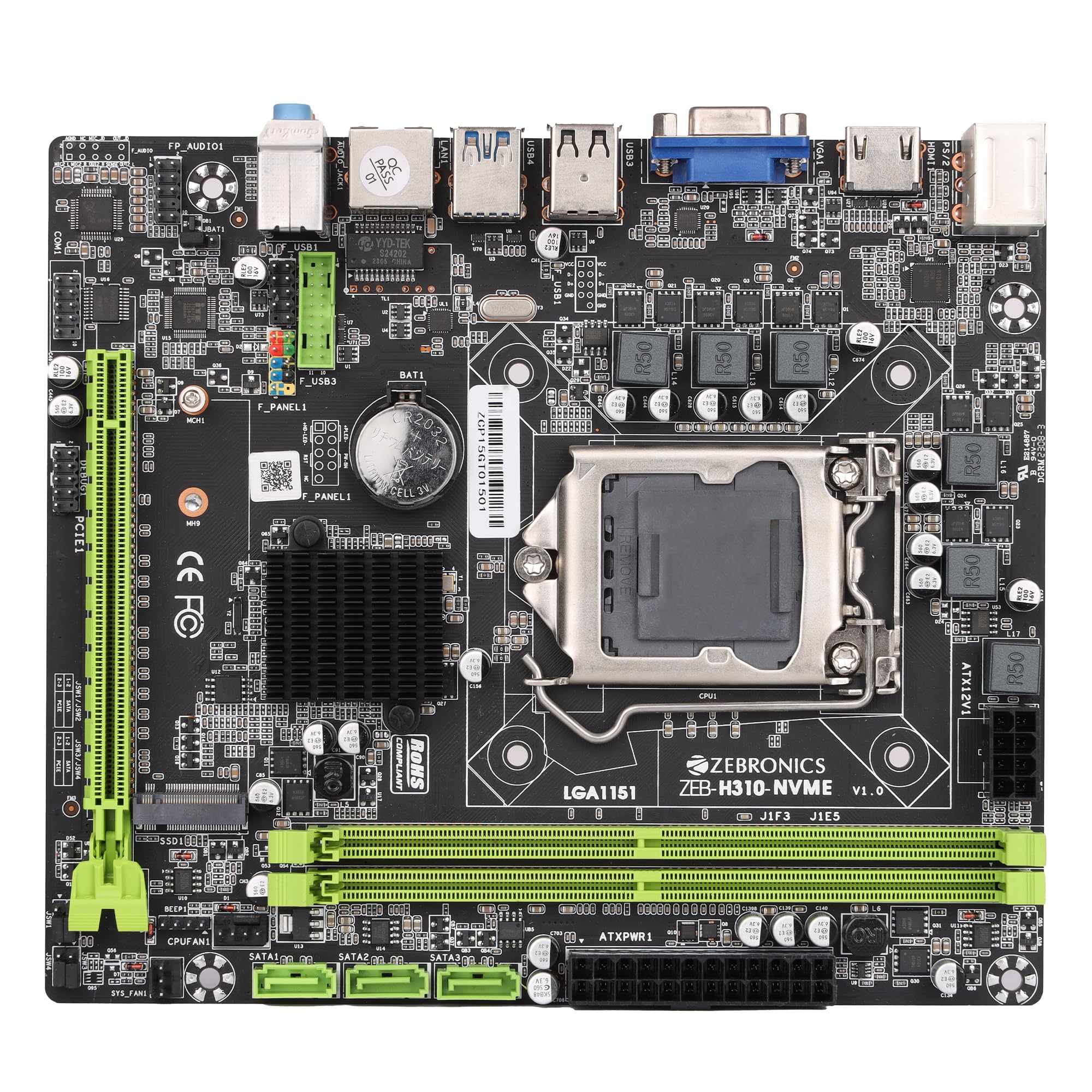
Figure 1: ZEBRONICS Z310 NVMe Micro-ATX Motherboard overview.
Sleutel kenmerke
- DDR4 geheue ondersteuning: Compatible with DDR4 memory modules, supporting speeds from 2133MHz to 2666MHz for optimal system performance.
- LGA 1151-sokkel: Designed to support Intel 6th, 7th, 8th, and 9th Generation Processors, ensuring smooth data transfer and increased processing power.
- 5.1-kanaal klank: Provides a captivating audio experience with crystal-clear sound.
- LAN-verbinding: Equipped with 10/100/1000 Mbps LAN support for fast and reliable internet connection.
- PCIe 16 Slot: Facilitates seamless data transfer for graphics cards and other expansion cards.
- Bergingsopsies: Includes 3 SATA ports for connecting multiple storage devices (HDDs, SSDs) and a SATA M.2 (NVMe) slot for high-speed M.2 drives.
- USB 3.0 Poorte: Elevates data transfer speeds for external devices.

Figure 2: Visual representation of key features including DDR4, NVMe M.2, LGA 1151, and PCIe X16 support.
Opstelling en installasie
Voordat u met die installasie begin, maak seker dat u stelsel afgeskakel en uit die muurprop ontkoppel is. Dra 'n antistatiese polsband om skade aan komponente deur elektrostatiese ontlading (ESD) te voorkom.
1. Installering van die SVE
- Vind die LGA 1151 CPU-sok op die moederbord.
- Maak die SVE-sokhendel oop en lig die laaiplaat op.
- Carefully align the CPU with the socket, ensuring the gold triangle on the CPU matches the triangle on the socket. Do not force the CPU into place.
- Laat sak die laaiplaat en maak dit met die hefboom vas.

Figuur 3: Bo-na-onder view of the motherboard, showing the LGA 1151 CPU socket.
2. Installing RAM (DDR4 Memory)
- Vind die twee DDR4 DIMM-gleuwe.
- Maak die knippies aan beide kante van die DIMM-gleuf oop.
- Align the RAM module with the slot, ensuring the notch on the RAM module matches the key in the slot.
- Druk stewig aan beide kante van die RAM-module totdat die knippies in plek klik.
3. Installering van bergingstoestelle
- SATA-skywe: Connect SATA data cables from your storage devices (HDDs/SSDs) to the SATA ports on the motherboard. Connect power cables from your power supply to the drives.
- NVMe M.2 Drive: Locate the M.2 slot. Insert the NVMe M.2 drive at an angle and then gently push it down. Secure it with the provided screw.

Figure 4: Labeled diagram of the motherboard highlighting various ports including SATA and M.2 interface.
4. Aansluiting van kragtoevoer
- Koppel die 24-pen ATX-kragkonnektor van jou kragtoevoer aan die hoofkragaansluiting op die moederbord.
- Connect the 8-pin (or 4-pin, depending on your PSU) CPU power connector to the ATX12V socket near the CPU. Ensure all 8 pins are connected if your PSU provides an 8-pin connector for stable operation.
5. Connecting Peripherals and Front Panel
- Connect USB devices, keyboard, mouse, and display cables to the rear I/O panel.
- Connect the front panel headers (power button, reset button, HDD LED, power LED, front USB, front audio) to their respective pins on the motherboard. Refer to the motherboard diagram for correct pin alignment.

Figure 5: Rear I/O panel with various ports including PS/2, VGA, USB, LAN, and audio jacks.
Bedryfsinstruksies
After completing the hardware installation, you can proceed with the initial boot-up and operating system installation.
- Koppel jou monitor, sleutelbord en muis.
- Skakel jou stelsel aan.
- During boot-up, press the designated key (usually DEL or F2) to enter the BIOS/UEFI setup.
- Konfigureer die opstartvolgorde om jou bedryfstelsel vanaf 'n USB-skyf of optiese skyf te installeer.
- Save changes and exit BIOS. The system will restart and begin the OS installation process.
- Install necessary drivers for the motherboard components (chipset, audio, LAN, etc.) from the provided driver CD or the ZEBRONICS webwebwerf.
Onderhoud
Gereelde onderhoud help om die lang lewensduur en stabiele werkverrigting van jou moederbord te verseker.
- Hou dit skoon: Maak gereeld stof van die moederbord en ander komponente skoon met saamgeperste lug. Maak seker dat die stelsel afgeskakel en ontkoppel is voordat jy dit skoonmaak.
- Gaan verbindings na: Ensure all power and data cables are securely connected. Loose connections can cause system instability.
- BIOS-opdaterings: Check the official ZEBRONICS website for BIOS/UEFI updates. Update only if necessary and follow the instructions carefully.
- Omgewingsbeheer: Operate the motherboard in a well-ventilated area to prevent overheating.
Probleemoplossing
Indien u probleme ondervind, raadpleeg die volgende algemene stappe vir probleemoplossing:
- Geen krag:
- Ensure the power supply is connected correctly to both the 24-pin ATX and 8-pin (or 4-pin) CPU power connectors. A common issue is not fully connecting the 8-pin CPU power.
- Verify the power button is correctly connected to the front panel header.
- Check if the power supply unit (PSU) is functional.
- Geen skerm:
- Ensure the monitor is connected to the correct video output (motherboard integrated graphics or dedicated graphics card).
- Plaas die RAM-modules terug. Verkeerd geplaasde RAM is 'n algemene oorsaak van geen vertoon nie.
- If using a dedicated graphics card, ensure it is properly seated in the PCIe slot and has adequate power.
- Stelselonstabiliteit/Ineenstortings:
- Kontroleer vir oorverhitting. Maak seker dat die SVE-verkoeler behoorlik geïnstalleer is en dat die waaiers draai.
- Verify RAM compatibility and stability. Test with one RAM stick at a time.
- Maak seker dat alle drywers op datum is.
- Oudio-kwessies:
- Ensure audio cables are connected to the correct jacks on the rear I/O panel or front panel.
- Install or update audio drivers.
- Gaan die klankinstellings in jou bedryfstelsel na.
For further assistance, consult the ZEBRONICS support webwebwerf of kontak kliëntediens.
Spesifikasies
| Kenmerk | Detail |
|---|---|
| Handelsmerk | SEBRONIEK |
| Model Naam | Z310 NVMe |
| CPU-sok | LGA 1151 |
| Versoenbare verwerkers | Intel Core 6th Gen, 7th Gen, 8th Gen, 9th Gen |
| Chipset Tipe | Intel Z310 |
| RAM geheue tegnologie | DDR4 |
| Geheue Klokspoed | 2400 MHz (Supports up to 2666 MHz) |
| Geheuegleuwe beskikbaar | 2 |
| Drive/Memory Storage Capacity (Max) | 32 GB |
| Total SATA Ports | 3 |
| M.2 Slot | 1 (NVMe support) |
| Grafiese kaart koppelvlak | PCI Express |
| Total PCIe Ports | 1 (PCIe 16x) |
| Totale USB-poorte | 6 (including USB 3.0) |
| USB 2.0-poorte | 2 |
| Aantal Ethernet-poorte | 1 (10/100/1000 Mbps) |
| Total HDMI Port | 1 |
| Tipe hoofkragaansluiting | 24-pen |
| Item gewig | 800 gram |
| Itemafmetings (L x B x H) | 22.1L x 5.5B x 27.5H Sentimeter |
Waarborg en Ondersteuning
The ZEBRONICS Z310 NVMe Micro-ATX Motherboard comes with a 1-year carry-in service center warranty. For warranty claims or technical support, please contact ZEBRONICS customer service or visit their official webwebwerf.
Jy kan meer inligting en ondersteuningsbronne vind op die ZEBRONICS Store on Amazon.in.
Produkvideo oorview
Video: 'n Amptelike produkvideovertoningasing the features and overview of the ZEBRONICS Z310 NVMe Micro-ATX Motherboard.