
1. Inleiding
This manual provides essential information for the safe and efficient use of your Google TV 7000 Series 4K Ultra HD LED Television. Please read these instructions thoroughly before operating the device and retain them for future reference.
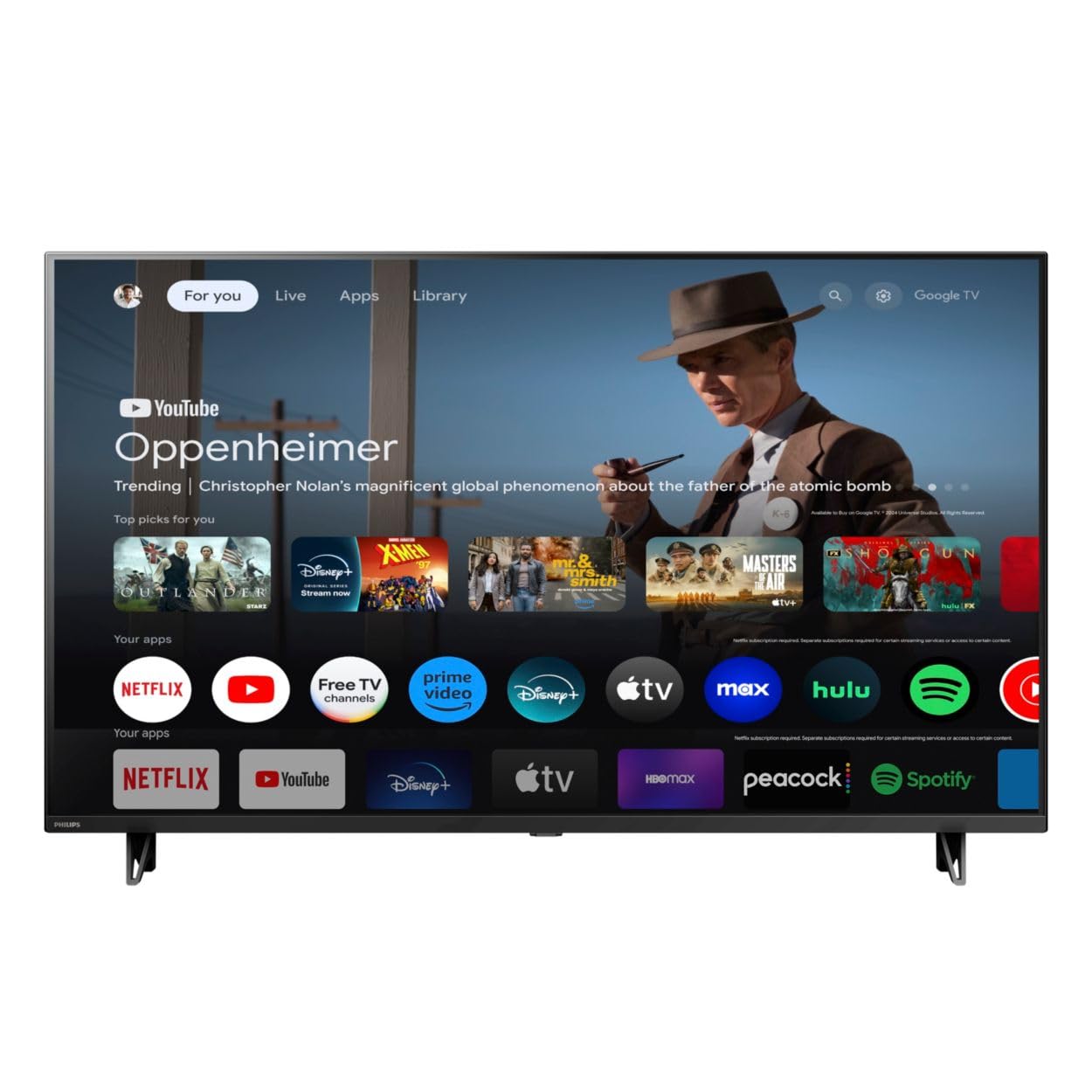
Voorkant view of the Google TV 7000 Series 4K Ultra HD LED Television, showcasing sy slanke rand en skerm.
2. Opstelling
2.1 Uitpak en Pakketinhoud
Verwyder alle items versigtig uit die verpakking. Maak seker dat alle komponente teenwoordig is:
- Google TV 7000 Series Television
- Afstandbeheer
- Batterye vir afstandbeheer
- Tafelblad staander
- Screws for tabletop stand
- Vinnige begingids
- Gebruikershandleiding (hierdie dokument)
2.2 Aansluitkrag
Connect the power cord to the TV's power input, then plug the other end into a wall outlet. Ensure the power outlet is easily accessible.
2.3 Eksterne Toestelle Koppel
Your television supports various connectivity options:
- HDMI: Connect devices like Blu-ray players, game consoles, or set-top boxes to the HDMI ports. This model features Audio Return Channel (HDMI 2).
- USB: Use the USB port for media playback or connecting compatible accessories.
- Ethernet: Vir 'n stabiele bedrade internetverbinding, koppel 'n Ethernet-kabel aan die LAN-poort.
- Koptelefoon uit: Koppel koptelefoon vir privaat luister.
- Digitale klankuitvoer (opties): Vir die koppeling aan eksterne klankstelsels.
- CVBS+Audio L/R In: Vir die koppeling van ouer analoog toestelle.
2.4 Aanvanklike opstelling
Wanneer die TV vir die eerste keer aangeskakel word, sal dit jou deur die aanvanklike opstellingsproses lei. Dit sluit in:
- Taalkeuse
- Connecting to a Wi-Fi network or using Ethernet
- Signing in with your Google account to access Google TV features and apps
- Scanning for available channels (ATSC, NTSC)
2.5 Montage-opsies
You can place your TV on a tabletop using the included stand or mount it on a wall.
- Tafelbladstaander: Attach the tabletop stand using the provided screws as per the quick start guide.
- Muur berg: For wall mounting, use a VESA compatible mount (600 x 400 mm). Consult a professional for wall mounting to ensure safety and proper installation.
3. Bedryfsinstruksies
3.1 Afstandbeheer oorview
The remote control allows you to navigate the Google TV interface, adjust settings, and control playback. It supports voice control for Google Assistant.
3.2 Basiese Funksies
- Krag: Druk die aan/af-knoppie om die TV aan of af te skakel.
- Volume: Gebruik die volumeknoppies om die klankvlak aan te pas.
- Kanale: Use the channel buttons to switch between TV channels.
- Invoer: Select the desired input source (HDMI, USB, etc.).
3.3 Google TV Interface Navigation
Use the directional pad and 'OK' button on your remote to navigate the Google TV home screen. The home screen provides access to your installed apps, recommended content, and settings.
3.4 Slim kenmerke
- Chromecast Ingeboude: Cast content from your compatible mobile devices or computer directly to your TV.
- Google Assistant Ingeboude: Press the Google Assistant button on your remote to use voice commands for searching content, controlling smart home devices, getting information, and more.
- Stroomtoepassings: Access popular streaming services like Netflix, YouTube, Discovery+, Tubi TV, and Prime Video directly from the Google TV interface.
3.5 Beeld- en klankinstellings
Pas jou viewluisterervaring deur die TV se instellingskieslys:
- Picture Style: Choose from various preset picture modes or customize settings like brightness, contrast, color, and sharpness. Features include Dynamic contrast, Film mode, Blue stretch, and Custom Color management.
- HDR Ondersteuning: Die TV ondersteun HDR10 en HLG vir verbeterde kontras en kleur met versoenbare inhoud.
- Spelmodus: Optimize picture settings for gaming to reduce input lag.
- Klankstyl: Select sound presets or adjust bass and treble. Features include Dolby Audio and Auto Volume Leveling.
- Aspekverhouding: Adjust the screen aspect ratio (e.g., Automatic, 4:3, Movie Expand, Full).
3.6 Konnektiwiteit
Your TV offers various ways to connect to networks and devices:
- Wi-Fi: Koppel draadloos aan jou tuisnetwerk vir internettoegang.
- Bluetooth: Connect compatible Bluetooth devices such as headphones or game controllers.
- Ethernet: Verskaf 'n stabiele bedrade internetverbinding.
4. Onderhoud
4.1 Cleaning the Screen and TV Body
- Ontkoppel altyd die TV voordat u skoonmaak.
- Gebruik 'n sagte, droë, pluisvrye lap om die skerm en TV-liggaam saggies af te vee.
- Vir hardnekkige merke, liggiesampMaak die lap skoon met water of 'n gespesialiseerde skermreiniger. Moet nooit die skoonmaakmiddel direk op die skerm spuit nie.
- Vermy die gebruik van skuur skoonmaakmiddels, wasse of oplosmiddels.
4.2 Sagteware-opdaterings
Your Google TV may receive automatic software updates to improve performance and add new features. Ensure your TV is connected to the internet to receive these updates. You can also manually check for updates in the settings menu.
4.3 Sorg vir afstandbeheer
Replace batteries when the remote control's response becomes sluggish. Do not mix old and new batteries or different types of batteries. Keep the remote control away from moisture and direct sunlight.
5. Probleemoplossing
As jy probleme met jou televisie ondervind, raadpleeg die volgende algemene oplossings:
| Probleem | Moontlike Oplossing |
|---|---|
| Geen krag nie | Kontroleer of die kragkabel stewig in beide die TV en die muursok ingeprop is. Maak seker dat die sok funksioneel is. |
| Geen beeld nie, maar klank is teenwoordig | Verifieer dat die korrekte invoerbron gekies is. Kontroleer eksterne toestelverbindings. |
| Geen klank nie, maar beeld is teenwoordig | Check the volume level and mute status. Ensure external audio systems are properly connected and powered on. |
| Afstandbeheer werk nie | Vervang die batterye. Maak seker daar is geen obstruksies tussen die afstandbeheerder en die TV se IR-sensor nie. |
| Netwerkverbindingsprobleme | Herbegin jou router en modem. Koppel weer aan die Wi-Fi-netwerk of kontroleer die Ethernet-kabelverbinding. |
| Picture quality issues (e.g., pixelation) | Check the signal strength for broadcast channels. For streaming content, ensure a stable internet connection. Adjust picture settings. |
5.1 Fabrieksterugstelling
If problems persist, a factory reset may resolve them. This will erase all personal settings and installed apps, returning the TV to its original factory state. Consult the on-screen menu for the factory reset option, usually found under System or Device Preferences in Settings.
6. Spesifikasies
Key technical specifications for the Google TV 7000 Series 4K Ultra HD LED Television:
| Kenmerk | Spesifikasie |
|---|---|
| Skerm grootte | 43 duim |
| Vertoon tegnologie | LCD UltraHD Display, LED Backlight |
| Resolusie | 4K (2160p) |
| Herlaaitempo | 120 PMR (Picture Motion Rate) |
| HDR-formaat ondersteun | HDR10, HLG |
| Bedryfstelsel | Android 11 (Google TV) |
| Verbindingstegnologie | Bluetooth, Ethernet, USB, Wi-Fi |
| Oudio-kenmerke | Dolby Audio, Auto Volume Leveling |
| Spesiale kenmerke | Chromecast Built-in, Google Assistant Built-in, Game Mode, Digital Noise Reduction, MPEG artifact reduction, Dynamic contrast |
| Produk Afmetings (D x B x H) | 9.8" D x 37.9" B x 23.9" H |
| Item gewig | 14.99 pond |
| VESA-monteringsstandaard | 600 x 400 mm |
| Vervaardiger | Philips |
| Modelnommer | 43PUL7652/F7 |
| UPC | 609585254893 |
7. Waarborg en Ondersteuning
7.1 Waarborginligting
This product comes with a Limited Warranty. Please refer to the warranty card included in your package or contact the manufacturer for specific terms and conditions regarding coverage and duration.
7.2 Kliëntediens
For technical assistance, troubleshooting beyond this manual, or warranty claims, please contact the manufacturer, Philips, or your retailer. Have your model number (43PUL7652/F7) and serial number ready when contacting support.