
1. Inleiding
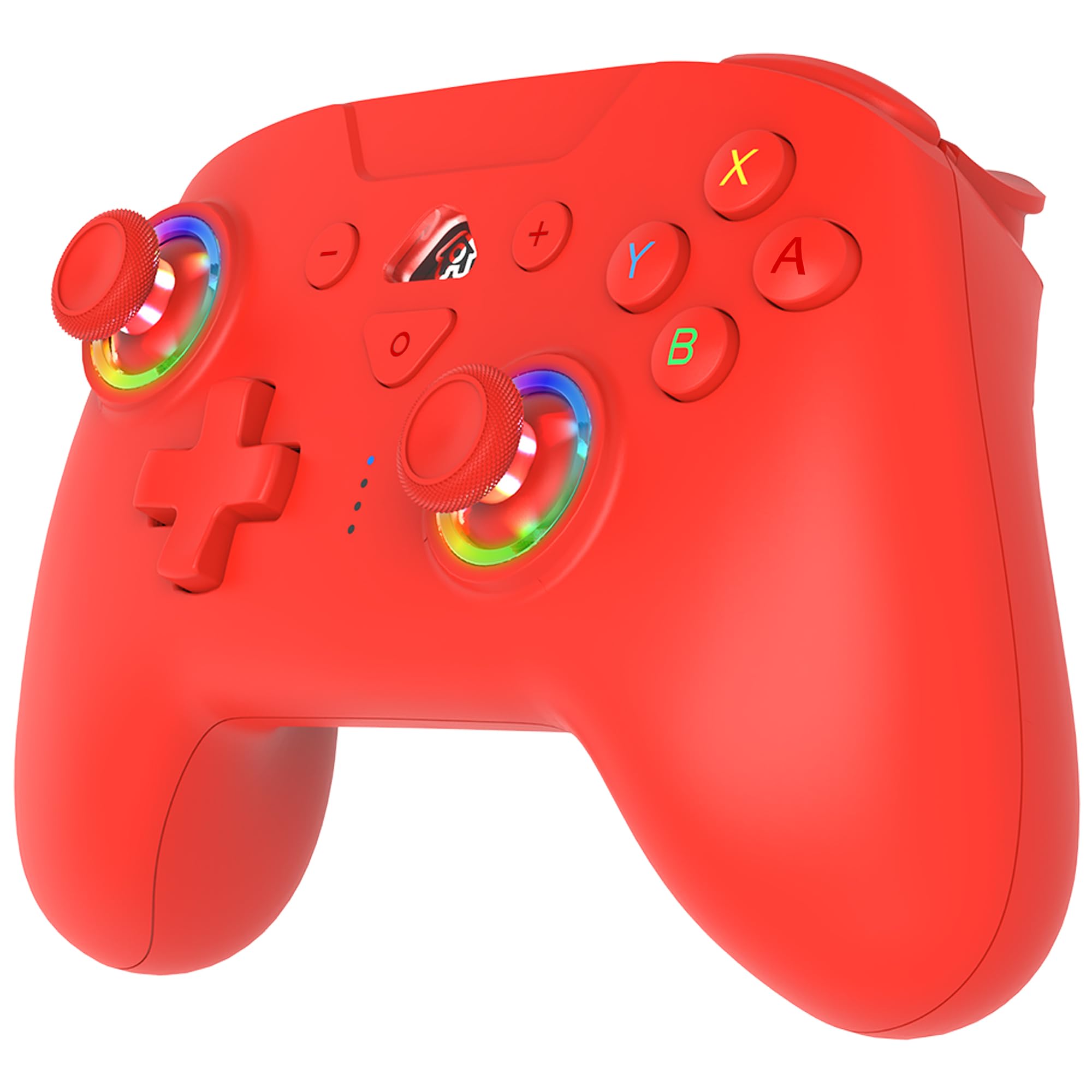
Dankie vir die aankoopasing the SUBSONIC Wireless Controller. This gamepad is designed for use with Nintendo Switch, Switch OLED, and Switch Lite consoles, offering an enhanced gaming experience with its ergonomic design, wireless connectivity, and advanced features.
Sleutel kenmerke sluit in:
- Wireless Bluetooth connectivity.
- Ergonomiese ontwerp vir gemaklike greep.
- Motion sensors (6-axis gyroscope and accelerometer).
- Adjustable vibration feedback with 3 intensity levels.
- Programmable LED lighting.
- Programmable M1 and M2 esport buttons.
- Turbo and Auto-fire functions.
- Long-lasting battery life (approximately 9-10 hours).
- Wake-up function for the Nintendo Switch console.
2. Wat is in die boks
- 1 x SUBSONIC Draadlose Beheerder
- 1 x USB-C laaikabel
3. Beheerderuitleg
Familiarize yourself with the buttons and features of your SUBSONIC Wireless Controller.
Prentbeskrywing: This image displays the front and back views of the red SUBSONIC Wireless Controller. The front view labels the L button, RGB LED on the left stick, Left Stick (L3), D-Pad, Screen Shot button, LED Indicator lights, Home button, Minus (-) button, Plus (+) button, R button, ABXY buttons, RGB LED on the right stick, and Right Stick (R3). The back view labels the ZR and ZL triggers, M2 and M1 programmable buttons, and the Reset button, along with the Turbo button.
- Linkerkant: L button, Left Analog Stick (L3 push), D-Pad (Up, Down, Left, Right).
- Regterkant: R button, Right Analog Stick (R3 push), A, B, X, Y buttons.
- Sentrum: Minus (-) button, Home button, Plus (+) button, Screenshot button, LED Indicator lights.
- Top Triggers: ZL (Left Trigger), ZR (Right Trigger).
- Bottom Paddles: M1 (Right Paddle), M2 (Left Paddle).
- Agter: Reset button, Turbo button.
4. Opstelling en paring
4.1 Initial Pairing with Nintendo Switch
- Maak seker dat jou Nintendo Switch-konsole aangeskakel is en opgedateer is na die nuutste stelselsagteware.
- Kies "Beheerders" > "Verander Greep/Volgorde" in die TUIS-kieslys.
- Op die kontroleerder, druk en hou die Tuis-knoppie for 3-5 seconds until the LED indicators start flashing rapidly.
- The console will detect the controller. Once paired, the LED indicators on the controller will stop flashing and remain solid on the assigned player number.
- If pairing fails, ensure the controller is charged and try again.
4.2 Reconnecting the Controller
Once paired, simply press the Tuis-knoppie on the controller to wake it up and automatically reconnect to your Switch console.
5. Bedryfsinstruksies
5.1 Motion Sensors (6-Axis Gyroscope)
The controller is equipped with a 6-axis gyroscope and accelerometer, allowing for motion-controlled gameplay in compatible titles. Simply tilt the controller to interact with games like Mario Kart 8 Deluxe.

Prentbeskrywing: A red wireless controller is shown with purple swirling lines around it, illustrating its 360-degree motion sensing capabilities. Small icons at the top right depict controller movements for motion control.
5.2 Adjustable Vibration Feedback
The controller features three levels of vibration intensity (Weak, Medium, Strong) to enhance your gaming experience. The intensity can be adjusted to suit your preference.

Prentbeskrywing: A red wireless controller is depicted with glowing orange areas on its grips, symbolizing vibration. Below the controller, a horizontal bar graph shows a gradient from "WEAK" to "STRONG" with a slider indicating the current vibration level.
5.3 Programmable RGB LED
The controller includes programmable RGB LEDs around the analog sticks. You can choose between two modes: fixed colors or breathing colors, and adjust the color and brightness.

Prentbeskrywing: A close-up of the red wireless controller highlights the RGB LED rings around both analog sticks. Text labels indicate "PROGRAMMABLE RGB LED" with "2 MODES" (Fix Colors, Breathing Colors), "COLOR ADJUSTMENT" (a color wheel), and "BRIGHTNESS ADJUSTMENT" (a sun icon with 100% brightness).
5.4 Programmable M1 & M2 Keys
The M1 and M2 buttons on the back of the controller are programmable. You can assign various button inputs to these keys for quick access during gameplay.

Prentbeskrywing: The back of the red wireless controller is shown, with the M1 and M2 programmable buttons outlined in blue. Blue arrows point downwards from these buttons to a row of circular icons representing various assignable buttons: D-Pad directions (Up, Down, Left, Right), A, B, X, Y, L, R, ZL, ZR, L3, and R3.
5.5 Turbo & Auto Functions
The controller supports Turbo and Auto-fire functions for rapid button presses. This can be activated for specific buttons (A, B, X, Y, L, R, ZL, ZR) to provide an advantage in sekere speletjies.

Prentbeskrywing: 'n Kant view of the red wireless controller highlights the Turbo button with an orange circle. To the right, two cartoon illustrations depict characters performing rapid attacks, symbolizing the effect of the Turbo function. Below, a speedometer icon and circular icons for A, B, X, Y, L, R, ZL, ZR buttons indicate which buttons can utilize this feature.
5.6 Wake Up Function for Switch
The controller can wake up your Nintendo Switch console from sleep mode. Simply press the Tuis-knoppie on the controller to activate the console.

Prentbeskrywing: A red wireless controller is shown in the foreground, with a finger pressing its Home button. In the background, a Nintendo Switch console in its dock is depicted with a green glowing power icon, indicating it is being woken up by the controller.
6. Laai en batterylewe
The controller is equipped with a built-in rechargeable battery, providing approximately 9 to 10 hours of playtime on a full charge. A USB-C charging cable is included for recharging.

Prentbeskrywing: A red wireless controller is shown with a green battery icon and a lightning bolt, indicating charging or full battery. Text above reads "ABOUT 10 HOURS PLAYING TIME" and "600 MAH" below the battery icon.
- Connect the included USB-C cable to the charging port on the controller.
- Connect the other end of the USB-C cable to a USB power source (e.g., Nintendo Switch dock, computer USB port, or USB wall adapter).
- The LED indicators on the controller will show charging status. They will typically stop flashing or turn off when fully charged.
7. Spesifikasies
| Kenmerk | Detail |
|---|---|
| Model Naam | SA5633-3 |
| Versoenbare toestelle | Nintendo Switch, Switch OLED, Switch Lite |
| Verbindingstegnologie | Draadloos (Bluetooth) |
| Tipe beheerder | Gamepad |
| Bewegingswaarneming | 6-axis Gyroscope, Accelerometer |
| Vibrasie | Verstelbaar (3 vlakke) |
| LED-kenmerke | Programmable RGB LEDs |
| Programmeerbare knoppies | M1, M2 |
| Kragbron | Battery aangedrewe |
| Batterylewe | Ongeveer. 9-10 uur |
| Item gewig | 204 gram |
| Item afmetings | 4.53 x 6.3 x 23.62 duim |
| Kleur | Rooi |
8. Probleemoplossing
8.1 Beheerder koppel nie/koppel nie
- Gaan battery na: Ensure the controller is fully charged. Connect it to a power source using the USB-C cable.
- Herpaar: Go to "Controllers" > "Change Grip/Order" on your Switch and try pairing again by holding the Home button on the controller.
- Inmenging: Move closer to the Switch console and ensure no other wireless devices are causing interference.
- Reset Controller: Locate the small reset button on the back of the controller (refer to Controller Layout image) and press it with a thin object (like a paperclip). Then attempt to pair again.
- Switch System Update: Maak seker dat jou Nintendo Switch-konsole se stelselsagteware op datum is.
8.2 Invoervertraging of ontkoppelings
- Afstand: Ensure you are within a reasonable range of the Switch console.
- Inmenging: Minimize other active Bluetooth devices nearby.
- Batteryvlak: Low battery can affect wireless performance. Charge the controller.
8.3 Knoppe reageer nie
- Reset Controller: Perform a hard reset using the reset button.
- Herpaar: Disconnect and re-pair the controller with the Switch.
- Test in System Settings: Use the Switch's controller test function (System Settings > Controllers and Sensors > Test Input Devices) to verify button functionality.
9. Waarborg en Ondersteuning
This SUBSONIC Wireless Controller comes with a 2 jaar vervaardiger se waarborg.
For technical support, warranty claims, or further assistance, please contact SUBSONIC customer service through their official webwebwerf of die kleinhandelaar waar die produk gekoop is.
Amptelike produkvideo:
Videobeskrywing: This official product video from SUBSONIC INC showcases the features of the red wireless controller for Nintendo Switch. It highlights the large capacity battery, programmable esport buttons, and other functionalities. The video is 14 seconds long.