
Inleiding
The TCNEWCL USB 2.0 Video Capture Card provides a convenient solution for converting analog video and audio signals into digital format. This device allows you to preserve old memories from sources like VHS tapes, VCRs, Hi8 camcorders, and DVD players by transferring them to your computer. It supports various video standards including NTSC, SECAM, PAL, and PAL/60, and is compatible with both Mac OS and Windows operating systems.
This manual will guide you through the installation, operation, and maintenance of your video capture card, ensuring you can effectively digitize and manage your video content.

Image: The TCNEWCL USB 2.0 Video Capture Card facilitating digital transfer of analog video to a computer running Mac OS.
Opstel instruksies
Follow these steps to set up your TCNEWCL Video Capture Card:
- Sagteware installasie: Insert the provided software installation CD into your computer's CD/DVD drive. If your computer does not have a CD drive, please visit the TCNEWCL support website (refer to the Support section) to download the necessary drivers and capture software. Follow the on-screen instructions to complete the installation.
- Connect the Video Capture Card to your Computer: Plug the USB 2.0 connector of the capture card into an available USB port on your desktop or laptop computer. The system should automatically detect the device.
- Identify Analog Video/Audio Sources: Locate the analog output ports on your video source device (e.g., VCR, camcorder, DVD player). These typically include:
- Saamgestelde video (CVBS): A single yellow RCA connector for video.
- Stereo oudio: Red (right channel) and White (left channel) RCA connectors for audio.
- S-video: A multi-pin connector for higher quality video than composite.
- Connect Analog Cables: Connect the corresponding RCA or S-Video cables from your analog source device to the input ports on the TCNEWCL Video Capture Card. Ensure that the colors (yellow to yellow, white to white, red to red) match for correct connection.

Image: The video capture device shown alongside its quick start guide and the included software installation CD.

Beeld: Gedetailleerd view of the capture card's input and output connectors, clearly labeled for USB, CVBS, Audio (L/R), and S-Video.
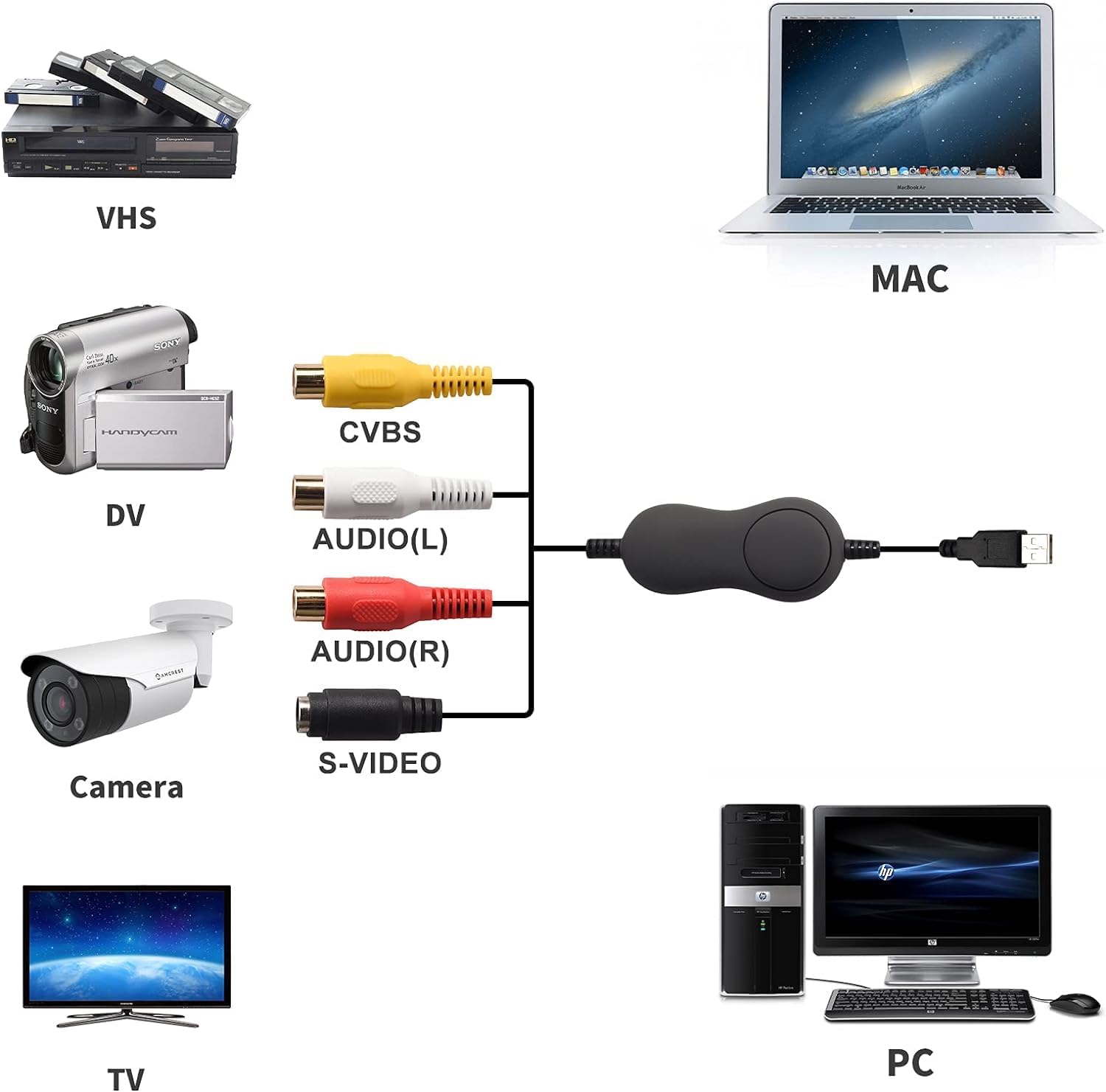
Image: Connection diagram illustrating how to link various analog devices like VHS players, DV cameras, and security cameras to a computer via the capture card.
Bedryfsinstruksies
Once the hardware is connected and software is installed, you can begin capturing video:
- Launch the Capture Software: Open the video capture software installed on your computer. This software provides the interface for viewing, recording, and editing your analog video.
- Select Video Source: Within the software, select the TCNEWCL Video Capture Card as your input device. You may need to specify whether you are using Composite (CVBS) or S-Video input.
- Preview Video: Start playback on your analog source device (e.g., press play on your VCR). You should see the video feed appear in the capture software's preview venster.
- Pas instellings aan: The software typically allows you to adjust video parameters such as brightness, contrast, hue, and saturation. Optimize these settings for the best possible video quality before recording.
- Begin opname: Click the "Record" button within the software to begin digitizing your video. Ensure your analog source is playing the content you wish to capture.
- Stop opname: Click the "Stop" button when you have finished capturing the desired segment. The software will then save the digital video file na jou rekenaar.
- Edit and Export: Most capture software includes basic editing features. You can trim videos, add effects, and then export them to various digital formats (e.g., MP4, AVI) or burn them to DVD.

Image: The video capture card is compatible with a wide range of operating systems, including various versions of Mac OS and Windows.
Onderhoud
To ensure the longevity and optimal performance of your TCNEWCL Video Capture Card, follow these simple maintenance guidelines:
- Hou skoon: Gently wipe the device and cables with a soft, dry cloth to remove dust. Avoid using liquid cleaners or abrasive materials.
- Stoor behoorlik: Wanneer dit nie gebruik word nie, bêre die opnamekaart op 'n koel, droë plek weg van direkte sonlig en uiterste temperature.
- Hanteer versigtig: Avoid bending or twisting the cables excessively, as this can damage internal wiring. Always grasp the plug when connecting or disconnecting.
- Sagteware-opdaterings: Periodically check the TCNEWCL support website for any updated drivers or software versions to ensure compatibility and access to the latest features.
Probleemoplossing
If you encounter issues while using your video capture card, refer to the following common problems and solutions:
- No Video Signal in Software:
- Ensure all cables (USB, RCA/S-Video) are securely connected.
- Verify that your analog source device (VCR, camcorder) is powered on and playing content.
- Check that the correct input source (Composite or S-Video) is selected in your capture software.
- Confirm that the capture card is selected as the video input device in your software settings.
- Probeer om die opnamekaart aan 'n ander USB-poort op jou rekenaar te koppel.
- No Audio During Capture:
- Ensure the red and white RCA audio cables are correctly connected to both the source device and the capture card.
- Check the audio input settings in your capture software to ensure the correct audio source is selected and not muted.
- Verify the volume levels on your analog source device and computer.
- Swak videogehalte:
- Adjust brightness, contrast, hue, and saturation settings within the capture software.
- Ensure you are using high-quality analog cables.
- If available, try using S-Video instead of Composite for better video clarity.
- Clean the heads of your VCR or camcorder if the source video itself appears degraded.
- Sagteware herken nie toestel nie:
- Reinstall the device drivers and capture software.
- Herbegin jou rekenaar na installasie.
- Ensure your operating system is compatible with the device (Mac OS, Windows 7/8/10).
Spesifikasies
| Kenmerk | Detail |
|---|---|
| Modelnommer | 714684654960 |
| Koppelvlak | USB 2.0 |
| Video-insette | Composite Video (RCA), S-Video |
| Oudio-insette | Stereo Audio (RCA L/R) |
| Ondersteunde videostandaarde | NTSC, SECAM, PAL, PAL/60 |
| Versoenbare bedryfstelsels | Mac OS, Windows 7, Windows 8, Windows 10, Windows XP, Windows Vista |
| Afmetings (Pakket) | 6.85 x 5.67 x 1.93 duim |
| Item gewig | 5.3 onse (0.15 kilogram) |
| Vervaardiger | TCNEWC L |
Waarborg inligting
TCNEWCL products are designed for reliability and performance. For specific warranty terms and conditions applicable to your video capture card, please refer to the documentation included with your purchase or visit the official TCNEWCL website. Typically, warranty coverage addresses manufacturing defects under normal use.
Kliënte ondersteuning
If you require further assistance, have questions not covered in this manual, or need technical support, please contact TCNEWCL customer service. You can usually find contact information, including email and phone support, on the official TCNEWCL webwebwerf:
Visit the TCNEWCL Store on Amazon
Hou asseblief u produkmodelnommer (714684654960) en aankoopbesonderhede gereed wanneer u ondersteuning kontak.