
1. Inleiding
Thank you for choosing the Headwolf HPad6 Android 14 Tablet. This manual provides essential information for setting up, operating, and maintaining your device. Please read it carefully before use and keep it for future reference.
2. Produk verbyview
2.1 Wat is in die boks
As u die pakkie oopmaak, moet u die volgende items vind:
- Headwolf HPad6 Tablet Unit
- Japannese instruksiehandleiding
- AC Adapter
- Type-C laaikabel
- SIM-kaart PIN

Image: Headwolf HPad6 Package Contents. Shows the tablet, manual, charger, cable, and SIM ejector tool.
2.2 Toesteluitleg
Familiarize yourself with the physical components of your HPad6 tablet:
- Voorste kamera: Located at the top center when held horizontally.
- Agterste kamera: Located on the back, top-left corner.
- Kragknoppie: Typically on the side, near the volume buttons.
- Volume knoppies: Langs die aan/af-knoppie.
- USB Tipe C-poort: Vir laai en data-oordrag.
- Luidsprekers: Four speakers for enhanced audio output.
- Kaartgleuf: For SIM cards and expandable storage.

Image: Headwolf HPad6 Device Layout. Highlights the locations of the front camera, back camera, speakers, volume buttons, power button, card slot, and Type-C charging port.
3. Opstelling
3.1 Aanvanklike aanskakeling
- Druk en hou die Kragknoppie until the Headwolf logo appears.
- Follow the on-screen prompts to select your language (English is recommended for this manual).
- Connect to a Wi-Fi network or insert a SIM card for mobile data.
- Complete the initial setup steps, including Google account login and security settings.
3.2 Laai die battery
Before first use, fully charge the tablet using the provided Type-C cable and 18W fast charger. The battery indicator on the screen will show charging progress.

Image: Headwolf HPad6 Charging. Shows the tablet connected to a Type-C charger, with a battery icon indicating 100% charge.
4. Bedryfsinstruksies
4.1 Basiese bewerkings
- Krag aan/af: Press and hold the Power button. Select 'Power off' or 'Restart'.
- Skermslot/Ontsluit: Briefly press the Power button. Use face recognition or PIN to unlock.
- Volume aanpassing: Gebruik die Volume Op/Af knoppies.
- Navigasie: Use gestures or the on-screen navigation bar (Back, Home, Recent Apps).
4.2 Prestasie
The HPad6 is equipped with the powerful MTK G99 octa-core processor, featuring two A76 large cores and six A55 small cores, with a main frequency up to 2.2GHz. Built on a 6nm process, it offers improved power efficiency and enhanced performance for multitasking and demanding applications.
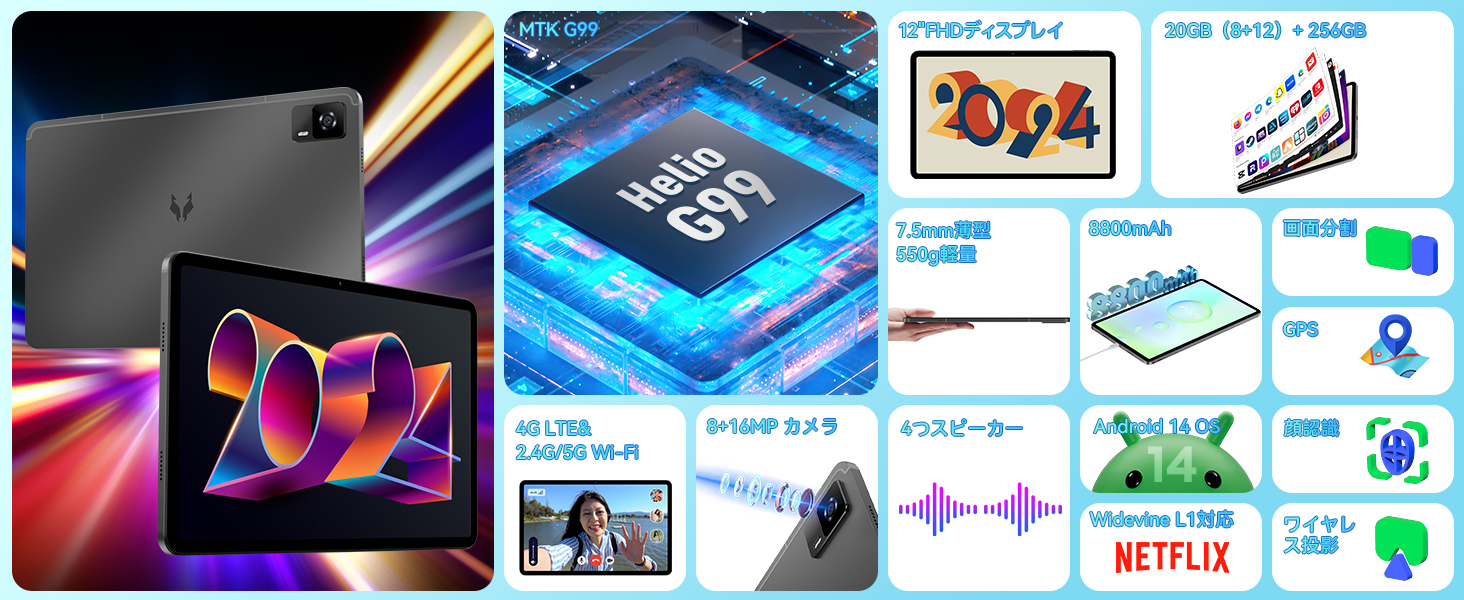
Image: Headwolf HPad6 MTK G99 Processor. Illustrates the Helio G99 chip and its octa-core architecture.
4.3 Vertoon
Experience vibrant visuals on the 12-inch FHD IPS display with a resolution of 2000x1200 pixels. The in-cell screen fitting technology enhances touch sensitivity and reduces thickness. With Widevine L1 certification, you can enjoy 1080P HD video playback on major streaming platforms like Netflix, Amazon Prime Video, Disney+, and Hulu.

Image: Headwolf HPad6 12-inch FHD IPS Display. Shows the tablet displaying vibrant content, highlighting its screen size and resolution.

Image: Headwolf HPad6 Widevine L1 Support. Compares L1 (1080P) and L3 (720P) video quality, showing logos of supported streaming services.
4.4 Geheue en berging
The HPad6 features 8GB of RAM, expandable up to 20GB (8GB physical + 12GB virtual RAM from ROM), boosting overall operation speed by 40%. It comes with a generous 256GB UFS ROM for storing photos, videos, and files, and supports up to 2TB via an SD card.

Image: Headwolf HPad6 Memory and Storage. Illustrates 20GB (8+12GB expanded) RAM and 256GB UFS ROM, with support for 2TB SD card expansion.
4.5 Konnektiwiteit
The HPad6 supports dual SIM 4G LTE for calls and mobile networks, ensuring connectivity even without Wi-Fi. It also features 2.4/5GHz dual-band Wi-Fi and Bluetooth 5.2 for seamless wireless connections.

Image: Headwolf HPad6 4G LTE and Wi-Fi Connectivity. Shows the tablet being used for video calls and highlights supported 4G, 3G, and 2G frequency bands.
4.6 Kamera
Capture beautiful moments with the 8MP front camera and 16MP rear camera. The cameras also provide a high-quality environment for video calls.
Image: Headwolf HPad6 8MP Front and 16MP Rear Camera. Displays example photos taken with the tablet's cameras.
4.7 oudio
Enjoy immersive sound with the HPad6's four speakers, delivering clear and rich audio for all your multimedia needs.

Image: Headwolf HPad6 Four Speakers. Illustrates sound waves emanating from the tablet's four speaker grilles.
4.8 Sekuriteit
The tablet supports face recognition, allowing for quick and convenient unlocking while reducing physical contact.

Image: Headwolf HPad6 Face Recognition. Shows a user unlocking the tablet using face recognition technology.
4.9 Multitaakverrigting en Produktiwiteit
Running on the latest Android 14 system, the HPad6 offers enhanced multitasking capabilities, custom settings, and improved privacy. Utilize features like split-screen mode for increased productivity.
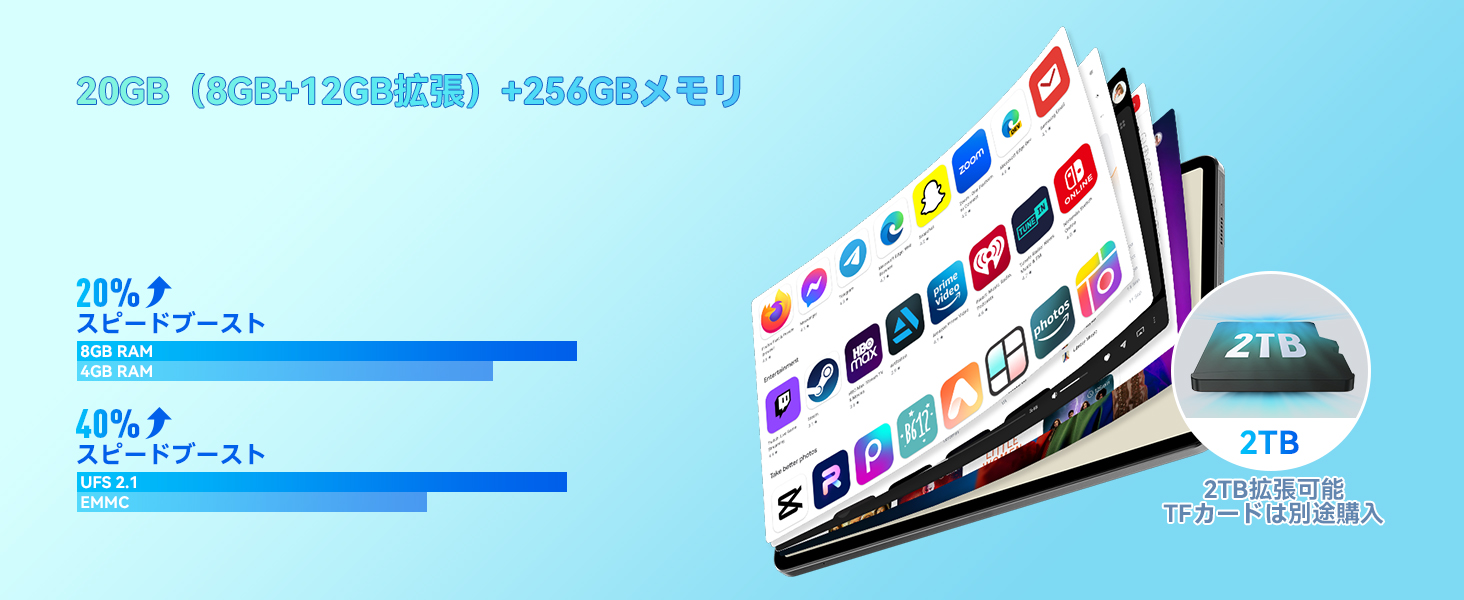
Image: Headwolf HPad6 Split Screen Function. Demonstrates two applications running side-by-side on the tablet screen.
4.10 Batterybestuur
The 8800mAh lithium cobalt oxide battery provides extended battery life. It supports 18W fast charging via the Type-C port, allowing for quick power replenishment.
4.11 sensors
The HPad6 includes a gyroscope for enhanced gaming experiences and a Hall switch, which allows the screen to automatically wake or sleep when used with a compatible case.
5. Onderhoud
- Avoid using multiple large applications simultaneously while charging, as this can cause the tablet to malfunction.
- The tablet is a precision device; avoid dropping it or subjecting it to impacts.
- Maak die skerm skoon met 'n sagte, pluisvrye lap.
- Hou die toestel weg van uiterste temperature en direkte sonlig.
6. Probleemoplossing
- Wi-Fi-verbindingskwessies: If the tablet cannot connect to Wi-Fi, there may be an incompatibility between the tablet and the router. Try connecting to another Wi-Fi network or initialize the tablet and try again (Settings -> System -> Reset options -> Erase all data (factory reset)).
- Touch Screen Malfunction: If the touch screen is unresponsive, it might be due to static electricity. Touching the charger while connected to the tablet can help reduce the effect of static electricity.
- Algemene wanfunksies: If the screen displays abnormalities, please contact customer support.
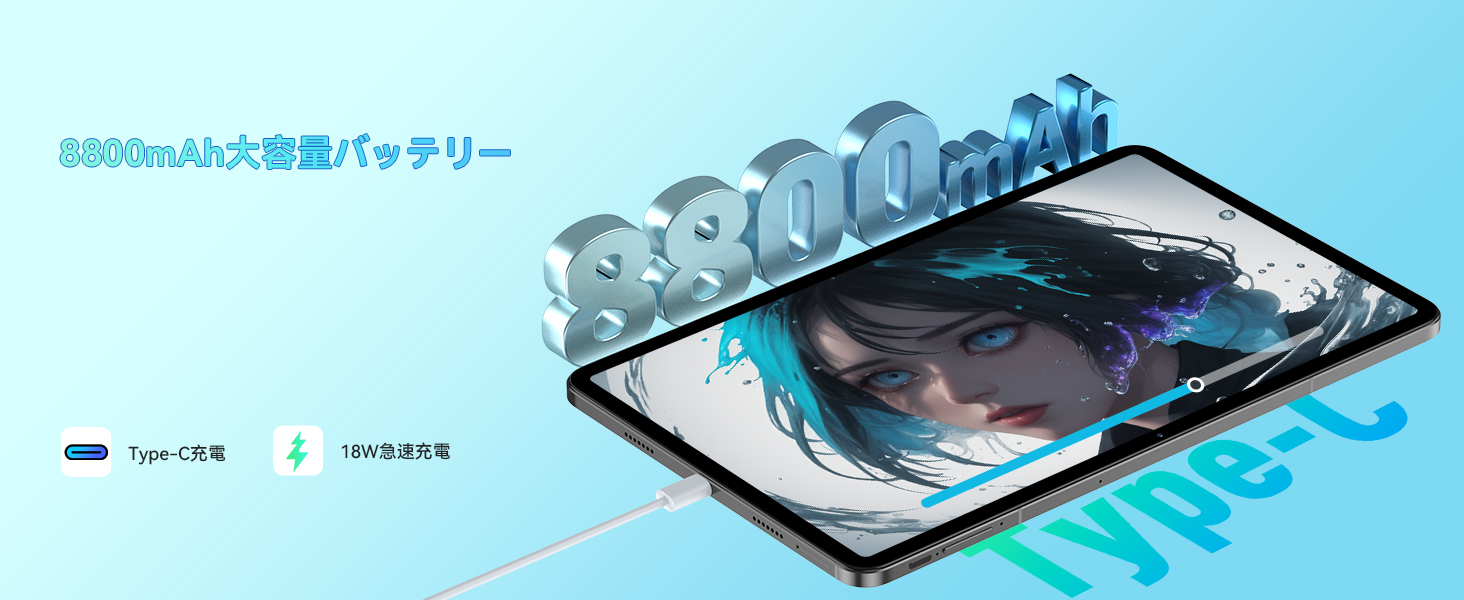
Image: Headwolf HPad6 Troubleshooting Tips. Shows a customer support representative and lists common issues and solutions.
7. Spesifikasies
| Kenmerk | Spesifikasie |
|---|---|
| Handelsmerk | Kopwolf |
| Model Naam | HPad6 |
| Bedryfstelsel | Android 14 |
| Verwerker | MTK G99 Octa-core (2x A76 2.2GHz + 6x A55 2.0GHz) |
| Vertoon grootte | 12 duim |
| Vertoon resolusie | 2000x1200 pixels (FHD) |
| RAM | 20GB (8GB fisies + 12GB virtueel) |
| Interne berging (ROM) | 256GB UV |
| Uitbreidbare berging | Up to 2TB (SD card) |
| Battery kapasiteit | 8800mAh |
| Laai | 18W Vinnige Laai (Tipe-C) |
| Agterste kamera | 16MP |
| Voorste kamera | 8MP |
| Konnektiwiteit | 4G LTE (Dual SIM), 2.4/5GHz Wi-Fi, Bluetooth 5.2 |
| Sensors | Gyroscope, Hall Switch, Face Recognition |
| Afmetings | 29 x 18.9 x 5.1 cm |
| Gewig | 970 g |
8. Waarborg en Ondersteuning
- Gehalteversekering: Your product comes with a 1-year quality guarantee. In case of product defects, free repair or replacement will be provided.
- Dedicated Repair Center: A dedicated repair center is available in Tokyo for prompt after-sales service. Repairs and exchanges will be handled as needed to address customer issues and inquiries.
- Na-verkope ondersteuning: For support, navigate to the product page, click on the store name, and then 'Ask a question'. Alternatively, go to your Amazon account, select 'Order history', find the relevant order, and contact the seller.