
Creative EF1160
Creative Aurvana Ace 2 Ware Draadlose In-Ear Oorfone Instruksiehandleiding
Model: EF1160
1. Inleiding
This manual provides detailed instructions for the proper use, setup, and maintenance of your Creative Aurvana Ace 2 True Wireless In-Ear Headphones. Please read this manual thoroughly before using the product to ensure optimal performance and longevity.

Image: Creative Aurvana Ace 2 earbuds shown in their open charging case, highlighting the black earbuds with copper accents and the translucent charging case.
2. Pakketinhoud
Verifieer dat alle items in die pakket teenwoordig is:
- Creative Aurvana Ace 2 True Wireless In-Ear Headphones (Left and Right earbuds)
- Laaikas
- USB-C-laaikabel
- Silicone Ear Tips (Various Sizes: Small, Medium, Large)
- Quick Start Guide (This manual serves as a comprehensive guide)
3. Opstelling
3.1 Aanvanklike laai
Before first use, fully charge the earbuds and the charging case. Place the earbuds into the charging case. Connect the USB-C charging cable to the case and a power source. The charging indicator on the case will show charging status. A full charge provides up to 6 hours of playback for the earbuds and a total of 24 hours with the charging case (with ANC off).

Image: The Creative Aurvana Ace 2 charging case resting on a wireless charging pad, indicating its wireless charging capability.
3.2 Ear Tip Selection and Fit
Selecting the correct ear tip size is crucial for sound quality and noise isolation. Experiment with the provided silicone ear tips (Small, Medium, Large) to find the best fit for your ears. A good seal ensures optimal audio performance and comfort.

Image: Graphic illustrating different sizes of ear tips for a customized fit.
Belangrik: Before first use, ensure you remove any protective clear films covering the charging contacts on the earbuds. Failure to do so will prevent proper charging and pairing.
3.3 Bluetooth -koppeling
- Maak seker dat die oorfone gelaai is en in die laaikas geplaas is.
- Maak die laaikas se deksel oop. Die oorfone sal outomaties in paringsmodus gaan.
- Navigeer na die Bluetooth-instellings op jou toestel (slimfoon, tablet, rekenaar).
- Select "Creative Aurvana Ace 2" from the list of available devices.
- Sodra dit gekoppel is, sal 'n bevestigingsgeluid speel, en die oorfone sal gereed wees vir gebruik.
3.4 Creative App Download
For full functionality, including firmware updates, equalizer settings, and customizable controls, download the Creative app. The app is available for both iOS and Android devices.
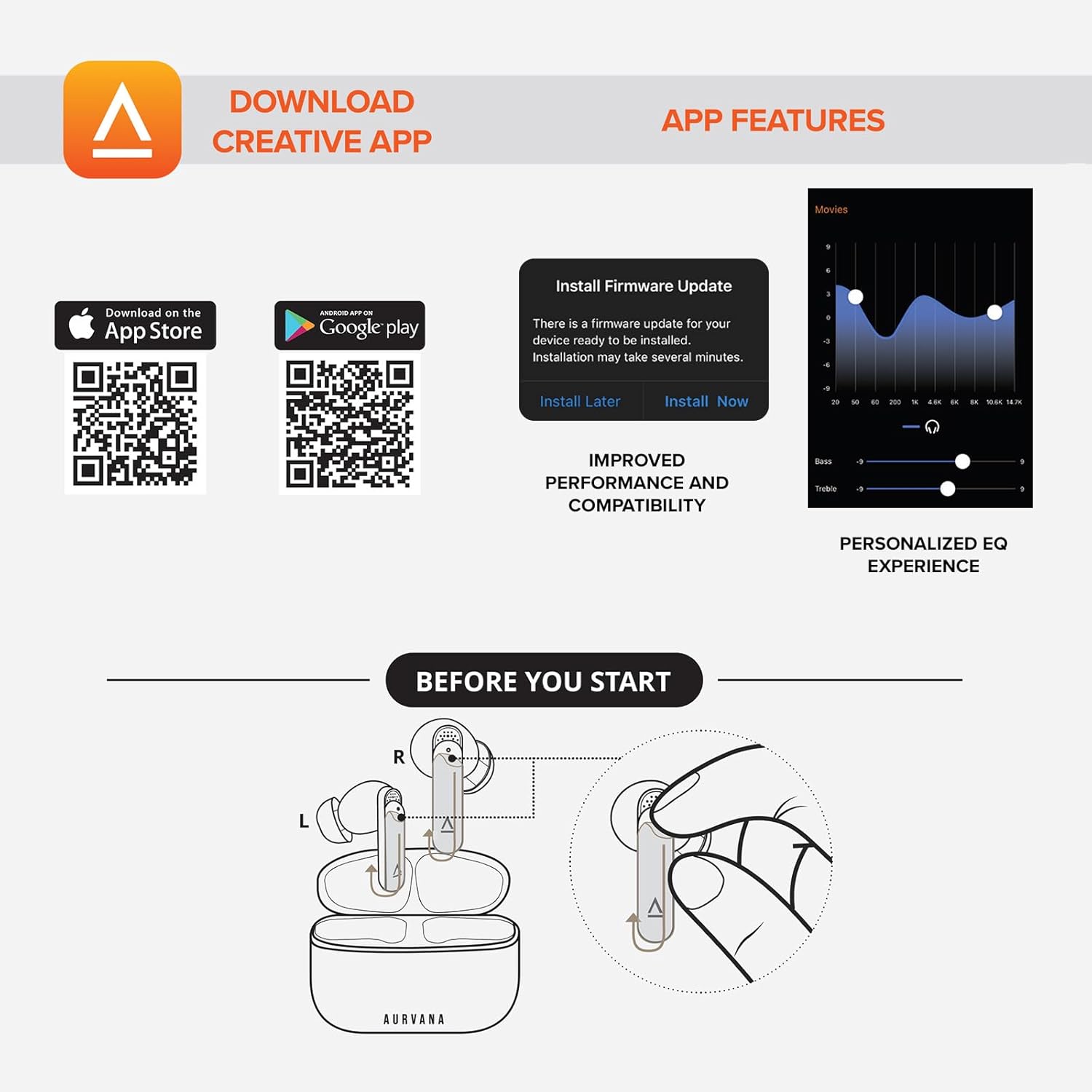
Image: Screenshot showing QR codes for downloading the Creative app from the Apple App Store and Google Play Store, alongside examples of app features such as firmware updates and personalized EQ settings.
Aflaai vir Android: Google Play Winkel
Laai af vir iOS: Apple App Store
4. Bedryfsinstruksies
4.1 Raak kontroles
The Creative Aurvana Ace 2 earbuds feature touch-sensitive controls on each earbud. Functions can be customized via the Creative app. Common controls include:
- Enkele tik: Speel/onderbreek klank, beantwoord/beëindig oproep.
- Dubbeltik: Next track, Activate voice assistant.
- Drievoudige tik: Previous track, Toggle ANC/Ambient Mode.
- Lang pers: Volume control (customizable).

Image: Graphic depicting a finger tapping an earbud, symbolizing touch controls.
4.2 Noise Control (Adaptive ANC & Ambient Mode)
The earbuds feature Adaptive Active Noise Cancellation (ANC) and Ambient Mode. These modes can be toggled via the touch controls or the Creative app.
- Aanpasbare ANC: Verminder eksterne geraas vir 'n meeslepende luisterervaring.
- Omgewingsmodus: Laat omgewingsklanke deur, wat situasionele bewustheid verbeter.
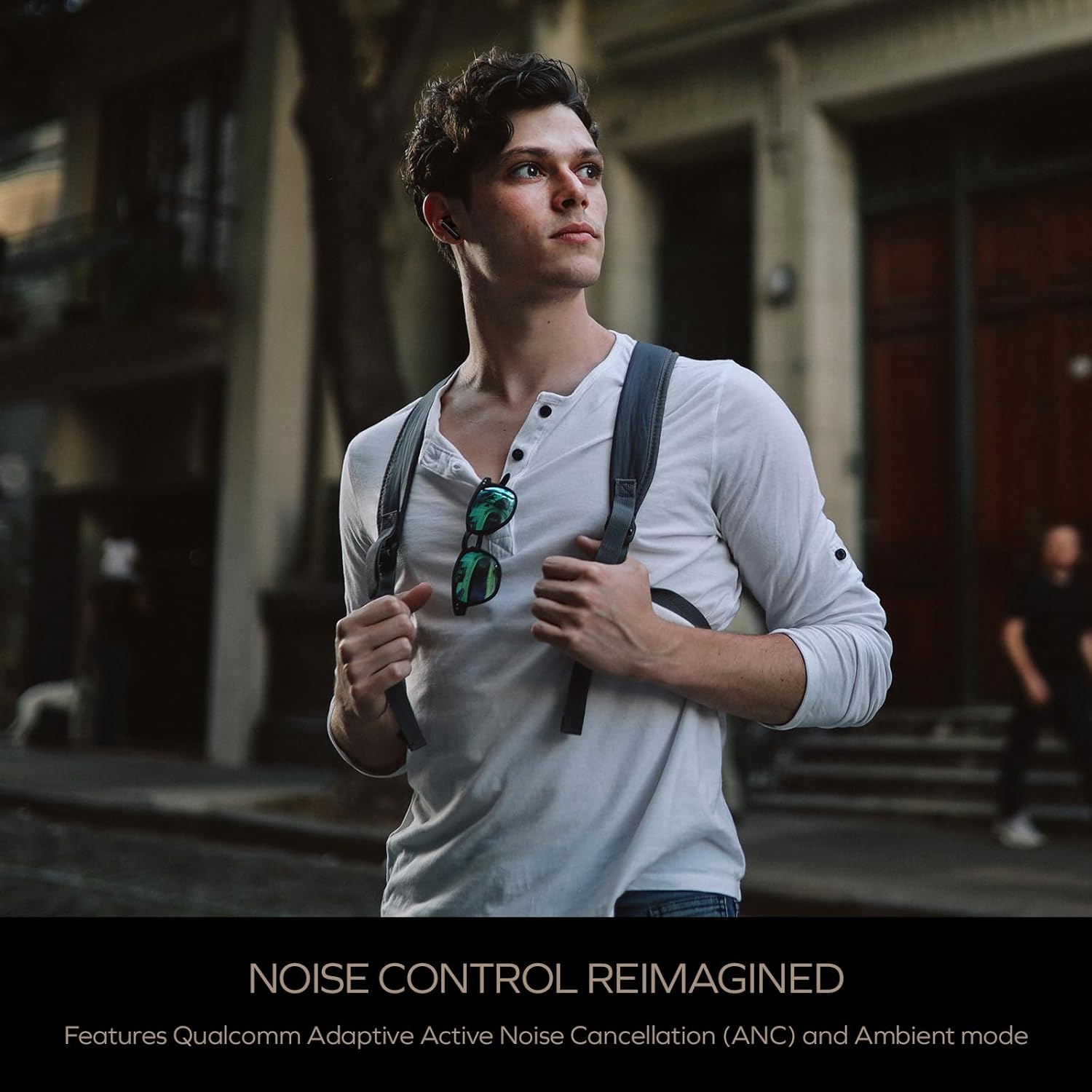
Image: A person wearing the Creative Aurvana Ace 2 earbuds while walking outdoors, illustrating the use of noise control features in various environments.
4.3 Audio Technologies (xMEMS, aptX Lossless, Bluetooth LE Audio)
The Aurvana Ace 2 incorporates advanced audio technologies for high-fidelity sound:
- xMEMS Technology: Provides precise and detailed audio reproduction.
- Qualcomm aptX Lossless: Delivers CD-quality audio over Bluetooth for compatible devices.
- Bluetooth LE Audio: Offers improved wireless audio quality with lower power consumption and Unicast mode for a more stable connection.

Beeld: Gedetailleerd view of the earbud's internal components, highlighting the xMEMS drivers and 10mm dynamic drivers responsible for audio output.

Image: The Qualcomm aptX Lossless logo, indicating support for high-fidelity audio streaming.

Image: A microchip labeled 'LE Audio', representing the Bluetooth LE Audio technology integrated into the earbuds.
4.4 Voice Assistant and Call Quality
The earbuds support voice assistant activation (e.g., Siri, Google Assistant) via touch controls. Equipped with Qualcomm cVc (clear voice capture) noise cancellation technology and six built-in microphones, the Aurvana Ace 2 ensures clear voice calls.

Image: Graphic showing an earbud with Google Assistant and Siri icons, accompanied by sound wave visualizations, indicating voice assistant support and clear audio transmission.
5. Onderhoud
5.1 Skoonmaak
Regular cleaning helps maintain optimal performance and hygiene. Use a soft, dry, lint-free cloth to wipe the earbuds and charging case. For ear tips, remove them from the earbuds and clean with mild soap and water, then dry thoroughly before reattaching. If charging issues occur, gently clean the charging contacts on both the earbuds and inside the case with a cotton swab lightly dampbedek met alkohol.
5.2 Berging
Wanneer dit nie gebruik word nie, bêre die oorfone in hul laaihouer om hulle te beskerm en gelaai te hou. Bêre die houer op 'n koel, droë plek weg van direkte sonlig en uiterste temperature.
6. Probleemoplossing
If you encounter issues with your Creative Aurvana Ace 2 earbuds, refer to the following common solutions:
| Probleem | Moontlike oorsaak | Oplossing |
|---|---|---|
| Earbuds not pairing or connecting | Protective film on contacts, low battery, out of range, incorrect pairing mode. |
|
| Oorknoppies laai nie | Dirty charging contacts, improper placement, faulty cable/power source. |
|
| Frequent disconnections or audio dropouts | Interference, distance from device, low earbud battery. |
|
| Screeching sound in Ambient Mode | Pressure on earbuds, improper fit. |
|
| Audio glitching or shrill noises | Software issue, interference. |
|
| Raakkontroles reageer nie | Incorrect gesture, dirty sensor, temporary software glitch. |
|
7. Spesifikasies
| Kenmerk | Detail |
|---|---|
| Model Naam | EF1160 |
| Verbindingstegnologie | Wireless (Bluetooth 5.2, LE Audio) |
| Tipe oudiobestuurder | xMEMS Driver, 10 mm Dynamic Driver |
| Oudio-kodeks | aptX Lossless, aptX Adaptive, AAC, SBC |
| Geraasbeheer | Adaptive Active Noise Cancellation (ANC), Ambient Mode |
| Mikrofone | 6 built-in mics with Qualcomm cVc Noise Cancellation |
| Batterylewe (Oorfone) | Tot 6 uur (ANC af) |
| Totale speeltyd met omhulsel | Tot 24 uur (ANC af) |
| Laai tyd | Approximately 2 hours for earbuds and case |
| Laai-koppelvlak | USB-C, Draadlose Laai |
| Bluetooth-reeks | Tot 10 meter (33 voet) |
| Frekwensierespons | 20 Hz - 20 000 Hz |
| Beheer metode | Raak, Stem |
| Materiaal | Plastiek |
| Produk afmetings | 3.58 x 4.33 x 1.53 duim |
| Item gewig | 5.3 onse |
| UPC | 054651196032 |
8. Waarborg en Ondersteuning
Creative products are covered by a limited warranty. For specific warranty terms and conditions applicable to your region, please refer to the warranty card included with your product or visit the official Creative webwebwerf.
For technical support, frequently asked questions, and driver/firmware downloads, please visit the Creative support page:
Kreatiewe Ondersteuning Webwebwerf
You can also contact Creative customer service directly for assistance.