
Docooler 14 Inch 2-in-1 Touchscreen Laptop
Docooler 14 Inch 2-in-1 Touchscreen Laptop User Manual
Model: 14 Inch 2-in-1 Touchscreen Laptop
1. Produk verbyview
The Docooler 14 Inch 2-in-1 Touchscreen Laptop is a versatile computing device designed for both productivity and entertainment. Featuring a 4K UHD IPS display and a 360-degree convertible design, it adapts to various usage scenarios, from traditional laptop mode to tablet mode. Powered by an Intel N95 processor, it offers efficient performance for daily tasks.

Image: The Docooler 14 Inch 2-in-1 Touchscreen Laptop in its tent configuration, showcasing its flexible design and vibrant display.
2. Pakketinhoud
Verifieer asseblief dat alle items in die pakket teenwoordig is:
- Docooler 14 Inch 2-in-1 Touchscreen Laptop
- Laai kabel
- Gebruikershandleiding
3. Aan die gang
3.1 Aanvanklike opstelling
- Laai die skootrekenaar: Before first use, connect the charging cable to the laptop's USB-C port and plug it into a power outlet. Allow the battery to charge fully.
- Krag aan: Press and hold the power button located on the side of the laptop until the screen illuminates.
- Windows-opstelling: Follow the on-screen prompts to complete the Windows 11 initial setup, including language selection, network connection, and user account creation.
4. Understanding Your Laptop
4.1 Sleutelkenmerke
- Vertoon: 14-inch 4K UHD (3840x2160) IPS touchscreen with 500 Nits brightness for a clear visual experience.
- Verwerker: Equipped with the 12th Gen Intel N95 CPU (4-core, 4-thread, up to 3.4GHz) for efficient performance.
- Geheue en berging: 12GB LPDDR5 4800MHz high-frequency memory and 512GB/1TB NVMe SSD for fast operation and ample berging.
- Omskepbare ontwerp: 360-degree flip-and-fold design allows for multiple modes of use.
- Raakskerm: 10-level multi-touch screen with gravity sensing for intuitive interaction.
- Sekuriteit: Fingerprint unlock for quick and secure access.
- Sleutelbord: Agtergrondbeligte sleutelbord vir gemaklike tik in verskillende ligtoestande.
- Verbinding: Dual-band Wi-Fi (2.4G/5.0G Hz 802.11ac) and Bluetooth for stable wireless connections.

Image: Visual representation of the laptop's 4K UHD display capabilities, highlighting its high resolution and brightness.

Image: Illustration of the Intel N95 12th Generation processor, emphasizing its role in the laptop's performance.
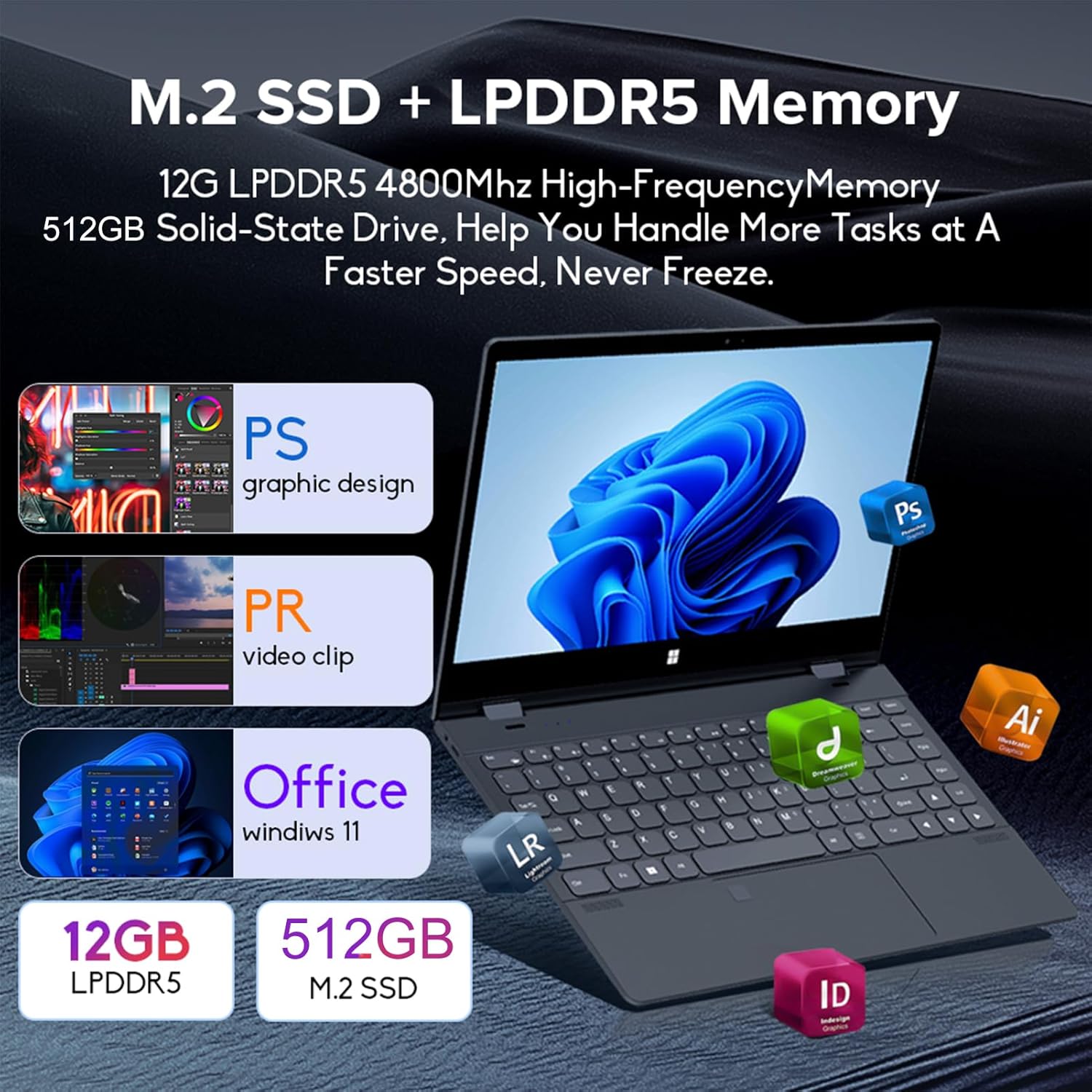
Image: Depiction of the laptop's memory and storage, showing 12GB LPDDR5 RAM and 512GB/1TB M.2 SSD, suitable for various applications.
4.2 Poorte en verbindings
Maak jouself vertroud met die beskikbare poorte op jou skootrekenaar:
- USB-C (Full-featured): Supports audio, video, data transmission, and PD2.0 fast charging.
- USB 3.0: Vir die koppeling van USB-toestelle.
- Oudio-in: Vir oorfone of eksterne luidsprekers.
- DC In: Power input (if applicable, though USB-C is primary charging).
- TF-kaartleser: Vir geheuekaarte.

Beeld: 'n Gedetailleerde view of the laptop's side ports, including USB-C, USB 3.0, audio jack, and TF card slot.
4.3 Omskepbare Modusse
The 360-degree hinge allows the laptop to transform into four distinct modes:
- Notebook Mode: Traditional laptop experience for typing and productivity.
- Tabletmodus: Fold the screen back completely for a tablet experience, ideal for touch-based applications and gaming.
- Viewing Mode (Tent Mode): Stand the laptop in a tent shape for watching videos or presentations.
- Conference Mode (Stand Mode): Flip the keyboard under the screen to share content easily in a group setting.

Image: Visual guide demonstrating the four convertible modes of the laptop: Notebook, Tablet, Viewing, and Conference.
5. Operasie
5.1 Gebruik die raakskerm
The 10-point multi-touch screen allows for intuitive navigation. Use gestures similar to a smartphone or tablet. The gravity sensing feature enhances the experience, especially in tablet mode.

Image: Demonstrates the ease of touchscreen operation and the benefit of gravity sensing for gaming.
5.2 Using the Backlit Keyboard and Fingerprint Unlock
- Verligte sleutelbord: Press the Function (Fn) key combined with the appropriate F-key (usually F3 or F4, check keyboard icons) to toggle the keyboard backlight on/off or adjust its brightness.
- Vingerafdruk ontsluit: Set up your fingerprint in Windows Settings > Accounts > Sign-in options. Once configured, you can unlock your laptop quickly by placing your registered finger on the fingerprint sensor.
5.3 Verbinding met Wi-Fi en Bluetooth
The laptop supports dual-band Wi-Fi (2.4G/5.0G Hz 802.11ac) and Bluetooth for wireless connectivity.
- Wi-Fi: Click the Wi-Fi icon in the taskbar, select your desired network, enter the password if prompted, and click Connect.
- Bluetooth: Go to Windows Settings > Bluetooth & devices. Ensure Bluetooth is turned on, then click 'Add device' to pair with Bluetooth peripherals like headphones or mice.

Image: Visual representation of the laptop's dual-band Wi-Fi and Bluetooth connectivity features.
6. Onderhoud en versorging
- Skoonmaak: Gebruik 'n sagte, pluisvrye lap effens dampSpoel die skerm skoon met water of 'n skermreiniger. Gebruik 'n droë, sagte lap vir die sleutelbord en onderstel. Vermy harde chemikalieë.
- Batterysorg: Om die batterylewe te verleng, vermy om die battery gereeld heeltemal te ontlaai. Bêre die skootrekenaar op 'n koel, droë plek wanneer dit nie vir lang tye gebruik word nie.
- Ventilasie: Maak seker dat die skootrekenaar se ventilasie-openinge nie geblokkeer is om oorverhitting te voorkom nie. Gebruik die skootrekenaar op 'n harde, plat oppervlak.
- Sagteware-opdaterings: Dateer jou bedryfstelsel en drywers gereeld op om optimale werkverrigting en sekuriteit te verseker.
7. Probleemoplossing
| Probleem | Moontlike Oplossing |
|---|---|
| Skootrekenaar skakel nie aan nie. | Ensure the charging cable is securely connected and the power outlet is functional. Allow the laptop to charge for at least 30 minutes before attempting to power on again. |
| Wi-Fi-verbindingsprobleme. | Restart your router and modem. On the laptop, disable and re-enable Wi-Fi. Ensure you are within range of the Wi-Fi signal. |
| Die raakskerm reageer nie. | Restart the laptop. Check for any physical obstructions on the screen. Ensure Windows updates are current. |
| Sleutelbord se agterlig werk nie | Press Fn + F-key (check keyboard icon) to toggle or adjust backlight brightness. Ensure drivers are up to date. |
| Die skootrekenaar loop stadig. | Maak onnodige toepassings toe. Kontroleer vir agtergrondprosesse. Maak seker dat daar voldoende vrye stoorplek is. Voer 'n stelselskandering vir wanware uit. |
8. Tegniese spesifikasies
| Kenmerk | Spesifikasie |
|---|---|
| Skerm grootte | 14 duim |
| Resolusie | 3840 x 2160 piksels (4K UHD) |
| Verwerker | Intel N95 (up to 3.4GHz) |
| RAM Geheue Geïnstalleerde Grootte | 12 GB LPDDR5 |
| Hardeskyf beskrywing | 512GB/1TB NVMe SSD |
| Bedryfstelsel | Windows 11 Tuis |
| Grafiese medeverwerker | Intel UHD Grafika (Geïntegreerd) |
| Draadlose konneksie | 2.4G/5.0G Hz 802.11ac Wi-Fi, Bluetooth |
| Totale USB-poorte | 2 (including 1 full-featured USB-C) |
| Kleur | Silwer grys |
| Item gewig | 3.46 pond (1570 gram) |
| Pakket afmetings | 15.35 x 9.84 x 3.35 duim |
| Land van oorsprong | China |
9. Waarborg en Ondersteuning
For warranty information and technical support, please refer to the documentation provided with your purchase or visit the official Docooler webwebwerf. Bewaar u bewys van aankoop vir waarborgeise.
Docooler is committed to providing quality products and customer satisfaction. For further assistance, please contact Docooler customer service.
Note: Protection plans may be available for extended coverage. Please check with your retailer for details.
Ask a question about this manual
Ask about setup, troubleshooting, compatibility, parts, safety, or missing instructions. Manuals+ will review the question and use this page’s manual context to help answer it.