
1. Inleiding
This manual provides detailed instructions for the setup, operation, maintenance, and troubleshooting of your Vontar X3 S905X3/4GB/32GB Android TV Box. Please read this manual thoroughly before using the device to ensure proper functionality and to maximize your user experience. Keep this manual for future reference.
2. Produk verbyview
The Vontar X3 S905X3/4GB/32GB is an Android TV Box designed to transform your television into a smart entertainment hub. It runs on Android 9.0 and features a powerful S905X3 processor, 4GB of RAM, and 32GB of internal storage, providing a smooth and responsive user experience for streaming, gaming, and app usage.
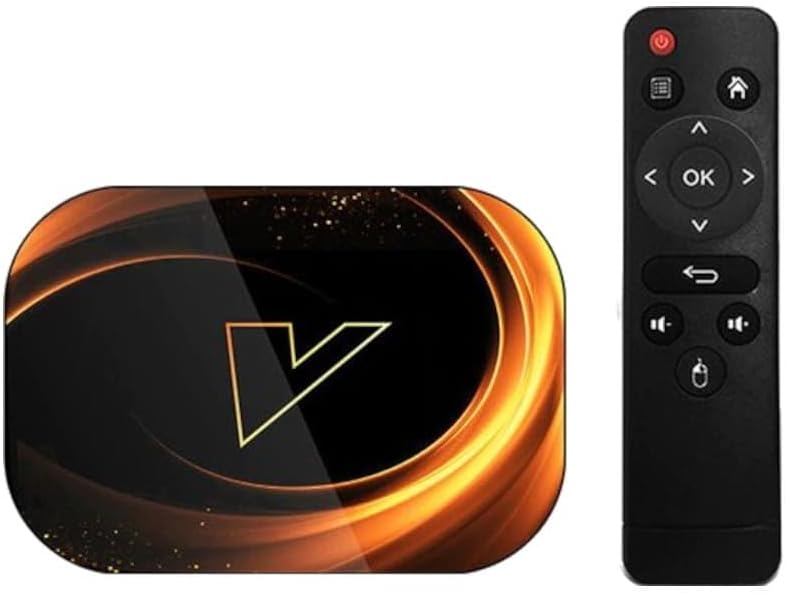
Figuur 2.1: The Vontar X3 Android TV Box shown alongside its included remote control. The TV box features a sleek, dark design with a prominent 'V' logo on top, while the remote is a standard black infrared type with navigation and media control buttons.
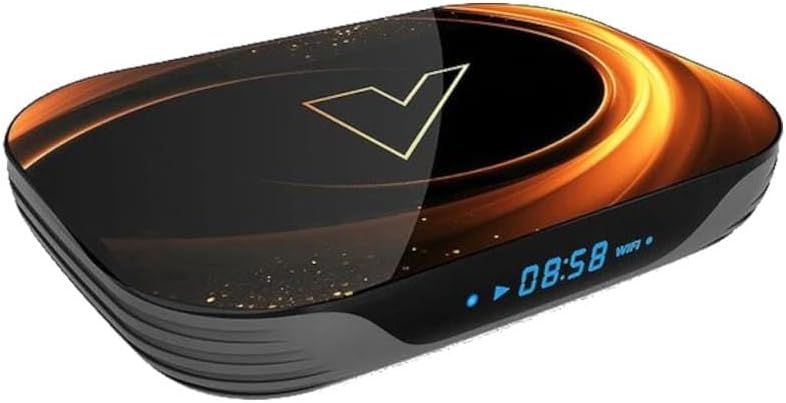
Figuur 2.2: 'n Voorhoek view of the Vontar X3 Android TV Box, highlighting its digital display which shows the current time (08:58) and Wi-Fi status. The device has a dark, glossy finish with an illuminated 'V' logo and subtle golden accents.
Pakketinhoud:
- Vontar X3 S905X3/4GB/32GB Android TV Box
- Afstandbeheer
- Kragadapter
- HDMI kabel
- Gebruikershandleiding
3. Opstelgids
3.1 Verbind die toestel
- Koppel aan TV: Insert one end of the HDMI cable into the HDMI port on the Vontar X3 TV Box and the other end into an available HDMI input on your television.
- Koppel aan krag: Plug the power adapter into the DC IN port on the TV Box, then plug the adapter into a wall outlet. The device should power on automatically or can be turned on using the power button on the remote.
- Koppel aan netwerk (opsioneel):
- Wi-Fi: Once the device is powered on, navigate to the 'Settings' menu, select 'Network & Internet', and choose your Wi-Fi network. Enter the password if prompted.
- Ethernet: For a wired connection, connect an Ethernet cable from your router to the LAN port on the TV Box. The device will automatically detect the wired connection.
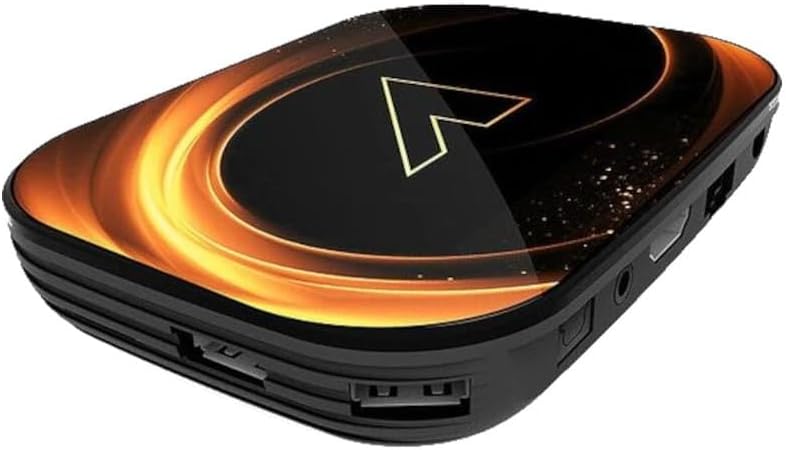
Figuur 3.1: Agter view of the Vontar X3 Android TV Box, showing various ports including HDMI, Ethernet (LAN), and DC power input. These ports are essential for connecting the device to a television and power source.

Figuur 3.2: Kant view of the Vontar X3 Android TV Box, displaying additional connectivity options such as USB ports (one USB 3.0, one USB 2.0) and a MicroSD card slot for expandable storage.
3.2 Aanvanklike opstart
After connecting all necessary cables, switch your TV's input source to the corresponding HDMI port. The Vontar X3 TV Box will display the boot-up screen. Follow any on-screen prompts for initial setup, such as language selection and Google account login.
4. Bedryfsinstruksies
4.1 Afstandbeheerfunksies
The included remote control allows you to navigate the Android TV interface and control media playback. Familiarize yourself with the main buttons:
- Kragknoppie: Skakel die toestel aan of af.
- Navigasie-pad (Op/Af/Links/Regs): Beweeg die wyser of seleksie.
- OK knoppie: Confirms selection or opens an item.
- Terug-knoppie: Keer terug na die vorige skerm.
- Tuisknoppie: Keer terug na die hooftuisskerm.
- Volume knoppies: Pas die klankvolume aan.
- Kieslys-knoppie: Kry toegang tot kontekssensitiewe spyskaarte.
4.2 Navigating the Android 9.0 Interface
The Vontar X3 runs on Android 9.0, offering a user-friendly interface. Use the remote's navigation pad to browse through apps, settings, and content. The home screen typically displays frequently used apps, recommended content, and quick access to settings.
4.3 Installing and Uninstalling Applications
- Installeer toepassings: Access the Google Play Store from the home screen. Soek vir desired applications and select 'Install'.
- Deïnstallering van programme: Go to 'Settings' > 'Apps'. Select the app you wish to uninstall and choose 'Uninstall'.
4.4 Media-terugspeel
The device supports various media formats. You can play media from:
- Stroomdienste: Install apps like Netflix, YouTube, Hulu, etc., from the Google Play Store.
- Plaaslike berging: Connect a USB drive or MicroSD card to play media files directly. Use a file manager or media player app.
- Netwerkberging: Toegang tot media files from network-attached storage (NAS) or shared folders on your local network.
5. Onderhoud
5.1 Die skoonmaak van die toestel
To clean the Vontar X3 TV Box, use a soft, dry cloth. Do not use liquid cleaners or abrasive materials, as they may damage the device's finish or internal components.
5.2 Sagteware-opdaterings
Periodically check for software updates to ensure optimal performance and access to the latest features. Go to 'Settings' > 'Device Preferences' > 'About' > 'System update'.
5.3 Fabrieksterugstelling
As jy aanhoudende probleme ondervind, kan 'n fabrieksherstel dit oplos. Waarskuwing: A factory reset will erase all data, settings, and installed applications. Go to 'Settings' > 'Device Preferences' > 'Reset'. Confirm your choice when prompted.
6. Probleemoplossing
This section addresses common issues you might encounter with your Vontar X3 TV Box.
| Probleem | Moontlike oorsaak | Oplossing |
|---|---|---|
| Geen krag nie | Power adapter not connected; Power outlet not working; Device faulty. | Maak seker dat die kragadapter stewig aan die toestel en 'n werkende kragaansluiting gekoppel is. Probeer 'n ander aansluiting. |
| Geen sein op TV nie | Incorrect HDMI input selected; HDMI cable loose or faulty; TV Box not powered on. | Select the correct HDMI input on your TV. Check HDMI cable connections. Ensure the TV Box is powered on. |
| Wi-Fi verbind nie | Incorrect Wi-Fi password; Router issues; Device too far from router. | Verify Wi-Fi password. Restart your router. Move the TV Box closer to the router or use an Ethernet cable. |
| Afstandbeheer werk nie | Batteries drained; Obstruction between remote and device; Remote not paired (if Bluetooth). | Replace batteries. Ensure no obstructions. If it's a Bluetooth remote, re-pair it via settings. |
| Programme wat vasval of vries | Insufficient memory; App specific issue; Software glitch. | Close background apps. Clear app cache/data (Settings > Apps). Restart the device. Perform a factory reset if issues persist. |
7. Spesifikasies
The following are the technical specifications for the Vontar X3 S905X3/4GB/32GB Android TV Box:
- Model: X3 S905X3/4GB/32GB
- Bedryfstelsel: Android 9.0
- Verwerker: Amlogic S905X3
- RAM: 4 GB
- Interne berging: 32 GB
- Verbinding: Wi-Fi, Ethernet, HDMI, USB 3.0, USB 2.0, MicroSD Card Slot
- Afmetings: 13.78 x 9.45 x 6.3 duim (Pakketafmetings)
- Item gewig: 1.76 pond (800 gram)
- Kleur: Colourful (Device exterior design)
- Vervaardiger: Vontar
- Item Modelnommer: 62353
- ASIN: B0CPPPXYKP
8. Waarborg en Ondersteuning
For warranty information and technical support, please refer to the documentation provided with your purchase or contact Vontar customer service directly. Keep your proof of purchase for any warranty claims.


