
Jennov JS7015
Jennov JS7015 5MP Dual-Band Wi-Fi Outdoor Security Camera User Manual
Model: JS7015
1. Inleiding
This manual provides detailed instructions for the installation, operation, and maintenance of your Jennov JS7015 5MP Dual-Band Wi-Fi Outdoor Security Camera. Please read this manual thoroughly before using the product to ensure correct usage and optimal performance.

Figure 1: Jennov JS7015 Outdoor Security Camera
The Jennov JS7015 is a 5-megapixel outdoor security camera featuring dual-band Wi-Fi connectivity (2.4GHz and 5GHz). It offers 360-degree viewing capabilities, PIR human detection, auto-tracking, 24/7 recording, and two-way audio for comprehensive outdoor surveillance.
2. Pakketinhoud
Kontroleer asseblief die inhoud van die pakket na ontvangs. Indien enige items ontbreek of beskadig is, kontak kliëntediens.
- Jennov JS7015 5MP Dual-Band Wi-Fi Outdoor Security Camera
- Kragadapter
- Monteer skroewe en ankers
- Gebruikershandleiding (hierdie dokument)
3. Produk verbyview
Familiarize yourself with the camera's components.

Figure 2: Camera Pan and Tilt Mechanism
The camera features a motorized pan and tilt mechanism, allowing for a 355° horizontal rotation (pan) and a 60° vertical rotation (tilt). This enables comprehensive coverage of the surveillance area. The camera body houses the lens, infrared LEDs, white light LEDs, microphone, and speaker. Two external antennas provide enhanced Wi-Fi signal reception.
- Kameralens: Vang video footage.
- Infrarooi LED's: Provide illumination for black and white night vision.
- Wit lig LED's: Provide illumination for color night vision and act as a spotlight.
- Mikrofoon: Captures audio for two-way communication and recording.
- Spreker: Outputs audio for two-way communication and alarms.
- antennas: Vir Wi-Fi-konnektiwiteit.
- Kragpoort: Koppel aan die kragadapter.
- Herstel-knoppie: Used to reset the camera to factory settings (usually located near the SD card slot or under a cover).
- SD-kaartgleuf: For local video storage (supports up to 128GB, not included).
4. Opstelgids
4.1 Fisiese installasie
The camera is designed for outdoor use and is IP66 waterproof. Choose a suitable location for mounting, ensuring a clear view of the area you wish to monitor and proximity to a power source.
- Merk boorposisies: Gebruik die monteringsjabloon (indien voorsien) of die kamerabasis om die skroefgate op die muur te merk.
- Boorgate: Drill holes at the marked positions. Insert wall anchors if mounting on masonry.
- Veilige kamera: Attach the camera base to the wall using the provided screws.
- Pas hoek aan: Loosen the adjustment screws (if any) to position the camera for optimal coverage before tightening.

Figure 3: IP66 Waterproof Design
The camera is built with waterproof materials and has an IP66 rating, making it suitable for outdoor installation and resistant to dust and water jets.
4.2 Kragverbinding
Koppel die meegeleverde kragadapter aan die kamera se kragpoort en prop dit dan in 'n kragaansluiting. Die kamera sal aanskakel en sy opstartvolgorde begin.
4.3 App-aflaai en rekeningregistrasie
The Jennov JS7015 camera uses the EseeCloud application for remote access and control.
- Laai die app af: Soek vir "EseeCloud" in your smartphone's app store (Google Play Store for Android or Apple App Store for iOS) and download the application.
- Registreer rekening: Open the EseeCloud app and follow the on-screen instructions to register a new account using your email address or phone number.
4.4 Voeg die kamera by die toepassing
Ensure your smartphone is connected to the same Wi-Fi network (2.4GHz or 5GHz) that you intend to connect the camera to.
- Maak toepassing oop: Launch the EseeCloud app and log in.
- Voeg toestel by: Tap the "+" icon or "Add Device" option.
- Kies toesteltipe: Choose "Wi-Fi Camera" or similar option.
- Skandeer QR -kode: The app may prompt you to scan a QR code located on the camera or its packaging.
- Wi-Fi-konfigurasie: Follow the app's instructions to enter your Wi-Fi network name (SSID) and password. The camera supports both 2.4GHz and 5GHz Wi-Fi bands.
- Koppel: The camera will attempt to connect to your Wi-Fi network. Once connected, it will appear in your device list within the app.
- Stel wagwoord in: Skep 'n sterk wagwoord vir jou kamera vir sekuriteitsdoeleindes.
5. Bedryfsinstruksies
5.1 Lewendig View en Pan/Kantelbeheer
Kies jou kamera vanaf die EseeCloud-app om toegang tot die regstreekse view.
- Lewendige uitsending: View real-time video from your camera.
- Pan/kantel: Use the directional controls within the app to remotely adjust the camera's horizontal (pan) and vertical (tilt) angles.
5.2 Outo-opsporing
Die kamera kan bewegende voorwerpe outomaties opspoor binne sy veld van view.

Figure 4: Auto Tracking in Action
Enable the auto-tracking feature in the app settings. The camera will then detect and follow moving targets until they leave the camera's view.
5.3 Bewegingsopsporing en alarms
The camera features advanced PIR (Passive Infrared) human detection to minimize false alarms.

Figure 5: PIR Human Detection and Alarm Options
When a human thermal profile is detected, the camera can trigger various alarms.
- PIR-opsporing: Activates recording and sends notifications when a human is detected.
- Klankalarm: Configure the camera to emit a siren sound upon detection.
- Spotlight Alarm: The integrated spotlight can be activated to deter intruders.
- Kennisgewings: Receive instant alerts on your smartphone via the EseeCloud app.
5.4 Tweerigting-klank
Communicate directly with individuals near the camera using the built-in microphone and speaker.

Figuur 6: Tweerigting-klankkommunikasie
Tap the microphone icon in the app to speak, and listen through the camera's speaker. This feature is useful for interacting with visitors or deterring unwanted guests.
5.5 Opname en berging
The camera supports continuous 24/7 recording and offers flexible storage options.
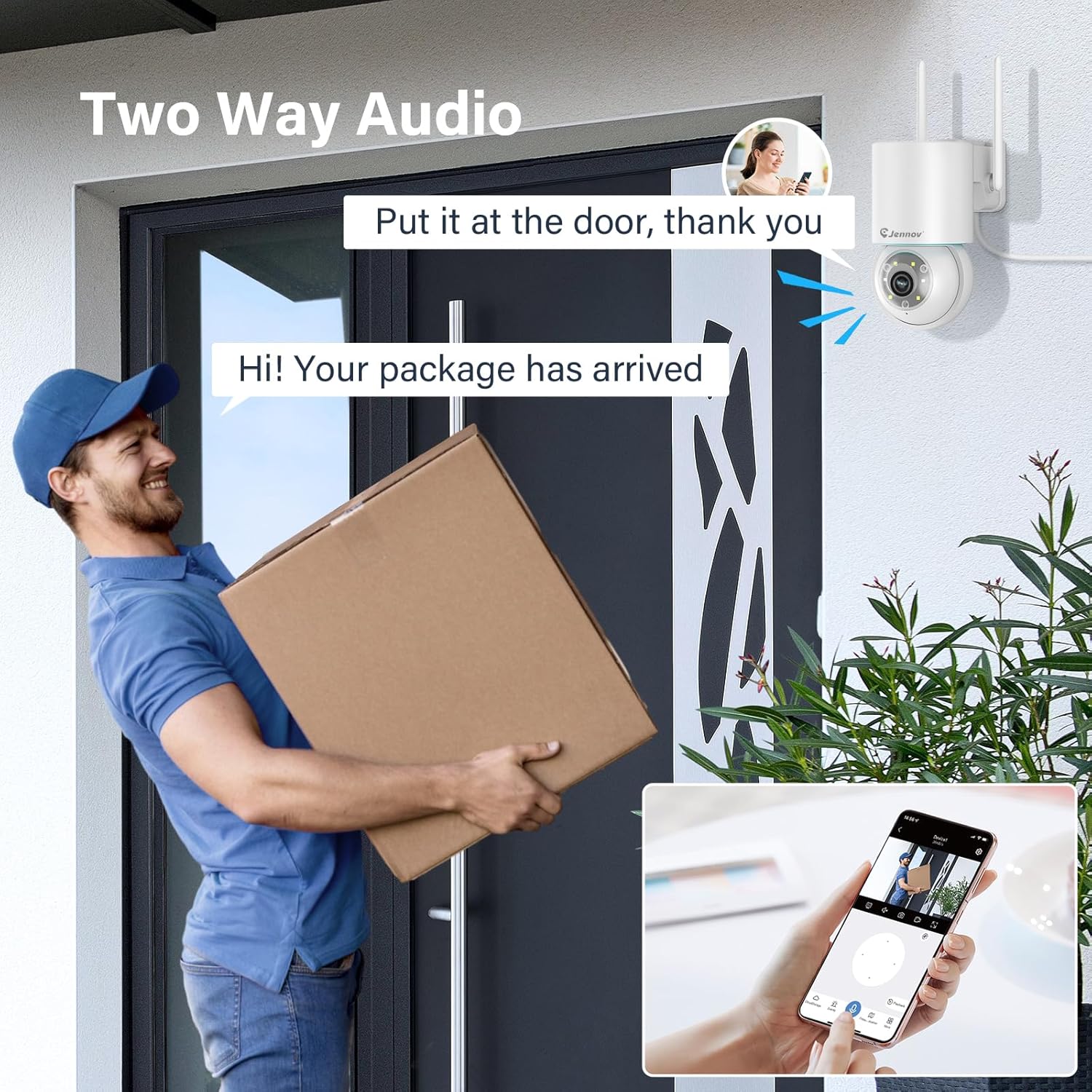
Figure 7: 24/7 Recording and Storage Options
Toegang opgeneem footage via the app's playback function.
- 24/7 Opname: The camera can continuously record footage, ensuring no vital moments are missed.
- Plaaslike berging: Plaas 'n microSD-kaart (tot 128 GB, nie ingesluit nie) in die kamera se SD-kaartgleuf vir plaaslike berging.
- Wolkberging: Optional cloud storage service is available, often with a free trial period (e.g., 7 days). This provides off-site backup of your recordings.
5.6 Nagsigmodusse
The camera offers three night vision modes for clear visibility in low-light conditions.

Figure 8: 5MP Color Night Vision
The camera provides clear night vision up to 65 feet (20 meters) with 5MP resolution.
- Volkleurmodus: Utilizes white LEDs to provide full-color video at night.
- Swart en wit modus: Uses infrared LEDs for traditional black and white night vision.
- Slim af: Automatically switches between black and white and full color based on detected motion or light conditions.
You can switch between these modes within the EseeCloud mobile application.
5.7 Customized Detection Area
Definieer spesifieke areas binne die kamera se view waar bewegingsopsporing aktief moet wees.

Figure 9: Customized Detection Area Settings
This feature helps reduce unwanted alerts by focusing detection on critical zones. The app typically offers "Area mode" and "Cordon mode" for defining these zones.
6. Onderhoud
- Skoonmaak: Maak die kameralens gereeld skoon met 'n sagte, droë lap om 'n duidelike beeldkwaliteit te verseker. Moenie harde chemikalieë gebruik nie.
- Firmware -opdaterings: Check the EseeCloud app periodically for available firmware updates. Keeping your camera's firmware updated ensures optimal performance and security.
- SD-kaartbestuur: If using local storage, periodically check the SD card's status in the app. Format the card as needed to maintain recording efficiency.
- Kragtoevoer: Ensure the power adapter and cable are free from damage and properly connected.
7. Probleemoplossing
- Kamera vanlyn:
- Kontroleer die Wi-Fi-seinsterkte.
- Maak seker dat die kamera aangeskakel is.
- Herbegin die kamera en jou Wi-Fi-router.
- If using 5GHz Wi-Fi, ensure your router supports it and the camera is connected to the correct band.
- Try re-adding the camera to the EseeCloud app.
- Swak beeldkwaliteit:
- Maak die kameralens skoon.
- Ensure sufficient lighting, especially at night.
- Kontroleer jou internetverbindingspoed.
- Bewegingsopsporing werk nie:
- Verify motion detection settings in the app are enabled.
- Pas opsporingsensitiwiteit aan.
- Ensure no obstructions are blocking the camera's view.
- Check if detection areas are correctly configured.
- Tweerigting-oudio-kwessies:
- Ensure microphone and speaker permissions are granted to the EseeCloud app on your smartphone.
- Check volume settings on both the app and your phone.
- Ensure there are no physical obstructions blocking the camera's microphone or speaker.
- Cannot Access SD Card Recordings:
- Ensure the SD card is properly inserted.
- Check if the SD card is formatted correctly (usually FAT32).
- Verify that continuous recording or event recording to SD card is enabled in the app.
- The SD card might be full; consider formatting it or replacing it.
8. Spesifikasies
| Kenmerk | Spesifikasie |
|---|---|
| Modelnommer | JS7015 |
| Handelsmerk | Jennov |
| Resolusie | 5 Megapixel (1920p video recording) |
| Pan / kantelhoek | Pan 355°, kantel 60° |
| Nagvisie | Color Night Vision, Black & White Night Vision, Smart Mode (up to 65ft/20m) |
| Wi-Fi konneksie | Dual-Band (2.4GHz / 5GHz) |
| Oudio | Tweerigting-klank (ingeboude mikrofoon en luidspreker) |
| Bewegingsopsporing | PIR Human Detection, Auto Tracking |
| Bergingsopsies | MicroSD Card (up to 128GB), Cloud Storage |
| Waterdigte gradering | IP66 |
| Krag Invoer | 5 Volt |
| Kragverbruik | 24 Watt |
| Afmetings (L x B x H) | 12 x 8 x 16 cm |
| Materiaal | Plastiek |
| Montage tipe | Muurmontering |
| Versoenbare toestelle | Slimfoon, tablet, rekenaar |
| Beheer App | EseeCloud |
9. Waarborg en Ondersteuning
For warranty information and technical support, please refer to the warranty card included with your product or visit the official Jennov webwebwerf.
- Kliëntediens: Contact Jennov customer support for assistance with product issues, technical questions, or warranty claims.
- Aanlyn hulpbronne: Check the Jennov webwebwerf vir algemene vrae, opgedateerde handleidings en sagteware-aflaaie.