
1. Inleiding
The Nillkin Bumper Combo Keyboard Case is a versatile accessory designed to enhance your Apple iPad experience. It features a removable keyboard, an adjustable stand, and a trackpad, facilitating typing, viewing, reading, and sketching. The case also provides robust protection for your device, including an anti-fall design and a patented sliding camera cover.
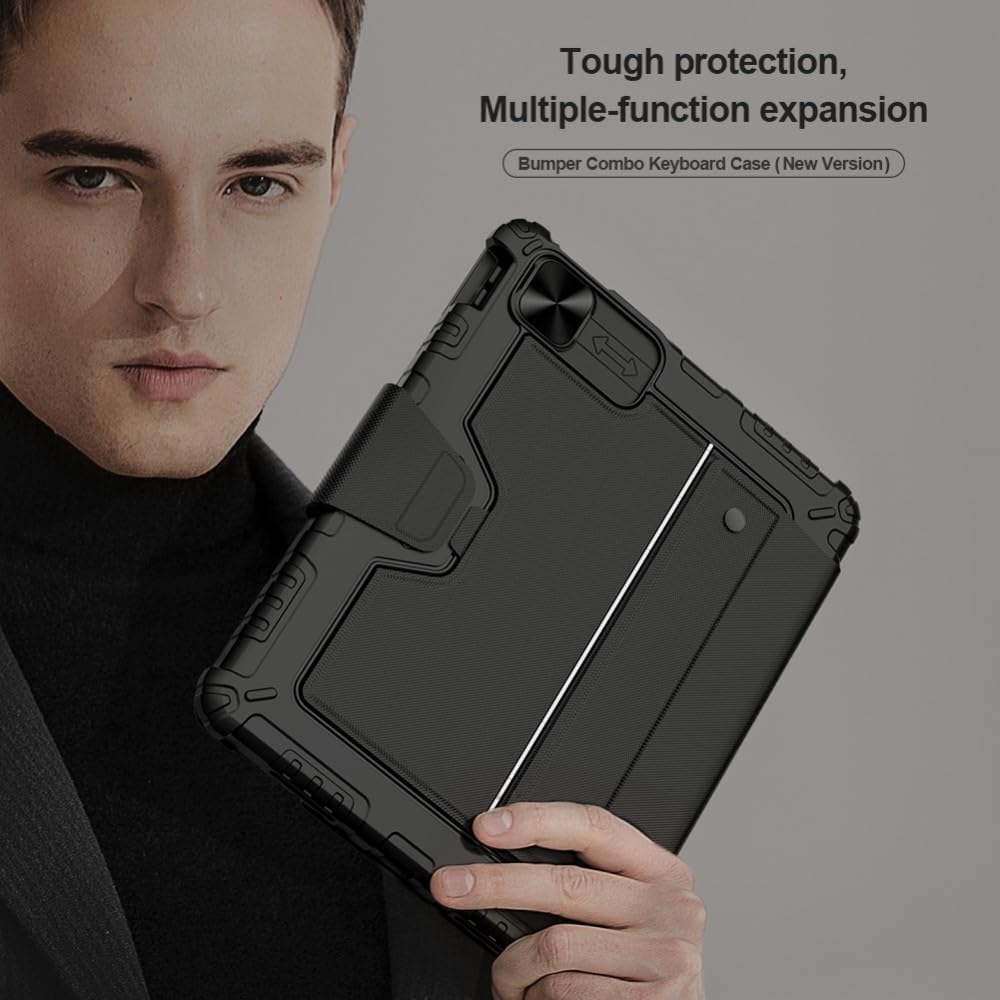
Image: The Nillkin Bumper Combo Keyboard Case, highlighting its protective and multi-functional design.
2. Verenigbaarheid
This keyboard case is specifically designed for the following Apple iPad models:
- iPad Air 11-inch (M2, 2024)
- iPad Air 5th Generation (2022)
- iPad Air 4th Generation (2020)
- iPad Pro 11-inch (2022/2021/2020/2018)
Compatible iPad model numbers include: A2435, A2761, A27759, A2316, A2324, A2325, A2072, A2377, A2459, A2301, A2460, A2068, A2228, A2230, A2231, A1980, A2013, A1934, A1979.
Belangrik: Please verify your iPad's model number before use. The Apple Pencil is not included.

Image: A visual guide to identifying compatible iPad models and their corresponding model numbers.
3. Pakketinhoud
Die pakket sluit in:
- 1 x Nillkin Bumper Combo Keyboard Case for Apple iPad
4. Opstelling
4.1 Heg jou iPad aan
- Carefully align your iPad with the case.
- Gently press the iPad into the bumper case, ensuring all edges are securely fitted. The anti-fall design will wrap tightly around the iPad's edges.
4.2 Connecting the Keyboard (Bluetooth Pairing)
- Ensure the keyboard is charged (refer to section 4.3).
- Turn on the keyboard using its power switch.
- Op jou iPad, gaan na Instellings > Bluetooth.
- Enable Bluetooth and select the Nillkin keyboard from the list of available devices.
- Volg enige instruksies op die skerm om die saambindproses te voltooi.
4.3 Laai die sleutelbord
Connect the keyboard to a power source using the provided charging cable. A full charge typically takes 2-3 hours. Once fully charged, the wireless keyboard can remain on standby for up to 90 days.
5. Bedryfsinstruksies
5.1 Sleutelbordgebruik
The keyboard features silent keys with a scissor foot structure for a comfortable and quiet typing experience. It includes various shortcut keys for quick access to functions.
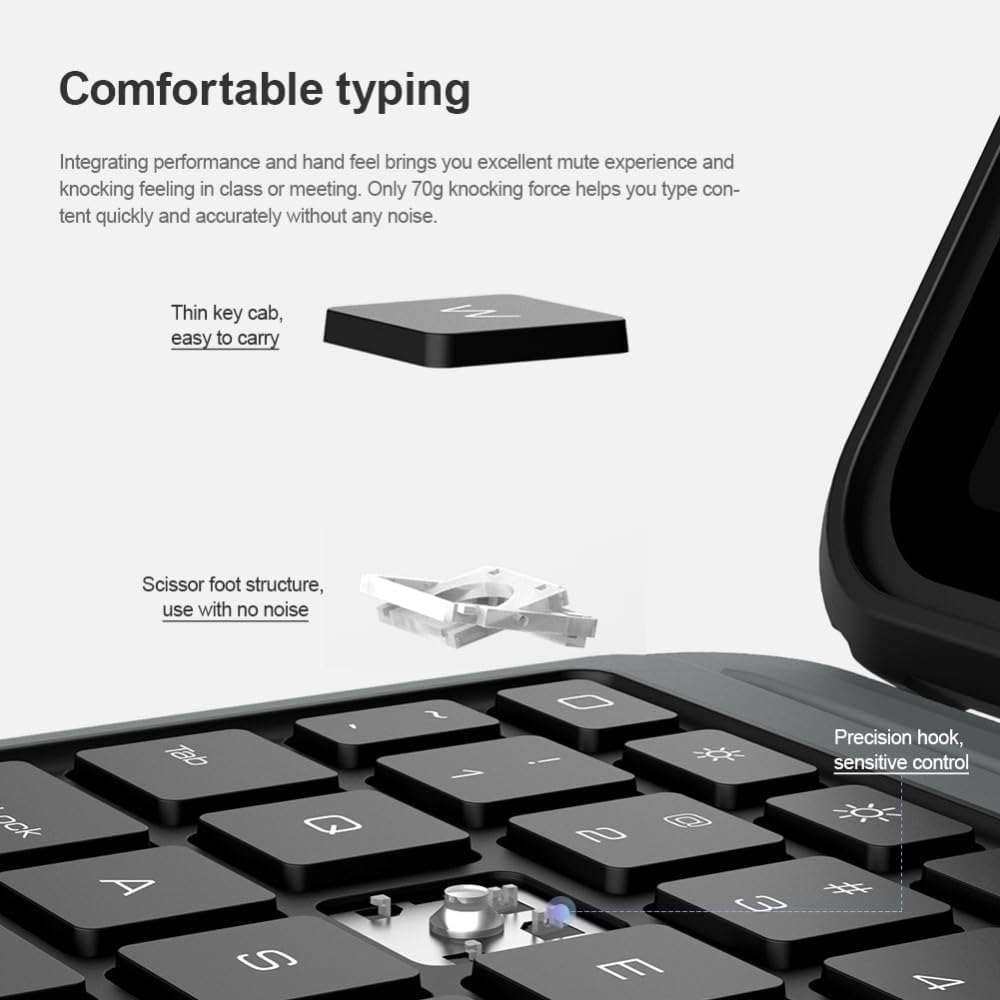
Image: Detail of the keyboard's thin keycaps and scissor foot structure, designed for quiet and precise typing.
Kortpadsleutels:
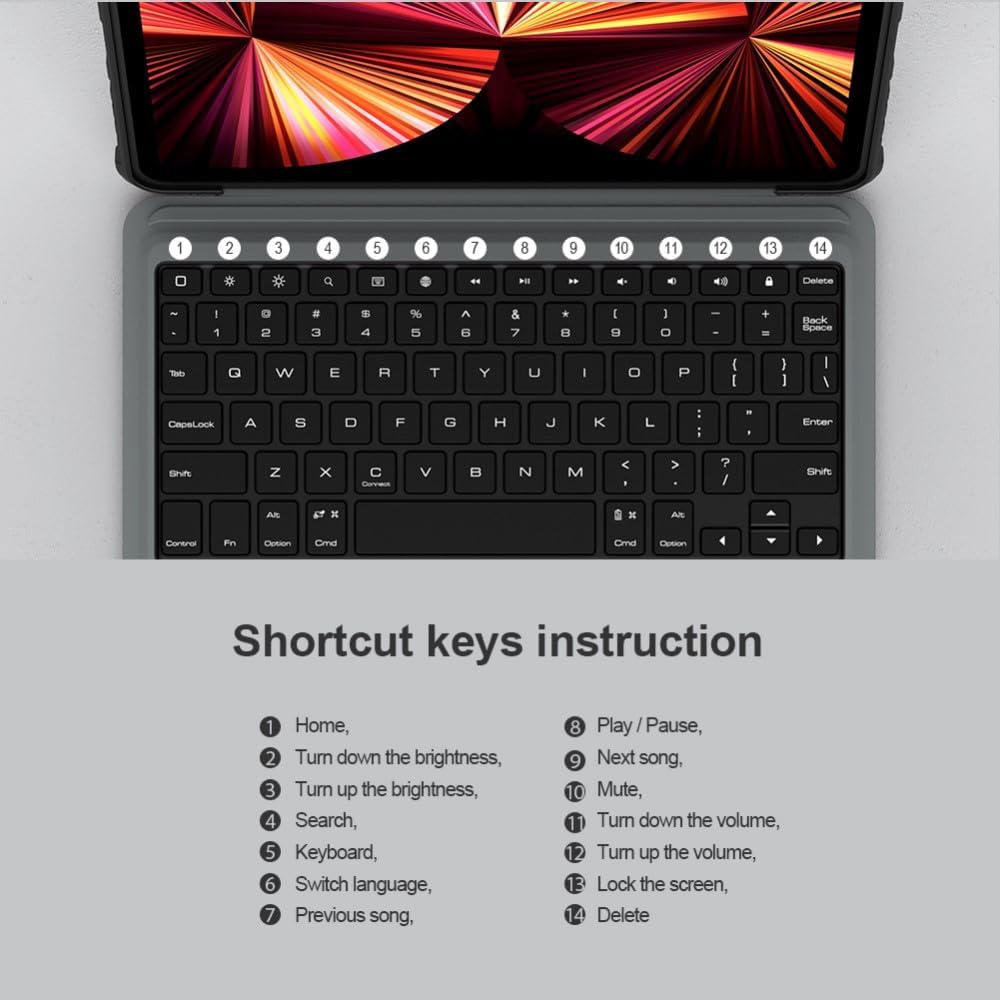
Image: An instruction guide for the keyboard's shortcut keys, detailing functions like Home, brightness adjustment, search, language switching, media playback control, and screen lock.
- Tuis: Keer terug na die tuisskerm.
- Turn down brightness: Verminder die helderheid van die skerm.
- Turn up brightness: Verhoog die helderheid van die skerm.
- Soek: Activate search function.
- Sleutelbord: Toggle virtual keyboard.
- Verander taal: Change input language.
- Vorige liedjie: Gaan na die vorige snit.
- Speel/pouse: Speel of onderbreek media.
- Volgende liedjie: Gaan na die volgende snit.
- Demp: Demp oudio.
- Draai volume af: Verminder volume.
- Verhoog volume: Verhoog volume.
- Sluit die skerm: Lock your iPad screen.
- Vee uit: Delete character.
5.2 Trackpad Operations
The integrated trackpad supports various gestures for flexible control. To enable trackpad functionality after connecting to iPad, go to Instellings > Algemeen > Trackpad > Tap to Click > Opstelling voltooi.

Image: A comprehensive guide to trackpad gestures, illustrating single-finger (swipe, click), two-finger (right click, move left/right, move up/down), and three-finger (back to home, switch multiple tasks, switch different pages) operations.
Gesture Guide:
- Enkelvinger:
- Swipe: Move the mouse.
- Click: Left click.
- Twee vingers:
- Click with two fingers: Right click.
- Swipe left or right: Move left or right.
- Swipe up or down: Move up or down.
- Drie Vingers:
- Swipe up: Back to the home page.
- Swipe up and hold: Switch between multiple tasks.
- Swipe left or right: Switch between different pages.
The keyboard also features anti-mistouch technology, which automatically disables the touchpad when typing to prevent accidental cursor movements, allowing you to concentrate on your work.

Image: An iPad in the keyboard case, illustrating the anti-mistouch technology that disables the trackpad during typing.
5.3 Verstelbare staander
The flexible stand allows you to adjust the viewing angle between 0° and 180° to suit your needs for typing, viewing, reading, or sketching. The mechanical hinge structure ensures stability.

Image: The adjustable stand in action, demonstrating the range of viewing angles from 0° to 180° for optimal comfort.
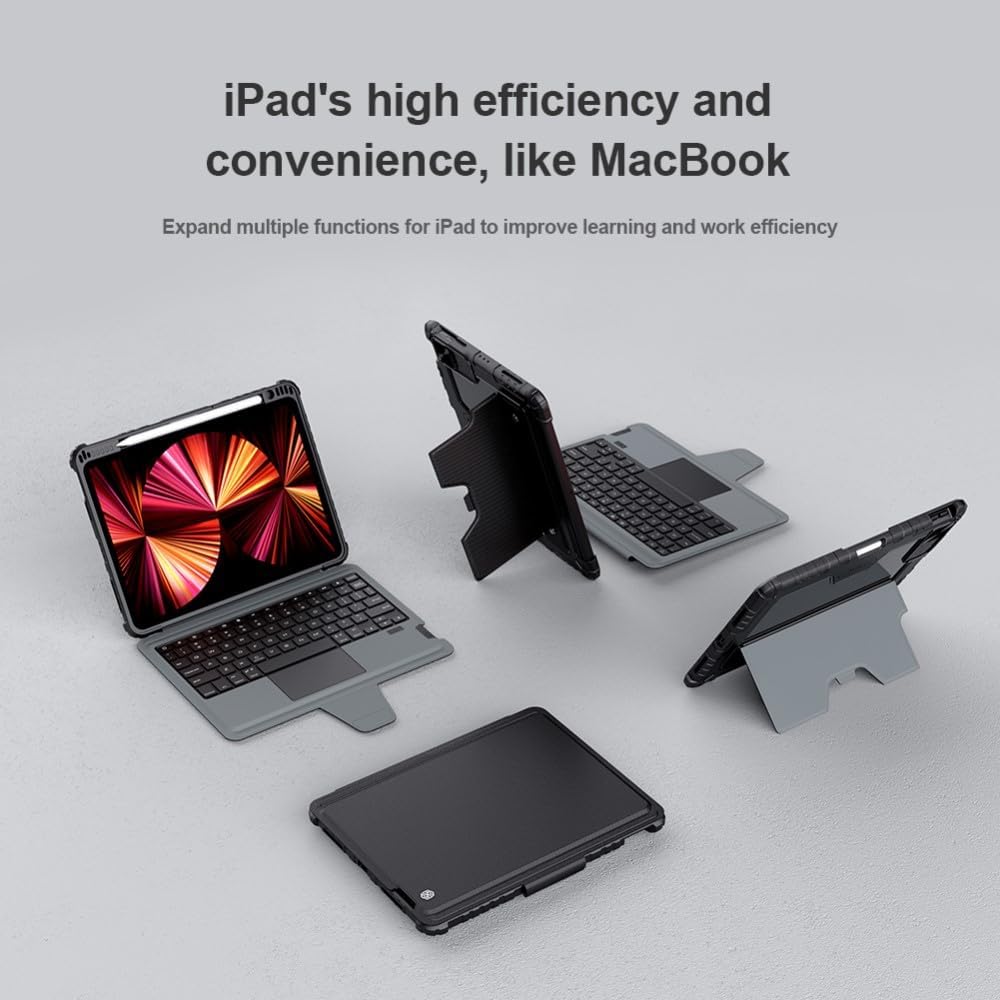
Image: Various usage modes of the keyboard case, illustrating how it can be configured for different tasks like typing, viewing, and drawing.
5.4 Camera Protection
The case features a patented sliding camera cover made of metal, with a 1.1mm lifted bezel. This design effectively protects your iPad's camera from wear, scratches, and collisions.

Beeld: 'n Gedetailleerde view of the sliding camera cover, demonstrating its protective function and how it prevents scratches and dust accumulation.
5.5 Apple Pencil Holder
The case includes a dedicated holder for your Apple Pencil. When placed in the slot, the Apple Pencil will charge securely.

Image: The Apple Pencil holder, showing the pencil securely stored and charging within the case.
5.6 Power Management (Intelligent Sleep)
To conserve power, the keyboard will automatically enter standby mode if there is no operation within 10 minutes. You can wake it up by pressing any key. Closing the case will also automatically put the tablet to sleep.

Image: The keyboard's intelligent sleep feature, which automatically puts the device into standby after 10 minutes of inactivity to save power.
6. Onderhoud
- Clean the case and keyboard regularly with a soft, dry cloth.
- Avoid using harsh chemicals or abrasive materials, as these may damage the surface.
- Keep the case away from extreme temperatures and direct sunlight.
- Maak seker dat die laaipoort vry van stof en puin is.
7. Probleemoplossing
- Sleutelbord koppel nie: Ensure Bluetooth is enabled on your iPad and the keyboard is powered on and charged. Try re-pairing the keyboard via iPad's Bluetooth settings.
- Sleutels reageer nie: Check if the keyboard is charged. If the issue persists, try restarting both the iPad and the keyboard.
- Trackpad not working: Ensure the trackpad is enabled in iPad settings (Settings > General > Trackpad > Tap to Click). Check for any physical obstructions.
- Kort batterylewe: Ensure the keyboard is fully charged. Reduce usage of backlight (if applicable) and ensure the intelligent sleep function is active.
8. Spesifikasies
- Handelsmerk:
- Nillkin
- Modelnommer:
- 6902048257955
- Kleur:
- Swart
- Versoenbare toestelle:
- Apple iPad Air 11 2024/10.9 2020/Air 4/Air 5/Pro 11 2020/2021/2022
- Vormfaktor:
- Geval
- Gevalletipe:
- Moeilik
- Materiaal:
- Polikarbonaat
- Max. Compatible Device Size:
- 11 duim
- Spesiale kenmerke:
- Sliding Camera Cover, Pencil Holder, Trackpad
- Patroon:
- Solied
- Waterweerstandvlak:
- Nie waterbestand nie
- Ingesluit komponente:
- 1 x Nillkin Bumper Combo Keyboard Case for Apple
- Batterye:
- 1 Product specific battery required (included)
- Pakket afmetings:
- 31 x 22 x 3.5 cm; 840 g
- Land van oorsprong:
- Taiwan
9. Waarborg en Ondersteuning
Information regarding product warranty and customer support is not specified in the provided product data. Please refer to the retailer or manufacturer's official website for details on warranty coverage and support options.