
1. Inleiding
Thank you for choosing the Docooler Smart Biometric Fingerprint Cabinet Lock. This device provides a secure and convenient keyless access solution for your cabinets, drawers, wardrobes, and other furniture. Utilizing advanced fingerprint recognition and Bluetooth app control, it offers enhanced security and ease of use. Please read this manual thoroughly before installation and operation to ensure proper functionality and safety.
2. Produk verbyview en kenmerke
The Docooler Smart Biometric Fingerprint Cabinet Lock integrates modern technology to protect your personal items and documents. Its compact design allows for discreet installation within various furniture types.
Sleutel kenmerke:
- Verskeie ontsluitmetodes: Access your belongings using fingerprint recognition, Bluetooth app control, or emergency USB key.
- Hoë sekuriteit: Advanced biometric technology ensures only authorized fingerprints can unlock the device.
- Bluetooth-toepassingsbeheer: Connect via Bluetooth to manage fingerprints, view unlock records, and monitor battery status directly from your smartphone.
- Quick Unlock: Features a 0.5-second reaction time for rapid access.
- Outomatiese sluiting: The lock automatically secures itself after closing, preventing accidental oversight.
- Lae krag waarskuwing: An indicator light signals when the battery level is low, prompting replacement.
- Noodkragtoevoer: In case of complete battery depletion, the lock can be temporarily powered via a USB connection for emergency unlocking.
- Wye toepassing: Suitable for various wooden furniture including cabinets, drawers, wardrobes, and storage boxes.

Figuur 2.1: oorview of Docooler Smart Electronic Cabinet Lock features.

Figure 2.2: Docooler Smart Biometric Fingerprint Cabinet Lock components and usage scenarios.
3. Pakketinhoud
Verifieer asseblief dat al die items wat hieronder gelys word, in u pakket ingesluit is:
- Front Panel (Fingerprint Panel)
- Sluitkas
- Gebruikershandleiding (Hierdie dokument)
- Skroewe sak
- Sluit vangs
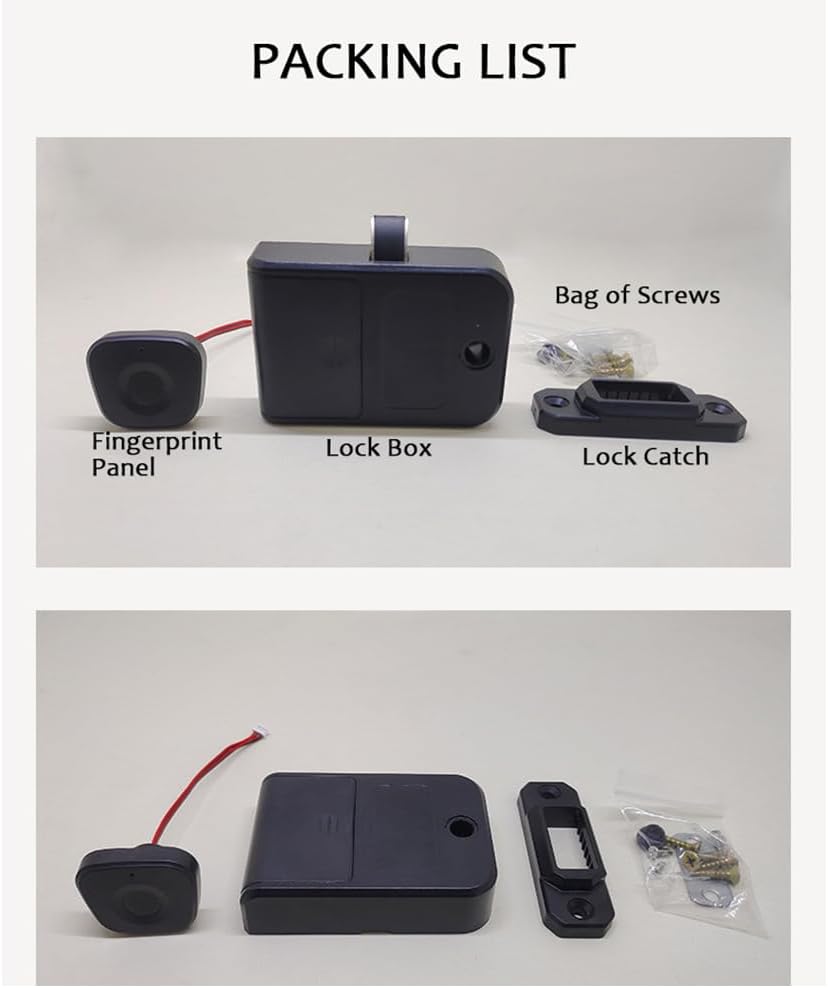
Figure 3.1: Package contents of the Docooler Smart Biometric Fingerprint Cabinet Lock.
4. Spesifikasies
| Kenmerk | Beskrywing |
|---|---|
| Handelsmerk | Doenkoeler |
| Spesiale kenmerk | Vingerafdruk |
| Tipe slot | Biometries |
| Materiaal | Akrielnitril Butadieen Styreen, vlekvrye staal |
| Aanbevole gebruike | Cabinets, Drawers, Wardrobes, Storage Boxes, Furniture |
| Styl | Moderne |
| Kleur | Swart |
| Tipe beheerder | Toepassing |
| Beheer metode | Toepassing, raak |
| Verbindingsprotokol | Bluetooth |
| Item gewig | 4.2 onse |
| Pakket afmetings | 4.45 x 3.78 x 2.56 duim |

Figure 4.1: Product dimensions and parameters.
5. Installasie
The Docooler Smart Biometric Fingerprint Cabinet Lock is designed for easy installation on various wooden furniture. A screwdriver is typically the only tool required.
Installasie stappe:
- Berei die oppervlak voor: Ensure the installation surface on your cabinet or drawer is clean and dry.
- Position the Fingerprint Panel: Determine the desired location for the fingerprint panel on the exterior of your furniture. Mark the screw holes and the cable entry point.
- Install the Fingerprint Panel: Secure the fingerprint panel using the provided screws. Route the connecting wires through the pre-drilled hole to the interior of the furniture.
- Mount the Lock Box: On the interior of the furniture, align the lock box with the fingerprint panel's wires. Secure the lock box with screws.
- Attach the Lock Catch: Install the lock catch on the frame of the furniture, ensuring it aligns properly with the lock box mechanism when the door/drawer is closed.
- Koppel drade: Connect the fingerprint panel wires to the lock box.
- Installeer batterye: Open the battery cover on the lock box and insert 3 AAA batteries (not included), observing correct polarity.
- Toetsfunksionaliteit: Close the door/drawer and test the lock's operation.

Figure 5.1: Simple installation process diagram.

Figuur 5.2: Installasie bvamples for drawers and single-door cabinets.

Figure 5.3: Internal lock box placement within a drawer.
6. Opstelling
6.1. Initial Setup and Administrator Fingerprint Enrollment
- After installing the batteries, the lock will be in initial setup mode.
- Place your finger on the fingerprint sensor. The indicator light will flash.
- Lift and place your finger repeatedly (typically 5-8 times) until the indicator light turns solid green, indicating successful enrollment of the administrator fingerprint.
- The first enrolled fingerprint will automatically be designated as the administrator.
6.2. Adding User Fingerprints
- Use the administrator fingerprint to unlock the device.
- While the lock is open, place the administrator finger on the sensor and hold it until the indicator light flashes blue.
- Then, have the new user place their finger on the sensor repeatedly until the light turns solid green.
- Repeat for additional user fingerprints. The lock can store up to 20 fingerprints.
6.3. Bluetooth App Connection and Control
The lock supports control via a dedicated mobile application (e.g., Tuya Smart app).
- Laai die toepassing af: Soek vir and download the recommended smart home app (e.g., Tuya Smart) from your device's app store.
- Registreer/Teken Aan: Skep 'n rekening of meld aan by die toepassing.
- Voeg toestel by: Ensure your phone's Bluetooth is enabled. In the app, select 'Add Device' or the '+' icon. The app should automatically detect the lock. If not, you may need to manually select 'Lock' or 'Security Sensor' and follow the in-app instructions.
- Saambinding: Follow the app's prompts to pair your lock. This may involve pressing a button on the lock or performing an action with the administrator fingerprint.
- Toepassingsfunksies: Once connected, you can use the app to:
- Unlock the cabinet remotely.
- Add or delete fingerprints.
- View unlock records (who unlocked and when).
- Monitor the current battery level.

Figure 6.1: Tuya App interface for lock control.

Figure 6.2: Fingerprint and Bluetooth app unlock methods.
7. Operasie
7.1. Unlocking with Fingerprint
Place your enrolled finger on the fingerprint sensor. The indicator light will flash green, and the lock will disengage, allowing you to open the cabinet or drawer. The lock will automatically re-engage when the door/drawer is closed.

Figure 7.1: Unlocking the cabinet with a registered fingerprint.
7.2. Unlocking with Bluetooth App
Open the connected mobile app on your smartphone. Tap the unlock icon within the app interface. The lock will disengage, and you can open the cabinet or drawer.
7.3. Outomatiese sluiting
After successfully unlocking and opening the cabinet/drawer, the lock mechanism will automatically retract. When you close the cabinet/drawer, the lock will automatically extend and secure the furniture.
8. Onderhoud
8.1. Battery vervanging
The lock is powered by 3 AAA batteries (not included). When the battery level is low, the indicator light will flash red 3 times continuously during operation. Replace the batteries promptly to ensure continuous functionality.
- Locate the battery compartment on the lock box (interior of the furniture).
- Verwyder die batterydeksel.
- Replace the old AAA batteries with new ones, ensuring correct polarity (+/-).
- Maak die batterydeksel stewig toe.

Figure 8.1: Low power warning indicator.

Figure 8.2: Battery compartment and emergency USB power supply.
8.2. Noodkragtoevoer
If the batteries completely run out and you cannot unlock the device, you can connect an external power bank via the Type-C USB port on the fingerprint panel for temporary emergency power. This will allow you to unlock the device and replace the internal batteries.
8.3. Skoonmaak
Wipe the fingerprint sensor and the lock's exterior with a soft, dry cloth. Avoid using abrasive cleaners or solvents, as these can damage the surface or electronic components.
9. Probleemoplossing
- Lock does not respond to fingerprint:
- Maak seker dat jou vinger skoon en droog is.
- Try different angles or positions of your finger on the sensor.
- Verify that the fingerprint is correctly enrolled. If not, re-enroll it.
- Kontroleer batteryvlak. Vervang batterye indien laag.
- Cannot connect to Bluetooth app:
- Maak seker dat Bluetooth op jou slimfoon geaktiveer is.
- Make sure the lock is within Bluetooth range.
- Restart the app and try pairing again.
- Check battery level of the lock.
- Lock is completely unresponsive:
- The batteries may be completely depleted. Use the emergency USB power supply to temporarily power the lock and then replace the internal batteries.
- Maak seker dat alle kabelverbindings veilig is.
- Lock mechanism is stuck:
- Check for any obstructions preventing the lock from engaging or disengaging.
- Ensure the lock catch is properly aligned with the lock box.
10. Produkvideo-demonstrasie
Watch this video for a visual demonstration of the Docooler Smart Biometric Fingerprint Cabinet Lock's features and operation.
Video 10.1: Fingerprint Lock Product Display. This video demonstrates the installation and usage of the Docooler Smart Biometric Fingerprint Cabinet Lock, including fingerprint and app unlocking methods.
11. Waarborg en Ondersteuning
Docooler products are designed for reliability and performance. For specific warranty information, please refer to the warranty card included with your purchase or contact Docooler customer support directly. If you encounter any issues not covered in this manual, please reach out to our support team for assistance.
Kontakinligting: Please refer to the product packaging or the official Docooler webwebwerf vir die mees onlangse kliëntedienskontakbesonderhede.