
A4TECH FG20
A4TECH FG20 2.4G Wireless Mouse User Manual
Model: FG20 | Brand: A4TECH
Inleiding
This manual provides comprehensive instructions for the setup, operation, maintenance, and troubleshooting of your A4TECH FG20 2.4G Wireless Mouse. Please read this manual carefully before using the product to ensure optimal performance and longevity.
Pakketinhoud
- A4TECH FG20 2.4G Wireless Mouse
- USB Nano -ontvanger
- AA Battery (may be pre-installed or included separately)
- Gebruikershandleiding (hierdie dokument)
Opstelgids
Follow these steps to set up your A4TECH FG20 Wireless Mouse:
- Installeer die battery: Locate the battery compartment on the underside of the mouse. Open the cover and insert the AA battery, ensuring the polarity (+/-) matches the diagram inside the compartment. Close the battery cover securely.
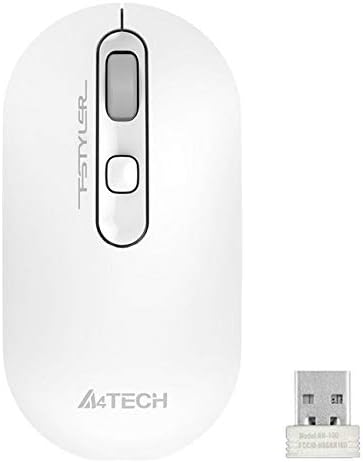
Image: A4TECH FG20 Wireless Mouse shown alongside its USB Nano Receiver. This illustrates the two main components required for operation.
- Koppel die USB Nano-ontvanger: Remove the USB Nano Receiver from its storage slot, usually located within the battery compartment or near it. Plug the receiver into an available USB port on your computer.

Image: A schematic diagram depicting the wireless connection between the mouse and a computer via the USB receiver. This visual aid helps understand the connection process.
- Skakel die muis aan: If your mouse has an On/Off switch, slide it to the "On" position. The mouse should automatically connect to the receiver.
- Bestuurder installasie: Your computer's operating system (Windows, Linux) should automatically detect and install the necessary drivers. No manual driver installation is typically required.
Bedryfsinstruksies
The A4TECH FG20 Wireless Mouse is designed for intuitive use. Here are its primary functions:
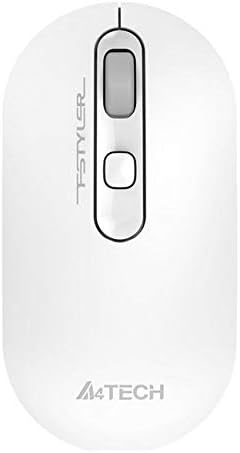
Beeld: Bo-onder view of the A4TECH FG20 Wireless Mouse, highlighting its ergonomic shape and button layout.
- Links klik: Gebruik vir die seleksie van items, oopmaak files, en aktiverende funksies.
- Regs klik: Maak kontekskieslyste oop, wat bykomende opsies vir geselekteerde items bied.
- Rolwiel: Blaai op of af deur dokumente en web pages. The scroll wheel can also function as a middle click button.
- DPI-aanpassingsknoppie: (If applicable, typically located near the scroll wheel) This button allows you to cycle through different cursor speeds (DPI settings) to suit your preference and task.
- Ergonomiese ontwerp: The mouse features an ergonomic design for comfortable use during extended periods.
Onderhoud
Behoorlike onderhoud verseker die lang lewensduur en werkverrigting van jou muis:
- Skoonmaak: Use a soft, dry cloth to clean the surface of the mouse. For stubborn dirt, slightly dampMaak die lap skoon met water of 'n sagte skoonmaakoplossing. Vermy harde chemikalieë of skuurmiddels.
- Sensor skoonmaak: Occasionally, clean the optical sensor on the underside of the mouse with a cotton swab to ensure accurate tracking.
- Battery vervanging: When the mouse performance degrades or it stops responding, replace the AA battery with a fresh one.
- Berging: When not in use for extended periods, turn off the mouse to conserve battery life. Store the USB Nano Receiver in its designated slot to prevent loss.
Probleemoplossing
If you encounter issues with your A4TECH FG20 Wireless Mouse, refer to the following common solutions:
- Muis reageer nie:
- Maak seker dat die muis aangeskakel is.
- Kontroleer of die battery korrek geïnstalleer is en voldoende lading het. Vervang indien nodig.
- Verify the USB Nano Receiver is securely plugged into a working USB port on your computer. Try a different USB port.
- Herbegin jou rekenaar.
- Lagging or Erratic Cursor Movement:
- Maak die optiese sensor aan die onderkant van die muis skoon.
- Maak seker dat jy die muis op 'n geskikte oppervlak gebruik (nie-reflektief, ondeursigtig).
- Move the mouse closer to the USB Nano Receiver to reduce interference.
- Kontroleer vir ander draadlose toestelle wat moontlik steuring veroorsaak.
- Verbindingskwessies:
- If the mouse loses connection frequently, try re-pairing it (if a pairing button is available, otherwise, simply unplug and replug the receiver).
- Ensure no large metal objects are between the mouse and the receiver.
Spesifikasies

Beeld: Syprofile view of the A4TECH FG20 Wireless Mouse, illustrating its slim and ergonomic contour.
| Kenmerk | Detail |
|---|---|
| Model | FG20 |
| Verbindingstegnologie | 2.4G Wireless (Infrared) |
| Bewegingsopsporing | Laser |
| Knoppie Hoeveelheid | 3 |
| Hand Oriëntasie | Ambidekstrous |
| Spesiale kenmerke | Ergonomiese ontwerp |
| Kleur | Wit |
| Versoenbare toestelle | Persoonlike rekenaar |
| Bedryfstelselversoenbaarheid | Linux, Windows 7, Windows XP |
| Vervaardiger | A4TECH |
| Land van oorsprong | China |
Waarborg en Ondersteuning
The A4TECH FG20 Wireless Mouse is manufactured to high-quality standards. For information regarding the manufacturer's warranty, please refer to the documentation provided with your purchase or visit the official A4TECH webwebwerf.
Verlengde waarborgopsies kan beskikbaar wees by derdepartyverskaffers, soos die 1-jaar of 2-jaar verlengde waarborg deur Salama Care. Hierdie is apart van die vervaardiger se waarborg.
For technical support or further assistance, please contact the retailer where you purchased the product or visit the official A4TECH support channels.