
AVMTON wireless mouse
AVMTON Wireless Gaming Mouse
Instruksie Handleiding
Model: wireless mouse | Brand: AVMTON
1. Inleiding
The AVMTON Wireless Gaming Mouse is designed for comfortable and efficient use with personal computers, laptops, and other compatible devices. Featuring a honeycomb shell for lightweight design, RGB backlighting, and a rechargeable battery, this mouse offers a responsive and ergonomic experience. It connects wirelessly via a 2.4GHz USB receiver, providing a stable connection for both office tasks and light gaming.

Image 1.1: The AVMTON Wireless Gaming Mouse shown alongside its 2.4GHz USB receiver. The mouse features a black honeycomb shell design and vibrant RGB lighting.
2. Opstelling
2.1 Uitpak en Komponente
Maak seker dat alle komponente teenwoordig is wanneer u dit uitpak:
- AVMTON Wireless Gaming Mouse
- 2.4GHz USB Receiver (typically stored in the mouse's bottom compartment)
- USB Type-C laaikabel
2.2 Die muis koppel
- Locate the USB receiver stored in the compartment on the bottom of the mouse.
- Verwyder die USB-ontvanger van die muis.
- Koppel die USB-ontvanger in 'n beskikbare USB-poort op jou rekenaar of skootrekenaar.
- Turn on the mouse using the power switch located on the bottom of the mouse. The mouse should automatically connect to the receiver.
2.3 Aanvanklike laai
The mouse comes with a built-in rechargeable battery. For optimal performance, it is recommended to fully charge the mouse before its first use. The mouse can be used while it is charging.

Image 2.1: The AVMTON Wireless Gaming Mouse connected to a laptop via its Type-C charging cable. The image highlights the convenience of charging while using the mouse.
3. Bedryfsinstruksies
3.1 Mouse Button Functions
The AVMTON Wireless Gaming Mouse features several buttons for enhanced functionality:
- Linker knoppie: Standaard klikfunksie.
- Regter knoppie: Standaard regs-kliek funksie.
- Rolwiel: Blaai inhoud op of af. Kan ook gedruk word vir middelklik-funksionaliteit.
- DPI-knoppie: Pas die muisgevoeligheid (DPI) aan.
- Aanstuur-knoppie: Navigeer vorentoe in web blaaiers of file ontdekkingsreisigers.
- Terug-knoppie: Navigeer agteruit in web blaaiers of file ontdekkingsreisigers.
- Krag skakelaar: Skakel die muis aan of af.
- Ligskakelaar: Controls the RGB lighting.

Image 3.1: A detailed diagram illustrating the various buttons and components of the AVMTON Wireless Gaming Mouse, including the DPI button, scroll wheel, forward/backward buttons, and power/light switches.
3.2 DPI-aanpassing
The mouse offers three adjustable DPI (Dots Per Inch) levels to control cursor speed and sensitivity. Press the DPI button (located behind the scroll wheel) to cycle through the settings: 800 DPI, 1200 DPI (default), and 1600 DPI. Choose the sensitivity that best suits your task, whether for precise work or faster movements in games.
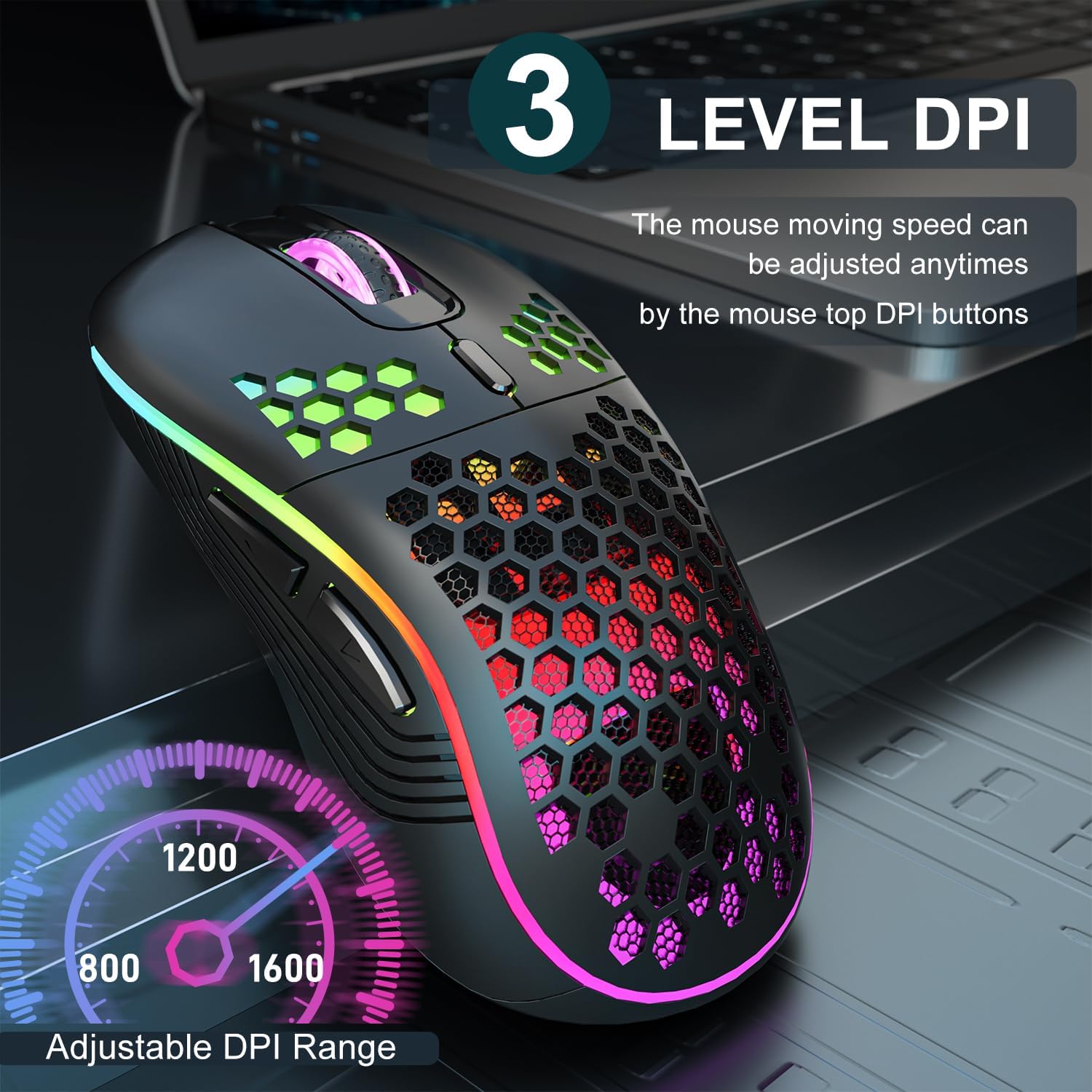
Image 3.2: The AVMTON Wireless Gaming Mouse with an overlay indicating the three adjustable DPI levels: 800, 1200, and 1600. This allows users to easily switch mouse sensitivity.
3.3 RGB-agterbeligtingsbeheer
The mouse features customizable RGB lighting. Use the dedicated light switch on the bottom of the mouse to turn the RGB lighting on or off. Turning off the RGB lighting can help conserve battery life.
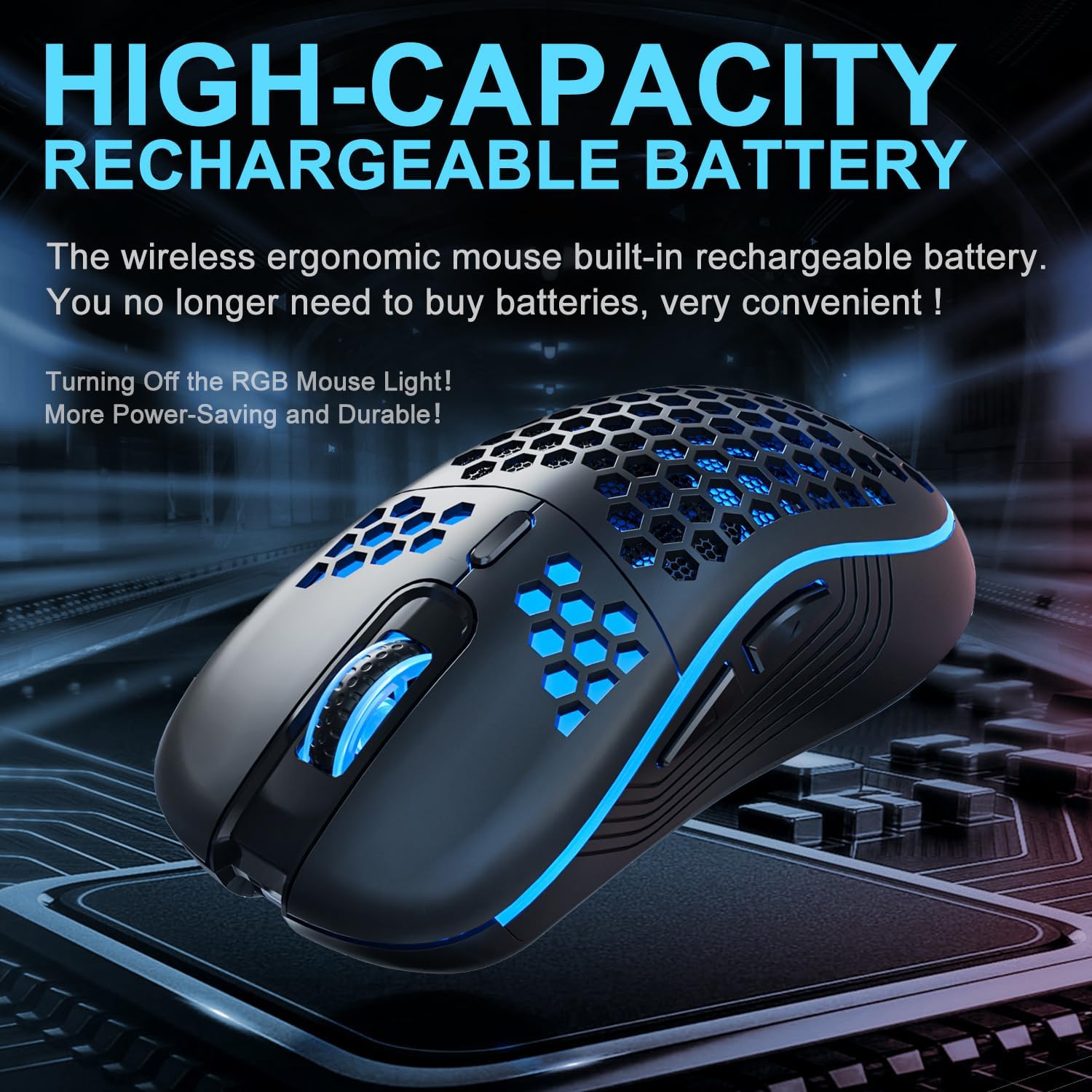
Image 3.3: The AVMTON Wireless Gaming Mouse illuminated with blue RGB lighting, highlighting its aesthetic features and rechargeable battery capacity.
3.4 Kragbesparingsmodus
To conserve battery, the mouse automatically enters a power-saving mode after a period of inactivity. To reactivate the mouse, simply move it or click any button.
3.5 Verenigbaarheid
The AVMTON Wireless Gaming Mouse is widely compatible with various operating systems, including Windows 2000, XP, Vista, 7, 8, 10, 11, Linux, and Mac OS. It is designed for use with personal computers and laptops.

Image 3.4: Visual representation of the mouse's wide compatibility with Windows, Linux, and Mac OS operating systems.
4. Onderhoud
4.1 Laai die battery
When the mouse battery is low, connect the provided USB Type-C charging cable to the mouse's charging port and the other end to a USB power source (e.g., computer USB port, USB wall adapter). The mouse can be used normally while charging.
4.2 Die skoonmaak van die muis
To maintain optimal performance and appearance, clean the mouse regularly. Use a soft, dry cloth to wipe the surface. For stubborn dirt, a slightly damp cloth can be used, ensuring no liquid enters the mouse. Avoid using harsh chemicals or abrasive materials.
5. Probleemoplossing
- Muis reageer nie:
- Ensure the USB receiver is securely plugged into a working USB port.
- Verify that the mouse's power switch is in the 'ON' position.
- Check the battery level and charge the mouse if necessary. - Wyserbeweging is wisselvallig of stadig:
- Adjust the DPI setting using the DPI button.
- Ensure the mouse is used on a clean, non-reflective surface. A mouse pad is recommended.
- Recharge the mouse if the battery is low. - RGB-beligting werk nie:
- Ensure the light switch on the bottom of the mouse is in the 'ON' position.
- The mouse may be in power-saving mode; move or click to wake it up. - Latency during large games:
- This mouse is primarily designed for office scenarios and small games. Large, graphically intensive games may experience some latency due to the wireless connection and mouse specifications.
6. Spesifikasies
| Handelsmerk | AVMTON |
| Model Naam | draadlose muis |
| Verbindingstegnologie | USB (2.4GHz Wireless) |
| Bewegingsopsporingstegnologie | Opties |
| DPI-vlakke | 800 / 1200 (Standaard) / 1600 |
| Battery Tipe | Rechargeable Lithium Polymer (included) |
| Battery Gemiddelde Lewe | 6 months (approx.) |
| Laaipoort | USB Tipe-C |
| Spesiale kenmerke | Honeycomb Design, RGB Backlight, Lightweight, 6 programmable Buttons |
| Hand Oriëntasie | Ambidekstrous |
| Materiaal | Plastiek |
| Versoenbare bedryfstelsel | Windows 2000 / XP / Vista / 7 / 8 / 10 / 11, Linux, Mac OS |
| Pakkie Dimensies | 13.7 x 8.7 x 4.9 cm |
| Item gewig | 140 g |
7. Waarborg en Ondersteuning
Specific warranty details are not provided within this manual. For warranty information, technical support, or any inquiries regarding your AVMTON Wireless Gaming Mouse, please refer to the product packaging or contact AVMTON customer service directly through their official webwebwerf of die kleinhandelaar waar die produk gekoop is.
Ask a question about this manual
Ask about setup, troubleshooting, compatibility, parts, safety, or missing instructions. Manuals+ will review the question and use this page’s manual context to help answer it.