
1. Inleiding
This manual provides detailed instructions for the setup, operation, and maintenance of your TECURS 2.4G Wireless Gaming Keyboard. This keyboard is designed for versatile use across various operating systems and devices, featuring a comfortable ergonomic design, adjustable backlighting, and a built-in phone/tablet holder.

Figure 1: TECURS 2.4G Wireless Gaming Keyboard with integrated phone/tablet holder.
2. Pakketinhoud
Verifieer asseblief dat alle items in u pakket teenwoordig is:
- 1 x TECURS 2.4G Wireless Gaming Keyboard
- 1 x USB-A/Type-C 2.4G Wireless Dongle (with Type-C adapter)
- 1 x USB Tipe-C-laaikabel
- 1 x Gebruikershandleiding (hierdie dokument)
3. Opstelling
3.1. Laai die sleutelbord
Before first use, fully charge the keyboard using the provided USB Type-C charging cable. Connect the Type-C end of the cable to the keyboard's charging port and the USB-A end to a compatible USB power source (e.g., computer USB port, USB wall adapter). The battery indicator light will show charging status.
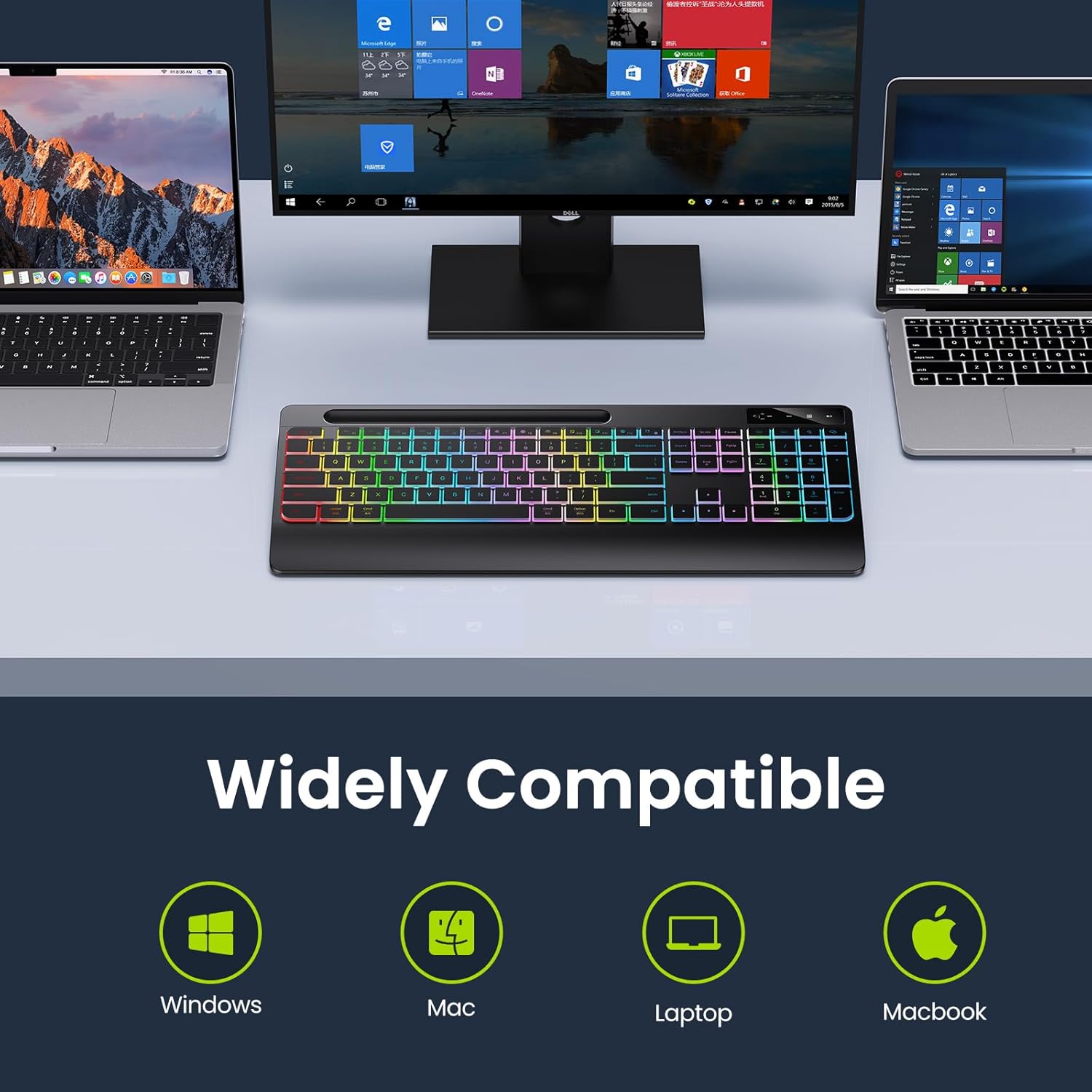
Figure 2: Connecting the USB Type-C charging cable to the keyboard.
3.2. Koppel aan jou toestel
The keyboard connects wirelessly via a 2.4 GHz USB dongle. No drivers are required for installation.
- Locate the 2.4 GHz USB dongle, typically stored in a compartment on the underside of the keyboard.
- If your device has a USB-A port, plug the dongle directly into it.
- If your device has a USB-C port, attach the included Type-C adapter to the USB-A dongle, then plug the assembly into the USB-C port.
- Turn on the keyboard using the ON/OFF switch located on the top right side of the keyboard.
- Die sleutelbord behoort outomaties aan jou toestel te koppel.

Figure 3: Wireless dongle and compatibility with USB-A and Type-C ports.
Video 1: Oorview of the TECURS Wireless Keyboard features, including connectivity and ergonomic design.
4. Bedryfsinstruksies
4.1. Agterligbeheer
The keyboard features adjustable LED backlighting with multiple brightness levels.
- Om turn on/off the backlight or adjust brightness: Druk Fn + Einde repeatedly to cycle through brightness levels (Low, Medium, High, Off).
- Om te aktiveer Altyd op Agterlig: Druk Fn + Esc.

Figure 4: Backlight brightness adjustment controls.
4.2. Phone/Tablet Holder
The integrated slot at the top of the keyboard serves as a convenient holder for your smartphone or tablet, allowing for easy viewterwyl jy tik.

Figure 5: Using the integrated phone/tablet holder.
4.3. Stelselskakeling
The keyboard supports both Windows and Mac operating systems. Use the dedicated system indicator buttons to switch between modes:
- Druk die WEN button to activate Windows mode.
- Druk die MAC button to activate Mac mode.
4.4. Ergonomiese ontwerp
The keyboard features an 8-degree tilt angle and a wrist rest to promote a more comfortable typing posture and reduce strain during extended use.

Figure 6: Ergonomic design with 8-degree tilt.
4.5. Silent Flat Keys
The keyboard is equipped with responsive low-profile keys designed to minimize typing noise, providing a quiet and comfortable input experience.

Figure 7: Silent flat keys for quiet operation.
5. Onderhoud
Om die lang lewensduur en optimale werkverrigting van u sleutelbord te verseker, volg hierdie onderhoudsriglyne:
- Skoonmaak: Gebruik 'n sagte, droë, pluisvrye lap om die oppervlak van die sleutelbord af te vee. Vir hardnekkige vuiligheid, liggies dampMaak die lap skoon met water of 'n sagte, nie-skurende skoonmaakmiddel. Vermy oormatige vog.
- Stofverwydering: Gebruik saamgeperste lug om stof en puin tussen die sleutels te verwyder.
- Berging: Wanneer dit nie vir lang tye gebruik word nie, bêre die sleutelbord op 'n koel, droë plek weg van direkte sonlig en uiterste temperature.
- Batterysorg: Avoid fully discharging the battery frequently. Recharge the keyboard when the low battery indicator appears.
6. Probleemoplossing
If you encounter issues with your keyboard, please refer to the following common problems and solutions:
| Probleem | Moontlike oorsaak | Oplossing |
|---|---|---|
| Sleutelbord reageer nie | Low battery; Dongle not properly connected; Keyboard OFF. | Charge the keyboard; Re-insert the USB dongle; Ensure keyboard is ON. |
| Agterlig werk nie | Agterlig afgeskakel; Lae battery. | Press Fn + End to cycle backlight modes; Charge the keyboard. |
| Input lag or intermittent connection | Interference; Dongle too far from keyboard. | Move closer to the dongle (within 33 feet); Avoid placing near other wireless devices. |
| Keys rubbing off | Normale slytasie oor tyd. | This is a cosmetic issue and does not affect functionality. Consider keycap stickers if desired. |
7. Spesifikasies
- Modelnommer: TCK-2.4G-WRIST-PHONE-HLDR
- Verbindingstegnologie: 2.4 GHz Wireless (USB-A, USB-C compatible dongle)
- Sleutelbord beskrywing: Membraan
- Aantal sleutels: 109
- Spesiale kenmerke: Backlit, Rechargeable, Wrist Rest, Phone Holder
- Sleutelbord agtergrondkleurondersteuning: Single Color (Rainbow effect)
- Kragbron: 1 Litium-ioonbattery (ingesluit)
- Battery kapasiteit: 1000 mAh (approximate, based on typical usage)
- Batterylewe: Up to 15 days (no backlight), Up to 10 hours (with backlight)
- Versoenbare toestelle: Laptop, PC, iPad, Smart TV, Tablet, Smartphone
- Bedryfstelsels: Windows, Mac
- Kleur: Swart
- Item gewig: 1.83 pond (ongeveer 0.83 kg)
- Pakket afmetings: 17.32 x 8.7 x 1.3 duim (ongeveer 44 x 22.1 x 3.3 cm)
8. Waarborg en Ondersteuning
For warranty information and customer support, please refer to the documentation included with your product packaging or visit the official TECURS website. You can also visit the TECURS store on Amazon for more product details and support resources: