
1. Inleiding
Welcome to the user manual for your new SGIN E10P 10-inch Kids Tablet. This guide provides essential information on setting up, operating, maintaining, and troubleshooting your device. Please read this manual thoroughly to ensure proper use and to maximize your tablet's features.
Wat is in die boks
Maak asseblief seker dat al die items wat hieronder gelys word, teenwoordig is tydens uitpak:
- SGIN E10P Kids Tablet (with protective case)
- Gebruikershandleiding
- USB Type-C kabel
- Kragadapter (laaier)
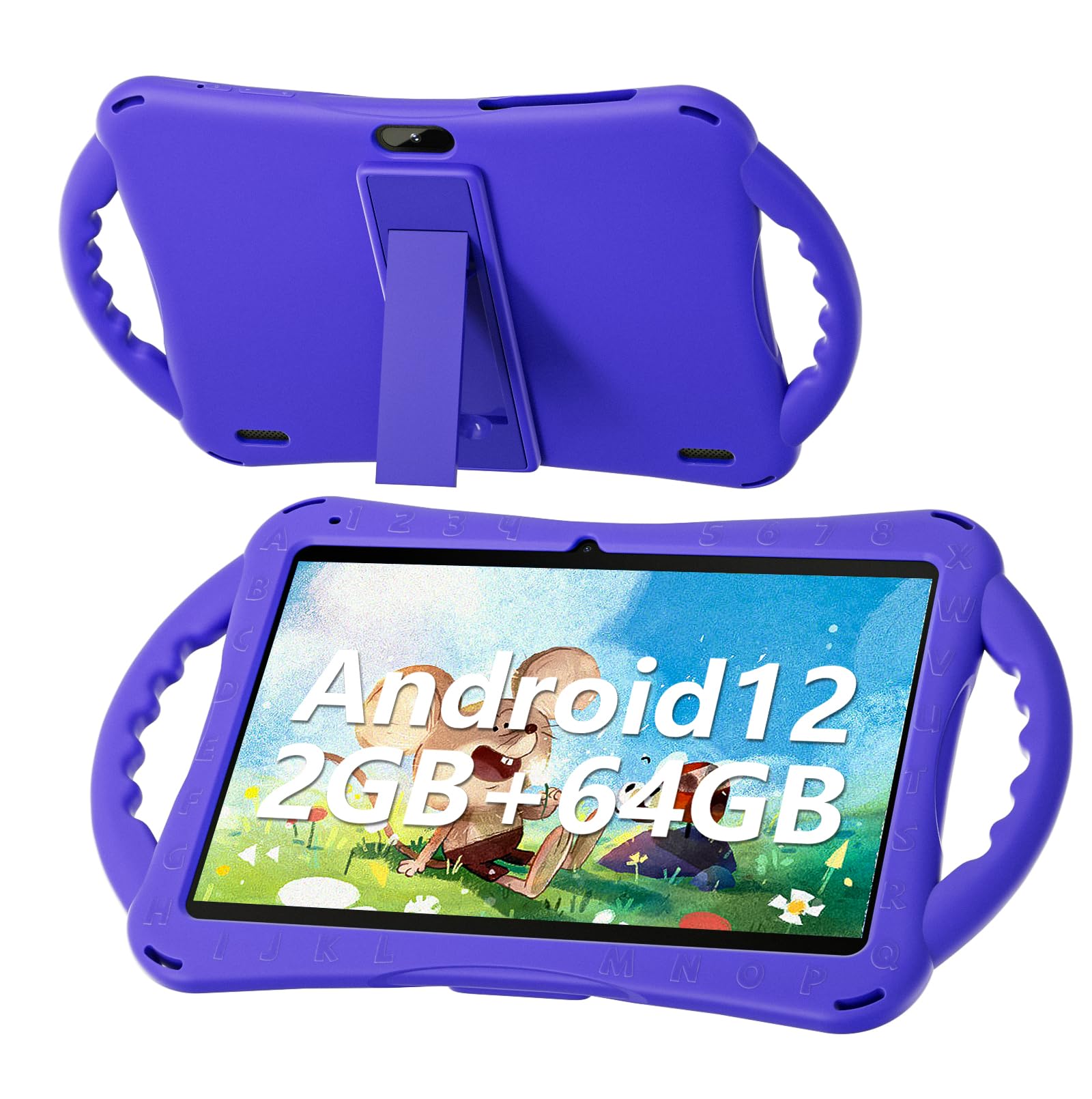
Figure 1: SGIN E10P Kids Tablet with its protective case.
2. Produk verbyview
Familiarize yourself with the physical components of your SGIN E10P Kids Tablet.

Figure 2: Labeled diagram of the SGIN E10P Kids Tablet components.
- Voorste kamera: Vir video-oproepe en selfies.
- Agterste kamera: Vir die neem van foto's en video's.
- Luidsprekers: Oudio-uitvoer.
- Tipe C-poort: Vir laai en data-oordrag.
- TF-kaartgleuf: For expanding storage with a microSD card.
- Koptelefoonaansluiting: Vir die koppeling van bedrade oorfone.
- Verhoog volume: Button to raise the audio level.
- Verminder volume: Button to lower the audio level.
- Bracket (Kickstand): Integrated stand for hands-free viewing.
- Armrest (Handle): Ergonomic handles on the protective case for easy gripping.
3. Opstelling
3.1 Laai die tablet
Before first use, fully charge the tablet. Connect the USB Type-C cable to the tablet's Type-C port and the other end to the power adapter. Plug the power adapter into a wall outlet. The battery indicator on the screen will show charging status. A full charge typically takes several hours.
3.2 Aan-/afskakel
- Om aan te skakel: Press and hold the Power button (usually located on the side or top edge) until the SGIN logo appears on the screen.
- Om af te skakel: Press and hold the Power button until a menu appears. Select "Power off" from the options.
- Om weer te begin: Press and hold the Power button until a menu appears. Select "Restart" from the options.
3.3 Aanvanklike opstelling
The first time you power on the tablet, you will be guided through an initial setup process:
- Taalkeuse: Kies die taal wat u verkies.
- Wi-Fi-verbinding: Kies jou Wi-Fi-netwerk en voer die wagwoord in om aan die internet te koppel.
- Google-rekening: Sign in with an existing Google account or create a new one. This is necessary for downloading apps from the Google Play Store.
- Datum en Tyd: Stel die korrekte datum en tyd, of laat die netwerk dit outomaties instel.
- Ouerkontroles: Configure Google Kids Space or other parental control features to manage content and screen time for children.
4. Bediening van die tablet
4.1 Basiese navigasie
The SGIN E10P tablet uses a touch-sensitive screen for navigation:
- Tik: Raak die skerm een keer aan om 'n toepassing oop te maak, 'n item te kies of 'n knoppie te druk.
- Raak en hou: Druk en hou 'n item in om toegang tot bykomende opsies te kry of dit te skuif.
- Swiep: Sleep jou vinger oor die skerm om deur bladsye of lyste te blaai.
- Knyp-om-te-Zoem: Place two fingers on the screen and move them apart to zoom in, or together to zoom out.
4.2 Wi-Fi-konnektiwiteit
To connect or manage Wi-Fi networks:
- Gaan na Instellings > Netwerk en internet > Wi-Fi.
- Wi-Fi wissel On.
- Kies die verlangde netwerk uit die lys en voer die wagwoord in indien gevra.

Figure 3: The tablet supports both 2.4GHz and 5GHz Wi-Fi for stable connections.
4.3 Applications and Content
The tablet runs on Android 12 and comes with access to the Google Play Store, allowing you to download a wide range of applications. It is pre-configured for children's use, supporting apps like YouTube Kids, educational games, and other child-friendly content.

Figure 4: The Android 12 interface with various pre-installed and downloadable kids' apps.
4.4 Ouerkontrole
Utilize the built-in parental control features to manage your child's tablet experience. This includes setting screen time limits, filtering content, and approving app downloads. Access these settings through the Google Family Link app or directly in the tablet's settings under "Digital Wellbeing & parental controls."
5. Onderhoud
5.1 Skoonmaak
- Skerm: Gebruik 'n sagte, pluisvrye lap wat spesifiek vir elektronika ontwerp is. Vir hardnekkige vlekke, vee dit effens af.ampen the cloth with water or a screen cleaner solution (do not spray directly onto the screen).
- Geval: The silicone protective case can be wiped with a damp cloth and mild soap if necessary. Ensure it is completely dry before reattaching it to the tablet.
- Poorte: Keep all ports (USB-C, headphone jack, TF card slot) free of dust and debris. Use a soft brush or compressed air if needed.
5.2 Batterysorg
The tablet is equipped with a 5000mAh battery, providing extended usage time.

Figure 5: The tablet features a 5000mAh battery for prolonged use.
- Vermy uiterste temperature, aangesien dit die batterylewe kan verminder.
- Use only the provided charger and cable to prevent damage.
- Vir optimale batterylewe, vermy om die battery gereeld heeltemal te dreineer of dit vir lang tye 100% gelaai te hou.
5.3 Berging
Store the tablet in a cool, dry place away from direct sunlight and moisture when not in use.
6. Probleemoplossing
This section addresses common issues you might encounter with your SGIN E10P tablet.
6.1 Tablet skakel nie aan nie
- Ensure the tablet is sufficiently charged. Connect it to the charger for at least 30 minutes before attempting to power it on again.
- Druk en hou die aan/af-knoppie vir 10-15 sekondes in om 'n geforseerde herbegin uit te voer.
6.2 Wi-Fi-verbindingsprobleme
- Check if Wi-Fi is enabled in the tablet's settings.
- Verify that your Wi-Fi router is working correctly and other devices can connect.
- Forget the network in the tablet's Wi-Fi settings and reconnect.
- Restart both the tablet and your Wi-Fi router.
6.3 Programme wat vasval of vries
- Maak die toepassing toe en heropen.
- Vee die toepassing se kasgeheue en data uit in Instellings > Toepassings > [Programnaam] > Berging en kasgeheue.
- Ensure the app is updated to its latest version via the Google Play Store.
- Herbegin die tablet.
6.4 Stadige Werkverrigting
- Maak onnodige agtergrondtoepassings toe.
- Vee kasgebergde data van programme en die stelsel uit.
- Ensure there is sufficient storage space available. Delete unused apps or files.
- Consider performing a factory reset as a last resort (Let wel: This will erase all data on the tablet. Back up important files eerste).
7. Spesifikasies
Key technical specifications for the SGIN E10P Kids Tablet:
| Kenmerk | Spesifikasie |
|---|---|
| Handelsmerk | SGIN |
| Modelnommer | E10P |
| Skerm grootte | 10 duim |
| Skermresolusie | 1280 x 800 |
| Verwerker | 1.5 GHz Allwinner Quad-core A133 |
| RAM | 2 GB |
| Berging (ROM) | 64 GB |
| Uitbreidbare berging | TF Card Slot (for additional expansion) |
| Bedryfstelsel | Android 12 |
| Agter Webcam resolusie | 5 MP |
| Voorste kamera | 2 MP |
| Battery kapasiteit | 5000 mAh |
| Konnektiwiteit | 2.4G/5G WiFi, Bluetooth 4.2 |
| Afmetings (LxBxH) | 10.1 x 6 x 0.4 duim |
| Item gewig | 2.27 pond |
8. Waarborg en Ondersteuning
SGIN provides a 1-year maintenance period from the date of purchase for this product. If you encounter any issues or require assistance, please contact SGIN customer support.
For further support, please refer to the contact information provided with your purchase documentation or visit the official SGIN webwebwerf.