
1. Inleiding
Thank you for choosing the Cherry KW 7100 Mini Multi-Device Compact Keyboard. This manual provides essential information for setting up, operating, and maintaining your new keyboard. Designed for versatility and portability, this keyboard offers seamless connectivity across multiple devices.
2. Wat is in die boks
- Cherry KW 7100 Mini Multi-Device Compact Keyboard
- USB-C to USB-A Charging/Connection Cable
- 2x AAA-batterye
- 2.4 GHz Wireless Nano Receiver (stored magnetically in the keyboard)
- Dratas
- Instruksie Handleiding

Figuur 1: Bo-na-onder view of the Cherry KW 7100 Mini Keyboard.
3. Opstelling
3.1. Battery Installasie
- Vind die batterykompartement aan die onderkant van die sleutelbord.
- Skuif die deksel van die batterykompartement oop.
- Plaas die twee AAA-batterye in en maak seker dat die polariteit (+/-) korrek is.
- Maak die batterykompartement se deksel stewig toe.
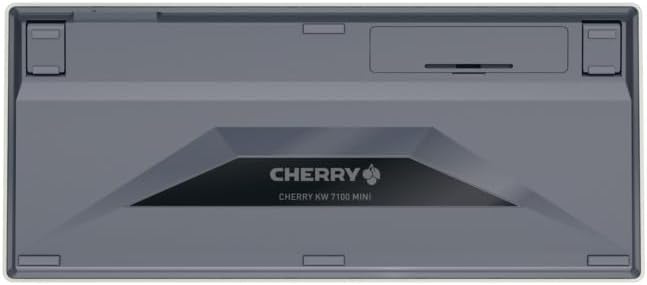
Figure 2: Underside of the keyboard with the battery compartment.
3.2. Koppel die sleutelbord
The Cherry KW 7100 Mini supports three connection methods: Bluetooth, 2.4 GHz Wireless, and Wired USB-C.
3.2.1. Bluetooth Connection (Up to 3 Devices)
- Skakel die sleutelbord aan met die kragskakelaar aan die kant.
- Press and hold one of the Bluetooth channel keys (F1, F2, or F3) for 3-5 seconds until the corresponding LED indicator blinks rapidly. This indicates pairing mode.
- On your device (laptop, smartphone, tablet), navigate to Bluetooth settings and search for available devices.
- Select "Cherry KW 7100" from the list to pair. The LED will stop blinking and remain solid for a few seconds upon successful connection.
- Repeat for up to two additional devices using the other Bluetooth channel keys (F1, F2, or F3).
3.2.2. 2.4 GHz Draadlose Verbinding
- Locate the 2.4 GHz wireless nano receiver, typically stored magnetically in a slot on the underside of the keyboard.
- Insert the nano receiver into an available USB-A port on your computer.
- Skakel die sleutelbord aan met die aan/uit-skakelaar. Die sleutelbord behoort outomaties aan die ontvanger te koppel.
3.2.3. Bedrade USB-C-verbinding
- Koppel die een kant van die meegeleverde USB-C-kabel aan die USB-C-poort op die sleutelbord.
- Connect the other end of the USB-C cable to an available USB-A port on your computer.
- The keyboard will function as a wired keyboard.
Video 1: Demonstrating the setup and typing experience of the Cherry KW 7100 Mini Keyboard.
4. Bediening van die sleutelbord
4.1. Wissel tussen gekoppelde toestelle
To switch between paired Bluetooth devices, simply press the corresponding Bluetooth channel key (F1, F2, or F3) that your device is paired to. The keyboard will automatically connect to the selected device.
4.2. Function Keys (FN)
The keyboard features a dedicated FN key, typically located near the right Shift key. This key, in combination with other keys, activates secondary functions such as media controls, screen brightness, and other system commands. Refer to the keycap legends for specific FN key combinations.
4.3. LED-aanwysers
LED indicators on the keyboard provide information about its status:
- Bluetooth Channel LEDs (F1, F2, F3): Indicate the currently active Bluetooth connection or pairing mode.
- Hoofletterslot-LED: Illuminates when Caps Lock is active.
- Batterystatus LED: Dui lae batteryvlak aan.
4.4. Verstelbare voete
The keyboard is equipped with stable, fold-out feet on the underside. These allow you to adjust the typing angle for improved ergonomics and comfort.
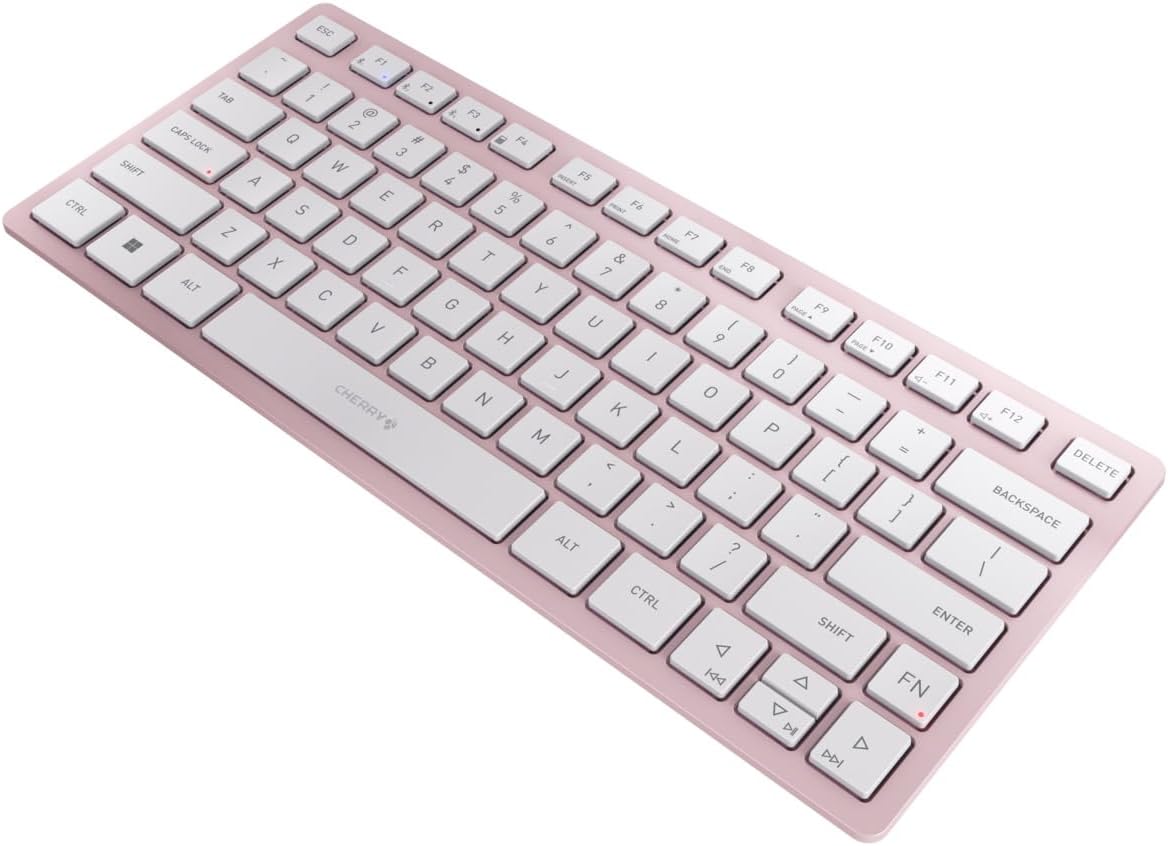
Figuur 3: Hoekig view of the keyboard, highlighting its slim profile.

Figuur 4: Kant view showing the adjustable feet extended for an ergonomic typing angle.
5. Onderhoud
5.1. Skoonmaak
To clean your keyboard, gently wipe the keycaps and surface with a soft, lint-free cloth. For stubborn dirt, slightly dampen the cloth with water or a mild, non-abrasive cleaning solution. Avoid excessive moisture and do not spray cleaners directly onto the keyboard.
5.2. Berging
When not in use, especially during travel, store the keyboard in its included carrying case to protect it from dust, scratches, and minor impacts.

Figure 5: The keyboard stored in its protective carrying case.
6. Probleemoplossing
6.1. Sleutelbord verbind nie
- Maak seker dat die sleutelbord aangeskakel is.
- Gaan die batterye na en vervang dit indien nodig.
- For Bluetooth, ensure the correct channel (F1, F2, or F3) is selected and the keyboard is in pairing mode (blinking LED).
- For 2.4 GHz wireless, ensure the nano receiver is securely plugged into a USB-A port.
- Try connecting via the USB-C cable to rule out wireless issues.
- Herbegin jou toestel en probeer weer saambind.
6.2. Sleutels reageer nie
- Check the connection as described above.
- Maak seker dat daar geen rommel onder die sleutels vassit nie.
- As jy 'n bedrade verbinding gebruik, probeer 'n ander USB-poort of kabel.
6.3. Kort batterylewe
- Maak seker dat jy vars, hoëgehalte AAA-batterye gebruik.
- Turn off the keyboard when not in use to conserve battery power.
7. Spesifikasies
| Kenmerk | Spesifikasie |
|---|---|
| Model Naam | KW 7100 |
| Item Modelnommer | JK-7100US-19 |
| Handelsmerk | Kersie |
| Verbindingstegnologie | Bluetooth 5.1 (3 channels), 2.4 GHz Wireless, USB-C Wired |
| Versoenbare toestelle | Skootrekenaar, slimfoon, tablet |
| Sleutelbordbeskrywing | Compact, Multi-Device |
| Sleutelmeganisme | CHERRY SX Scissor Mechanism |
| Kragbron | 2x AAA-batterye |
| Enkripsie | AES-128 |
| Produk afmetings | 11.6 x 5.1 x 0.6 duim |
| Item gewig | 1.4 pond |
| Materiaal | Metaal, plastiek |
| Kleur | Kersiebloeisel |
8. Waarborg en Ondersteuning
This product is covered by Cherry's standard manufacturer warranty. For detailed warranty information, technical support, or service inquiries, please visit the official Cherry webwebwerf of kontak hul kliëntediens direk.
Vervaardiger: Kersie
Webwebwerf: www.cherry.de