
1. Produk verbyview
The RAZEAK Portable 60% Mechanical Keyboard is a compact, high-performance input device designed for PC and Mac users, particularly gamers. Its 61-key layout saves desk space while retaining full functionality through key combinations. This model features durable mechanical switches and customizable colorful backlighting.
- Kompakte 60% Uitleg: Space-saving 61-key design with full functionality via key combinations.
- N-sleutel oorrol: Verseker dat alle toetsaanslagen akkuraat geregistreer word, selfs tydens vinnige invoer.
- Dual Colour Translucent Keycaps: Injection-moulded keycaps for durability and enhanced backlighting.
- Kleurvolle agterlig: Multiple LED backlighting modes for visual appeal and low-light visibility.
- Humanistic Design: Adjustable height and detachable USB-C cable for user comfort and portability.
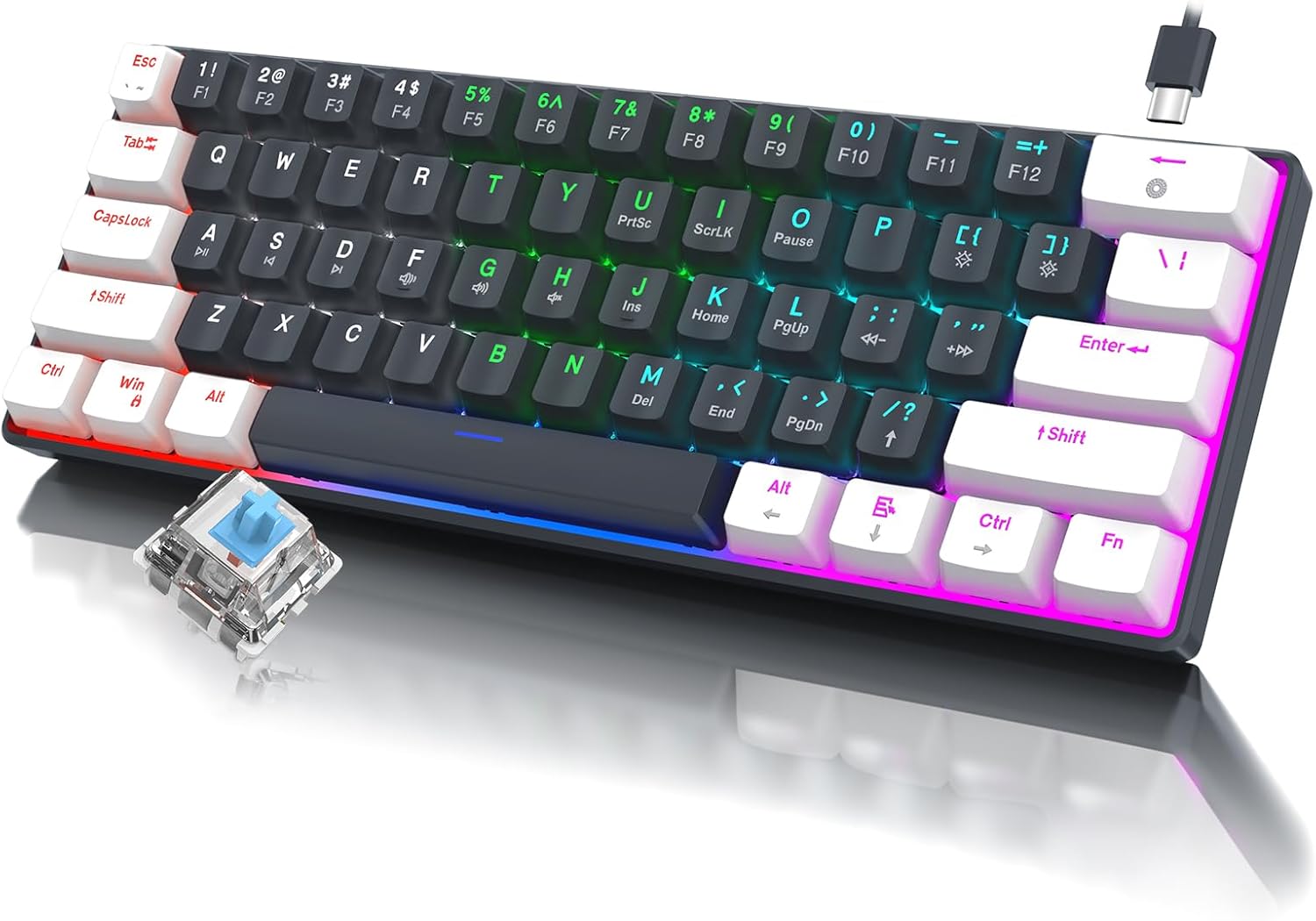
Beeld 1.1: verbyview of the RAZEAK Portable 60% Mechanical Keyboard, showcasing its compact design, colorful backlighting, and a detached blue mechanical switch.
2. Pakketinhoud
Please verify that all items are present in the package upon unboxing:
- RAZEAK Portable 60% Mechanical Keyboard
- USB-C-kabel
3. Opstelling
3.1 Die sleutelbord koppel
- Locate the USB-C port on the back or side of the keyboard.
- Koppel die een kant van die meegeleverde USB-C-kabel aan die sleutelbord se USB-C-poort.
- Connect the other end of the USB-C cable to an available USB-A port on your computer (PC or Mac).
- The keyboard will automatically be recognized by your operating system. No additional drivers are typically required.
3.2 Aanpassing van sleutelbordhoogte
The keyboard features two levels of height adjustment for ergonomic comfort.
- Flip the keyboard over to access the adjustable feet on the underside.
- Gently pull out the small feet for the first level of elevation.
- For a higher angle, pull out the larger feet.
- Ensure both feet are extended evenly to maintain stability.

Image 3.1: Illustration of the keyboard's ergonomic design with adjustable feet, allowing for comfortable typing angles.
4. Bedryfsinstruksies
4.1 Key Functions and Combinations
Due to its compact 60% layout, some functions are accessed via key combinations using the Fn sleutel.
| Kombinasie | Funksie |
|---|---|
| Fn + 1! to Fn + =+ | F1 to F12 Function Keys |
| Fn + Q | Vorige Snit |
| Fn + W. | Speel / Pouse |
| Fn + E | Volgende Snit |
| Fn + R | Volume af |
| Fn + T | Volume op |
| Fn + Y | Demp |
| Fn + U | PrntSc (Print Screen) |
| Fn + ek | ScrLk (Scroll Lock) |
| Fn + O | Pouse |
| Fn + P | Ins (Insert) |
| Fn + [ { | Tuis |
| Fn + ] } | Einde |
| Fn + ; : | PgUp (Page Up) |
| Fn + ' " | PgDn (Page Down) |
| Fn + / ? | Pyltjie op |
| fn+alt | Pyltjie links |
| Fn + Ctrl | Afpyltjie |
| Fn + Fn | Regspyltjie |

Image 4.1: Layout of the 60% ultra-compact keyboard, highlighting the 61-key configuration and secondary functions accessible via the Fn key.
4.2 Agterligbeheer
The keyboard features multiple LED backlight modes and brightness levels.
- Fn + \|: Cycle through 19 different backlight modes.
- Fn + ; : (PgUp): Verhoog die helderheid van die agterlig.
- Fn + ' " (PgDn): Verminder die helderheid van die agterlig.
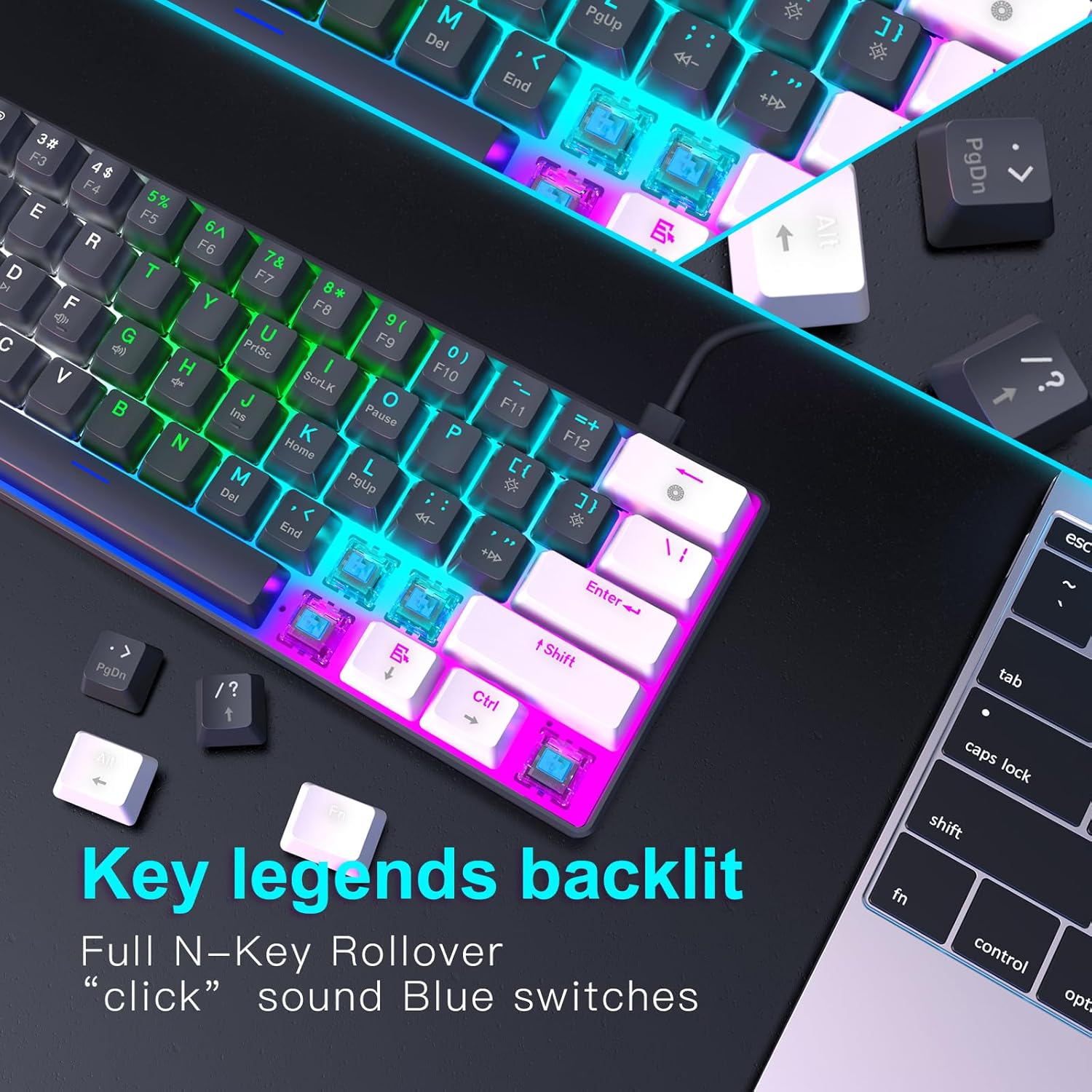
Beeld 4.2: Nabyskoot view of the keyboard's key legends with active backlighting, demonstrating the translucent keycaps and illuminated mechanical switches.
5. Onderhoud
Behoorlike onderhoud verseker die lang lewensduur en optimale werkverrigting van jou sleutelbord.
- Skoonmaak: Use a soft, dry cloth to wipe the surface of the keyboard. For dust and debris between keys, use compressed air. Avoid liquid cleaners directly on the keyboard.
- Keycap Removal (Optional): If necessary, keycaps can be carefully removed for deeper cleaning using a keycap puller (not included). Reinstall them by aligning and pressing down gently.
- Berging: Wanneer dit nie gebruik word nie, bêre die sleutelbord in 'n skoon, droë omgewing weg van direkte sonlig en uiterste temperature.
- Kabelversorging: Vermy die USB-C-kabel te veel te buig of te draai om skade te voorkom.
6. Probleemoplossing
If you encounter issues with your RAZEAK keyboard, please refer to the following common solutions:
| Probleem | Moontlike oorsaak/oplossing |
|---|---|
| Sleutelbord reageer nie |
|
| Agterlig werk nie of is dof nie |
|
| Sekere sleutels werk nie |
|
7. Spesifikasies
| Kenmerk | Detail |
|---|---|
| Model Naam | X44-WTBK-BS_B |
| Handelsmerk | RAZEAK |
| Tipe sleutelbord | Meganiese spel sleutelbord |
| Uitleg | 60% (61 Sleutels) |
| Skakel Tipe | Blue Switch (Clicky) |
| Konnektiwiteit | USB-C (Detachable Cable) |
| Agterlig | Colorful LED (19 modes) |
| Sleutel omrol | N-sleutel omrol |
| Sleutels | Dual Colour Translucent Injection Moulded |
| Produk afmetings | 11.5 x 4.02 x 1.57 duim |
| Item gewig | 1.34 pond |
| Versoenbare toestelle | Windows devices (PC/Mac) |
| Ingesluit komponente | USB kabel |

Image 7.1: Dimensional diagram of the RAZEAK Portable 60% Mechanical Keyboard, indicating its compact size.
8. Waarborg en Ondersteuning
RAZEAK products are designed for reliability and performance. For specific warranty details, please refer to the warranty card included with your product or visit the official RAZEAK website. If you require technical assistance or have questions regarding your keyboard, please contact RAZEAK customer support through their official channels.
For further information and support, you may visit the RAZEAK Store on Amazon.