
CUPEISI YQ10S MAX
CUPEISI YQ10S MAX Android 15 Tablet User Manual
Model: YQ10S MAX | Brand: CUPEISI
1. Inleiding
This manual provides detailed instructions for the setup, operation, maintenance, and troubleshooting of your CUPEISI YQ10S MAX Android 15 Tablet. Please read this manual thoroughly before using your device to ensure proper functionality and to maximize your user experience. Keep this manual for future reference.

Image 1.1: CUPEISI YQ10S MAX Android 15 Tablet with included accessories (keyboard, mouse, stylus, and protective case).
2. Pakketinhoud
Verifieer dat al die items wat hieronder gelys word, in u produkpakket teenwoordig is:
- CUPEISI YQ10S MAX Android 15 Tablet
- Draadlose sleutelbord
- Bluetooth-muis
- Foldable Protective Cover
- Stylus
- Tipe C-kabel
- Lader
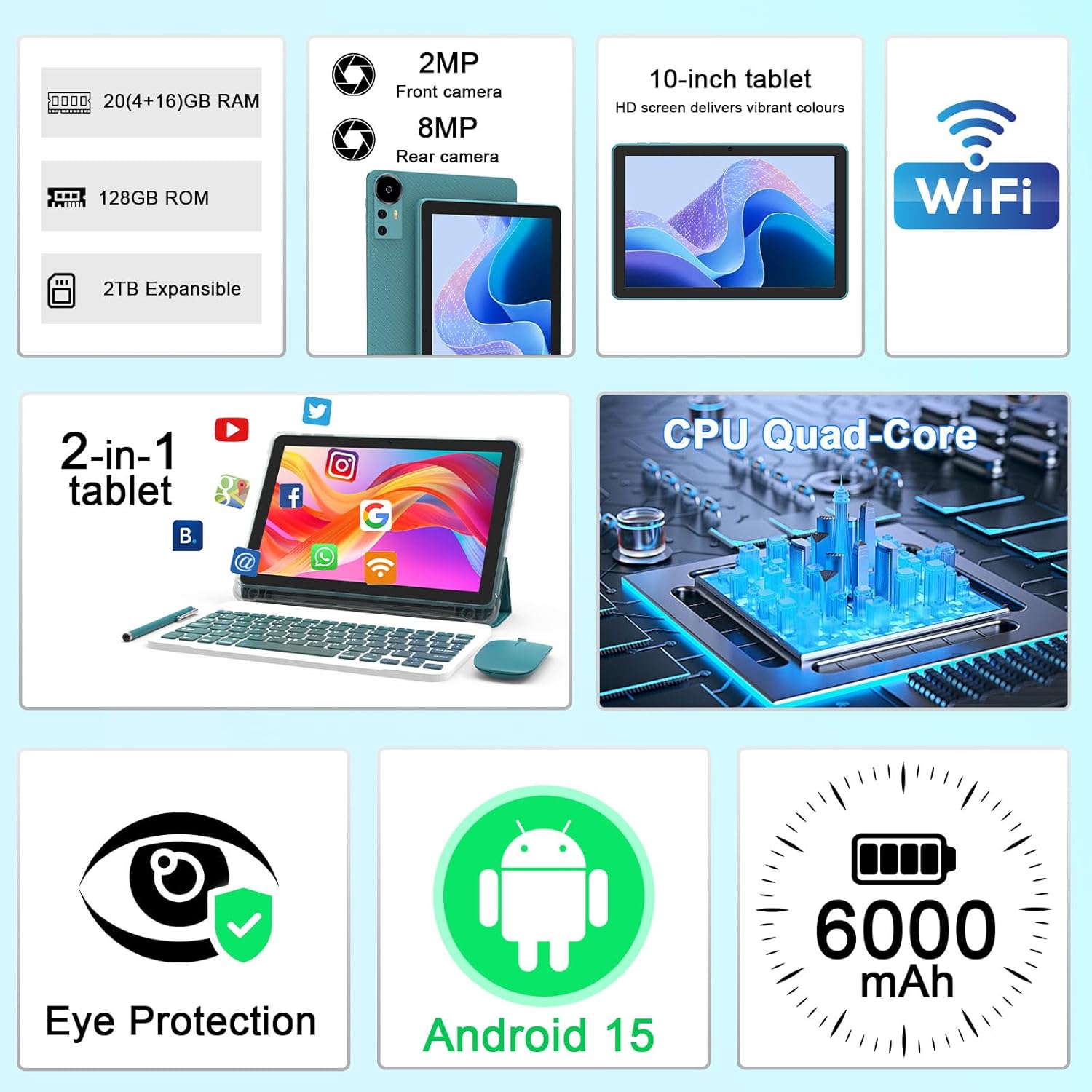
Beeld 2.1: verbyview of key features and included components.
3. Aanvanklike Opstelling
3.1 Aan-/afskakel
- Om aan te skakel: Press and hold the power button located on the side of the tablet until the screen illuminates.
- Om af te skakel: Press and hold the power button, then select 'Power off' from the options that appear on the screen.
- Om weer te begin: Druk en hou die aan/af-knoppie in, en kies dan 'Herbegin' uit die opsies.
3.2 Laai die tablet
Before first use, fully charge the tablet. Use the provided Type-C cable and charger.
- Connect the Type-C cable to the tablet's charging port.
- Koppel die ander kant van die kabel aan die kragadapter.
- Steek die kragadapter in 'n muuraansluiting.
- The battery icon on the screen will indicate charging status. A full charge typically takes several hours.

Image 3.1: Battery and charging information.
3.3 Aansluiting van bykomstighede (sleutelbord, muis, stylus)
The tablet supports Bluetooth connectivity for the included keyboard and mouse.
- Aktiveer Bluetooth: Gaan na Instellings > Gekoppelde toestelle > Bluetooth en skakel dit aan.
- Pair Keyboard/Mouse: Put the keyboard or mouse into pairing mode (refer to their individual instructions if needed). Select the device name from the list of available Bluetooth devices on your tablet to pair.
- Stylus: The included stylus is typically passive and does not require pairing. It can be used directly on the screen for navigation or drawing.
3.4 Wi-Fi-verbinding
Connect your tablet to a Wi-Fi network for internet access.
- Gaan na Instellings > Netwerk en internet > Wi-Fi.
- Skakel Wi-Fi aan. Die tablet sal vir beskikbare netwerke soek.
- Kies jou verlangde netwerk uit die lys.
- Indien gevra, voer die netwerkwagwoord in en tik Koppel.
4. Basiese werking
4.1 Navigasie deur Android 15
Your tablet runs on Android 15, offering an intuitive user interface. Swipe gestures, tap actions, and the navigation bar (Back, Home, Recents) are standard for interaction. The Google Mobile Services (GMS) certification ensures access to the Google Play Store and other Google applications.

Image 4.1: Android 15 operating system features.
4.2 Vertooninstellings
The 10.1-inch IPS display with 1280x800 resolution provides clear visuals. You can adjust display settings to suit your preferences:
- Helderheid: Adjust screen brightness from the quick settings panel or in Instellings > Vertoon.
- Leesmodus: Enable 'Reading Mode' in display settings to reduce blue light emission, which can enhance comfort during extended reading sessions.
- Lettergrootte: Customize text size for better readability.

Image 4.2: Details of the 10.1-inch HD screen display.
4.3 Bergingbestuur
The tablet features 128GB of internal storage and 20GB RAM (4GB physical + 16GB virtual expansion). Storage can be expanded up to 2TB using a microSD card (not included).
- Kontroleer berging: Gaan na Instellings > Berging aan view internal and external storage usage.
- Voeg MicroSD-kaart in: Locate the microSD card slot on the tablet, insert the card gently until it clicks into place.

Image 4.3: Storage and RAM configuration.
4.4 Kameragebruik
The tablet is equipped with an 8MP rear camera and a 2MP front camera.
- Maak Kamera-app oop: Tik die Kamera-ikoon op jou tuisskerm of toepassinglaai.
- Skakel kameras: Gebruik die kameraskakelaar-ikoon om tussen die voorste en agterste kameras te wissel.
- Capture Photos/Videos: Tik die sluiterknoppie om 'n foto te neem of video-opname te begin/stop.

Image 4.4: Camera specifications and modes.
4.5 Multimedia-terugspeel
The tablet supports Widevine L1, enabling high-definition streaming from platforms like Netflix, Hulu, YouTube, and Prime Video.
- Ensure a stable internet connection for optimal streaming quality.
- Download streaming apps from the Google Play Store.

Image 4.5: Widevine L1 support for multimedia streaming.
4.6 Multitaakverrigting
Android 15 enhances multitasking capabilities. Use the 'Recents' button to switch between open applications or utilize split-screen mode for running two apps simultaneously.
- Gesplete skerm: From the 'Recents' view, tap the app icon at the top of an app's card and select 'Split screen'. Choose a second app to open alongside it.
- The included keyboard and mouse facilitate a laptop-like experience for productivity tasks.

Image 4.6: Tablet used in 2-in-1 mode with keyboard and mouse.
5. Sorg en Onderhoud
5.1 Skoonmaak
- Gebruik 'n sagte, pluisvrye lap om die skerm en liggaam van die tablet skoon te maak.
- Vermy die gebruik van harde chemikalieë, skuurmiddels of aërosolspuitmiddels.
- Ensure the tablet is powered off and unplugged before cleaning.
5.2 Batterysorg
- Vermy blootstelling van die tablet aan uiterste temperature (warm of koud).
- Do not leave the tablet fully discharged for extended periods.
- Use only the provided charger and cable to prevent damage to the battery.
5.3 Sagteware-opdaterings
- Kontroleer gereeld vir sagteware-opdaterings en installeer dit om optimale werkverrigting, sekuriteit en toegang tot nuwe funksies te verseker.
- Gaan na Instellings > Stelsel > Stelselopdatering om te kyk vir beskikbare opdaterings.
6. Probleemoplossing
If you encounter issues with your tablet, refer to the following common problems and solutions:
6.1 Kragprobleme
- Tablet skakel nie aan nie: Maak seker dat die battery gelaai is. Koppel die laaier aan en wag 'n paar minute voordat jy weer probeer aanskakel.
- Tablet freezes: Druk en hou die aan/af-knoppie vir ongeveer 10-15 sekondes in om 'n herbegin te forseer.
6.2 Konnektiwiteitsprobleme
- Wi-Fi verbind nie: Kontroleer of Wi-Fi in instellings geaktiveer is. Herbegin jou router en die tablet. Maak seker dat jy die korrekte wagwoord invoer.
- Bluetooth-toestel koppel nie: Ensure the Bluetooth accessory is in pairing mode and within range. Restart Bluetooth on the tablet and try pairing again.
6.3 Performance Lags
- Stadige werkverrigting: Close unused applications running in the background. Clear cache data for frequently used apps. Consider adding a microSD card for additional storage if internal storage is nearly full.
- Programme wat vasval: Ensure apps are updated to their latest versions. Clear the app's cache and data (Instellings > Toepassings > [Programnaam] > Berging).
7. Produkspesifikasies
| Kenmerk | Spesifikasie |
|---|---|
| Handelsmerk | CUPEISI |
| Model Naam | CP31M (Item model number: YQ10S MAX) |
| Bedryfstelsel | Android 15 |
| Skerm grootte | 10.1 duim |
| Skermresolusie | 1280 x 800 piksels (HD) |
| Verwerker | 2.0 GHz vierkern |
| RAM | 20GB (4GB fisiese + 16GB uitbreiding) |
| Interne berging | 128 GB |
| Uitbreidbare berging | Up to 2TB with microSD card (not included) |
| Draadlose tipe | 802.11ax (Wi-Fi 6.0, 2.4G/5G) |
| Bluetooth | BT 5.0 |
| Agterste kamera | 8 MP |
| Voorste kamera | 2 MP |
| Battery kapasiteit | 6000 mAh |
| Gemiddelde batterylewe | 6-8 Hours (usage dependent) |
| Afmetings (LxBxH) | 9.7 x 6.5 x 0.3 duim |
| Item gewig | 0.176 onse |
| Kleur | NavyBlue |
8. Waarborg en Ondersteuning
For warranty information, please refer to the warranty card included in your product packaging or contact CUPEISI customer support directly. If you require technical assistance or have questions not covered in this manual, please reach out to our support team through the contact information provided with your purchase.
Ask a question about this manual
Ask about setup, troubleshooting, compatibility, parts, safety, or missing instructions. Manuals+ will review the question and use this page’s manual context to help answer it.