
1. Inleiding
Thank you for choosing the ONIKUMA CW908 Wired Gaming Mouse. This manual provides detailed instructions on how to set up, operate, maintain, and troubleshoot your new gaming mouse. Please read this manual carefully before use to ensure optimal performance and longevity of your device.
2. Produk verbyview
The ONIKUMA CW908 is a high-performance wired gaming mouse designed for comfort and precision. It features 7 programmable buttons, adjustable DPI up to 7200, and vibrant RGB lighting. Its ergonomic and lightweight design ensures comfortable use during extended gaming sessions.
2.1 Muiskomponente
- Linksklik-knoppie: Standaard primêre klikfunksie.
- Regskliekknoppie: Standaard sekondêre klikfunksie.
- Rolwiel: Vir blaai en middelklik-funksie.
- DPI-aanpassingsknoppie: Blaai deur DPI-instellings.
- Aanstuur-knoppie: Navigeer vorentoe in web blaaiers of toepassings.
- Terug-knoppie: Navigeer agteruit in web blaaiers of toepassings.
- RGB beligting: Integrated LED lighting for aesthetic appeal.
- USB-aansluiting: For wired connection to your computer.
2.2 Produkbeelde
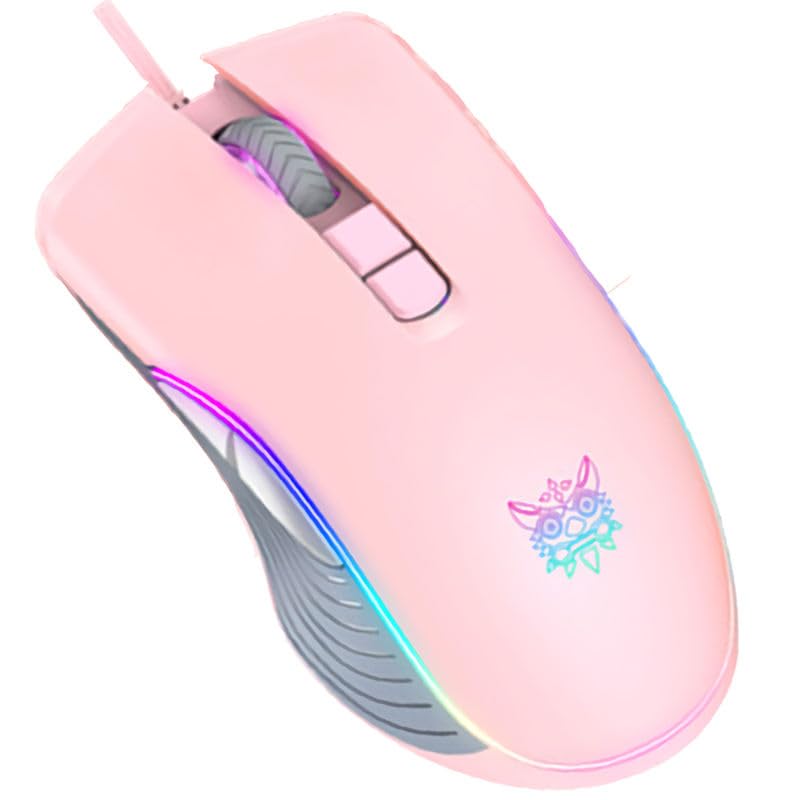
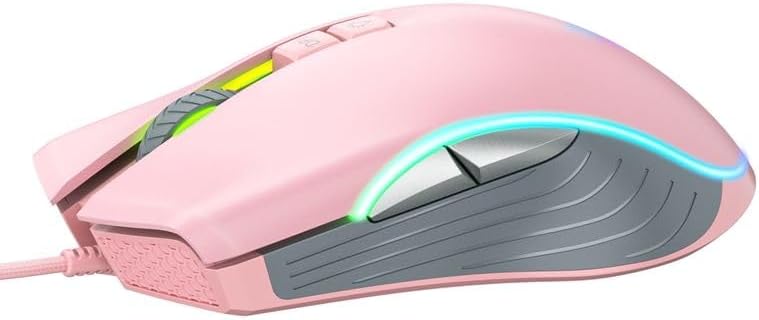
3. Opstelinstruksies
Setting up your ONIKUMA CW908 mouse is a simple plug-and-play process.
- Pak die muis uit: Verwyder die muis versigtig uit sy verpakking.
- Koppel aan rekenaar: Plug the USB connector of the mouse into an available USB port on your personal computer or laptop.
- Bestuurder installasie: Your operating system (Windows 7, Windows 98, Linux, or newer versions) should automatically detect and install the necessary drivers. This process may take a few moments.
- Gereed vir gebruik: Once the drivers are installed, the mouse will be ready for immediate use. The RGB lighting will illuminate.
4. Bedryfsinstruksies
The ONIKUMA CW908 mouse offers intuitive controls for both general use and gaming.
4.1 Basiese werking
- Beweeg die muis oor 'n plat oppervlak om die wyser op jou skerm te beheer.
- Use the Left Click Button for primary actions (e.g., selecting items, opening files).
- Use the Right Click Button for secondary actions (e.g., opening context menus).
- Roll the Scroll Wheel up or down to navigate through documents or web pages. Press the Scroll Wheel for its middle-click function.
4.2 DPI-aanpassing
The mouse features an adjustable DPI (Dots Per Inch) setting, allowing you to change cursor sensitivity on the fly. The CW908 supports up to 7200 DPI.
- Druk die DPI-aanpassingsknoppie (usually located behind the scroll wheel) to cycle through different DPI levels.
- Each press will switch to a predefined DPI setting, indicated by a change in the RGB lighting color or pattern (if applicable).
- Select the DPI level that best suits your task, whether it's precise aiming in games or fast navigation across multiple monitors.
4.3 Sy-knoppies
The Forward and Backward buttons on the side of the mouse provide quick navigation.
- Die Vorentoe-knoppie typically moves forward in web blaaiers of file ontdekkingsreisigers.
- Die Terug-knoppie typically moves backward in web blaaiers of file ontdekkingsreisigers.
5. Instellings aanpas
While the ONIKUMA CW908 offers plug-and-play functionality, advanced customization for button remapping or more intricate RGB control may require dedicated software. Please check the official ONIKUMA website for any available software downloads specific to the CW908 model.
- DPI-instellings: As mentioned, the DPI button cycles through preset levels. Software, if available, may allow for custom DPI steps.
- Knoppie programmering: With compatible software, the 7 buttons can often be remapped to perform specific functions, macros, or keyboard shortcuts, enhancing your gaming and productivity.
- RGB beligting: Software can provide more granular control over RGB effects, colors, and brightness, beyond the default cycling modes.
6. Onderhoud
Proper maintenance ensures the longevity and performance of your gaming mouse.
- Skoonmaak: Gebruik 'n sagte, droë lap om die oppervlak van die muis af te vee. Vir hardnekkige vuiligheid, vee dit effens af.ampMaak die lap skoon met water of 'n sagte skoonmaakoplossing. Vermy harde chemikalieë.
- Sensor skoonmaak: Stof of puin kan soms rondom die optiese sensor aan die onderkant van die muis ophoop. Gebruik 'n wattestokkie of saamgeperste lug om die sensorarea saggies skoon te maak.
- Kabelversorging: Avoid sharply bending or pulling the USB cable. Store the mouse in a way that prevents the cable from being crimped or damaged.
- Berging: Wanneer dit nie gebruik word nie, bêre die muis in 'n skoon, droë omgewing weg van uiterste temperature.
7. Probleemoplossing
If you encounter issues with your ONIKUMA CW908 mouse, refer to the following common problems and solutions:
| Probleem | Moontlike oorsaak | Oplossing |
|---|---|---|
| Muis reageer nie | Los USB-verbinding, foutiewe USB-poort, drywerprobleem. | Maak seker dat die USB-kabel stewig ingeprop is. Probeer 'n ander USB-poort. Herbegin jou rekenaar. Gaan Toestelbestuurder na vir drywerstatus. |
| Wyserbeweging is wisselvallig of springerig | Vuil optiese sensor, ongeskikte muismatoppervlak. | Clean the optical sensor on the underside of the mouse. Use a clean, uniform-colored mouse pad. |
| DPI-knoppie verander nie sensitiwiteit nie | Knoppiewanfunksie, sagtewarekonflik. | Ensure the mouse is properly connected. If using custom software, check its settings. Try on another computer to rule out system issues. |
| RGB-beligting werk nie | Power issue, software setting. | Ensure the mouse is receiving power via USB. If using custom software, check lighting settings. |
8. Spesifikasies
| Kenmerk | Detail |
|---|---|
| Handelsmerk | ONIKUMA |
| Model | CW908 |
| Verbindingstegnologie | USB bedraad |
| Bewegingsopsporing | Opties |
| DPI (kolletjies per duim) | Tot 7200 (Verstelbaar) |
| Aantal knoppies | 7 |
| Spesiale kenmerke | LED Lighting (RGB), Comfortable Design, Lightweight |
| Aanbevole gebruik | Speletjies |
| Versoenbare toestelle | Persoonlike rekenaar, skootrekenaar |
| Bedryfstelselversoenbaarheid | Linux, Windows 7, Windows 98 (and newer Windows versions) |
| Styl | Moderne |
| Kleur | Pienk |
9. Waarborg en Ondersteuning
ONIKUMA products are manufactured to high-quality standards. For specific warranty information, please refer to the warranty card included with your product or visit the official ONIKUMA website. If you require technical support or have questions not covered in this manual, please contact ONIKUMA customer service through their official channels.