
1. Inleiding
The Emerson EMT-1200 Multimedia Recorder is designed to effortlessly digitize and preserve your cherished memories by converting various media formats into modern digital files. This manual provides comprehensive instructions for setting up, operating, and maintaining your device.
2. Wat is in die boks
- Emerson EMT-1200 Multimedia Recorder
- Wisselstroomadapter
- Vinnige Begingids
- AV Cable
- Gebruikershandleiding
3. Produk verbyview
The Emerson EMT-1200 is a versatile multimedia recorder featuring a 4.3-inch LCD screen, multiple input/output options, and app integration for seamless media conversion and playback.

Image: The Emerson EMT-1200 Multimedia Recorder shown with various media sources like phones, DVDs, and USB drives, highlighting its multi-functionality.
Belangrike kenmerke en komponente:
- 4.3 duim LCD-skerm: Vir previewing recordings and navigating menus.
- Audio In (RCA): Red and white ports for stereo audio input.
- Video In (RCA): Yellow port for composite video input.
- HD Out (HDMI): Vir die koppeling aan eksterne skerms.
- USB-poort: Vir die koppeling van USB-skywe.
- Kaartgleuf: Vir die invoeging van SD-kaarte.
- DVD/CD Drive: For disc media.
- Kragknoppie: Om die toestel aan/af te skakel.
- Uitwerp-knoppie: To open/close the disc tray.
- Opneem-knoppie: To start/stop recording.
- Navigation Buttons (ENTER, RETURN, UP/DOWN/LEFT/RIGHT): For menu control.

Beeld: Bo view of the Emerson EMT-1200, highlighting the 4.3-inch LCD screen and the central control panel with navigation and function buttons.

Beeld: Voorkant view of the Emerson EMT-1200, showing the Audio In, Video In, HD Out, and USB ports on the left side.

Beeld: Sykant view of the Emerson EMT-1200 with the DVD/CD tray open, ready for disc insertion.
4. Opstelling
- Place the Recorder: Position the EMT-1200 on a clean, stable surface.
- Koppel krag: Connect the AC power adapter to the DC IN 5V port on the recorder and plug the adapter into a wall outlet or surge protector.
- Krag aan: Press the Power button on the device. The Emerson logo will appear on the screen.
Video: This video demonstrates the basic setup process for the Emerson EMT-1200 Multimedia Recorder, including connecting power and initial boot-up.
5. Bedryfsinstruksies
5.1 Recording from VHS
- Connect VHS Player: Use the AV cable to connect the LINE OUT ports of your VHS player to the AUDIO IN (Red/White) and VIDEO IN (Yellow) ports on the EMT-1200.
- Voeg VHS-band in: Place the VHS tape you wish to record into your VHS player.
- Kies Bron: On the EMT-1200, navigate to the main menu and select "Video -> USB/Card" or "Video -> DVD" depending on your desired output.
- Begin opname: Begin playback on your VHS player, then press the REC button on the EMT-1200 to start recording. Press REC again to stop.

Image: The Emerson EMT-1200 connected to a VHS player via AV cables, illustrating the process of converting VHS tapes to digital formats.
Video: This video demonstrates how to record content from a VHS player to the Emerson EMT-1200 Multimedia Recorder.
5.2 Recording from DVD/CD
- Insert Source Disc: Eject the disc tray and insert the DVD or CD you wish to record from. Close the tray.
- Kies Bron: From the main menu, select "CD/DVD -> USB/Card" or "CD/DVD -> Memory" based on your desired storage.
- Begin opname: Play the content on the disc, then press the REC button on the EMT-1200 to start recording. Press REC again to stop.
Video: This video guides you through the process of recording content from a DVD to the Emerson EMT-1200 Multimedia Recorder.
Video: This video demonstrates how to record audio from a CD to the Emerson EMT-1200 Multimedia Recorder.
5.3 Recording from USB/SD Card
- Voeg berging in: Insert a USB drive into the USB port or an SD card into the CARD slot.
- Kies Bron: From the main menu, select "USB/Card -> DVD" or "USB/Card -> CD" to transfer files from your USB/SD to a disc.
- Begin opname: Follow the on-screen prompts to select files and initiate the transfer.
Video: This video explains how to record files from a USB drive to a DVD using the Emerson EMT-1200 Multimedia Recorder.
5.4 Oordrag Files from iOS/Android App
- Laai die app af: Download the "Friendly Memories" app from the App Store (iOS) or Google Play Store (Android).
- Koppel aan Wi-Fi: Power on the EMT-1200. On your smartphone/tablet, go to Wi-Fi settings and connect to the device's Wi-Fi network (e.g., "DVD_SERVER_XXXX"). Enter the password found in your user manual.
- Toegang verleen: In your phone's settings, ensure the "Friendly Memories" app has access to the photos and videos you wish to transfer.
- Laai op Files: Open the "Friendly Memories" app, select the files you want to transfer, and choose your desired destination (USB, SD Card, or DVD) on the EMT-1200.

Image: An iPhone displaying the "Friendly Memories" app interface, connected wirelessly to the Emerson EMT-1200 for file oordra.
Video: This video demonstrates how to use the iOS app to transfer files to the Emerson EMT-1200 Multimedia Recorder.
5.5 Media Playback & HD Output
- Koppel aan skerm: Connect an HDMI cable from the HD OUT port on the EMT-1200 to your TV or monitor's HDMI input.
- Kies invoer: On your TV/monitor, select the corresponding HDMI input source.
- Select Media Player: On the EMT-1200, navigate to the main menu and select "Media Player".
- Choose Source: Select the source (USB, Card, or CD/DVD) where your media files word gestoor.
- Speel media: Browse and select the desired file te speel.

Image: The Emerson EMT-1200 connected to a larger TV screen via HDMI, allowing users to view their digitized media on an external display.
Video: This video demonstrates the media player functionality and HD output capabilities of the Emerson EMT-1200 Multimedia Recorder.
6. Instellings
Access the "Setup" menu from the main menu to configure various device settings:
- Opname-formaat: Choose between MPG (for Blu-ray players) or MP4 (for computers and DVD players).
- DVD Burn Type: Select "Data" for data-only files or "Video" for video format compatible with DVD/Blu-ray players.
- Rekordgehalte: Adjust the recording quality to High, Medium, or Low. Note that higher quality results in larger file sizes and longer recording times.
- Auto Stop Timer: Set a preset time (e.g., 30 minutes, 60 minutes, 2 hours) for the recording to stop automatically.
- Auto Chapter: Enable this feature to automatically break recordings into chapters at specified intervals (e.g., 5, 10, or 15 minutes).
- Kleurstelsel: Set the video color system (e.g., NTSC).
- OSD-taal: Select the On-Screen Display language (English, Deutsch, Français, Nederlands, Español).
- Datuminstelling: Adjust the current date.
- Tyd instelling: Pas die huidige tyd aan.
- Oorspronklike stellings: Stel alle instellings terug na hul fabrieksverstellings.
7. Probleemoplossing
If you encounter issues with your Emerson EMT-1200, please refer to the following common troubleshooting tips:
- Geen krag: Ensure the AC power adapter is securely connected to both the device and a working power outlet.
- Geen sein op skerm nie: Verify all AV or HDMI cables are correctly connected to both the recorder and the external display. Ensure the correct input source is selected on your TV/monitor.
- Opname kwessies: Check that the source media (VHS, DVD, etc.) is playing correctly. Ensure the destination media (USB, SD card, blank DVD) has sufficient space and is compatible with the device.
- Programverbindingsprobleme: Confirm your smartphone/tablet is connected to the EMT-1200's Wi-Fi network and the correct password has been entered. Check app permissions for media access.
- Probleme met skyfuitwerping: If a disc does not eject, ensure the device is powered on and press the Eject button firmly. Do not force the disc tray.
For more detailed troubleshooting, please consult the full user manual or visit the Emerson support webwebwerf.
8. Spesifikasies
| Kenmerk | Detail |
|---|---|
| Handelsmerk | Emerson |
| Model Naam | EMT-1200 |
| Spesiale kenmerk | USB Recording (DVR) |
| Resolusie | 1280×720 |
| Connector Tipe | Mikro USB |
| Verbindingstegnologie | USB |
| Item gewig | 1 pond |
| Produk afmetings | 1.85 cm L x 6.1 cm B x 6.1 cm H |
| Resolusie vir video-uitvoer | 1080p |
| Versoenbare toestelle | Television, Smartphone |
| Tipe beheerder | Knoppie beheer |
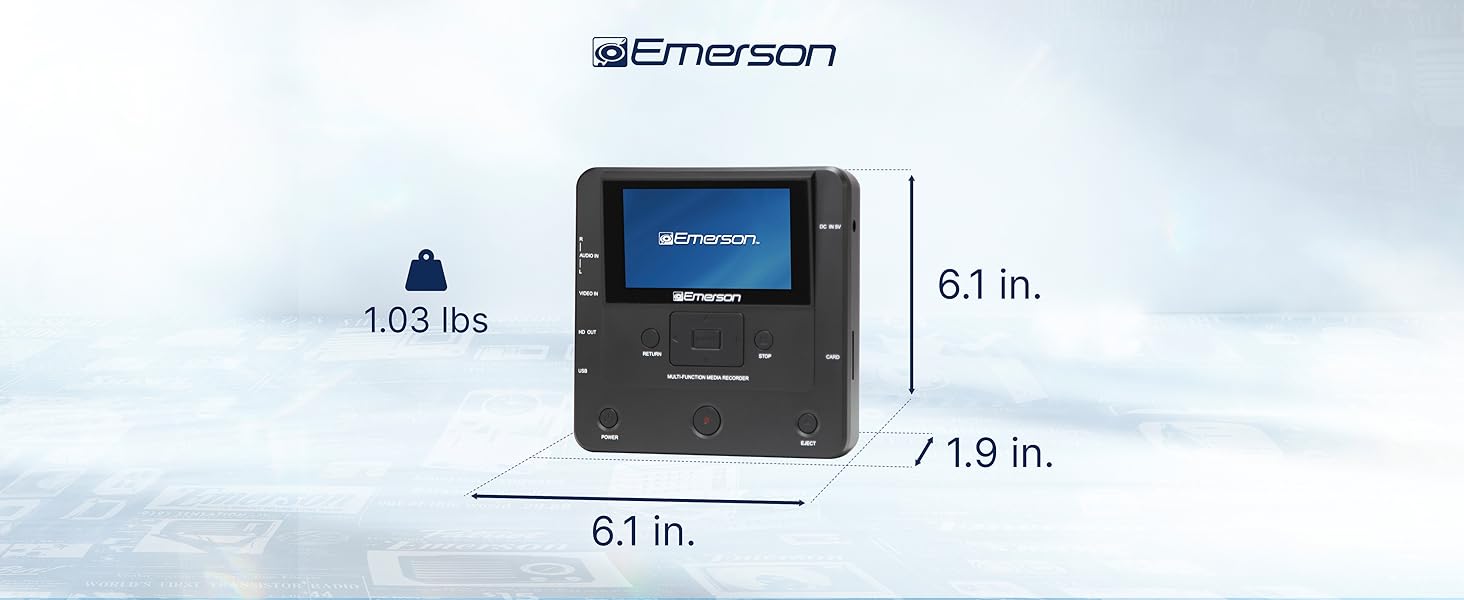
Image: The Emerson EMT-1200 Multimedia Recorder with its dimensions labeled: 6.1 inches Length, 1.9 inches Width, 6.1 inches Height, and a weight of 1.03 pounds.
9. Onderhoud
To ensure the longevity and optimal performance of your Emerson EMT-1200 Multimedia Recorder, follow these maintenance guidelines:
- Skoonmaak: Gebruik 'n sagte, droë lap om die buitekant van die toestel skoon te maak. Vermy die gebruik van vloeibare skoonmaakmiddels, aërosols of oplosmiddels.
- Berging: Bêre die toestel op 'n koel, droë plek weg van direkte sonlig en uiterste temperature.
- Skyfversorging: Handle discs by their edges to avoid fingerprints and scratches. Keep discs in their protective sleeves when not in use.
- Ventilasie: Maak seker dat die toestel se ventilasie-openinge nie geblokkeer is om oorverhitting te voorkom nie.
10. Waarborg en Ondersteuning
Your Emerson EMT-1200 Multimedia Recorder comes with a limited warranty to ensure your satisfaction.
- Waarborgtydperk: 1 Year Parts, 90 Days Labor.
- Vervaardiger: Naxa Electronics, Inc.
For warranty claims, product updates, extended support documentation, or frequently asked questions, please visit the official Emerson Audio webwebwerf of kontak kliëntediens.