
Inleiding
Thank you for choosing the Hodozzy A3475 Android Car Radio. This device is designed to enhance your driving experience with advanced features such as Android 13 operating system, wireless CarPlay and Android Auto, GPS navigation, Bluetooth connectivity, and a high-resolution touch screen. This manual provides essential information for the safe installation, proper operation, and effective maintenance of your new car stereo. Please read this manual thoroughly before installation and use, and keep it for future reference.
Veiligheidsinligting
- Professionele installasie word aanbeveel: As gevolg van die kompleksiteit van motor-elektriese stelsels, word professionele installasie sterk aanbeveel om skade aan die eenheid of jou voertuig te voorkom.
- Kragtoevoer: Ensure the unit is connected to a 12V DC power supply with a negative ground. Incorrect voltage kan skade veroorsaak.
- Bedrading: Carefully follow all wiring diagrams. Incorrect wiring can lead to malfunctions, electrical shorts, or fire.
- Bestuur veiligheid: Moenie die eenheid so gebruik dat dit jou aandag van die bestuur aflei nie. Prioritiseer altyd padveiligheid.
- Temperatuur: Vermy die blootstelling van die eenheid aan uiterste temperature of direkte sonlig vir lang tydperke.
- Vog: Hou die eenheid weg van water en oormatige vog.
- Skoonmaak: Gebruik 'n sagte, droë lap vir skoonmaak. Moenie skuur skoonmaakmiddels of oplosmiddels gebruik nie.
Pakketinhoud
Kontroleer asseblief die inhoud van u pakket met die onderstaande lys. Indien enige items ontbreek of beskadig is, kontak u kleinhandelaar.

Image: The packaging list showing the main unit, power cable, RCA cable, rear camera input cable, GPS antenna, USB cable, mounting bracket, user manual, AHD rear camera, and microphone. Dimensions of the main unit are also shown: 178mm (7.0 inch) width, 102mm (4.0 inch) height, 70mm (2.7 inch) depth, and 25mm (0.9 inch) bezel depth.
- Hodozzy A3475 Main Unit
- Kragkabel
- RCA Input/Output Cable
- Reversing Camera Input Cable
- GPS-antenne
- USB-kabel (x2)
- Monteer hakies
- Gebruikershandleiding (hierdie dokument)
- AHD Rear Camera
- Eksterne mikrofoon
Produk verbyview
The Hodozzy A3475 is a 7-inch double din Android car stereo featuring an 8-core processor, 2GB RAM, and 64GB ROM for smooth performance. It runs on Android 13 and offers a high-resolution IPS touchscreen.

Image: Visual representation of the car stereo's core specifications: Android 13 operating system, 2GB RAM + 64GB ROM memory, 8-core processor, and integrated GPS navigation with WiFi connectivity.
Sleutel kenmerke:
- Bedryfstelsel: Android 13
- Verwerker: 8-kern
- Geheue: 2 GB RAM + 64 GB ROM
- Vertoon: 7-inch IPS Capacitive Touch Screen (1280*720 resolution)
- Verbinding: Wireless CarPlay, Wireless Android Auto, Mirror Link, Bluetooth 5.0, Wi-Fi, USB, AUX, TF Card
- Navigasie: Built-in GPS module with offline map support
- Oudio: 36-band DSP (Digital Sound Processor), FM/RDS Radio
- Insette: AHD Rear Camera input, Dash CAM input, 2 USB inputs
- Uitsette: Amplifier/Sub-woofer audio output
- Beheer: Steering Wheel Control support
Agterpaneelverbindings:

Image: The rear panel of the Hodozzy A3475 unit, displaying various connection ports including power, RCA input/output, reversing camera input, USB, GPS antenna, and radio antenna ports.
- Kragkabelaansluiting
- RCA Input/Output Connectors
- Omgekeerde kamera-invoer
- USB Cable Connectors (x2)
- GPS-antenna-invoer
- Radio-antenna-invoer
Installasie
Waarskuwing: Incorrect installation can cause damage to the unit or your vehicle. It is highly recommended to have this unit installed by a qualified professional.
Voor-installasie kontrolelys:
- Ontkoppel die voertuig se negatiewe batteryklem voordat u enige elektriese werk begin.
- Ensure the mounting dimensions (178mm x 100mm) are compatible with your vehicle's double din opening.
- Gather all necessary tools (wire strippers, crimpers, screwdrivers, electrical tape, multimeter).
Bedradingsdiagram (Algemeen):
Refer to the included wiring diagram for specific connections. The main connections typically include:
- Geel draad: Constant 12V (Battery +)
- Rooi draad: ACC (Switched 12V, Ignition)
- Swart draad: Ground (Chassis -)
- Orange/Illumination Wire: Koppel aan die voertuig se beligtingskring (opsioneel).
- Draad vir trurat: Connect to the vehicle's reverse light circuit for automatic camera display.
- Luidsprekerdrade: Connect to your vehicle's speakers (Front Left +, Front Left -, etc.).
- GPS-antenna: Monteer op 'n plek met 'n duidelike view van die lug.
- Radio antenna: Connect to the vehicle's radio antenna.
- USB kabels: Route to an accessible location for connecting USB devices.
- Agterste kamera: Install the AHD rear camera at the back of the vehicle and route its cable to the unit's reversing camera input.
Montering:
Use the provided mounting brackets to secure the unit into your vehicle's double din opening. Ensure the unit is firmly seated and does not obstruct any vehicle controls or airbags.
Aanvanklike opstelling
- Krag aan: After installation, reconnect the vehicle's battery and turn on the ignition. The unit should power on automatically.
- Language and Time: Follow the on-screen prompts to select your preferred language, time zone, and date settings.
- Wi-Fi-verbinding: Gaan na Instellings > Netwerk en internet > Wi-Fi to connect to an available Wi-Fi network or your phone's hotspot. This is necessary for online maps, app downloads, and system updates.
- GPS Calibration: Ensure the GPS antenna is properly connected and placed. The system will automatically acquire satellite signals for navigation.
Bedryfsinstruksies
Skerm en gebruikerskoppelvlak
The 7-inch IPS capacitive touch screen offers a clear and responsive interface. You can customize the look and feel of your stereo with various wallpapers and user interface themes.
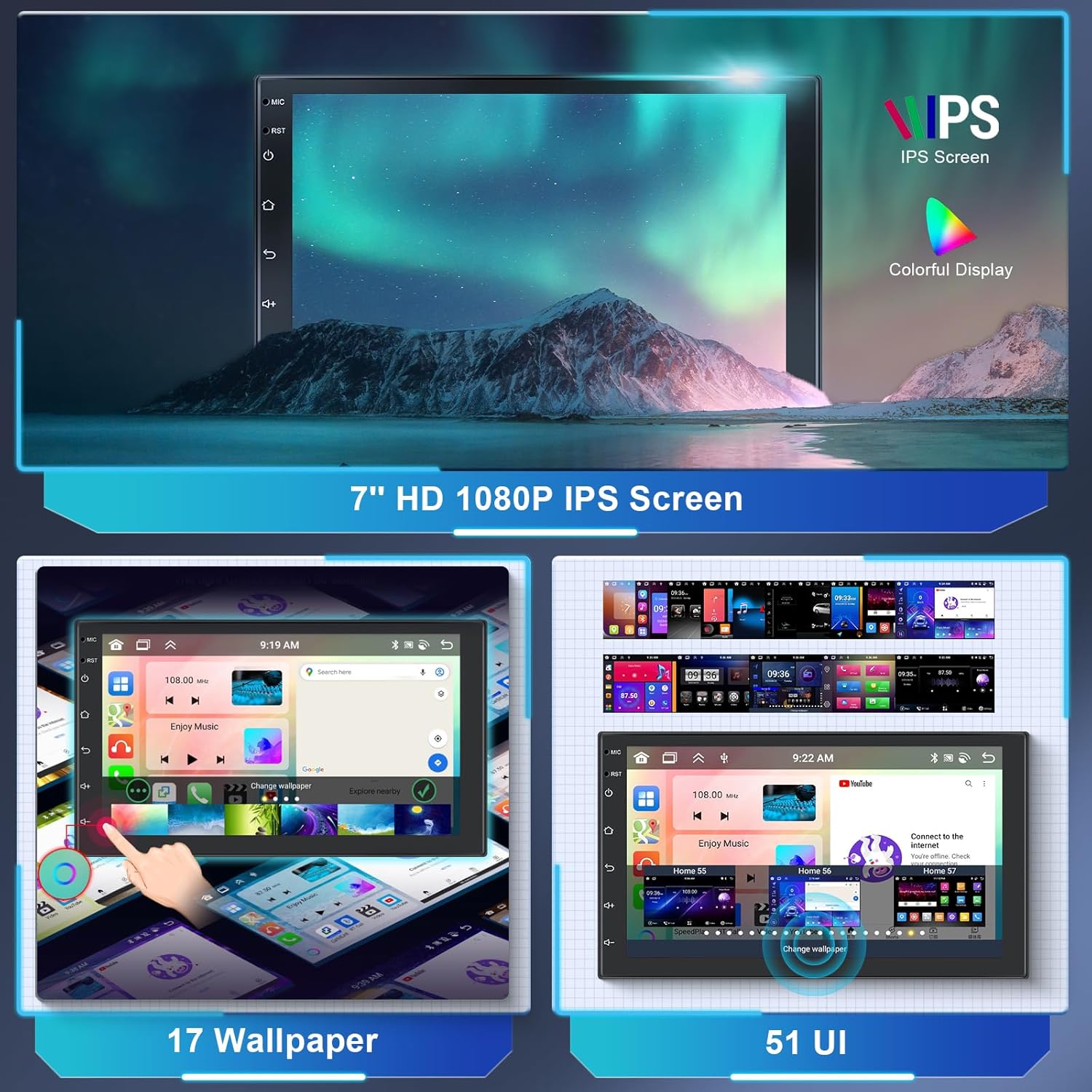
Image: The 7-inch HD 1080P IPS screen displaying various wallpaper options and different user interface layouts, highlighting customization capabilities.
- Tuisskerm: Access frequently used apps and widgets.
- App-laai: Swipe up or tap the app icon to view alle geïnstalleerde toepassings.
- Instellings: Access system settings for audio, display, network, and more.
- Pasmaak: Navigeer na Instellings > Vertoon to change wallpapers and UI themes.
Wireless CarPlay & Android Auto & Mirror Link
Connect your smartphone wirelessly or via USB to access CarPlay or Android Auto for navigation, music, calls, and messages. The Mirror Link function allows you to display your phone's screen directly on the car stereo.

Image: The car stereo screen displaying the interfaces for Wireless CarPlay and Wireless Android Auto, showing phone applications like navigation, music, and communication.
- For Wireless CarPlay/Android Auto:
- Maak seker dat jou foon se Bluetooth en Wi-Fi geaktiveer is.
- On the car stereo, open the "CarLink" or similar app.
- Pair your phone via Bluetooth with the car stereo.
- Confirm the connection on both devices. CarPlay or Android Auto should launch automatically.
- For Mirror Link:
- Open the "Mirror Link" app on the stereo.
- Follow the on-screen instructions to connect your Android or iOS device, typically involving a USB connection and enabling USB debugging (for Android) or trusting the device (for iOS).
GPS Navigation & Wi-Fi
The unit comes with a built-in GPS module and pre-installed offline map applications. Connect to Wi-Fi for online maps, traffic updates, and downloading additional apps from the Play Store.

Image: The car stereo displaying GPS navigation maps and icons for various navigation applications. Also shown is a graphic representing WiFi connectivity in a car.
- Vanlyn kaarte: Access the pre-installed map application. You may need to download specific regional map data via Wi-Fi for offline use.
- Online Maps: Connect to Wi-Fi or a mobile hotspot to use online navigation apps like Google Maps, Waze, etc.
- Wi-Fi-hotspot: The unit supports 3G/4G hotspot connectivity from your smartphone.
Bluetooth-funksies
The built-in Bluetooth 5.0 module allows for hands-free calling and wireless audio streaming.

Image: The car stereo screen displaying a phone dialer interface, indicating Bluetooth hands-free calling functionality. A smartphone is shown below, connected via Bluetooth.
- Saambinding: Go to the Bluetooth app on the stereo. Enable Bluetooth on your phone and search for the stereo (e.g., "Hodozzy A3475"). Pair the devices.
- Handvrye oproepe: Once paired, you can make and receive calls directly from the stereo's screen. The external microphone ensures clear audio.
- Bluetooth-musiek: Stream audio from your phone to the car stereo.
FM/RDS-radio
Tune into your favorite FM radio stations. The RDS (Radio Data System) function displays station information, song titles, and other data where available.

Image: The car stereo screen displaying the FM radio interface, showing frequency (87.50 MHz) and RDS information. A microphone is visible in the background, indicating audio input capabilities.
- Outo -skandering: Use the auto-scan function to find and save available stations.
- Handmatige instelling: Manually adjust the frequency to find specific stations.
- presets: Stoor jou gunstelingstasies op voorafbepaalde knoppies vir vinnige toegang.
DSP Sound Adjustment
The integrated 36-band Digital Sound Processor (DSP) allows for precise audio customization, including equalization, balance, fader, and subwoofer control.

Image: The car stereo screen displaying a detailed graphic equalizer interface for DSP sound adjustment, showing multiple frequency bands and gain controls. A sound mixing board is in the background.
- Access the EQ app to adjust frequency bands, Q adjustments, and gain levels.
- Choose from preset equalizer curves (e.g., Classic, Pop, Rock) or create and save your own custom settings.
- Adjust subwoofer level and other audio parameters for optimal sound.
Stuurwielbeheer (SWC)
The unit supports original steering wheel controls, allowing you to manage audio and other functions without taking your hands off the wheel.

Image: The car stereo screen showing the interface for programming steering wheel controls. A steering wheel with hands is depicted below, illustrating the use of these controls.
- Access the SWC settings in the system menu.
- Follow the on-screen instructions to map your vehicle's steering wheel buttons to corresponding functions on the stereo (e.g., volume up/down, track skip, mode).
Reverse Camera Function
When connected to the reverse gear, the car stereo automatically displays the rear camera feed, assisting with parking and reversing maneuvers.

Image: The car stereo screen displaying a reverse camera view of a parking lot with dynamic parking guidelines. A small image of a car reversing with a camera icon is shown below.
- Ensure the AHD rear camera is properly installed and connected to the unit's "Reversing Camera Input" and the vehicle's reverse light power.
- When the vehicle is shifted into reverse, the display will automatically switch to the camera view.
USB, AUX, and TF Card
The unit provides multiple options for media playback and connectivity.
- USB-insette: Connect USB drives for media playback (audio/video) or charging devices.
- AUX oudio-invoer: Connect external audio sources via the AUX input.
- TF kaart: Insert a TF (MicroSD) card for additional storage and media playback.
Gesplete Skerm Funksie
Die verdeelskermfunksie laat jou toe om twee toepassings gelyktydig op die 7-duim-skerm te laat loop, byvoorbeeldample, navigation on one side and music on the other.
- To activate, open an app, then long-press the recent apps button or swipe up and hold (depending on UI) to enter split-screen mode.
- Select a second app to display alongside the first.
Onderhoud
- Skoonmaak van die skerm: Gebruik 'n sagte, pluisvrye lap om die skerm saggies af te vee. Vir hardnekkige vlekke, vee dit effens af.ampMaak die lap skoon met water of 'n skermveilige skoonmaakmiddel. Vermy harde chemikalieë.
- Sagteware-opdaterings: Periodically check for system software updates via the settings menu when connected to Wi-Fi. Updates can improve performance and add new features.
- Vermy uiterste toestande: Protect the unit from extreme heat, cold, and direct prolonged sunlight, which can affect its lifespan and performance.
- Sekering vervanging: If the unit loses power, check the fuse located on the power cable. Replace it with a fuse of the same ampslegs erage-gradering.
Probleemoplossing
| Probleem | Moontlike oorsaak | Oplossing |
|---|---|---|
| Geen krag | Loose power connection; Blown fuse; Incorrect wiring. | Check power cable connections (Yellow, Red, Black). Verify fuse integrity and replace if necessary. Consult wiring diagram. |
| Geen klank nie | Volume too low; Mute activated; Incorrect speaker wiring; DSP settings. | Increase volume. Check if mute is active. Verify speaker connections. Adjust DSP/EQ settings. |
| GPS Werk Nie | GPS antenna not connected or poorly placed; No satellite signal. | Ensure GPS antenna is securely connected and placed in a location with a clear view of the sky. Wait for signal acquisition. |
| Bluetooth verbind nie | Bluetooth off on phone/stereo; Incorrect pairing process. | Ensure Bluetooth is enabled on both devices. Delete previous pairings and re-pair. |
| Agterkamera vertoon nie | Camera not connected; Reverse trigger wire not connected; Faulty camera. | Check camera input connection. Verify the reverse trigger wire is correctly connected to the vehicle's reverse light. Test camera if possible. |
| Raakskerm reageer nie | Tydelike sagtewarefout; Skermbeskermer-interferensie. | Restart the unit (turn off ignition and restart). Remove any thick screen protectors. If issue persists, contact support. |
Spesifikasies

Image: The car stereo screen displaying a clear IPS touchscreen interface, highlighting its responsive touch and 2.5D curved glass design.
| Kenmerk | Detail |
|---|---|
| Handelsmerk | hodozzy |
| Modelnommer | A3475 |
| Bedryfstelsel | Android 13 |
| Verwerker | 8-kern |
| RAM | 2 GB |
| ROM | 64 GB |
| Vertoon grootte | 7 duim |
| Tipe vertoon | IPS Capacitive Touch Screen |
| Resolusie | 1280*720 |
| Konnektiwiteit | Auxiliary, Bluetooth (5.0), RCA, USB, Wi-Fi |
| Spesiale kenmerke | DAB (support), RDS, DSP (36-band EQ), GPS Navigation, Wireless CarPlay, Wireless Android Auto, Mirror Link, Steering Wheel Control, Reverse Camera Input |
| Uitset krag | 4 x 45 Watts (RMS), 180 Watts (Peak) |
| Klankuitvoermodus | Stereo |
| Ondersteunde oudioformate | WAV, WMA, MP3, etc. |
| Ondersteunde videoformate | MKV, AVI, MP4, MDV, etc. |
| Installasie grootte | 178mm x 100mm (Double Din) |
| FCC ID | 29149-A2747 |
| IC ID | 29149-A2747 |
Waarborg en Ondersteuning
For warranty information, please refer to the documentation provided at the time of purchase or contact your retailer. For technical support, troubleshooting assistance, or inquiries about replacement parts, please contact Hodozzy customer service through the retailer's platform or the official Hodozzy webwebwerf.
Please have your model number (A3475) and purchase details ready when contacting support.