
Inleiding
This manual provides detailed instructions for the safe and efficient operation of your CAIWEI X99+ 4K Smart Projector. Please read this manual thoroughly before using the projector and retain it for future reference.
Veiligheidsinligting
Om veilige werking te verseker en skade te voorkom, neem die volgende voorsorgmaatreëls:
- Do not place the projector in boxes or cabinets with poor ventilation properties. Ensure adequate airflow around the device to prevent overheating.
- Avoid direct exposure of the projector lens to sunlight.
- Moenie die ventilasie-openinge blokkeer nie.
- Gebruik slegs die kragadapter wat saam met die projektor voorsien word.
- Hou die projektor weg van water of ander vloeistowwe.
- Moenie probeer om die projektor self uitmekaar te haal of te herstel nie. Kontak gekwalifiseerde dienspersoneel vir hulp.
Pakketinhoud
Verifieer dat alle items in die pakket teenwoordig is:
- CAIWEI X99+ Smart Projector
- Afstandbeheer
- HDMI kabel
- Power Cable (UK-plug)
- AV Cable
- Projektor sak
- Gebruikershandleiding (hierdie dokument)
Produk verbyview
The CAIWEI X99+ is a smart projector designed for versatile entertainment and presentation needs. It features a native 1080P resolution with 4K support, 800 ANSI lumens brightness, and an integrated Android 9.0 operating system.

Figure 1: CAIWEI X99+ Smart Projector front view, wysasing sy kompakte ontwerp en belangrikste kenmerke.
Sleutel kenmerke:
- Vertoon tegnologie: Native 1920x1080P resolution, 4K support, 800 ANSI lumens, 15500:1 contrast ratio.
- Slim bedryfstelsel: Android 9.0 with access to over 6000 authorized apps (Netflix, YouTube, Prime Video, etc.).
- Geheue: 2GB RAM + 16GB ROM.
- Draadlose konneksie: Dual 2.4G/5G WiFi, Airplay/DLNA/Miracast support, Bluetooth 5.0.
- Oudio: Integrated 10W high-power stereo speakers, Dolby Audio support, 3.5mm audio output.
- Beeldverbetering: HDR10 processing, MEMC technology for smoother motion.
- Aanpassings: 4D and ±50° vertical/horizontal electronic keystone correction, 40% digital image zoom.
- Duursaamheid: Fully sealed optical engine for dust protection and extended lifespan.

Figure 2: Visual representation of the projector's color accuracy, brightness, and image quality in various lighting conditions.
Opstelling
1. plasing
Position the projector on a stable, flat surface or mount it to the ceiling using the four screw holes. Ensure the projector is placed at an appropriate distance from the projection surface to achieve the desired screen size. Maintain adequate ventilation around the unit.
2. Kragverbinding
- Koppel die kragkabel aan die projektor se kragtoevoerpoort.
- Steek die ander kant van die kragkabel in 'n geskikte elektriese aansluiting.
- Druk die kragknoppie op die projektor of afstandbeheerder om die toestel aan te skakel.
3. Initial Focus and Keystone Adjustment
Upon initial power-on, the projected image may appear blurry or distorted. Adjust these settings for optimal clarity:
- Fokus: Draai die fokusring op die projektorlens totdat die beeld skerp en duidelik is.
- Keystone-korreksie: Use the remote control to access the keystone correction settings. The projector supports 4D keystone correction and ±50° vertical/horizontal electronic correction to square the image if the projector is not perfectly perpendicular to the screen.
- Digitale zoom: Adjust the image size without moving the projector using the digital zoom function (40% zoom out/in).
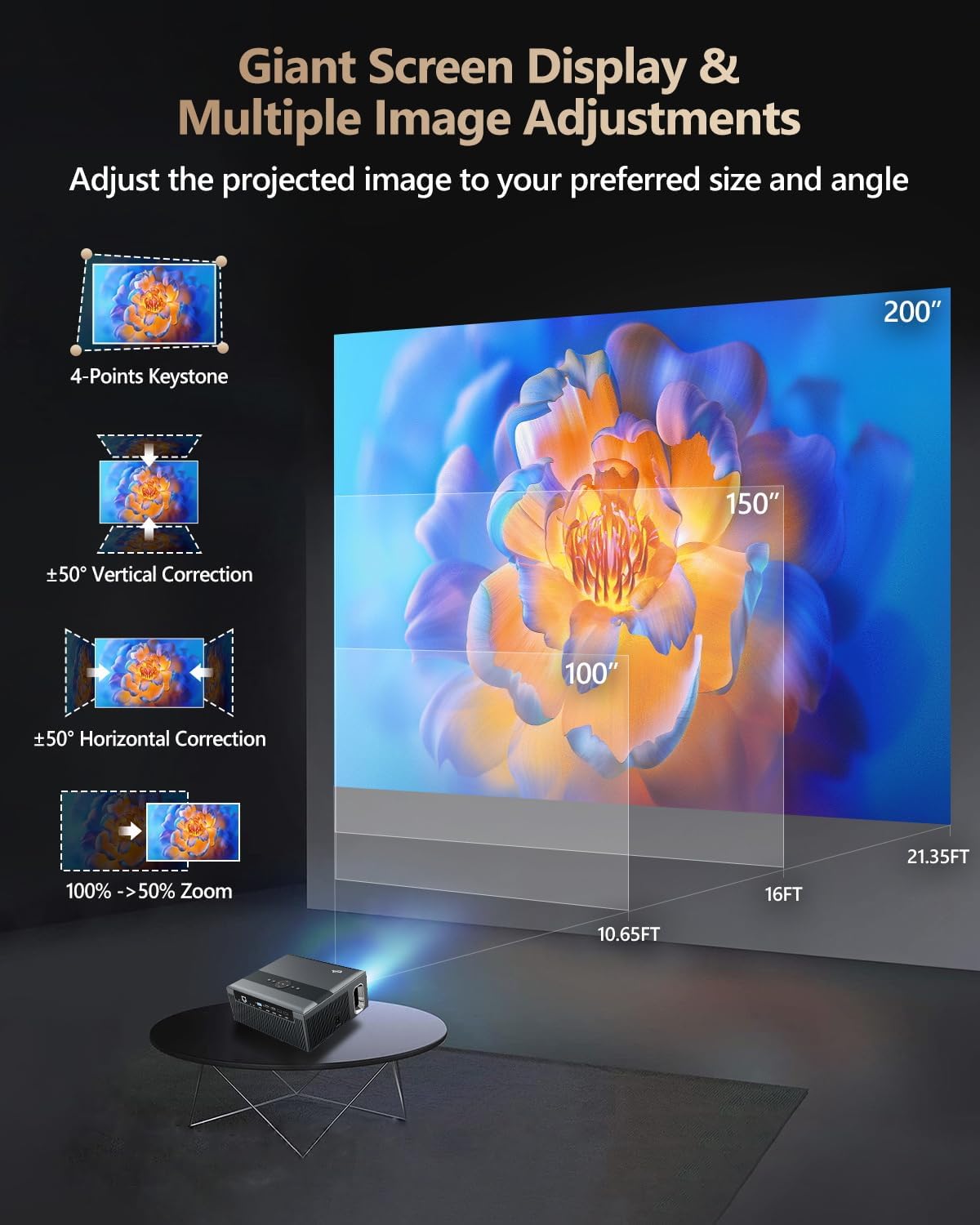
Figure 3: Image adjustment options including keystone correction and digital zoom.
4. Netwerkverbinding
Connect the projector to the internet for access to streaming apps and online content.
- Wi-Fi: Navigate to the network settings in the Android OS. Select your desired 2.4G or 5G Wi-Fi network and enter the password.
- LAN (Ethernet): Connect an Ethernet cable from your router to the RJ45 port on the projector for a wired internet connection.
5. Bluetooth-koppeling
Pair Bluetooth devices such as external speakers, headphones, mice, keyboards, or gamepads.
- Maak seker dat die Bluetooth-toestel in saambindmodus is.
- On the projector, go to Bluetooth settings within the Android OS.
- Select the desired device from the list and confirm pairing.

Figure 4: Wireless connectivity for streaming and audio.
Bedryfsinstruksies
1. Android TV OS Navigation
Use the remote control to navigate the Android 9.0 interface. The home screen provides access to installed applications, settings, and input sources.

Figure 5: Android TV 9.0 interface with pre-installed and accessible applications.
2. App Installation and Usage
The projector comes with pre-installed apps like Netflix, YouTube, and Prime Video. You can download additional authorized applications from the app store within the Android OS.
- Select an app icon from the home screen to launch it.
- Follow on-screen prompts for login or content selection.
3. Screen Mirroring (Airplay/DLNA/Miracast)
Synchronize your smartphone, tablet, or laptop screen wirelessly to the projector.
- Maak seker dat jou toestel en die projektor aan dieselfde Wi-Fi-netwerk gekoppel is.
- Select the appropriate mirroring function (Airplay for iOS, Miracast for Android/Windows, DLNA for compatible devices) on the projector's interface.
- Initiate screen mirroring from your source device.
4. Verbinding van eksterne toestelle
The projector offers multiple ports for connecting various external devices.

Figure 6: Available input and output ports for external devices.
- HDMI: Connect Blu-ray/DVD players, TV sticks, game consoles (PS5), PCs, or laptops using an HDMI cable. Select the corresponding HDMI input from the projector's source menu.
- USB: Insert USB flash drives or hard drives into the USB ports to play media files direk.
- VGA: Connect older PCs or laptops using a VGA cable.
- VAN: Use the AV cable to connect devices with composite video and stereo audio outputs.
5. Klankuitset
The projector features built-in 10W stereo speakers. For alternative audio experiences:
- Bluetooth: Pair with external Bluetooth speakers or headphones as described in the Setup section.
- 3.5 mm oudio uit: Connect wired headphones or external speakers using a 3.5mm audio cable.

Figure 7: Projector's integrated audio system.
Onderhoud
1. Skoonmaak
- Lens: Gebruik 'n sagte, pluisvrye lap wat spesifiek vir optiese lense ontwerp is. Moenie skuurmiddels gebruik nie.
- Buitekant: Vee die buitekant van die projektor af met 'n sagte, droë lap. Vir hardnekkige merke, vee dit effens af.ampen die lap met water.
- Ventilasie openinge: Periodically check and gently clean the ventilation openings to ensure unobstructed airflow.
2. Dust Protection
The CAIWEI X99+ features a fully sealed optical engine and an air purifier filter, which significantly reduces dust accumulation and light decay, contributing to a longer service life.

Figure 8: Dust-proof design of the CAIWEI X99+ projector.
3. Berging
When not in use for extended periods, store the projector in a cool, dry place, preferably in its original packaging or the provided projector bag, to protect it from dust and physical damage.
Probleemoplossing
Indien u probleme met u projektor ondervind, raadpleeg die volgende algemene probleme en oplossings:
| Probleem | Moontlike oorsaak | Oplossing |
|---|---|---|
| Geen beeld of "Geen sein"-boodskap | Verkeerde invoerbron gekies; los kabelverbinding; toestel nie aangeskakel nie. |
|
| Wasige beeld | Focus not adjusted; keystone correction needed. |
|
| Geen klank nie | Volume too low; incorrect audio output selected; external device audio issue. |
|
| Wi-Fi-verbindingskwessies | Verkeerde wagwoord; buite bereik; routerprobleme. |
|
| Afstandbeheer werk nie | Dooie batterye; obstruksie; paringsprobleem. |
|
Spesifikasies
| Handelsmerk | CAIWEI |
| Model | X99+ |
| Vertoon resolusie | Native 1920 x 1080 (Supports 4K) |
| Helderheid | 800 ANSI Lumens (12000 LED Lumens) |
| Kontrasverhouding | 15500:1 |
| Bedryfstelsel | Android 9.0 |
| Geheue | 2 GB RAM + 16 GB ROM |
| Verbindingstegnologie | Bluetooth 5.0, Dual-band Wi-Fi (2.4G/5G), USB, HDMI, VGA, AV, LAN (RJ45) |
| Spesiale kenmerke | Built-In Wi-Fi, Portable, Wireless, HDR10, MEMC, Dolby Audio, Sealed Optical Engine, 4D Keystone Correction, Digital Zoom |
| Oudio | 10W High Power Stereo Speakers, 3.5mm Audio Output |
| Produk afmetings | 10.55 x 9.25 x 4.92 duim |
| Item gewig | 7.48 pond |
Waarborg en Ondersteuning
For warranty information and technical support, please refer to the warranty card included with your product or visit the official CAIWEI webwebwerf. Kontak kliëntediens vir hulp met enige probleme wat nie in hierdie handleiding gedek word nie.
Vervaardiger: CAIWEI
Webwebwerf: CAIWEI Official Store on Amazon