
HOVERAir Hover X1
HOVERAir X1 Self-Flying Camera Drone User Manual
Model: Hover X1
1. Inleiding
Welcome to the HOVERAir X1 Self-Flying Camera Drone user manual. This guide provides essential information for setting up, operating, maintaining, and troubleshooting your HOVERAir X1 drone. Please read this manual thoroughly before using the device to ensure safe and optimal performance.
The HOVERAir X1 is a lightweight, foldable, and intelligent self-flying camera designed for effortless content creation. Its advanced features, including intelligent flight paths and hands-free control, make it an ideal companion for capturing your adventures.
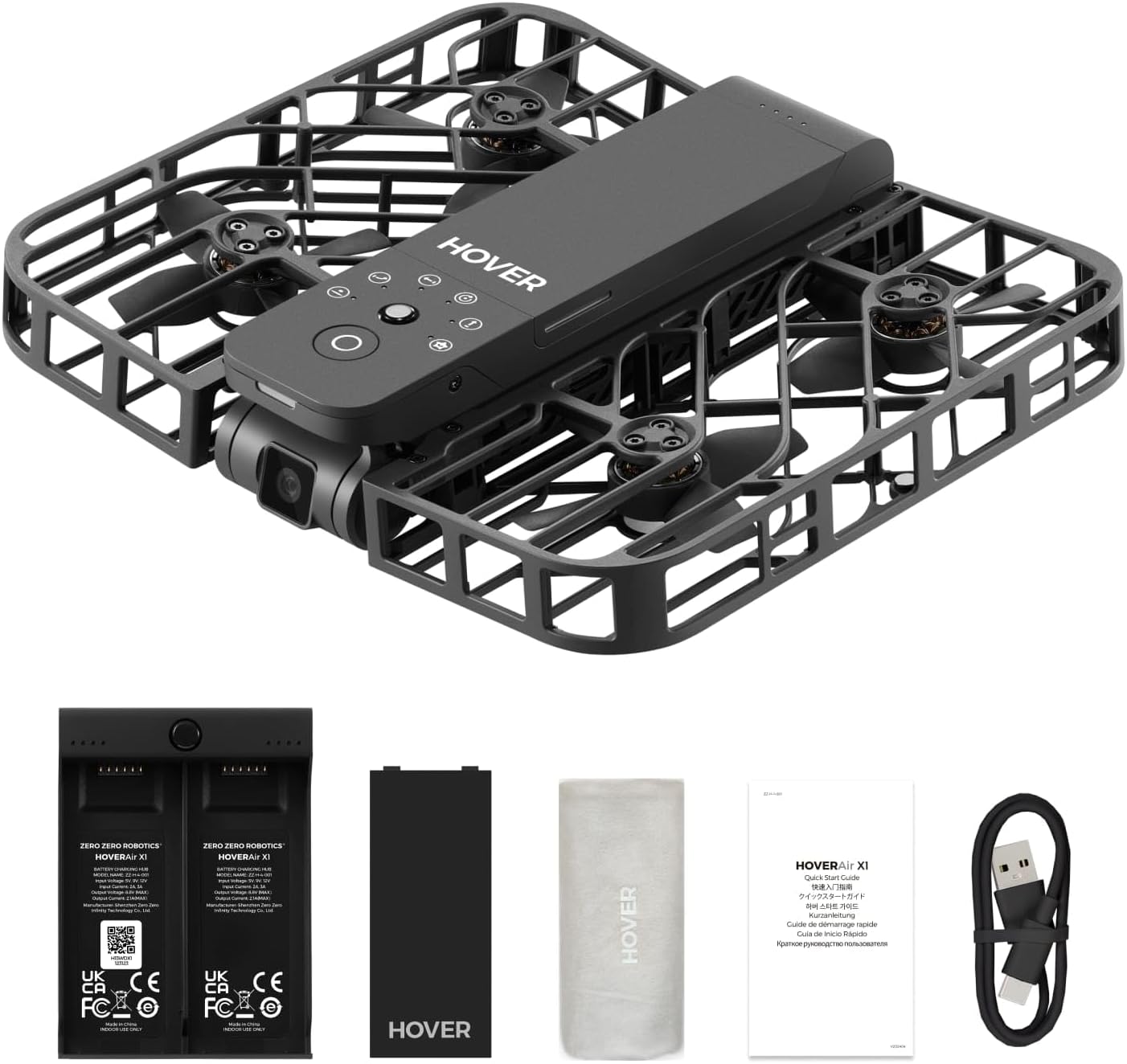
Figure 1.1: The HOVERAir X1 Self-Flying Camera Drone in its unfolded state, ready for flight.
2. Wat is in die boks
Upon unboxing your HOVERAir X1, please verify that all components listed below are present and in good condition.
- HOVERAir X1 Self-Flying Camera (with pre-installed battery)
- Battery laai Hub
- Bykomende battery
- USB kabel
- Bergsak
- Gebruikershandleiding (hierdie dokument)

Figure 2.1: All components included in the HOVERAir X1 package.
3. Produk verbyview
The HOVERAir X1 is engineered for portability and ease of use, featuring a compact, foldable design and robust safety features.
3.1. Ontwerp en Draagbaarheid
Weighing only 125g (4.41oz), the HOVERAir X1 is lighter than most smartphones, making it exceptionally portable. Its foldable structure allows it to be easily stored and carried, fitting into small bags or even pockets. This design eliminates the need for FAA registration in many regions.
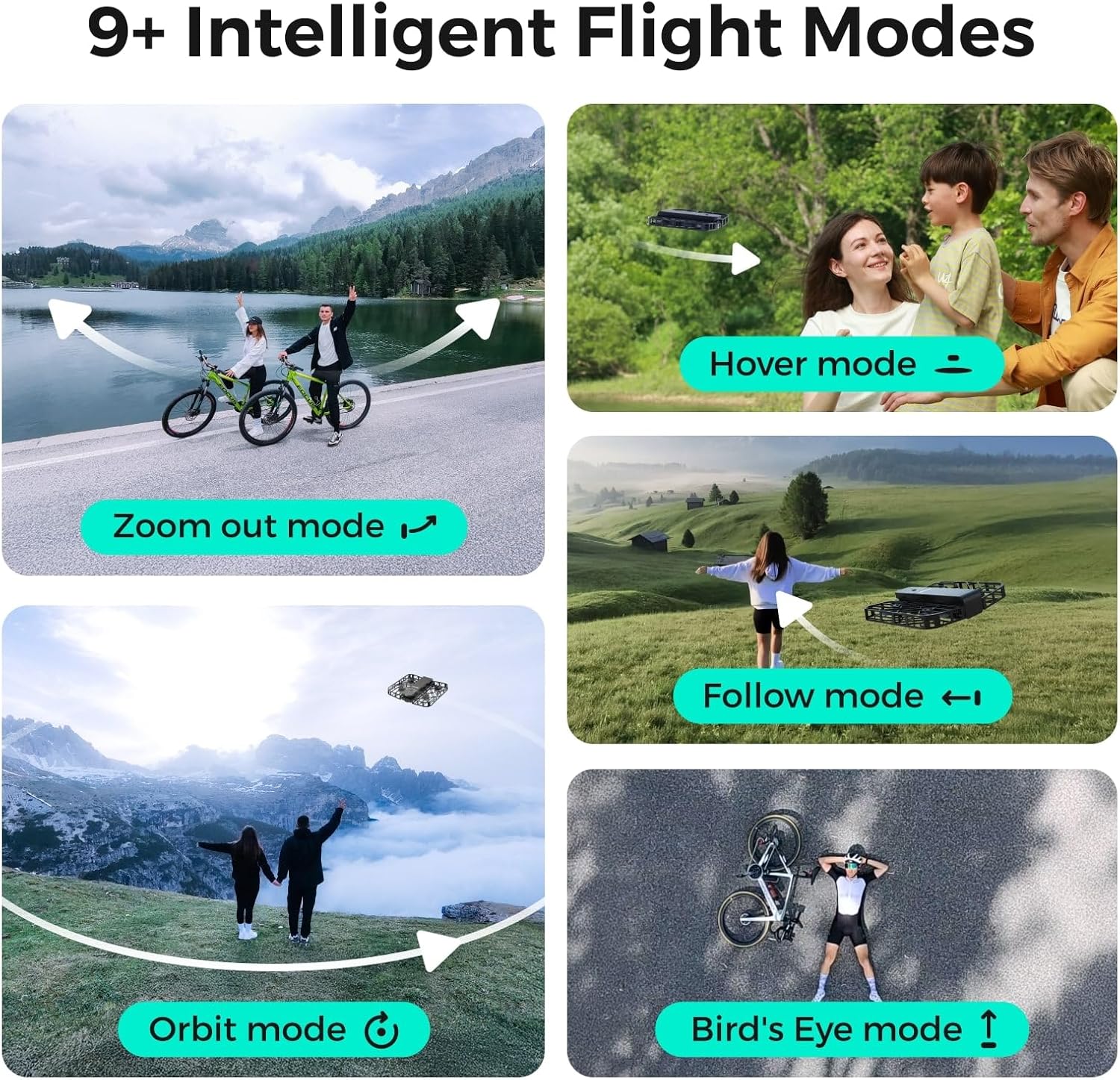
Figure 3.1: The HOVERAir X1's ultra-lightweight and foldable design for easy transport.
3.2. Veiligheidskenmerke
The drone features a fully enclosed design with safety guards around its propellers, providing an additional layer of protection for both the device and its surroundings. This design ensures safe operation, even during close-range interactions.

Figure 3.2: The HOVERAir X1's enclosed design and durable material for enhanced safety.
3.3. Camera and Stabilization
The HOVERAir X1 supports a maximum of 2.7K@30fps and 1080P HDR video shooting. It incorporates a triple stabilization system to ensure smooth video effects and excellent fast motion capture, ideal for dynamic activities.

Figure 3.3: Visual comparison demonstrating the effectiveness of Triple Stabilization for smooth video.
Additionally, the drone features Face AE Technology, which optimizes exposure and color balance to make photos of subjects appear more natural and vibrant.

Figure 3.4: Before and after comparison illustrating the benefits of Face AE Technology for natural-looking photos.
4. Opstelling
Follow these steps to prepare your HOVERAir X1 for its first flight.
4.1. Laai die battery
- Connect the USB cable to the Battery Charging Hub.
- Plug the other end of the USB cable into a compatible USB power adapter (not included).
- Insert the drone batteries into the charging hub. The indicator lights on the hub will show the charging status.
- Once fully charged, disconnect the batteries and the charging hub.
4.2. Aanvanklike aanskakeling
- Unfold the HOVERAir X1 drone until it clicks into place.
- Druk en hou die aan/af-knoppie op die hommeltuig in totdat die aanwyserliggies aanskakel.

Figure 4.1: Visual guide for turning on the HOVERAir X1 and selecting a flight mode.
5. Bedryfsinstruksies
The HOVERAir X1 offers various intelligent flight modes and intuitive controls for a seamless flying experience.
5.1. Palm Takeoff
The HOVERAir X1 is designed for easy palm takeoff. Once powered on and a flight mode is selected, simply hold the drone flat in your palm, and it will automatically take off.
5.2. Intelligente vlugmodusse
The drone comes pre-programmed with several intelligent flight paths, allowing for hands-free content capture.
- Beweegmodus: The drone hovers stably in place, ideal for static shots.
- Volgmodus: The drone tracks your movement, keeping you in the frame. It can follow at speeds up to 15 mph.
- Zoom Out Mode: The drone flies backward and upward, revealing the surrounding environment.
- Wentelbaanmodus: The drone circles around a designated subject.
- Bird's Eye Mode: The drone ascends to capture a top-down view.
- Handleiding: Allows for direct control via the HOVER X1 App for precise flight adjustments.

Figure 5.1: Illustrations of the various intelligent flight modes available with the HOVERAir X1.
5.3. Gebaarkontroles
The HOVERAir X1 supports intuitive gesture controls for certain flight actions.
- Gesture for Landing: Cross your hands above your head.
- Gesture for Bird's Eye: Raise both your hands.
- Gesture for Zoom Out: Wave both your hands twice.
- Gesture for Orbit-R (Right): Wave your hand twice to the right.
- Gesture for Orbit-L (Left): Wave your hand twice to the left.

Figure 5.2: Visual guide to performing various gesture controls for the HOVERAir X1.
6. App Features (HOVER X1 App)
The HOVER X1 App enhances your drone experience with real-time monitoring and content management.
- Regstreekse monitering: View real-time camera feed from the drone on your mobile device.
- Handleiding: Take direct control of the drone's flight paths and camera angles.
- One-click Download: Easily download photos and videos from the drone's internal 32GB storage to your phone.
- Onmiddellike deling: Share your captured moments directly to social media platforms.
7. Onderhoud
Proper maintenance ensures the longevity and performance of your HOVERAir X1.
- Skoonmaak: Gently wipe the drone's body and propellers with a soft, dry cloth. Avoid using liquid cleaners directly on the drone.
- Skroefinspeksie: Regularly check propellers for any signs of damage (cracks, bends). Replace damaged propellers immediately.
- Batterysorg: Bêre batterye op 'n koel, droë plek. Moenie batterye oorlaai of heeltemal ontlaai nie. As jy dit vir lang tye bêre, laai dit tot ongeveer 50-60%.
- Firmware -opdaterings: Periodically check the HOVER X1 App for available firmware updates to ensure optimal performance and access to new features.
8. Probleemoplossing
If you encounter issues with your HOVERAir X1, refer to the following common problems and solutions.
| Probleem | Moontlike oorsaak | Oplossing |
|---|---|---|
| Drone skakel nie aan nie | Low battery; Incorrect power button press | Charge the battery fully; Press and hold the power button for 2-3 seconds. |
| Drone unstable during flight | Propeller damage; Strong winds; Calibration needed | Inspect and replace damaged propellers; Fly in calm conditions; Perform IMU calibration via the app. |
| Cannot connect to HOVER X1 App | Bluetooth/Wi-Fi off; App not updated; Drone not in pairing mode | Ensure Bluetooth/Wi-Fi is enabled on your device; Update the app to the latest version; Restart drone and app. |
| Swak beeld-/videokwaliteit | Dirty camera lens; Insufficient lighting; Drone vibration | Clean the camera lens; Fly in well-lit conditions; Check for propeller damage or loose parts. |
| Hommeltuig reageer nie op gebare nie | Incorrect gesture; Insufficient lighting; Drone too far | Ensure gestures are performed correctly and clearly; Fly in good lighting; Maintain close proximity to the drone. |
If the problem persists, please contact HOVERAir customer support for further assistance.
9. Spesifikasies
| Kenmerk | Detail |
|---|---|
| Handelsmerk | HOVERAir |
| Model Naam | Sweef X1 |
| Item gewig | 125 gram |
| Afmetings (L x B x H) | 10.63 cm L x 6.69 cm B x 1.97 cm H (ontvou) |
| Video-opname-resolusie | 2.7K@30fps, 1080P HDR |
| Resolusie vir video-uitvoer | 1920x1080 piksels |
| Ondersteunde beeldformaat | jpeg, png |
| Verbindingstegnologie | Wi-Fi, Bluetooth |
| Tipe beheer | Programbeheer |
| Battery kapasiteit | 2100 miljoenamp Hours (approx. 11 minutes flight per battery) |
| Interne berging | 32 GB |
| Maximum Follow Speed | 15 mph |
| Vaardigheidsvlak | Beginner to Intermediate |
| Materiaal | Nylon, plastiek |
10. Veiligheidsriglyne
Adhere to these safety guidelines to ensure a safe and enjoyable experience with your HOVERAir X1.
- Voorvlugkontrole: Always inspect the drone for any damage, especially propellers, before each flight.
- Omgewingsbewustheid: Fly in open areas, away from people, animals, buildings, and obstacles. Avoid flying in strong winds, rain, or snow.
- Batteryveiligheid: Use only original HOVERAir batteries and charging equipment. Do not puncture, disassemble, or expose batteries to extreme temperatures.
- Respekteer privaatheid: Be mindful of privacy laws and personal space when capturing photos or videos.
- Ouderdomsaanbeveling: This product is recommended for adult use.
- Emergency Landing: In case of an emergency, ensure the drone lands in a clear area to prevent injury or damage.
- No FAA Registration Required: Due to its lightweight design (under 250g), the HOVERAir X1 is exempt from FAA registration requirements in the United States. However, always check local regulations.
11. Waarborg en Ondersteuning
The HOVERAir X1 comes with a 1 jaar waarborg vanaf die aankoopdatum, wat vervaardigingsfoute dek. Bewaar asseblief u bewys van aankoop vir waarborgeise.
For technical support, warranty inquiries, or any other questions, please visit the official HOVERAir website or contact their customer service team through the contact information provided on their webwebwerf of jou aankoopplatform.
Manufacturer: Shenzhen Zero Zero Infinity Technology Co.,Ltd.
UPC: 198168847985
Ask a question about this manual
Ask about setup, troubleshooting, compatibility, parts, safety, or missing instructions. Manuals+ will review the question and use this page’s manual context to help answer it.