
1. Inleiding
This manual provides detailed instructions for the setup, operation, and maintenance of your INPHIC M6Pro Wireless Tri-Mode Ergonomic Mouse. Please read this manual thoroughly before using the product to ensure proper functionality and longevity.
2. Produk verbyview
The INPHIC M6Pro is a versatile wireless mouse designed for comfort and efficiency. It features multiple connectivity options, customizable performance, and smart features to enhance your computing experience.
Sleutel kenmerke:
- Dubbele verbinding: Supports both 2.4G wireless and Bluetooth 5.0 connections for flexible device pairing.
- Ergonomiese ontwerp: Right-handed design with a 39mm height, wide thumb rest, and non-slip grips for enhanced comfort and stability during extended use.
- Customizable Performance: Offers 5-speed DPI adjustment ranging from 800 to 2400 DPI, allowing you to tailor cursor sensitivity. Features silent click buttons for quiet operation.
- Slim kenmerke: Includes RGB lighting effects, a stepped battery indicator, and optimized three-dimensional side buttons designed to prevent accidental clicks.
- Kragdoeltreffendheid: Equipped with a 500mAh rechargeable battery and a convenient Type-C charging port for prolonged use.
3. Pakketinhoud
- INPHIC M6Pro Wireless Mouse
- USB-ontvanger (gestoor in die muis)
- USB-C-laaikabel
- Gebruikershandleiding
4. Opstelling
4.1 Laai die muis
Before first use, fully charge the mouse. Connect the provided USB-C charging cable to the Type-C port on the front of the mouse and to a USB power source.

Image: The INPHIC M6Pro mouse being charged via its Type-C port. The battery indicator lights are visible, showing charging status.
The battery indicator lights will flash in a cycle while charging. Once fully charged, all battery indicator lights will remain steadily lit.
Video: Demonstrates the mouse charging process, showing the battery indicator lights flashing during charging and remaining solid when fully charged.
4.2 2.4G Draadlose Verbinding
- Locate the USB receiver stored in the compartment at the bottom of the mouse.
- Koppel die USB-ontvanger in 'n beskikbare USB-poort op jou rekenaar.
- Turn on the mouse using the ON/OFF switch located at the bottom.
- Ensure the mode switch at the bottom is set to the '2.4G' position (red light will be on). The mouse should automatically connect to your device.
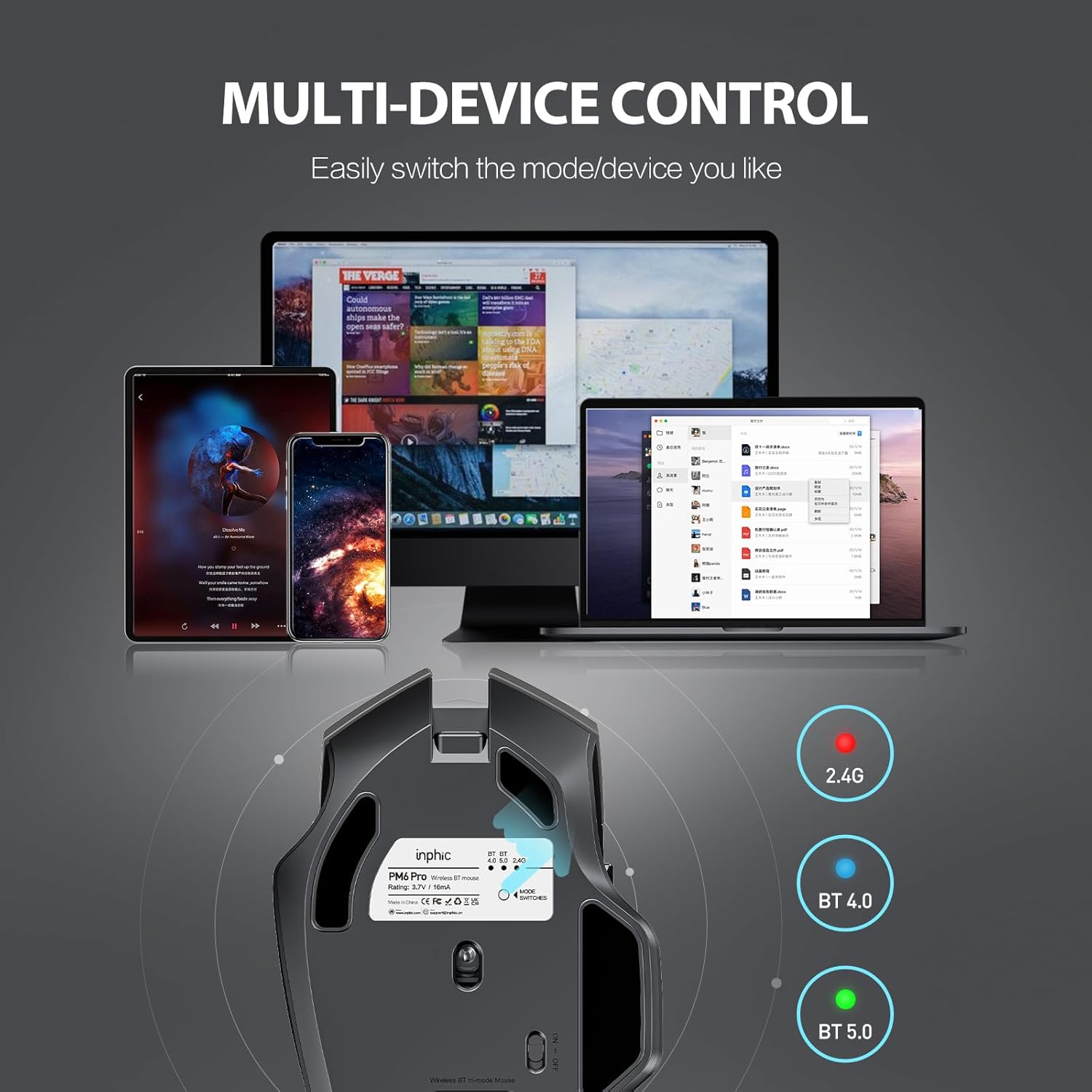
Image: The underside of the mouse, highlighting the USB receiver storage and the mode switch for 2.4G, BT 4.0, and BT 5.0 connections.
4.3 Bluetooth Connection (BT 5.0 / BT 4.0)
- Turn on the mouse using the ON/OFF switch at the bottom.
- Short-press the 'MODE SWITCHES' button at the bottom to cycle through connection modes until the desired Bluetooth indicator (BT 5.0 or BT 4.0) lights up.
- For pairing, long-press the 'MODE SWITCHES' button until the selected Bluetooth indicator light flashes rapidly. This indicates the mouse is in pairing mode.
- On your device (computer, tablet, etc.), go to Bluetooth settings and search for new devices. Select 'INPHIC M6Pro' (or similar name) to pair.
Video: Demonstrates how to switch between 2.4G and Bluetooth modes (BT 4.0, BT 5.0) and enter pairing mode by pressing the mode switch button on the mouse's underside.
5. Bedryfsinstruksies
5.1 DPI-aanpassing
The mouse features a DPI switch button located behind the scroll wheel. Press this button to cycle through 5 DPI settings (800, 1200, 1600, 2000, 2400 DPI) to adjust cursor sensitivity to your preference.

Image: A diagram illustrating the location of the DPI switch button and other buttons on the mouse.
5.2 Knoppie Funksies
The INPHIC M6Pro mouse is equipped with 6 buttons:
- Linker sleutel: Standaard links-klik funksie.
- Regter sleutel: Standaard regs-kliek funksie.
- Rolwiel: Scrolls up/down, and acts as a middle-click button.
- DPI-skakelaar: Pas wysergevoeligheid (DPI) aan.
- Aanstuur-knoppie: Navigeer vorentoe in web blaaiers of file ontdekkingsreisigers.
- Terug-knoppie: Navigeer agteruit in web blaaiers of file ontdekkingsreisigers.

Beeld: Gedetailleerd view of the mouse's underside, showing the power switch, LED indicator, and USB receiver slot.
5.3 Ergonomic Design and Silent Operation
The mouse features a curved, skin-like material design for a comfortable grip, reducing hand strain during prolonged use. The widened thumb rest further enhances comfort and control.
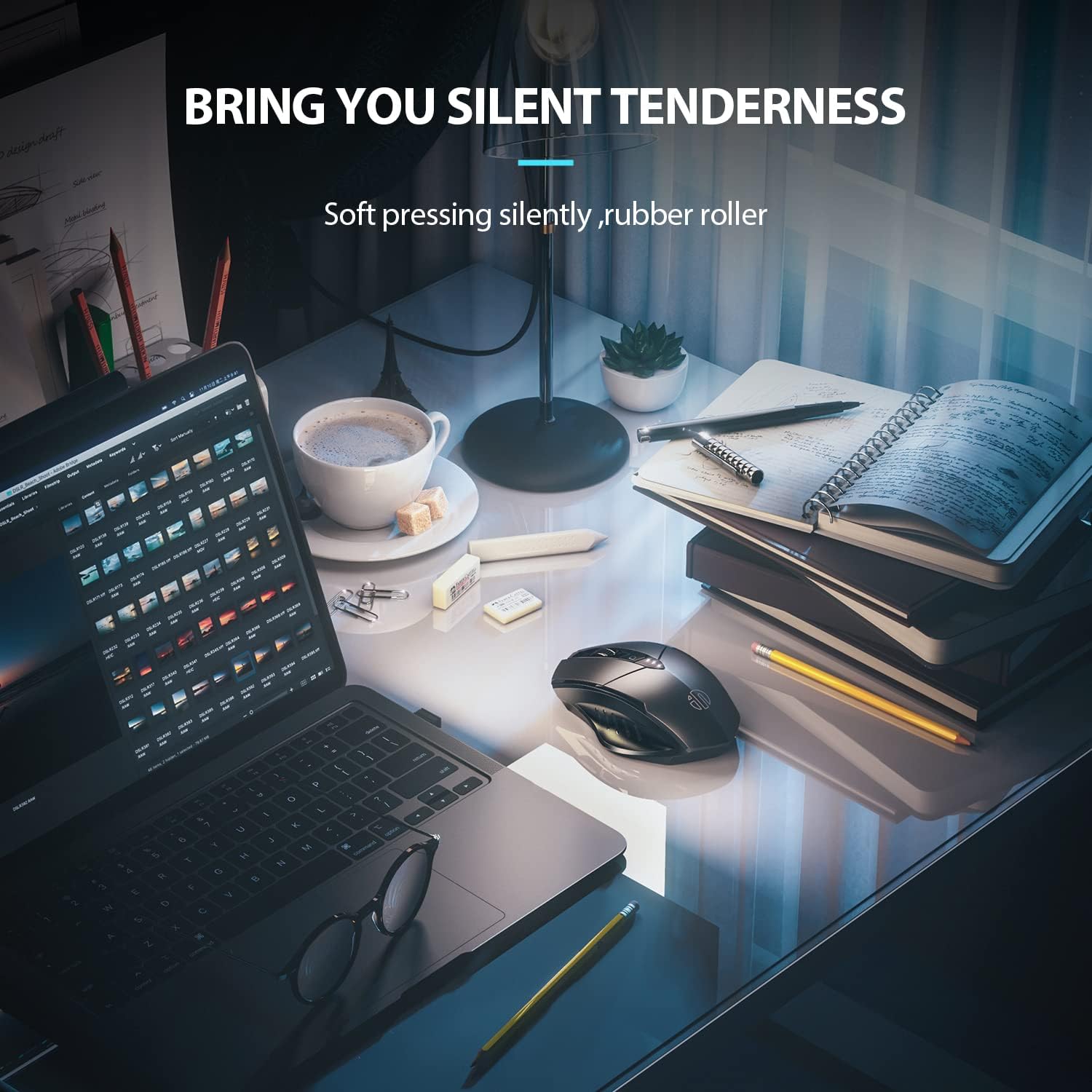
Image: The ergonomic shape of the mouse, designed for a comfortable user experience.

Image: A close-up showing the widened thumb rest for a more comfortable grip.
The left and right click buttons are designed for silent operation, allowing you to work without disturbing others.

Image: Illustrates the silent click feature of the mouse, ideal for quiet environments.
6. Onderhoud
To ensure the longevity and optimal performance of your INPHIC M6Pro mouse, follow these maintenance guidelines:
- Skoonmaak: Use a soft, dry cloth to wipe the mouse. For stubborn dirt, slightly dampMaak die lap skoon met water of 'n sagte skoonmaakoplossing. Vermy harde chemikalieë of skuurmiddels.
- Berging: Wanneer dit nie vir lang tye gebruik word nie, skakel die muis af om batterylewe te bespaar. Bêre dit op 'n koel, droë plek weg van direkte sonlig en uiterste temperature.
- Batterysorg: Avoid fully discharging the battery frequently. Charge the mouse when the battery indicator shows low power.
- USB-ontvanger: Keep the USB receiver in its designated storage slot at the bottom of the mouse when traveling to prevent loss.
7. Probleemoplossing
If you encounter issues with your INPHIC M6Pro mouse, refer to the following common solutions:
| Probleem | Moontlike oorsaak | Oplossing |
|---|---|---|
| Muis reageer nie (2.4G) | USB receiver not properly connected or mouse is off. | Ensure the USB receiver is securely plugged into a USB port. Turn on the mouse and ensure the mode switch is set to 2.4G. Try a different USB port. |
| Muis reageer nie (Bluetooth) | Not paired, out of range, or incorrect Bluetooth mode selected. | Ensure the mouse is in the correct Bluetooth mode (BT 5.0 or BT 4.0) and in pairing mode (flashing light). Re-pair the mouse with your device. Ensure the mouse is within 10 meters of your device. |
| Wyserbeweging is wisselvallig of stadig | Low battery, incorrect DPI setting, or dirty sensor. | Charge the mouse. Adjust the DPI setting using the DPI button. Clean the optical sensor at the bottom of the mouse with a soft cloth. |
| Buttons not clicking or unresponsive | Low battery or connection issue. | Charge the mouse. Re-establish the connection (2.4G or Bluetooth). |
| Battery laai nie | Foutiewe kabel of kragbron. | Try a different USB-C cable and a different USB power source. Ensure the cable is properly connected to the mouse's Type-C port. |
8. Spesifikasies
| Kenmerk | Detail |
|---|---|
| Modelnommer | M6Pro |
| Verbindingstegnologie | 2.4G Wireless, Bluetooth 5.0, Bluetooth 4.0 (Tri-Mode) |
| Bewegingsopsporingstegnologie | Opties |
| DPI-instellings | 800, 1200, 1600, 2000, 2400 |
| Knoppies | 6 (Links, Regs, Rolwiel, DPI-skakelaar, Vorentoe, Agtertoe) |
| Battery Tipe | Rechargeable Lithium Polymer (500mAh) |
| Laaipoort | Tipe-C |
| Produk afmetings | 4.65 x 1.57 x 0.04 duim |
| Item gewig | 3.35 onse |
| Versoenbare bedryfstelsels | Windows Vista/7 and above, Mac OS X 10.10 and above, iOS 13 and above, Android 5.0 and above, Linux kernel 2.6+, Chrome OS |
9. Waarborg en Ondersteuning
INPHIC products are designed for reliability and performance. For warranty information or technical support, please refer to the contact details provided with your product packaging or visit the official INPHIC webwebwerf. Bewaar u aankoopbewys as bewys van aankoop vir waarborgeise.