
Inleiding
Welcome to the instruction manual for your Logitech MK540 Advanced Wireless Keyboard and Mouse Combo. This combo is designed to provide a comfortable, precise, and reliable wireless experience for your computing needs. It features a full-size keyboard with optimized keys for accuracy and reduced noise, a comfortable palm rest, and adjustable tilt legs. The contoured wireless mouse offers enhanced tracking and precise cursor control. Both devices connect wirelessly via a single Logitech Unifying USB receiver, offering plug-and-play convenience.
Opstelgids
Follow these steps to set up your Logitech MK540 Advanced Wireless Keyboard and Mouse Combo:
- Unpack the Combo: Carefully remove the keyboard, mouse, and the Logitech Unifying USB receiver from the packaging.
- Installeer batterye:
- Sleutelbord: The keyboard requires two AAA alkaline batteries. Open the battery compartment on the underside of the keyboard and insert the batteries, ensuring correct polarity.
- Muis: The mouse requires one AA alkaline battery. Open the battery compartment on the underside of the mouse and insert the battery, ensuring correct polarity.
- Koppel die USB-ontvanger: Locate an available USB port on your computer (PC or laptop). Insert the tiny Logitech Unifying USB receiver into the USB port.
- Krag aan: Turn on the keyboard and mouse using their respective On/Off power switches. The devices should automatically connect to your computer.

Image: The Logitech MK540 Advanced Wireless Keyboard and Mouse Combo, including the keyboard, mouse, and the small USB receiver.

Image: A hand inserting the Logitech Unifying USB receiver into a laptop's USB port, demonstrating the simple plug-and-play setup.

Image: The underside of the Logitech mouse, showing the battery compartment and the On/Off switch.
Bedryfsinstruksies
Your Logitech MK540 Advanced combo is designed for intuitive use. Here are some key features and how to use them:
- Precision Typing: The full-size keyboard offers a familiar typing experience with reduced noise. The deep-profile keys are optimized for improved accuracy.
- Geriefskenmerke: The keyboard includes a comfortable palm rest and adjustable tilt legs, allowing you to choose between 0, 4, or 8-degree angles for optimal ergonomic comfort during long typing sessions.
- Multimedia Sneltoetse: Convenient hotkeys provide direct access to media controls (play/pause, volume up/down, mute), calculator, battery check, and other functions.
- Programmable Fn Keys: The preset Fn keys can be personalized using Logitech Options software for enhanced productivity.
- Contoured Mouse: The wireless mouse is designed to fit comfortably in either your right or left hand, featuring soft rubber side grips. It provides enhanced tracking and precise cursor control.
- morsbestande ontwerp: The keyboard is designed to be spill-resistant (tested under limited conditions with a maximum of 60 ml liquid spillage). Moenie die sleutelbord in vloeistof dompel nie.
- Wye verenigbaarheid: The combo is compatible with Windows 7, 8, 10, or later, and Chrome OS. It is fully compatible with Windows 11.

Image: A person's hands positioned comfortably on the Logitech MK540 keyboard, illustrating the natural typing experience.
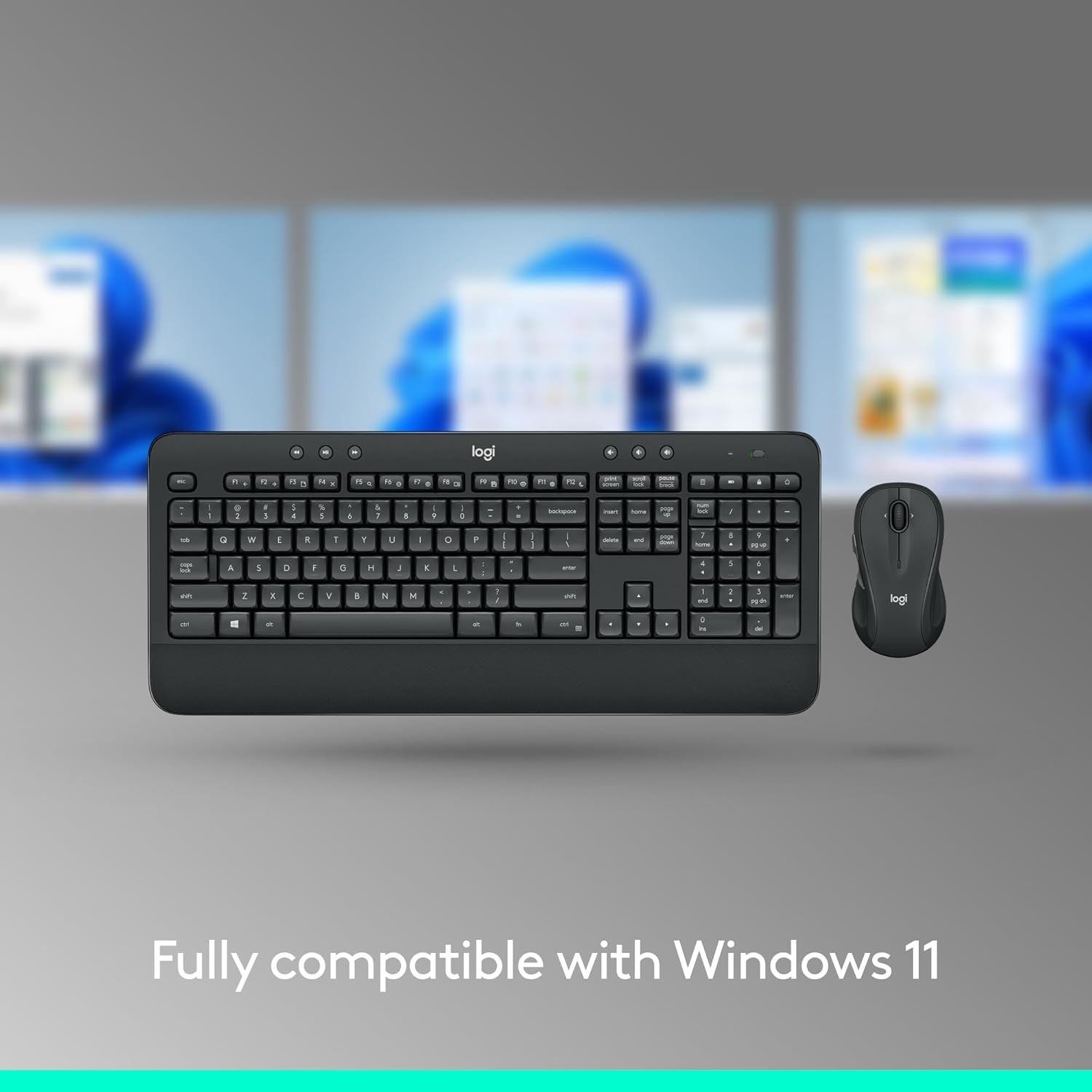
Image: A hand comfortably gripping the contoured Logitech mouse, highlighting its ergonomic design.

Image: The keyboard and mouse surrounded by water droplets, visually representing the spill-resistant design of the keyboard.

Image: The keyboard and mouse displayed alongside the Windows 11 logo, indicating full compatibility with the operating system.

Image: A diagram illustrating the three adjustable tilt positions (natural, 4-degree, and 8-degree) of the keyboard's legs for customized comfort.

Beeld: 'n Oorhoofse view of the keyboard with callouts pointing to features such as control music & videos, easy read keys, spill-resistant design, built for comfort, adjustable tilt legs, and palm rest comfort.

Image: A diagram of the mouse highlighting its ambidextrous design, 2.4 GHz wireless connectivity, full-size contoured design, soft rubber side grips, 18-month battery life, and the Plug-and-Forget mini receiver.
Onderhoud
To ensure the longevity and optimal performance of your Logitech MK540 Advanced combo, consider the following maintenance tips:
- Battery vervanging: Replace batteries when the low battery indicator light appears. The keyboard has a battery life of up to 36 months, and the mouse up to 18 months. Battery life may vary based on user and computing conditions.
- Skoonmaak: Vir algemene skoonmaak, gebruik 'n sagte, damp cloth. As the keyboard is spill-resistant, minor spills can be wiped away. However, avoid immersing the keyboard in liquid.
- Berging: When not in use for extended periods, turn off both the keyboard and mouse to conserve battery life. Store them in a dry, cool place.
Probleemoplossing
As jy probleme met jou Logitech MK540 Advanced-kombinasie ondervind, probeer die volgende oplossings:
- Geen verbinding/vertraging:
- Maak seker dat die USB-ontvanger stewig in 'n werkende USB-poort op jou rekenaar ingeprop is.
- Kontroleer of die sleutelbord en muis aangeskakel is.
- Vervang die batterye in beide toestelle.
- Move the keyboard and mouse closer to the USB receiver. The wireless range is up to 33 ft, but environmental conditions can affect it.
- Probeer om die USB-ontvanger in 'n ander USB-poort te koppel.
- Sleutels reageer nie:
- Maak seker dat die sleutelbord aangeskakel en gekoppel is.
- Check for any debris under the keys that might be preventing them from registering.
- Muiswyser spring/onreëlmatig:
- Maak seker dat die muis aangeskakel en gekoppel is.
- Maak die optiese sensor aan die onderkant van die muis skoon.
- Gebruik die muis op 'n skoon, nie-reflektiewe oppervlak.
- Customization Issues: If you are having trouble customizing Fn keys or other settings, ensure you have the latest version of Logitech Options software installed on your computer.
Spesifikasies
Detailed specifications for the Logitech MK540 Advanced Wireless Keyboard and Mouse Combo:
| Kenmerk | Sleutelbord | Muis |
|---|---|---|
| Modelnommer | MK540 (920-012585) | M310 (part of combo) |
| Afmetings (L x B x H) | 17.5 x 6.5 x 0.94 duim (457 x 178 x 24 mm) | 4.41 x 2.40 x 1.50 duim (112 x 61 x 38 mm) |
| Gewig | 28.4 onse (805 g) | 2.59 onse (73.5 g) |
| Battery Tipe | 2 x AAA alkalies | 1 x AA alkalies |
| Batterylewe | Tot 36 maande | Tot 18 maande |
| Wireless Range | Tot 33 voet (10 meter) | |
| Konnektiwiteit | 2.4 GHz Unifying USB-Receiver | |
| Verenigbaarheid | Windows 7, 8, 10 or later, Chrome OS (Fully compatible with Windows 11) | |
| Keyboard Key Type | Diep profile / Membrane | NVT |
| Muis Sensor Tegnologie | NVT | Smooth Optical tracking |

Image: The contents of the box, including the keyboard, mouse, USB receiver, and batteries, along with Windows and Chrome OS logos indicating compatibility.
Waarborg en Ondersteuning
Logitech stands behind the quality of its products. For specific warranty details and support, please refer to the official Logitech website or the warranty card included with your product. General support resources are available online for troubleshooting and software downloads (e.g., Logitech Options for customization).
For further assistance, visit the official Logitech support page or contact their customer service.