
Inleiding
Thank you for choosing the AVMTON Wireless Gaming Mouse. This manual provides detailed instructions on how to set up, operate, and maintain your new mouse, ensuring optimal performance and an enhanced gaming and work experience. Designed for comfort and precision, this ergonomic wireless mouse features adjustable DPI, customizable buttons, and vibrant RGB lighting.
Produk verbyview
The AVMTON Wireless Gaming Mouse is engineered for both gaming and office use, offering a comfortable ergonomic design and responsive control. It features a honeycomb hollow design with RGB backlighting, providing both aesthetic appeal and lightweight performance.
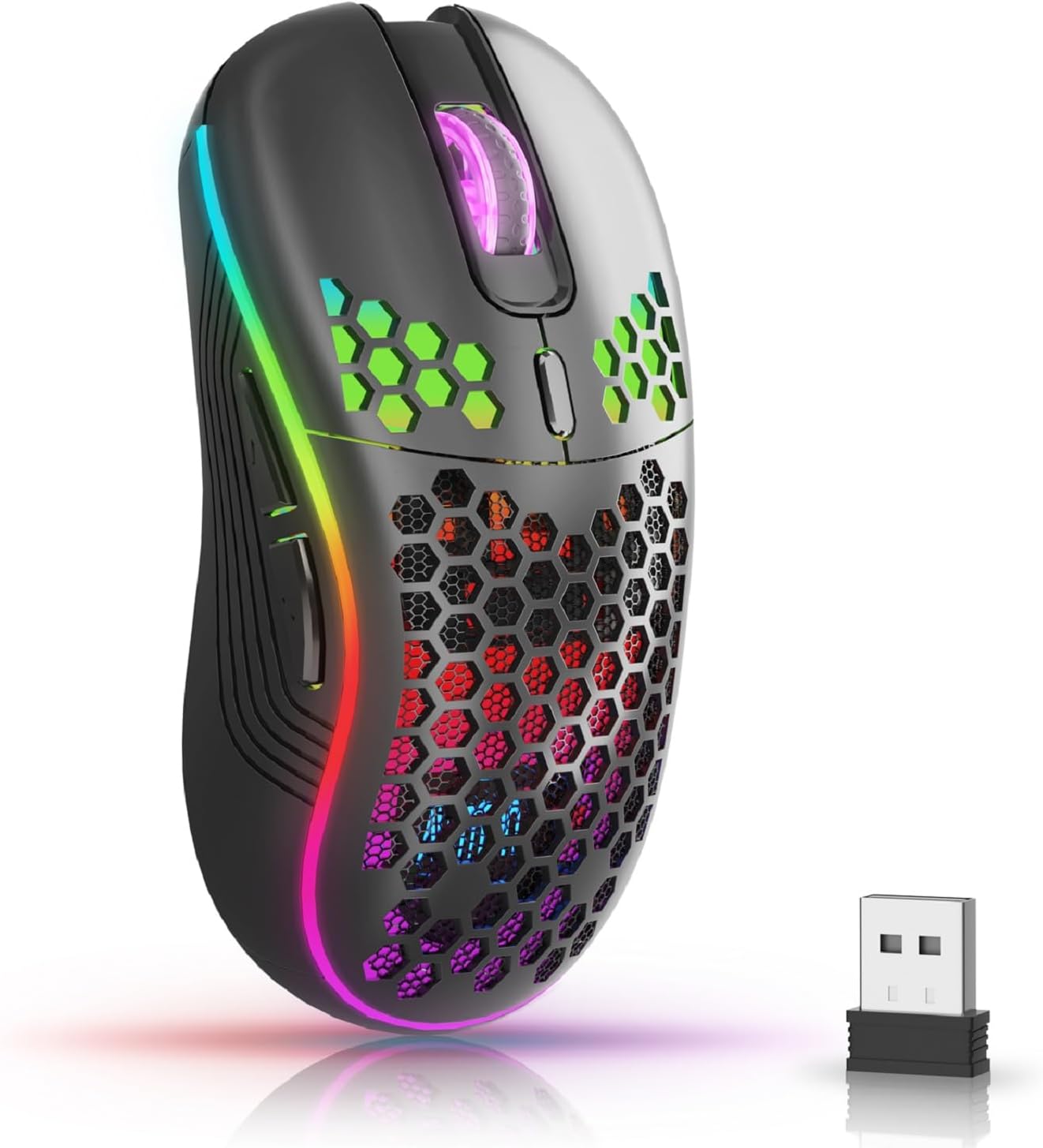
The AVMTON Wireless Gaming Mouse in black, featuring RGB lighting and a honeycomb design, shown alongside its compact USB receiver.

Illustration of the mouse's connectivity modes, including Type-C charging, 2.4G wireless receiver, and a 10m sensing range, suitable for home, gaming, and office environments.
Sleutel kenmerke:
- Ergonomiese ontwerp: Shaped to fit the hand comfortably, reducing strain during extended use.
- Verstelbare DPI: Easily switch between 800/1200/1600/2400/4800 DPI settings for precise control.
- 6 programmeerbare knoppies: Includes forward/backward, left/right click, scroll wheel, and DPI adjustment button.
- Herlaaibare battery: Built-in lithium battery with USB-C charging, offering 15-20 days of use on a single charge.
- Stil Klik Ontwerp: Ideal for quiet environments like libraries or offices.
- Wye verenigbaarheid: Supports Windows 2000/ME/XP/7/8/10/Vista/98, Mac OS, Linux, and compatible with laptops, PCs, desktops, and Macbooks.
- Duursame konstruksie: Tested for over 5 million clicks, ensuring long-lasting performance.
Opstelgids
Follow these steps to set up your AVMTON Wireless Gaming Mouse:
- Laai die muis: Before first use, fully charge the mouse using the provided USB-C charging cable. Connect the cable to the mouse's Type-C port and a USB power source (e.g., computer USB port, USB wall adapter). The charging indicator will show the charging status.
- Vind die USB-ontvanger: The compact USB 2.4G wireless receiver is typically stored in a compartment on the underside of the mouse for safe keeping during transport.
- Koppel die ontvanger: Insert the USB receiver into an available USB port on your computer (laptop, PC, desktop, Macbook).
- Krag aan: Skakel die muis aan met die aan/uit-skakelaar wat aan die onderkant van die muis geleë is.
- Outomatiese verbinding: The mouse should automatically connect to your computer. No additional drivers are usually required for basic functionality.
Bedryfsinstruksies
Understanding the functions of your mouse buttons and settings will enhance your experience.
Knoppie funksies:
- Linksklik-knoppie: Standaard primêre klikfunksie.
- Regskliekknoppie: Standaard sekondêre klikfunksie.
- Rolwiel: Blaai op of af deur dokumente en web bladsye. Kan ook gedruk word vir middelklik-funksionaliteit.
- DPI-aanpassingsknoppie: Located near the scroll wheel. Press this button to cycle through available DPI settings (800/1200/1600/2400/4800). Each press changes the cursor speed and sensitivity.
- Aanstuur-knoppie: Typically located on the side of the mouse. Used for navigating forward in web blaaiers of file ontdekkingsreisigers.
- Terug-knoppie: Typically located on the side of the mouse. Used for navigating backward in web blaaiers of file ontdekkingsreisigers.
RGB-agterligbeheer:
The mouse features dynamic RGB backlighting. If you prefer to turn off the backlight, refer to the specific instructions provided with your mouse or check the manufacturer's website for software utilities, if available. Some models allow toggling RGB with a combination of buttons (e.g., DPI button + another button).
Onderhoud
Behoorlike onderhoud verseker die lang lewensduur en prestasie van jou muis.
- Laai: Recharge the mouse when the battery indicator shows low power. A full charge provides approximately 15-20 days of use. It is recommended to fully charge the mouse before extensive use.
- Skoonmaak: Gebruik 'n sagte, droë lap om die oppervlak van die muis skoon te maak. Vir hardnekkige vuiligheid, gebruik 'n effens droë lap.amp ’n Lap kan gebruik word, maar maak seker dat geen vog die interne komponente binnedring nie. Vermy harde chemikalieë of skuurmiddels.
- Berging: Wanneer dit nie vir lang tye gebruik word nie, skakel die muis af om batterylewe te bespaar. Bêre dit op 'n koel, droë plek.
Probleemoplossing
If you encounter issues with your AVMTON Wireless Gaming Mouse, try the following solutions:
- Muis reageer nie:
- Maak seker dat die muis aangeskakel is.
- Check if the USB receiver is securely plugged into a working USB port on your computer.
- Recharge the mouse. A low battery can cause unresponsiveness.
- Probeer om die USB-ontvanger in 'n ander USB-poort te koppel.
- Herbegin jou rekenaar.
- Vertraging of onderbroke verbinding:
- Ensure the mouse is within the 10-meter sensing range of the USB receiver.
- Remove any large metallic objects or other wireless devices that might be causing interference between the mouse and the receiver.
- Try moving the USB receiver to a port closer to the mouse.
- DPI-aanpassing werk nie:
- Ensure you are pressing the dedicated DPI adjustment button.
- If the issue persists, try restarting the mouse and your computer.
- RGB-ligte werk nie:
- Check if the RGB backlight has been intentionally turned off (refer to "RGB Backlight Control" in Operating Instructions).
- Maak seker dat die muis voldoende batterylading het.
If these steps do not resolve the issue, please contact AVMTON customer support for further assistance.
Spesifikasies
| Kenmerk | Detail |
|---|---|
| Handelsmerk | AVMTON |
| Modelnommer | AV-DDMB-1 |
| Kleur | Swart |
| Verbindingstegnologie | 2.4G Draadloos (USB Ontvanger) |
| DPI-instellings | 800 / 1200 / 1600 / 2400 / 4800 |
| Aantal knoppies | 6 |
| Hand Oriëntasie | Reg |
| Batterylewe | Approx. 15-20 days (on a single charge) |
| Laaipoort | USB Tipe-C |
| Versoenbare bedryfstelsels | Windows 2000/ME/XP/7/8/10/Vista/98, Mac OS, Linux |
| Versoenbare toestelle | Persoonlike rekenaar, skootrekenaar |
| Spesiale kenmerke | Portable, Ergonomic, Rechargeable, RGB Backlight, Silent Click |
Waarborg en Ondersteuning
AVMTON offers a 12-month worry-free after-sales service for this product. If you encounter any problems with your wireless mouse, please do not hesitate to contact us. Our customer support team is ready to assist you.
For support, please visit the official AVMTON webwebwerf of kontak jou handelaar.