
PCsensor MK321U
PCsensor 3-Sleutel Mini Sleutelbord Gebruikershandleiding
Model: MK321U (2.4G Wireless Version)
Inleiding
Thank you for choosing the PCsensor 3-Key Mini Keypad. This compact and versatile mechanical keyboard is designed for enhanced productivity and gaming, offering customizable hotkey functions, 2.4G wireless connectivity, and vibrant RGB LED lighting. This manual will guide you through the setup, operation, and maintenance of your new keypad to ensure optimal performance.
Produk verbyview
The PCsensor 3-Key Mini Keypad is a highly portable and programmable device. It features three mechanical keys, a durable ABS construction, and a long-lasting rechargeable battery. The keypad supports both 2.4G wireless and wired (USB Type-C) connections.

This image shows the compact design of the 3-key mini keypad, highlighting its three mechanical keys with vibrant RGB backlighting. The side features an ON/OFF switch, a USB Type-C port, and a 'connect' button for pairing.
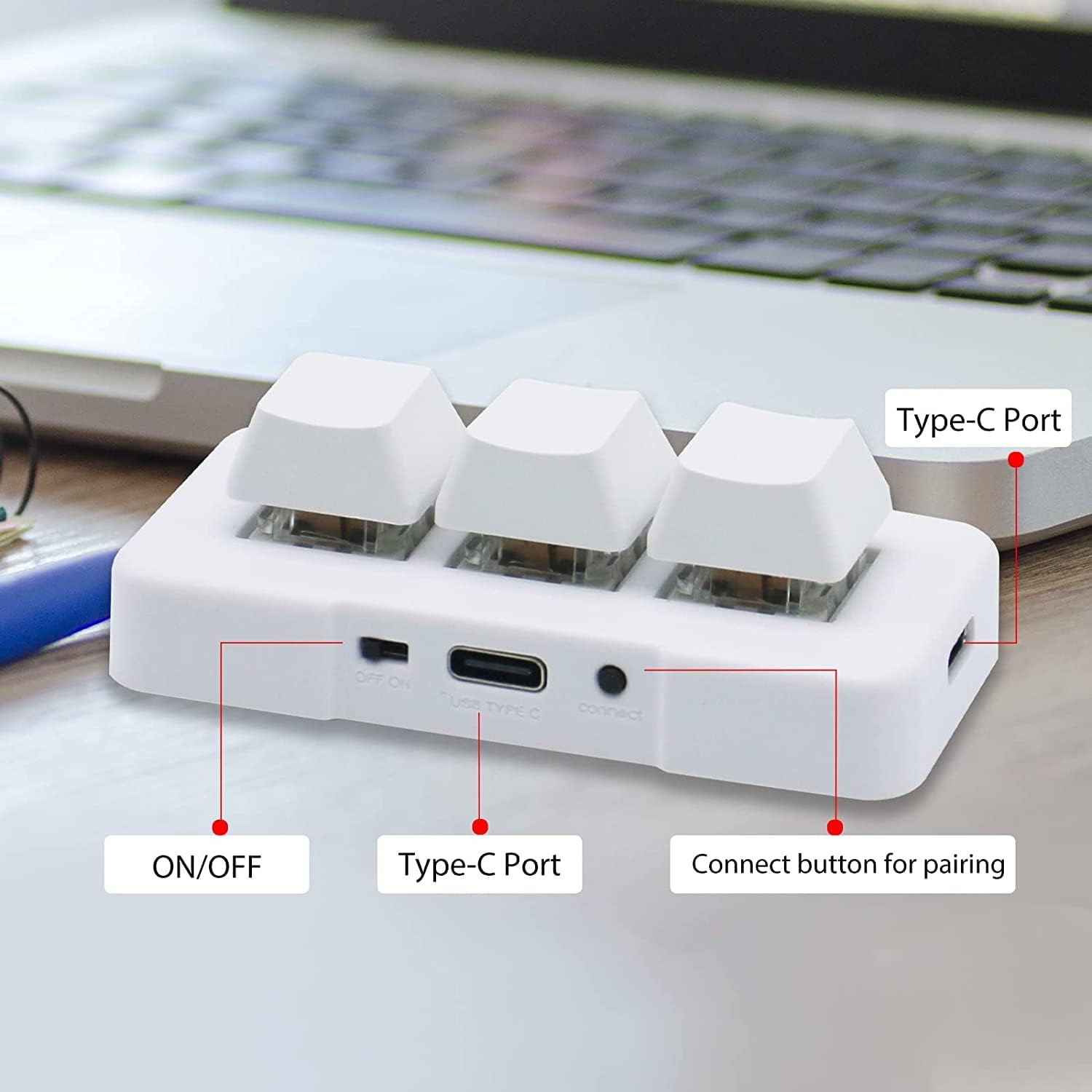
'n Gedetailleerde view of the keypad's connectivity options, including the ON/OFF switch, the USB Type-C port for charging and wired connection, and the dedicated 'connect' button for wireless pairing.

This diagram illustrates the compact dimensions of the keypad, making it suitable for various setups. It also shows the included USB cable for connection and charging.
Spesifikasies
| Kenmerk | Beskrywing |
|---|---|
| Handelsmerk | PCsensor |
| Model | MK321U (2.4G Wireless) |
| Verbindingstegnologie | 2.4G Wireless (Wi-Fi), USB Type-C (Wired) |
| Aantal sleutels | 3 |
| Tipe sleutel | Meganies |
| Agterlig | RGB |
| Spesiale kenmerke | Backlit, Rechargeable, Customizable Display Keys |
| Versoenbare toestelle | Skootrekenaar, rekenaar, tablet, slimfoon |
| Aanbevole gebruike | Office, Gaming (OSU), Customized Hotkeys |
| Batterylewe | Up to 3 months on a 2-hour full charge |
Opstelgids
Charging the Keypad
Before first use, fully charge the keypad using the provided USB Type-C cable. Connect the cable to the keypad's Type-C port and the other end to a USB power source (e.g., computer USB port, wall adapter). The LED indicator will show charging status. A full charge typically takes 2 hours and can provide up to 3 months of use. The LED light will flash every 3 seconds when the battery is low.
2.4G draadlose verbinding
- Ensure the keypad is charged.
- Locate the ON/OFF switch on the side of the keypad and slide it to the 'ON' position.
- Insert the 2.4G USB receiver into an available USB port on your computer or device.
- Press the 'connect' button on the side of the keypad. The keypad should automatically pair with the receiver. A green light on the keypad indicates a successful 2.4G wireless connection.

This image demonstrates the 2.4G wireless connection, showing the keypad paired with its receiver. A green light indicates successful wireless mode activation.
Initial Configuration (Windows Recommended)
While the keypad is compatible with multiple operating systems, it is recommended to perform the initial key programming and customization on a Windows system. Once configured, the settings are saved to the keypad's internal memory and can be used freely on other compatible devices, including Linux, Mac OS, Android, and iOS.
Bedryfsinstruksies
Key Programming and Customization
The primary feature of this keypad is its programmability. Each of the three keys can be assigned to perform various functions, including:
- Sneltoetse/Kortpadsleutels: Assign complex key combinations (e.g., Ctrl+C, Alt+F4).
- Multimediabeheer: Play/pause, volume up/down, next/previous track.
- Gaming Macros: Execute a sequence of actions with a single press (e.g., for OSU! or other games).
- String funksie: Input frequently used text strings.
- Muis funksies: Simulate mouse clicks or movements.
- Specialized Applications: Such as image collection for medical equipment.
Refer to the PCsensor official website or included software (if applicable) for detailed instructions on how to download and use the programming software to customize your keys.

This visual guide highlights the versatility of the keypad, showing its use for custom keyboard shortcuts, multimedia control, gaming macros, text input, mouse functions, and specialized applications like medical imaging.
Stelselversoenbaarheid
The PCsensor 3-Key Mini Keypad is broadly compatible with a range of operating systems:
- Vensters
- macOS
- Android
- Linux
- iOS (after initial configuration on Windows/Mac)

This image confirms the broad compatibility of the keypad across various operating systems, including Windows, macOS, Android, and Linux. Configuration is recommended on Windows or Mac for full functionality.
Onderhoud
- Skoonmaak: Use a soft, dry cloth to clean the keypad. For stubborn dirt, a slightly damp 'n Lap met sagte seep kan gebruik word, en verseker dat geen vloeistof die toestel binnedring nie. Moenie harde chemikalieë of skuurmiddels gebruik nie.
- Berging: Bêre die sleutelbord op 'n koel, droë plek weg van direkte sonlig en uiterste temperature.
- Batterysorg: To prolong battery life, avoid fully discharging the keypad frequently. Charge it regularly, especially if it will be stored for an extended period.
Probleemoplossing
- Keypad not connecting wirelessly:
- Ensure the keypad is turned ON and fully charged.
- Verify the 2.4G USB receiver is securely plugged into a working USB port.
- Press the 'connect' button on the keypad to re-initiate pairing.
- Probeer 'n ander USB-poort op jou toestel.
- Keys not responding or performing incorrect actions:
- Ensure the keypad is properly connected (wired or wireless).
- Check your key programming settings using the customization software. Re-program if necessary.
- Herbegin jou rekenaar/toestel.
- LED light flashing every 3 seconds:
- This indicates low battery. Connect the keypad to a power source using the USB Type-C cable to charge it.
- Keypad not recognized by programming software:
- Ensure the keypad is connected via USB Type-C cable to your Windows or Mac computer. The software typically requires a wired connection for programming.
- Download the latest version of the programming software from the official PCsensor webwebwerf.
Waarborg en Ondersteuning
PCsensor products are built for durability and performance. For warranty information, technical support, or further assistance, please refer to the warranty card included with your product or visit the official PCsensor website. You may also contact customer support through the platform where you purchased the product.
Ask a question about this manual
Ask about setup, troubleshooting, compatibility, parts, safety, or missing instructions. Manuals+ will review the question and use this page’s manual context to help answer it.