
1. Inleiding
This manual provides detailed instructions for the installation, operation, and maintenance of your LAMTTO 4K WiFi 2160P Dash Cam. Please read this manual thoroughly before using the product to ensure proper function and safety.
2. Wat is in die boks
- Dash Cam 4K WiFi 2160P (x1)
- Motorlaaier (x1)
- Car Mount (x1)
- Hardwire Kit (x1)
- Gebruikershandleiding (x1)
- 64GB SD Card (x1)

The package includes all necessary components for initial setup and operation. The included 64GB SD card allows for immediate use.
3. Produkkenmerke
- 4K Ultra HD Recording: Captures video at 3840x2160P/30fps with a 170° wide-angle lens.
- Super Nag Visie: Features an advanced sensor, 6-layer glass lens, and F2.0 large aperture for clear imaging in low-light conditions.
- Ingeboude WiFi en toepassingbeheer: Connects to your smartphone via the "WitCam" mobile app (iOS/Android) for viewvideo's aflaai, deel en vertoon.
- Loop opname: Automatically overwrites the oldest video filewanneer die geheuekaart vol is, wat deurlopende opname verseker.
- G-sensor: Detects sudden shakes or collisions and automatically locks the current video to prevent it from being overwritten.
- 24H Parkeermonitor: Requires an additional hardwire kit (included) to function. Activates recording upon collision or scratch when parked.
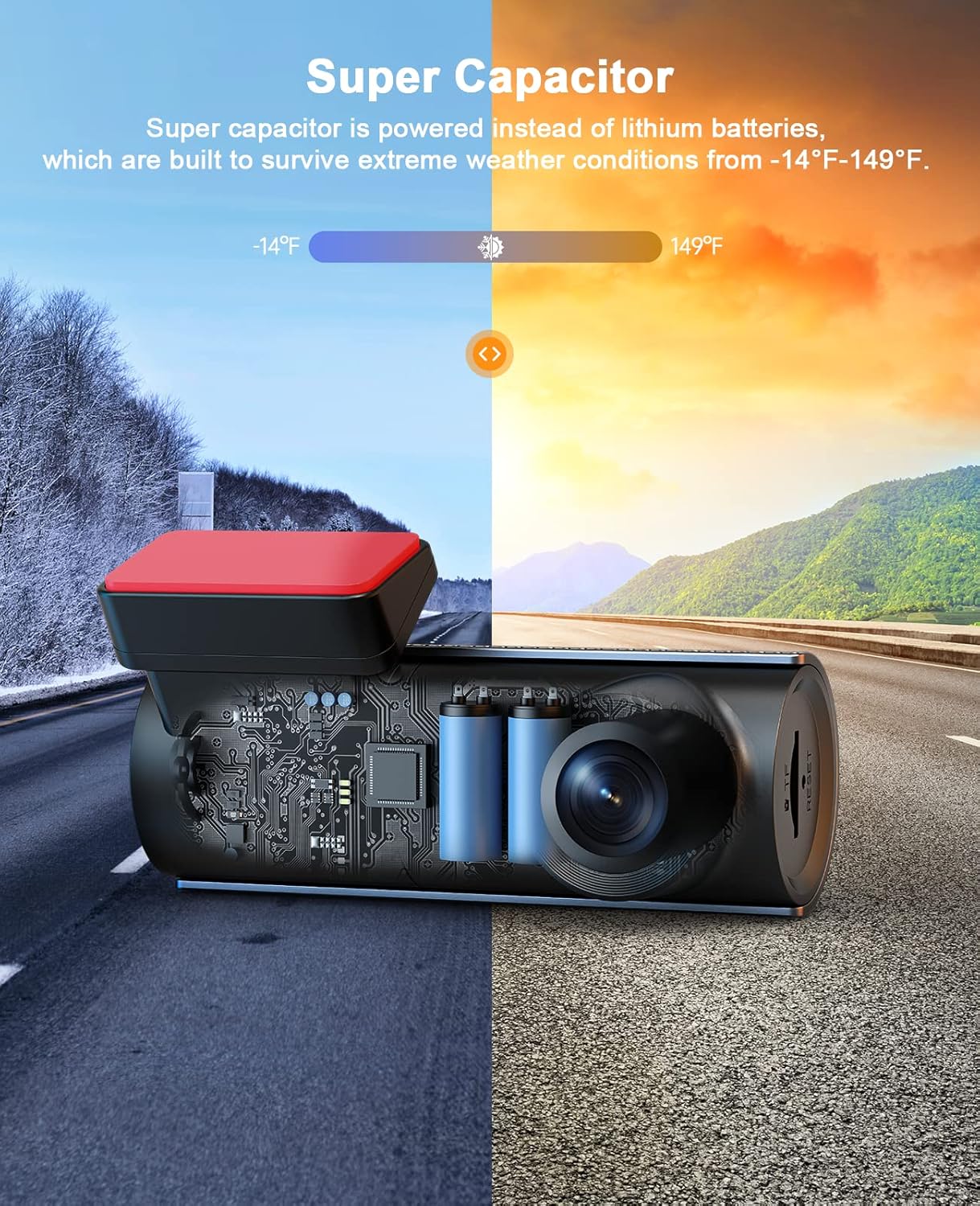
- Superkapasitor: Utilizes a supercapacitor instead of lithium batteries, providing enhanced durability and performance in extreme temperatures (-14°F to 149°F).
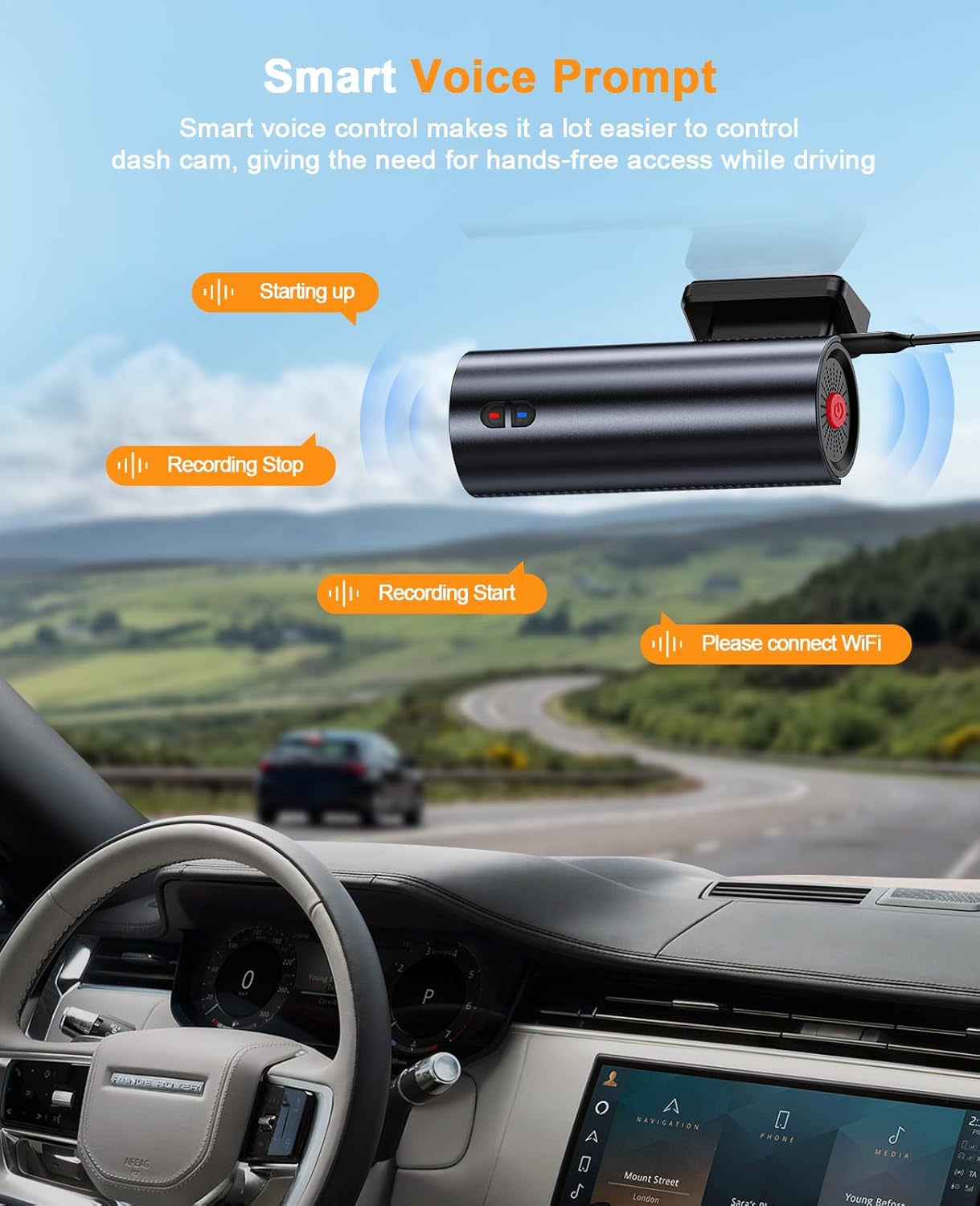
- Stemaanwysings: Provides audio notifications for operational status, such as "Starting up," "Recording Start," and "Recording Stop."
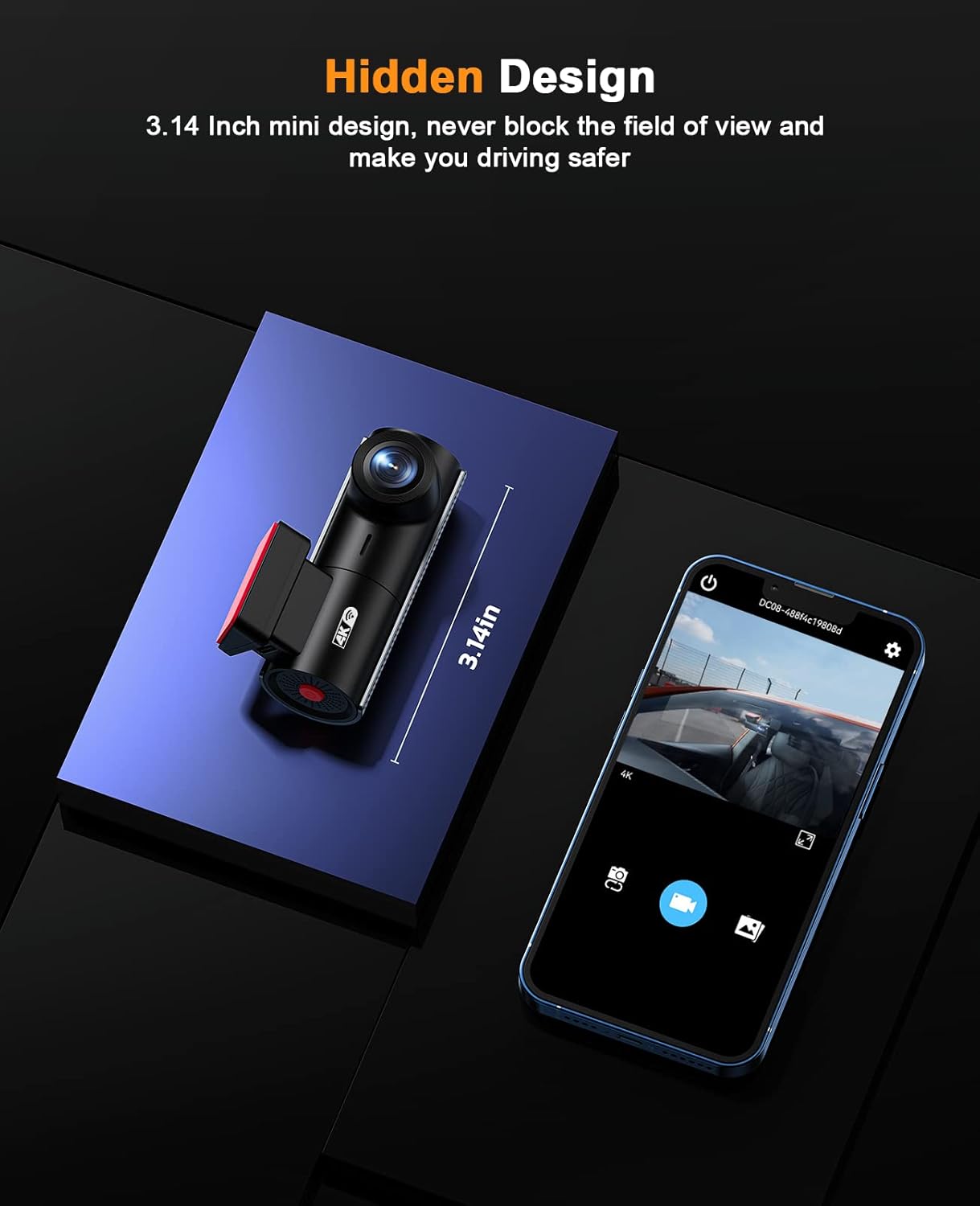
- Compact & Hidden Design: Small form factor (2.36 x 2.36 x 2.36 inches) designed to be discreetly installed without obstructing the driver's view.

4. Opstelling en installering
4.1 Montering van die Dash Cam
- Clean the windshield area where you intend to mount the dash cam. Ensure it does not obstruct your view.
- Attach the static sticker to the windshield first, then attach the car mount to the static sticker. This allows for easier removal without leaving residue.
- Slide the dash cam onto the car mount until it clicks into place.
- Adjust the camera angle to ensure optimal road coverage.
4.2 Kragverbinding
- Connect the car charger cable to the dash cam's Type-C port.
- Route the power cable neatly along the windshield edge, down the A-pillar, and under the dashboard to the car's cigarette lighter socket. Use the included wiring tool to tuck the cable.
- Prop die motorlaaier in die sigaretaansteker-sok.
4.3 SD-kaart invoeging
The 64GB SD card is typically pre-installed. If not, insert the SD card into the TF card slot until it clicks. The dash cam supports up to 128GB SD cards.

5. Bedryfsinstruksies
5.1 Krag aan/af
- The dash cam will automatically power on and begin recording when your vehicle's ignition is turned on.
- Dit sal outomaties afskakel wanneer die ontsteking afgeskakel word.
5.2 Stemaanwysings
The dash cam provides intelligent voice prompts to inform you of its status:
- "Starting up": Indicates the device is powering on.
- "Recording Start": Indicates video recording has begun.
- "Recording Stop": Indicates video recording has stopped.
- "Please connect WiFi": Prompts to connect to the mobile app.
- "Storage Full": Indicates the SD card is full (if loop recording is off or emergency files fill up).
5.3 App Control (WitCam)
- Download the "WitCam" app from the App Store (iOS) or Google Play Store (Android).
- Skakel die dash cam aan.
- On your smartphone, go to WiFi settings and connect to the dash cam's WiFi network (usually named "DC#####" followed by numbers). The password can be found in the dash cam's manual or on the device itself.
- Open the "WitCam" app. You can now view leef footage, adjust settings, and download recorded videos or photos directly to your phone.

6. Advanced Recording Features
6.1 Loopname
The dash cam records video in continuous loops. When the SD card reaches its capacity, the oldest unlocked files are automatically overwritten by new recordings. This ensures that recording never stops due to a full memory card.
6.2 G-sensor
The built-in G-sensor detects sudden impacts or rapid deceleration/acceleration. In such events, it automatically locks the current video segment, preventing it from being overwritten by loop recording. These locked files word in 'n aparte lêergids op die SD-kaart gestoor.
6.3 24H Parkeermonitor
For continuous monitoring when your vehicle is parked, the 24H Parking Monitor feature can be activated. This requires the included hardwire kit to be properly installed, providing constant power to the dash cam. If a collision or vibration is detected while parked, the dash cam will automatically power on and record a short video, then power off. These events are saved as emergency files.

6.4 Super Nagvisie
Equipped with an advanced sensor, a 6-layer glass lens, and an F2.0 large aperture, the dash cam enhances exposure automatically in dark situations. This allows for clear video capture at night, providing crucial details like license plates even in low-light environments.

6.5 Supercapacitor Technology
The LAMTTO Dash Cam uses a supercapacitor for power instead of traditional lithium batteries. This design choice significantly improves durability and reliability, allowing the dash cam to operate effectively in extreme weather conditions, ranging from -14°F to 149°F, without risk of battery degradation or failure.
7. Spesifikasies
| Kenmerk | Detail |
|---|---|
| Produk afmetings | 2.36 x 2.36 x 2.36 duim |
| Item gewig | 9.9 onse |
| Item Modelnommer | Dash Cam 4K WiFi 2160P |
| Verbindingstegnologie | Wi-Fi |
| Spesiale kenmerke | App Control, Night Vision, Loop Recording, G-Sensor, Parking Monitor, Voice Prompt, Supercapacitor |
| Kleur | Black+Darkgrey |
| Vervaardiger | LAMTTO |
| Video-opname-resolusie | 2160p |
| Montage tipe | Windskerm Mount |
| Veld van View | 170 grade |
8. Onderhoud
- Skoonmaak: Regularly clean the camera lens with a soft, lint-free cloth to ensure clear video quality. Avoid abrasive materials.
- SD-kaartbestuur: Periodically format the SD card (at least once a month) through the app or dash cam settings to maintain optimal performance and prevent data corruption. Back up important files voor formatering.
- Firmware -opdaterings: Gaan die vervaardiger na website or the WitCam app for any available firmware updates to ensure your dash cam has the latest features and bug fixes.
9. Probleemoplossing
- Dashcam skakel nie aan nie: Ensure the car charger is securely plugged into both the dash cam and the car's power outlet. Check if the car's power outlet is functioning.
- Opname kwessies: Verify that an SD card is inserted and properly formatted. Check if the SD card is full (if loop recording is disabled or emergency files occupy all space). Try formatting the SD card.
- WiFi-verbindingsprobleme: Ensure the WitCam app is installed and updated. Confirm you are connecting to the correct dash cam WiFi network and entering the correct password. Try restarting both the dash cam and your smartphone.
- Swak videogehalte: Clean the camera lens. Ensure the protective film has been removed from the lens. Check the video resolution settings in the app.
- Voice Prompts Not Working: Check the volume settings within the app or on the device if applicable.
Vir verdere hulp, verwys asseblief na die Waarborg en Ondersteuning-afdeling.
10. Waarborg en ondersteuning
LAMTTO offers a 2 jaar waarborg vir hierdie produk. Daarbenewens, 24/7 tegniese ondersteuning is available to assist you with any questions or issues regarding your dash cam. Please feel free to contact LAMTTO customer service for support.