
1. Produk verbyview
The Inrico B01 is a wireless Bluetooth microphone speaker designed for use with Android phones and network radios, specifically optimized for Push-to-Talk (PTT) applications like Zello and Real PTT. It offers enhanced communication capabilities with features such as a large PTT button, group switch functionality, and an SOS button.

Voorkant view of the Inrico B01 Wireless Bluetooth Microphone Speaker.
2. Pakketinhoud
Maak seker dat alle items in die pakket teenwoordig is:
- Inrico B01 Microphone Speaker (1 unit)
- USB Charger (1 unit)
- USB-datakabel (1 eenheid)
- Lithium Ion Battery (1 unit, pre-installed or separate)
3. Produkkenmerke en -kontroles
Familiarize yourself with the various buttons and indicators on your Inrico B01 device:
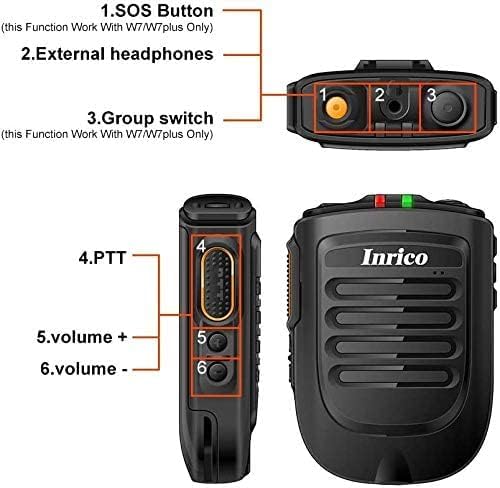
Diagram illustrating the button layout and features of the Inrico B01.
- 1. SOS Button: (This function works with W7/W7plus only)
- 2. External Headphones Port: Vir die koppeling van eksterne klanktoestelle.
- 3. Group Switch: (This function works with W7/W7plus only)
- 4. PTT (Push-to-Talk) Button: Large button for initiating voice transmissions.
- 5. Volume +: Verhoog luidsprekervolume.
- 6. Volume -: Verlaag luidsprekervolume.
- TX/RX-aanwyser: Light indicator for transmission (TX) and reception (RX) status.
4. Opstelgids
4.1 Laai die toestel
Before first use, fully charge your Inrico B01 using the provided USB charger and data cable. Connect the USB cable to the device's charging port and the charger to a standard power outlet. The TX/RX indicator may show charging status.
4.2 Bluetooth Pairing with Android Devices
Important Note: This device is compatible ONLY with Android systems (Android 5.1 and above). It DOES NOT support iOS devices (iPhone, iPad).

Visual guide for pairing the Inrico B01 with an Android device.
- Turn on the Inrico B01 and enter pairing mode. The green light on the microphone will flash.
- On your Android phone, navigate to the Bluetooth settings.
- Soek vir available devices. You should find "B01" in the list.
- Select "B01" and confirm the pairing request. You may need to allow access to contacts and call history.
- Once connected, the device status will show "Connected" or "Active".
4.3 Toepassingsversoenbaarheid
The Inrico B01 is designed to work with Push-to-Talk (PTT) applications such as Zello and Real PTT. It is compatible with Android 5.1 and higher versions, including Android 6.0, Android 7.0, and above, on devices like 3G-W7, 4G-W7plus, and other Android walkie-talkies/phones.

The Inrico B01 is compatible with Android 5.0+ and PTT applications like RealPTT.
Note: It does not support Echolink or Eschat. Other talk apps may have limited compatibility (approx. 50%).
5. Bedryfsinstruksies
5.1 Using the PTT Function
After successful Bluetooth pairing and configuring your PTT application (e.g., Zello), press and hold the large PTT button (4) on the side of the Inrico B01 to transmit your voice. Release the button to listen. The TX/RX indicator will show when you are transmitting.
For Zello users: If you experience issues with the PTT button, ensure you have assigned the PTT button within the Zello app settings under "Compatible PTT Buttons" and selected the desired channel under "Button Contact."
5.2 Volume-aanpassing
Use the Volume + (5) and Volume - (6) buttons on the side of the device to adjust the speaker's output volume.
5.3 SOS and Group Switch Functions
The SOS button (1) and Group Switch (3) functionalities are specifically designed to work with Inrico W7 and W7plus mobile radios. These features may not be available or fully functional when used with other Android devices or applications.
6. Spesifikasies
| Kenmerk | Detail |
|---|---|
| Modelnommer | B01 |
| Bluetooth weergawe | 4.2 |
| Versoenbare bedryfstelsel | Android 5.1 and above (NOT iOS) |
| Verbindingstegnologie | Bluetooth, USB |
| Mikrofoonvormfaktor | Handheld |
| Polêre patroon | Omnirigting |
| Sein-tot-geraas verhouding | 78 dB |
| Geraasvlak | 78 dB |
| Battery Tipe | Litiumioon |
| Battery kapasiteit | 2000 mAh, 3.7 V |
| Praat Tyd | Ongeveer. 14 uur |
| PTT Time | Ongeveer. 14 uur |
| Bystandtyd | Meer as 90 XNUMX uur |
| Item gewig | 9.2 onse (ongeveer 260 g) |
| Afmetings (L x B x H) | 7.28 x 5.08 x 3.46 duim (Pakket) |
| FCC ID | 2AIV6-B01 |
| Land van oorsprong | China |

Physical dimensions of the Inrico B01: 90mm height, 63mm width, 25mm depth, weighing 84g.

Battery specifications for the Inrico B01, showing 2000 mAh capacity and estimated usage times.
7. Onderhoud
To ensure the longevity and optimal performance of your Inrico B01, follow these maintenance guidelines:
- Skoonmaak: Use a soft, dry cloth to clean the device. Avoid using harsh chemicals or abrasive cleaners.
- Berging: Bêre die toestel op 'n koel, droë plek weg van direkte sonlig en uiterste temperature.
- Batterysorg: For extended storage, charge the battery to approximately 50% to preserve its lifespan.
- Waterweerstand: Die toestel is nie waterdig nie. Vermy blootstelling aan water of oormatige vog.
8. Probleemoplossing
If you encounter issues with your Inrico B01, refer to the following common problems and solutions:
- Device not pairing with Android phone:
- Ensure Bluetooth is enabled on your Android phone.
- Make sure the Inrico B01 is in pairing mode (green light flashing).
- Verify that your Android OS version is 5.1 or above.
- Restart both the Inrico B01 and your Android phone, then attempt pairing again.
- Forget the device in your phone's Bluetooth settings if it was previously paired, then re-pair.
- PTT button not working with Zello/Real PTT:
- Confirm the Inrico B01 is successfully paired and connected to your phone via Bluetooth.
- Within the Zello app, go to Options > Push-to-talk buttons > Compatible PTT Buttons and ensure the B01 is selected and configured.
- Verify that the correct channel is selected under Button Contact in your PTT app settings.
- Ensure the PTT app has necessary permissions (microphone, Bluetooth) on your Android device.
- No sound from the speaker or microphone:
- Check the volume levels on both the Inrico B01 and your Android phone.
- If using Zello, ensure "Bluetooth mode" is selected on the Zello call interface if you are experiencing no sound.
- Confirm the device is fully charged.
- SOS or Group Switch functions not working:
- These functions are primarily designed for Inrico W7/W7plus mobile radios. They may not be supported or fully functional with standard Android phones or other applications.
9. Waarborg en Ondersteuning
For warranty information, please refer to the documentation included with your purchase or visit the official Inrico website. For technical support or further assistance, please contact Inrico customer service through their official channels.
FCC-nakoming: This device complies with Part 15 of the FCC Rules. Operation is subject to the following two conditions: (1) This device may not cause harmful interference, and (2) this device must accept any interference received, including interference that may cause undesired operation. FCC ID: 2AIV6-B01.
10. Bykomende notas
10.1 Belt Clip and Charging Cradle Compatibility
Please note that newer versions of the B01 may feature a slightly longer belt clip (74mm slot depth) compared to older versions (58mm slot depth). This difference might affect compatibility with older charging cradles designed for the shorter belt clip. The new version also features a USB-C charging port.

Comparison of new and old version belt clips and charging cradle slot depths.
10.2 Magnetic Holder Compatibility
The Inrico B01 features a metal sheet on its battery cover, allowing it to work seamlessly with car magnetic holders for convenient mounting.

The Inrico B01's metal sheet on the battery cover enables compatibility with magnetic car holders.
10.3 Mobile Radio Compatibility
The Inrico B01 is also compatible with specific mobile radios such as the TM-7 and TM-7plus, extending its utility beyond just smartphones.
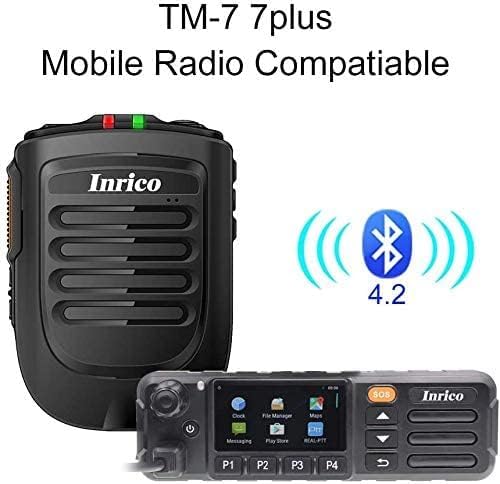
The Inrico B01 can be paired with mobile radios like the TM-7plus.


