
1. Inleiding
The LG 32" UltraGear 4K UHD (3840x2160) Gaming Monitor, model 32GR93U-B, is designed to deliver a high-performance gaming experience. This manual provides essential information for the proper setup, operation, and maintenance of your monitor.
Sleutel kenmerke:
- 4K UHD-resolusie (3840 x 2160): Experience stunning visual clarity and detail.
- 144Hz opdateringsfrekwensie: Enjoy ultra-smooth gameplay with reduced motion blur.
- 1ms (GtG) Reaksietyd: Minimize ghosting and achieve rapid pixel transitions.
- VESA DisplayHDR 400: Enhanced contrast and vibrant colors for a dynamic visual experience.
- NVIDIA G-SYNC-versoenbaar en AMD FreeSync Premium: Synchronizes the monitor's refresh rate with your GPU for tear-free gaming.
- HDMI 2.1 Connectivity: Supports 4K UHD at up to 144Hz for PC and 120Hz for next-gen consoles.
- Ergonomiese staander: Offers tilt, height, and pivot adjustments for personalized viewtroos.
2. Opstelling
2.1 Pakketinhoud
Maak seker dat alle komponente teenwoordig is voor montering:
- LG 32GR93U-B Monitor Display
- Staanbasis
- Staankolom
- Kragkabel
- HDMI kabel
- DisplayPort-kabel
- USB stroomop-kabel
- Gebruikershandleiding (hierdie dokument)
2.2 Staanmontering
- Plaas die monitor se skerm versigtig met die gesig na onder op 'n sagte, skoon oppervlak om skrape te voorkom.
- Heg die staanderkolom aan die agterkant van die monitor vas totdat dit in plek klik.
- Bevestig die staanderbasis aan die staanderkolom met die meegeleverde skroef.
- Plaas die gemonteerde monitor op 'n stabiele lessenaar of tafel.

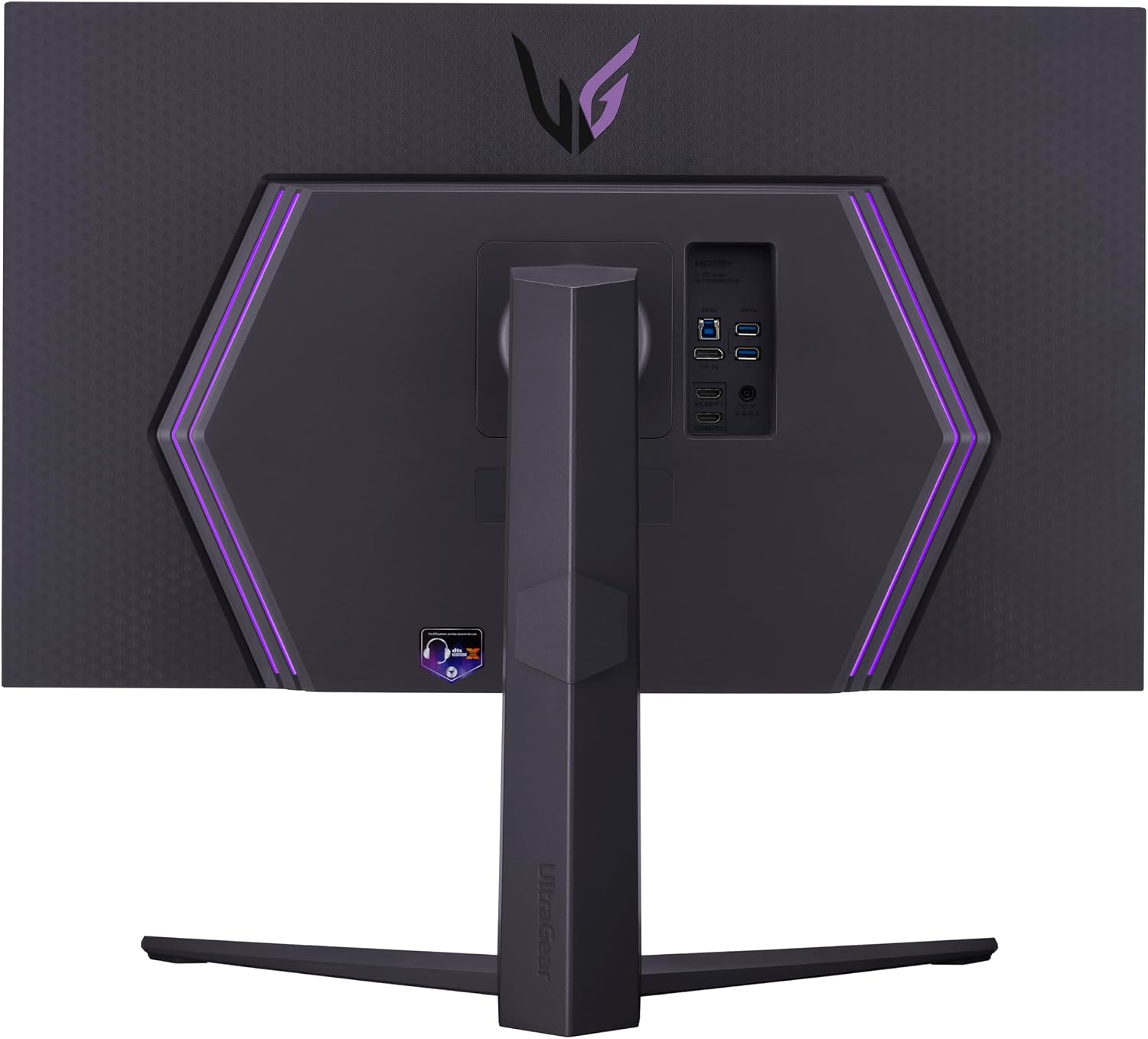
Beeld: Agter view of the LG UltraGear monitor with the stand securely attached. The stand provides stability and supports the monitor's ergonomic adjustments.
2.3 Aansluitkabels
Connect the necessary cables to the monitor and your computer/console:
- Krag: Koppel die kragkabel aan die monitor se kragtoevoer en dan aan 'n muuraansluiting.
- Video: Connect either an HDMI 2.1 cable or a DisplayPort cable from your computer/console to the corresponding port on the monitor. For 4K UHD at 144Hz, a compatible graphics card and HDMI 2.1 or DisplayPort 1.4 are required.
- USB stroomop: Connect the USB upstream cable from the monitor to your computer to enable the monitor's USB ports.
- Oudio: For headphone output, connect your headphones to the 4-Pole HP Out port.

Beeld: Gedetailleerd view of the monitor's connectivity ports, including HDMI 2.1, DisplayPort, and USB ports, located on the rear panel.

Image: A diagram highlighting the increased bandwidth of HDMI 2.1 (48Gbps) compared to HDMI 2.0 (18Gbps), enabling higher resolutions and frame rates.
3. Bedryfsinstruksies
3.1 Krag aan/af
Press the joystick button located at the bottom center of the monitor to power it on or off. A short press will bring up the OSD menu, while a long press will power off the monitor.

Image: The joystick button, located at the bottom center of the monitor, used for power control and OSD navigation.
3.2 Skermskerm (OSD) Menu Navigasie
Press the joystick button once to access the OSD menu. Use the joystick to navigate through the options:
- Spelmodus: Select predefined settings optimized for various game genres.
- Spelaanpassing: Customize gaming-specific features like Black Stabilizer, Dynamic Action Sync, and Crosshair.
- Beeldaanpassing: Fine-tune brightness, contrast, sharpness, and color temperature.
- Invoer: Select the active input source (HDMI 1, HDMI 2, DisplayPort).
- Algemeen: Access general settings including Power LED, Automatic Standby, and OSD Lock.
- Inligting: View current resolution, refresh rate, and total power on time.

Image: The monitor's On-Screen Display (OSD) menu, providing access to various settings for game modes, picture adjustments, and general monitor configurations.
3.3 Speletjie-kenmerke
- NVIDIA G-SYNC Compatible / AMD FreeSync Premium: These technologies synchronize the monitor's refresh rate with your GPU's frame rate to eliminate screen tearing and stuttering. Ensure these features are enabled in both your graphics card settings and the monitor's OSD.
- 1ms (GtG) Reaksietyd: This feature ensures minimal input lag and quick pixel response for fast-paced gaming.
- HDR400: For compatible content, enable HDR in your operating system settings and on the monitor for enhanced dynamic range.

Image: The NVIDIA G-SYNC Compatible logo, indicating support for adaptive synchronization to reduce screen tearing.

Image: The AMD FreeSync Premium logo, signifying support for fluid, tear-free gaming experiences.

Image: Visual representation of VESA DisplayHDR 400, illustrating enhanced contrast and color fidelity.
4. Ergonomiese Aanpassings
Die monitorstaander maak voorsiening vir verskeie aanpassings om jou viewtroos:
- Hoogte verstelling: Lig die monitor op of verlaag dit tot ooghoogte.
- Kantelverstelling: Tilt the screen forward or backward to reduce glare and improve viewing hoek.
- Spilaanpassing: Draai die skerm 90 grade vir portretmodus viewing.
Beeld: Syprofile of the monitor demonstrating its adjustable height range for ergonomic positioning.

Image: Visual guide to the monitor's ergonomic design, showcasing its capabilities for tilt, height, and pivot adjustments to suit user preferences.
5. Onderhoud
Proper care ensures the longevity and optimal performance of your monitor:
- Skoonmaak van die skerm: Vee die skerm liggies af met 'n sagte, pluisvrye lap. Vir hardnekkige merke, vee liggiesampMaak die lap skoon met water of 'n gespesialiseerde skermreiniger. Vermy harde chemikalieë.
- Maak die C skoonasing: Gebruik 'n sagte, droë lap om die monitor skoon te maakasing.
- Ventilasie: Maak seker dat die monitor se ventilasie-openinge nie geblokkeer is om oorverhitting te voorkom nie.
- Skakel af: Skakel die monitor altyd af wanneer dit nie vir lang tye gebruik word nie.
6. Probleemoplossing
As jy probleme met jou monitor ondervind, raadpleeg die volgende algemene oplossings:
- Geen krag:
- Kyk of die kragkabel stewig aan beide die monitor en die kragaansluiting gekoppel is.
- Maak seker dat die kragaansluiting korrek funksioneer.
- Geen sein / Leë skerm:
- Verify that the video cable (HDMI or DisplayPort) is firmly connected to both the monitor and your computer/console.
- Kies die korrekte invoerbron met behulp van die OSD-kieslys.
- Ensure your computer/console is powered on and outputting a signal.
- Screen Tearing / Stuttering:
- Confirm that NVIDIA G-SYNC Compatible or AMD FreeSync Premium is enabled in both your graphics card settings and the monitor's OSD.
- Dateer jou grafiese kaartbestuurders op na die nuutste weergawe.
- Poor Picture Quality / Incorrect Colors:
- Adjust picture settings (brightness, contrast, color temperature) via the OSD menu.
- Verseker die korrekte kleurprofile is selected in your operating system.
- For HDR content, ensure HDR is enabled in your system settings and the monitor. If brightness is uncomfortable, consider adjusting HDR settings or using SDR mode.
- Beperk Viewing Angles / Grayed Out Corners (especially on large screens):
- Adjust your seating position or the monitor's tilt to find an optimal viewing hoek.
- Ensure you are not sitting too close to the screen.
- Backlight Bleed / Poor Black Uniformity:
- This can be inherent to IPS panel technology. Adjusting ambient lighting may help minimize its appearance.
- If local dimming is enabled and causing distraction (e.g., blooming), consider disabling it in the OSD menu.
7. Spesifikasies
| Kenmerk | Detail |
|---|---|
| Handelsmerk | LG |
| Modelnommer | 32GR93U-B |
| Skerm grootte | 32 duim |
| Resolusie | UHD (3840 x 2160) |
| Aspekverhouding | 16:9 |
| Herlaaitempo | 144 Hz |
| Reaksie Tyd | 1 Millisecond (GtG) |
| Tipe vertoon | LCD (IPS Panel) |
| Helderheid | 400 cd/m² |
| Kontrasverhouding | 1000:1 |
| Viewing Hoek | 178 grade |
| HDR Ondersteuning | VESA DisplayHDR 400 |
| Aanpasbare sinkronisering | NVIDIA G-SYNC-versoenbaar, AMD FreeSync Premium |
| Konnektiwiteit | 2x HDMI 2.1, 1x DisplayPort, 3x USB (1 Upstream, 2 Downstream) |
| Oudio-uitset | 4-Polige HP-uitvoer (DTS HP:X) |
| Ergonomie | Kantel, Hoogte, Draaipunt |
| Item gewig | 18.3 pond |
| UPC | 195174053874 |
8. Waarborg en Ondersteuning
Your LG 32" UltraGear Gaming Monitor comes with a 1 Jaar Onderdele & Arbeid waarborg.
For technical support, troubleshooting assistance, or warranty claims, please visit the official LG support website or contact their customer service. Keep your purchase receipt and monitor's serial number handy for faster service.
Official LG Support: https://www.lg.com/us/support
9. Amptelike produkvideo's
LG 144Hz Refresh Rate UltraGear Monitor
Video: An official video from LG Electronics showcasing the 144Hz refresh rate of the UltraGear monitor, highlighting its smooth performance for gaming.