
1. Produk verbyview
The iCarsoft i800 Plus is an advanced OBD2 scanner designed for comprehensive vehicle diagnostics. It provides a range of functions including reading and clearing fault codes, monitoring live data, performing I/M readiness tests, and checking battery health.

Image: The iCarsoft i800 Plus scanner displaying its main menu and diagnostic features.
2. Wat is in die boks
Verifieer dat alle items in die pakket teenwoordig is:
- iCarsoft i800 Plus OBD2 Scanner
- Gebruikershandleiding
- Rekenaar-verbindingskabel

Image: The iCarsoft i800 Plus package contents, including the scanner, user manual, and PC cable.
3. Opstelling en aanvanklike werking
Follow these steps to set up and begin using your iCarsoft i800 Plus diagnostic tool:
- Vind die OBDII-poort: The OBDII port is typically located under the dashboard on the driver's side of the vehicle.
- Koppel die skandeerder: Plug the scanner's cable firmly into the vehicle's OBDII port.
- Skakel die ontsteking aan: Turn the vehicle's ignition to the 'ON' position without starting the engine. The scanner will power on automatically.
- Navigeer deur die spyskaart: Use the arrow keys and 'ENTER' button on the scanner to navigate through the diagnostic menu.
Bedieningsgidsvideo
Video: This video demonstrates the setup and basic operation of the iCarsoft i800 Plus OBD2 Scanner, including connecting to the vehicle, reading and clearing fault codes, and viewlewendige data.
4. Bedryfsfunksies
The iCarsoft i800 Plus offers a variety of diagnostic functions:
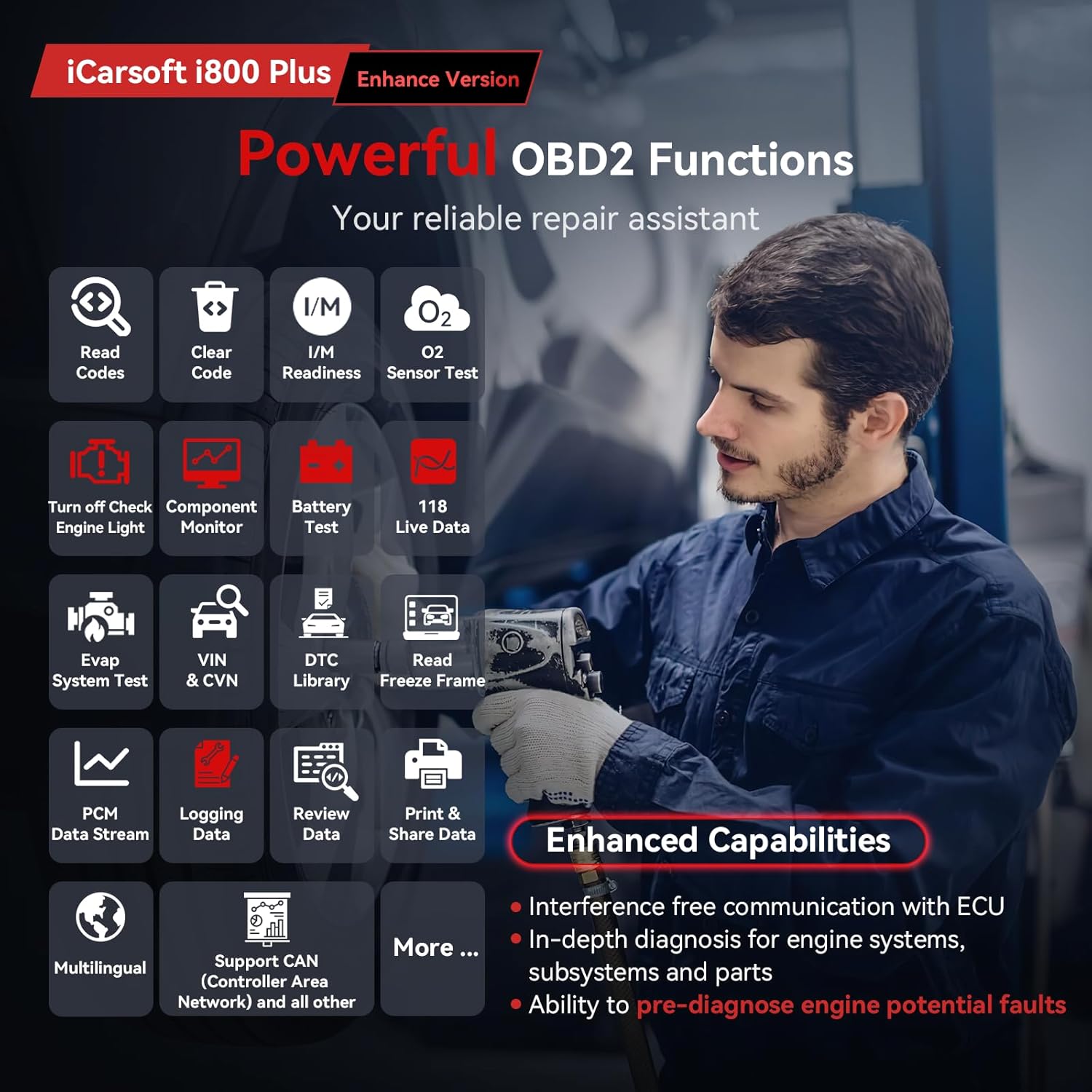
Image: The iCarsoft i800 Plus displaying its comprehensive OBD2 functions.
4.1. Read & Clear Fault Codes
This function allows you to retrieve Diagnostic Trouble Codes (DTCs) from the vehicle's Engine Control Unit (ECU) and clear them. Clearing codes will turn off the Check Engine Light (MIL).
- Kies uit die hoofkieslys 'OBDII/EOBD'.
- Kies 'Read Codes' aan view current, pending, and permanent codes.
- Om kodes uit te vee, kies 'Erase Codes'. Confirm the action when prompted. Ensure the ignition is on but the engine is off before clearing codes.
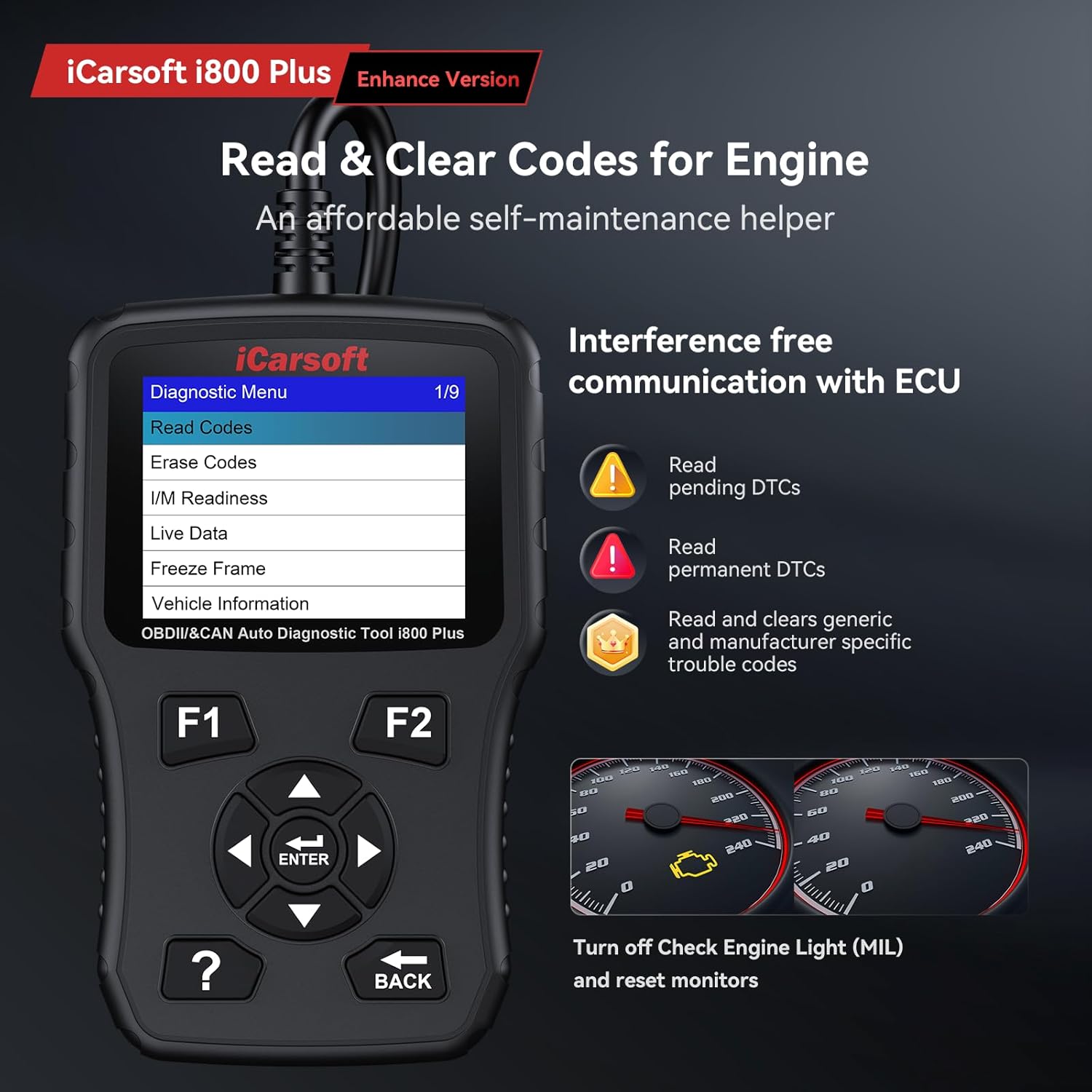
Image: The scanner's screen showing options for reading and erasing-kodes.
4.2. I/M-gereedheid
The I/M Readiness function checks the status of the vehicle's emission-related monitoring systems to determine if they are ready for an inspection. A 'Ready' status indicates that the system has completed its diagnostic tests.
- Kies uit die hoofkieslys 'OBDII/EOBD'.
- Kies 'I/M Readiness' aan view the status of various monitors (e.g., Misfire Monitor, Fuel System Monitor, Catalyst Monitor).
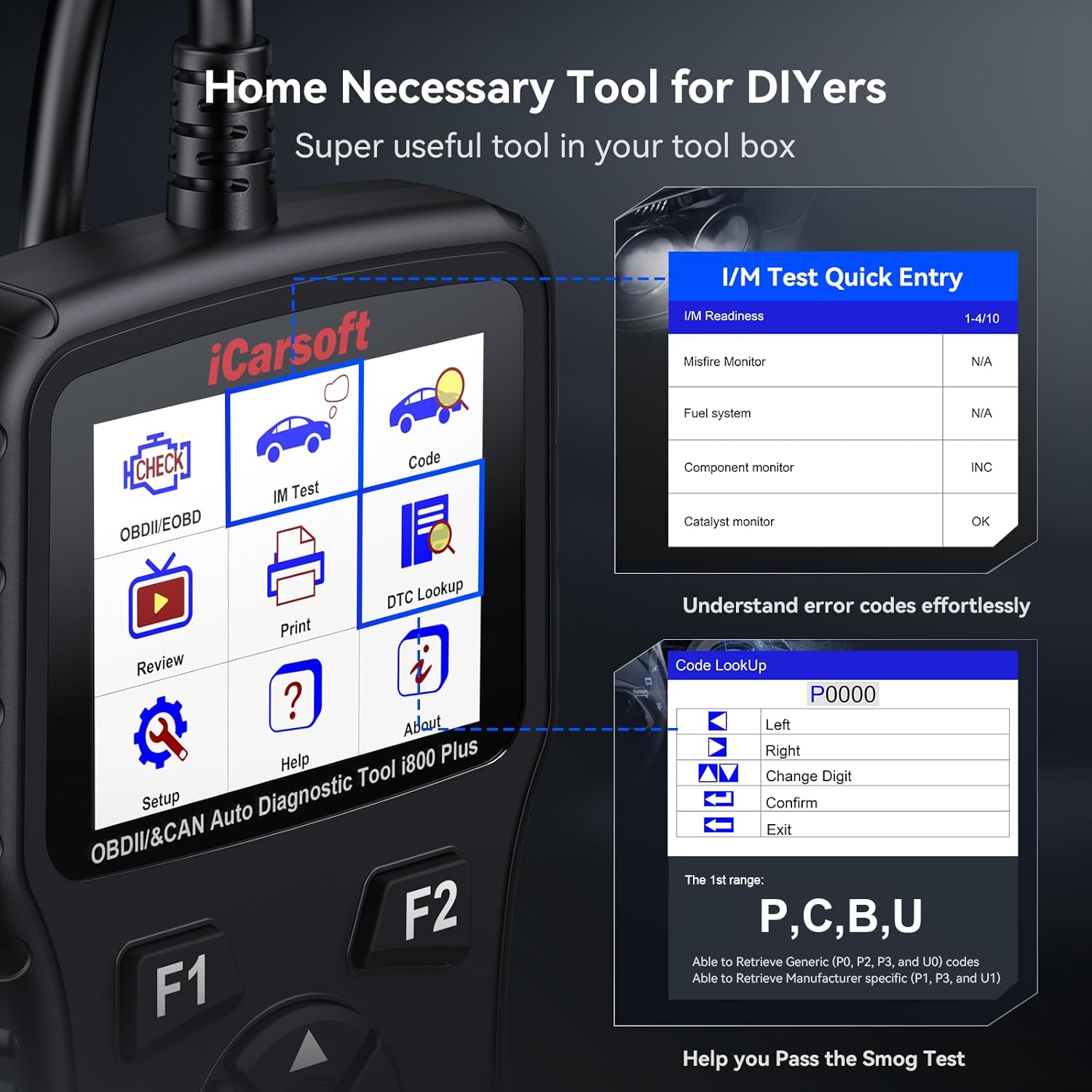
Image: The scanner displaying I/M Readiness monitor status.
4.3. Live Data Monitor
Monitor real-time data from the vehicle's sensors and components. This includes parameters such as engine speed, ignition coil voltage, transmission temperature, oil pressure, coolant temperature, and short-term fuel trim. This data can be displayed in text or graphical format.
- Kies uit die hoofkieslys 'OBDII/EOBD'.
- Kies 'Live Data'. You can select specific parameters to view or choose 'All Supported' to see all available data.
- Use the arrow keys to scroll through data and the 'ENTER' button to switch between text and graph views.
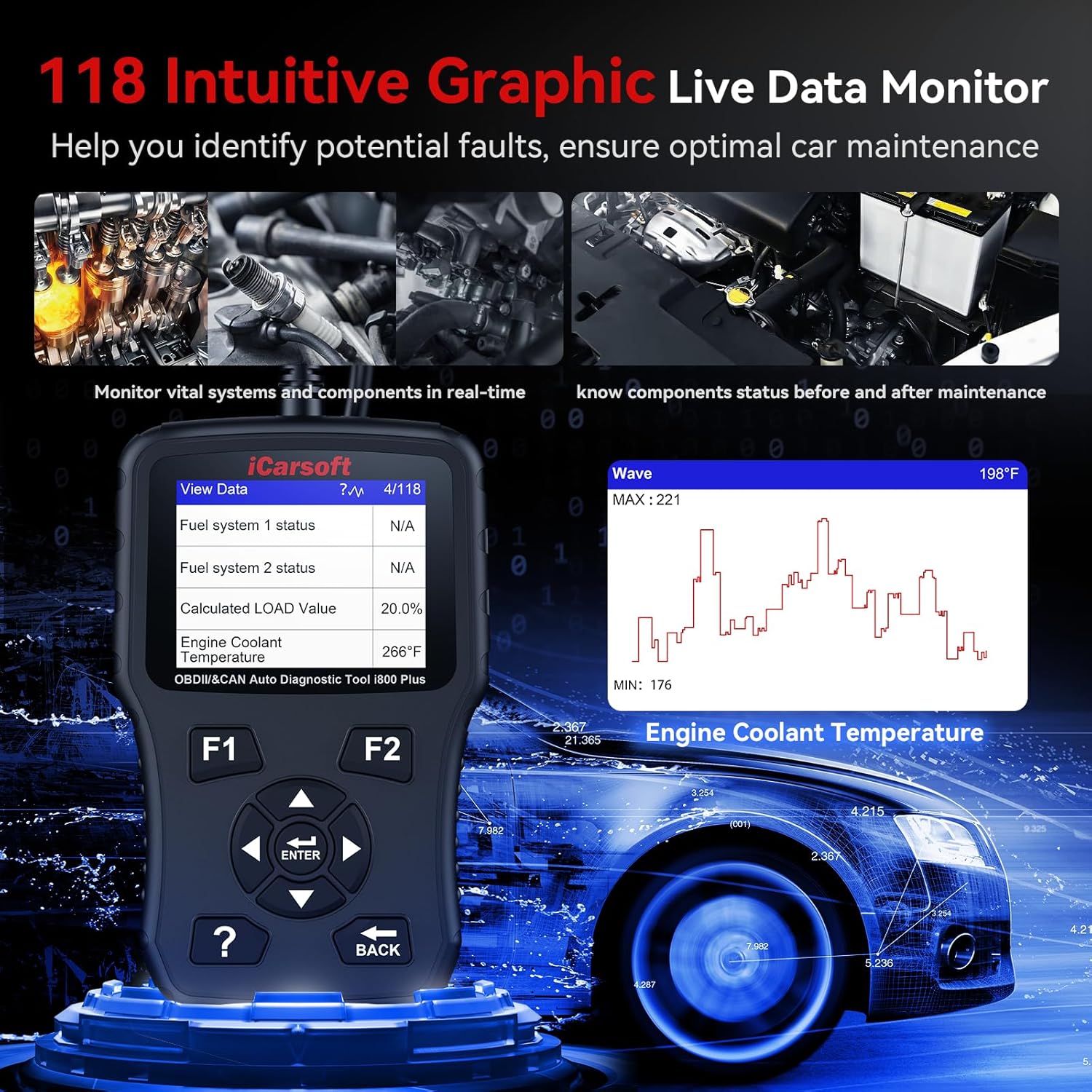
Image: The scanner displaying live data in both numerical and graphical formats.
4.4. Freeze Frame Data
When an emission-related fault occurs, the ECU stores a 'freeze frame' of vehicle operating conditions at the time of the fault. This data can help identify the cause of the problem.
- Kies uit die hoofkieslys 'OBDII/EOBD'.
- Kies 'Freeze Frame' aan view die gestoorde data.
4.5. O2 Monitor Test
This function retrieves the oxygen sensor monitor test results for the most recently completed tests from the vehicle's on-board computer.
- Kies uit die hoofkieslys 'OBDII/EOBD'.
- Kies 'O2 Monitor Test' and select the desired sensor to view its test results.
4.6. DTC Opsoek
The built-in DTC library allows you to look up definitions for generic and manufacturer-specific trouble codes directly on the device.
- Kies uit die hoofkieslys 'DTC Lookup'.
- Enter the DTC code using the arrow keys to change digits and 'ENTER' to confirm.
4.7. Battery Charging System Check
Monitor the vehicle's battery health and charging system status. This helps prevent vehicle startup failures or electrical issues caused by battery problems.
- Kies uit die hoofkieslys 'OBDII/EOBD'.
- Kies 'Battery Test' aan view detailed battery voltage information, often presented with a dynamic graph.
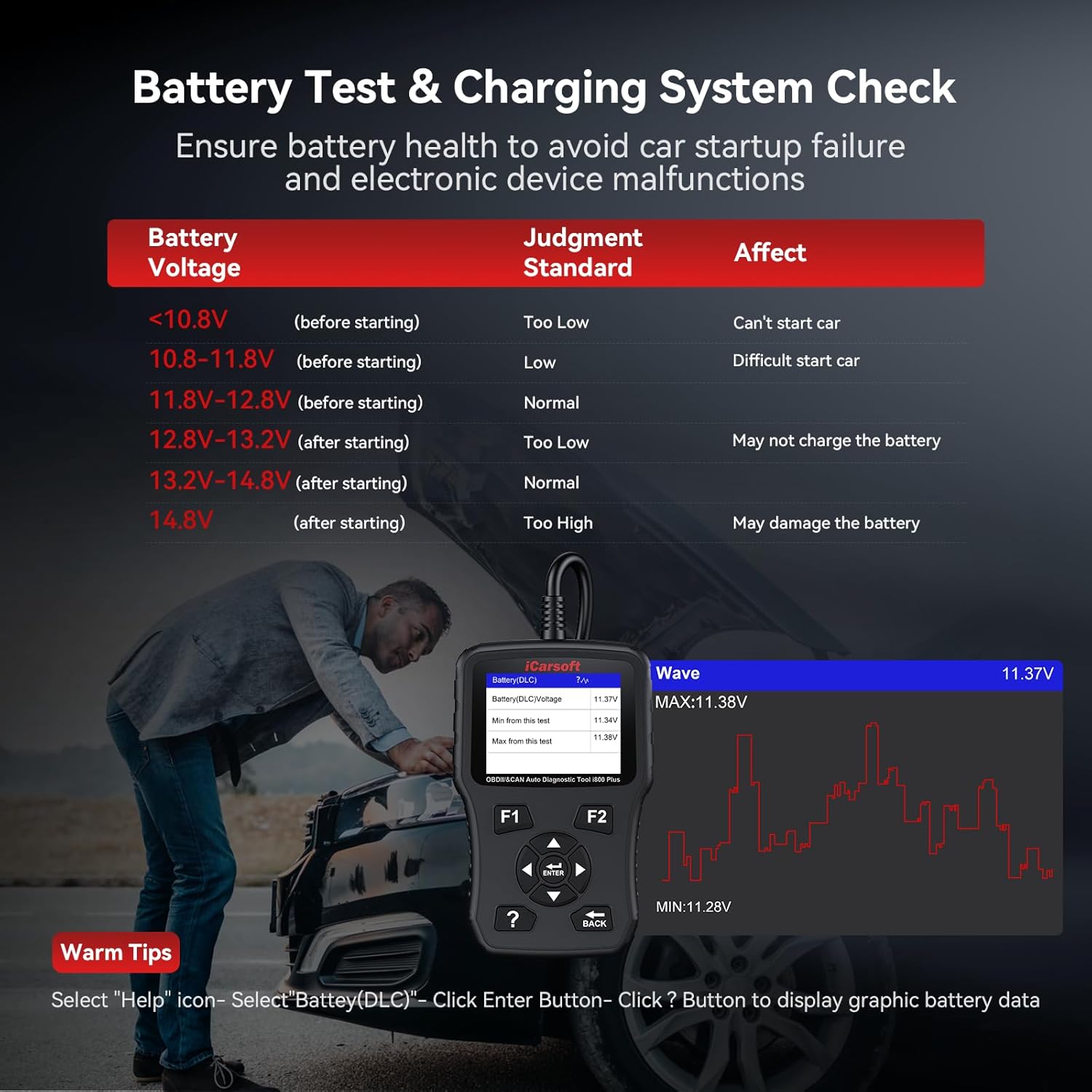
Image: The scanner displaying battery voltage and charging system status.
5. Onderhoud
5.1. Sagteware-opdaterings
iCarsoft provides lifetime free updates for the i800 Plus scanner. Regularly updating the software ensures access to the newest car parameter database for in-depth engine system diagnosis and improved communication with ECU modules. Connect the device to a computer via the provided USB cable and visit the official iCarsoft website for update instructions and software.
5.2. Skoonmaak
Om die toestel skoon te maak, gebruik 'n sagte, damp lap. Vermy die gebruik van skuurmiddels of oplosmiddels wat die skerm of c kan beskadig.asing.
6. Probleemoplossing
6.1. Compatibility Issues
Due to manufacturer restrictions on certain ECUs and systems in newer or specific car models, compatibility issues may arise. If you encounter any problems, please contact iCarsoft technical support for assistance.

Image: Global vehicle compatibility map for the iCarsoft i800 Plus.
6.2. Toestel skakel nie aan nie
Ensure the scanner is securely connected to the vehicle's OBDII port and the vehicle's ignition is in the 'ON' position. If the issue persists, try connecting the scanner to a different vehicle to rule out a vehicle-specific power supply problem.
7. Spesifikasies
| Kenmerk | Detail |
|---|---|
| Handelsmerk | iCarsoft |
| Model | i800 Plus |
| Item gewig | 12 onse |
| Pakket afmetings | 7.95 x 4.84 x 2.09 duim |
| Kragbron | Elektries met koord |
| Bedryfstelsel | Windows 10 (vir opdaterings) |
| Skerm grootte | 2.8 duim |
| UPC | 850030851307 |
| Datum Eerste Beskikbaar | 8 Mei 2023 |
8. Waarborg en Ondersteuning
The iCarsoft i800 Plus comes with a 1-year warranty. iCarsoft also provides lifetime free updates and lifetime free hardware repair. For any concerns or technical support, please contact iCarsoft customer service.