
FEKER IK65
FEKER IK65 Mechanical Keyboard User Manual
Model: IK65
Handelsmerk: FEKER
Inleiding
Thank you for choosing the FEKER IK65 Mechanical Keyboard. This keyboard features a 65% layout with 67 keys, Gasket Mount structure, and triple-mode connectivity (USB Wired, Bluetooth 5.0, and 2.4G wireless). It is designed for an enhanced typing experience with its 4-layer filling material, factory-lubed switches, and RGB backlighting. This manual provides detailed instructions for setup, operation, and maintenance of your new keyboard.
Pakketinhoud
Verifieer asseblief dat al die items wat hieronder gelys word, in u pakket ingesluit is:
- 1 x FEKER IK65 Mechanical Keyboard
- 1 x Tipe-C USB-kabel
- 1 x 2.4G Wireless Receiver
- 1 x Keycap & Switch Puller
- 1 x Dustproof Cover
- 1 x Gebruikershandleiding (hierdie dokument)

Image: The FEKER IK65 Mechanical Keyboard, showcasing its compact 65% layout and two-tone PBT keycaps. The keyboard is shown detached from its base, highlighting its design.
Spesifikasies
| Model | IK65 |
| Uitleg | 65% (67 Sleutels) |
| Struktuur | Gasket Mount |
| Skakelaars | Lubed FEKER White Jade Linear 45g (Hotswappable 3/5pin) |
| Sleutels | Kersie Profile PBT |
| Konnektiwiteit | Triple Mode: USB Wired, Bluetooth 5.0, 2.4G Wireless |
| Agterlig | 16.8 miljoen RGB |
| Anti-spookbeeld | NKRO (N-Sleutel Rollover) |
| Battery | Built-in 4000mAh Rechargeable Li-ion |
| Verenigbaarheid | MAC, Windows (Win2000+), iOS, Android |
| Afmetings | 12.2 x 1.77 x 0.98 duim |
| Gewig | 1.98 pond |
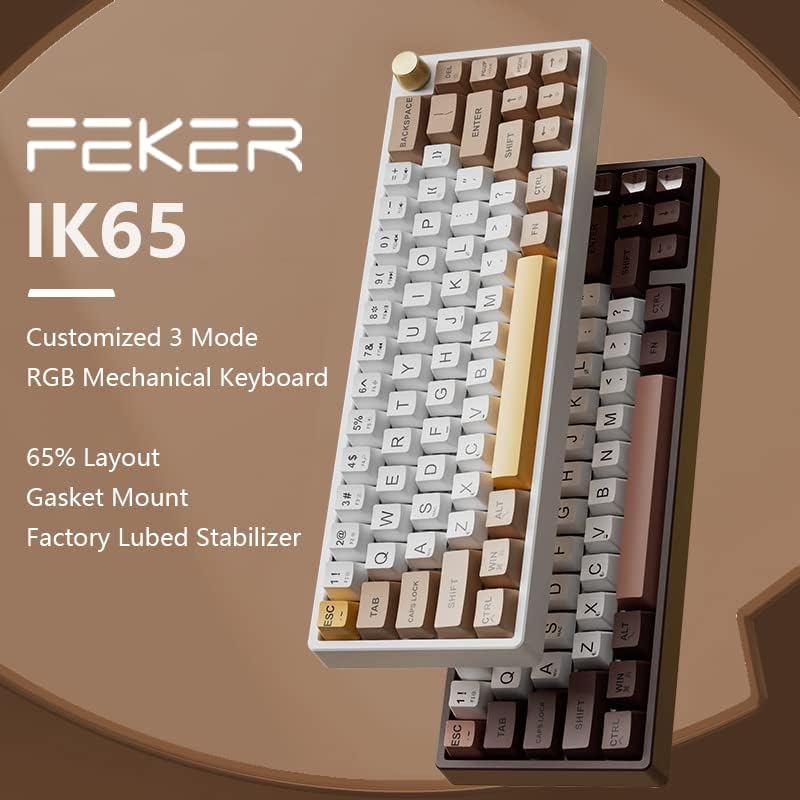
Image: The FEKER IK65 keyboard highlighting its customized 3-mode connectivity, 65% layout, Gasket Mount, and factory-lubed stabilizers.
Opstelgids
Laai die sleutelbord
Before first use, it is recommended to fully charge the keyboard. Connect the supplied Type-C USB cable to the keyboard's port and the other end to a USB power source (e.g., computer USB port, wall adapter). The keyboard features a 4000mAh battery and supports 10W fast charging, allowing a full charge in approximately 30 minutes.

Image: A visual representation of the keyboard's 4000mAh battery capacity, emphasizing its long battery life and fast charging capability.
Verbindingsmodusse
The FEKER IK65 supports three connection modes: Wired, 2.4G Wireless, and Bluetooth 5.0. You can switch between these modes using the switch located on the back or side of the keyboard.
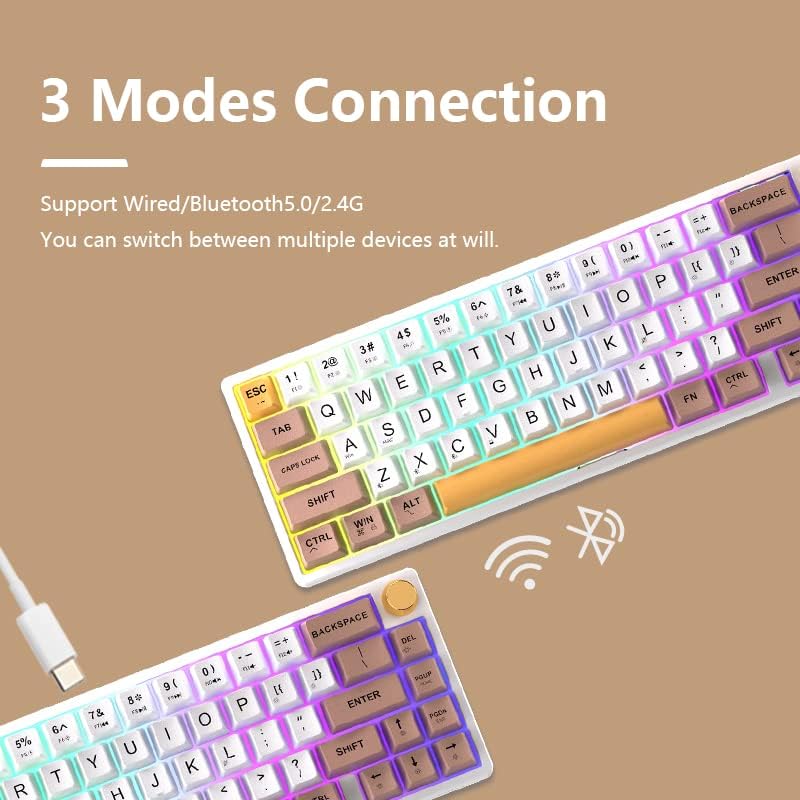
Image: Two FEKER IK65 keyboards illustrating the three connection modes: wired via USB-C cable, wireless via 2.4G receiver, and Bluetooth, with corresponding icons.
1. Bedrade modus
- Ensure the mode switch on the keyboard is set to "Wired" or the corresponding icon.
- Connect the Type-C USB cable from the keyboard to an available USB port on your computer.
- Die sleutelbord sal outomaties deur jou stelsel herken word.
2. 2.4G Draadlose Modus
- Locate the 2.4G wireless receiver included in the package.
- Koppel die 2.4G-ontvanger aan 'n beskikbare USB-poort op jou rekenaar.
- Set the mode switch on the keyboard to "2.4G" or the corresponding icon.
- Die sleutelbord behoort outomaties te koppel. Indien nie, druk Fn + R om paring te begin.
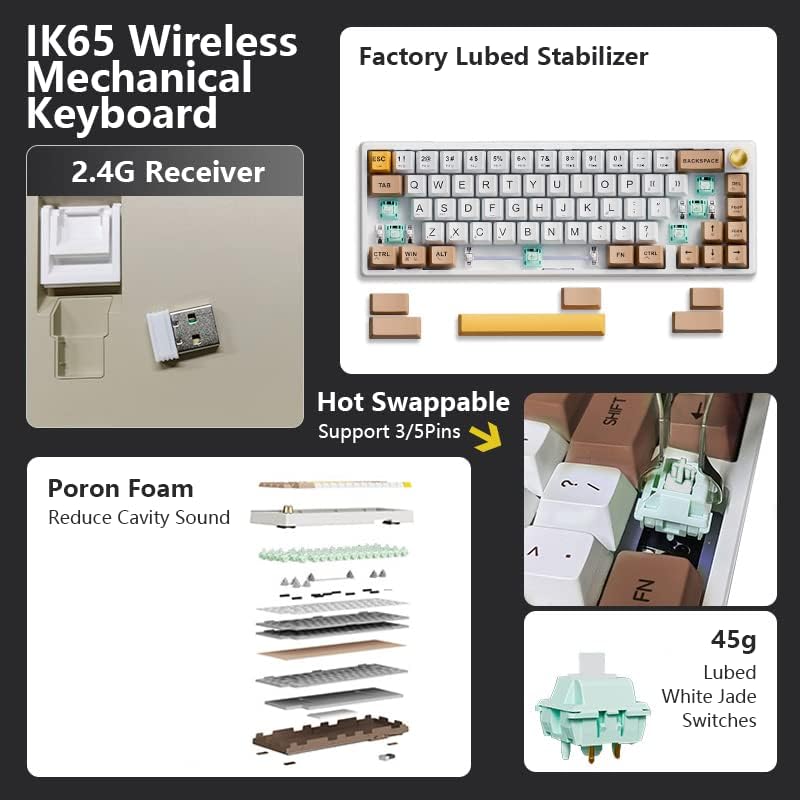
Image: The FEKER IK65 keyboard alongside its 2.4G wireless receiver, illustrating the wireless connectivity option. Also shown are internal components like Poron foam and lubed switches.
3. Bluetooth 5.0-modus
- Set the mode switch on the keyboard to "Bluetooth" or the corresponding icon.
- Om saambindmodus te betree, druk en hou Fn + Q, Fn + W., of Fn + E for 3-5 seconds. The indicator light will flash rapidly, indicating it's ready to pair.
- On your device (computer, tablet, phone), open Bluetooth settings and search for "FEKER IK65" or a similar name.
- Kies die sleutelbord om te koppel. Die aanwyserliggie sal ophou flikker sodra dit gekoppel is.
- You can pair up to three Bluetooth devices by assigning them to Fn+Q, Fn+W, and Fn+E. Switch between paired devices by pressing the corresponding key combination.
Bedryfsinstruksies
Function Keys (Fn Combinations)
The FEKER IK65 utilizes an Fn key for accessing secondary functions. Below are common Fn key combinations:
- Fn + Q/W/E: Switch between Bluetooth devices 1/2/3
- Fn + R: Switch to 2.4G wireless mode / Re-pair 2.4G
- Fn + T: Switch to Wired mode
- Fn + Y: Toggle RGB backlight effects
- Fn + U: Decrease backlight brightness
- Fn + ek: Increase backlight brightness
- Fn + O: Decrease backlight speed
- Fn + P: Increase backlight speed
- Fn + [ {: Change backlight color (static modes)
- Fn + ] }: Change backlight color (static modes)
- Fn + ; :: Volume verlaag
- Fn + ' ": Volume op
- Fn + ,: Vorige Snit
- Fn + . >: Volgende Snit
- Fn + / ?: Speel / Pouse
- fn+m: Demp/Ontdemp
- Fn + Backspace: Vee uit
- Fn + Wen: Lock/Unlock Windows key
RGB-agterbeligting
The keyboard features 16.8 million color RGB backlighting with various effects. Use the Fn key combinations listed above to cycle through effects, adjust brightness, and change speed or color.
VIA Software Support
The FEKER IK65 supports VIA software for advanced key remapping, macro creation, and lighting customization. This allows for deeper modification of key positions to adapt to your personal usage habits.
- The keyboard does not require a proprietary driver; it is compatible with VIA.
- To use VIA, you will need to obtain the specific JSON file for the IK65 model. This file can typically be acquired from the seller's customer service or product support page.
- Once you have the JSON file, open the VIA application and load the file to begin customizing your keyboard.

Image: The FEKER IK65 keyboard prominently displaying the "Support Via" logo, indicating its compatibility with VIA customization software.
Warm-uitruilbare skakelaars
The FEKER IK65 features hot-swappable sockets, allowing you to change switches without soldering. It supports both 3-pin and 5-pin mechanical switches.
- To remove a switch, use the included switch puller. Gently grip the top and bottom clips of the switch and pull upwards.
- Om 'n nuwe skakelaar te installeer, rig die penne van die nuwe skakelaar in lyn met die gate op die PCB. Druk stewig af totdat die skakelaar in plek klik. Maak seker dat die penne reguit is om buiging te voorkom.
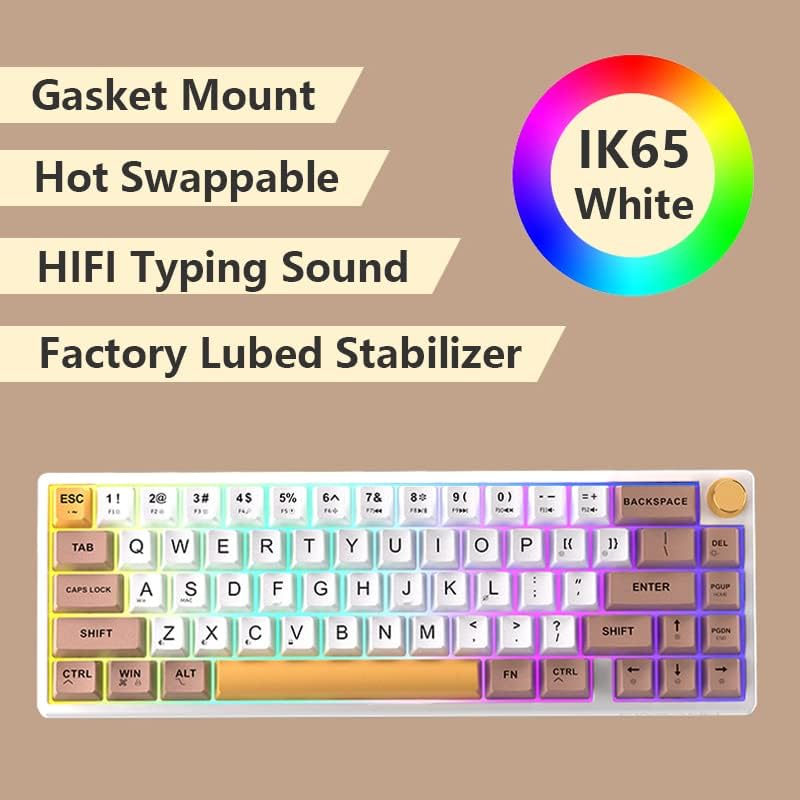
Image: The FEKER IK65 keyboard emphasizing its key features: Gasket Mount design, hot-swappable switch sockets, HIFI typing sound, and factory-lubed stabilizers.
Onderhoud
Maak die sleutelbord skoon
- Ontkoppel die sleutelbord van alle kragbronne voordat u dit skoonmaak.
- Gebruik 'n sagte, pluisvrye lap effens dampened with water or a mild cleaning solution to wipe the keycaps and case.
- For deeper cleaning, you can use the included keycap puller to remove keycaps and clean underneath with compressed air or a small brush.
- Avoid using harsh chemicals, abrasives, or solvents as they may damage the keyboard's finish.
Berging
When not in use, store the keyboard in a cool, dry place away from direct sunlight and extreme temperatures. Use the provided dustproof cover to protect it from dust and debris.
Probleemoplossing
| Probleem | Moontlike Oplossing |
|---|---|
| Keyboard not responding in Wired Mode. |
|
| 2.4G Wireless connection issues. |
|
| Bluetooth connection fails or disconnects frequently. |
|
| RGB backlighting not working. |
|
| Sleutels registreer nie of dubbeltik nie. |
|
Waarborg en Ondersteuning
For warranty information and technical support, please refer to the warranty card included with your product or contact the seller directly. You may also visit the official FEKER webwebwerf vir bykomende hulpbronne en algemene vrae.
For VIA software support and the necessary JSON file, please contact the customer service of your purchase platform.
Verwante Dokumente - IK65
 |
FEKER IK85Plus 用户手册:功能、连接与操作指南 FEKER IK85Plus机械键盘用户手册。了解其板簧Gasket结构、RGB灯效、连接方式(USB、蓝牙、2.4G)、按键功能及休眠机制等详细信息。 |
 |
PrismCaps Universele Dubbele Skoot PBT Sleutelkappe Produk Inligtingsgids Produkinligting en opstellingsgids vir SteelSeries PrismCaps Universal Double Shot PBT-sleutelkappe, met besonderhede oor die pakketinhoud vir verskeie sleutelborduitlegte en installasie-instruksies. |
 |
FEKER IK85Pro Mechanical Keyboard User Manual and Features Comprehensive user manual for the FEKER IK85Pro mechanical keyboard, detailing product specifications, switch and lighting instructions, connection modes (Bluetooth, 2.4G, USB), advanced key functions, sleep modes, and warranty information. |
 |
Lae Profile Ultra Slim PBT Keycaps for Kailh 1350 Mechanical Keyboard - Product Manual Product manual for Low Profile Ultra Slim Minimalist Black White PBT Keycaps designed for Kailh 1350 Wireless Bluetooth Mechanical Keyboards. Includes installation, removal, safety, and troubleshooting guides. |
 |
Akko MOD007PC-EU Meganiese Sleutelbord Gebruikershandleiding - Opstelling, Kenmerke en Waarborg Gebruikershandleiding vir die Akko MOD007PC-EU meganiese sleutelbord, met besonderhede oor die opstelling, stelselvereistes, sneltoetse vir Windows en Mac, sleutelaanpassing via die Akko-drywer en waarborginligting. |
 |
YUNZII IF98 Meganiese Sleutelbord Vinnige Begingids 'n Vinnige begingids vir die YUNZII IF98 meganiese sleutelbord, wat basiese funksies, RGB-instellings, sleutelbordinstellings en pakketinhoud dek. Sluit inligting in Engels, Chinees en Japannees in. |
Ask a question about this manual
Ask about setup, troubleshooting, compatibility, parts, safety, or missing instructions. Manuals+ will review the question and use this page’s manual context to help answer it.