
1. Belangrike veiligheidsinligting
Please read all safety instructions carefully before using the BYINTEK P70 Smart WiFi Projector. Keep this manual for future reference.
- Kragbron: Gebruik slegs die meegeleverde kragadapter. Maak seker die volume istage voldoen aan die projektor se vereistes.
- Batteryveiligheid: The projector contains a built-in lithium-ion battery. Do not expose to extreme temperatures, puncture, or disassemble.
- Ventilasie: Verseker behoorlike ventilasie rondom die projektor om oorverhitting te voorkom. Moenie ventilasie-openinge blokkeer nie.
- Hitte: The projector may become warm during operation. This is normal. Avoid touching the lens or vents immediately after use.
- Ligblootstelling: Moenie direk in die projektorlens kyk wanneer die lamp aan is, aangesien die helder lig oogspanning of skade kan veroorsaak.
- Water en vog: Hou die projektor weg van water, reën en oormatige humiditeit. Moenie met nat hande gebruik nie.
- Skoonmaak: Ontkoppel die krag voor skoonmaak. Gebruik 'n sagte, droë lap. Moenie vloeibare of aërosol skoonmaakmiddels gebruik nie.
- Kinders: Keep the projector and its accessories out of reach of children.
2. Produk verbyview
The BYINTEK P70 is a portable smart DLP projector designed for versatile entertainment and presentation needs. It features an 8000mAh built-in battery, Android 9.0 operating system, auto-focus, and 3D support.
2.1 Pakketinhoud
- BYINTEK P70 Projector x 1
- Afstandbeheer x 1
- Kragadapter x 1
- Mini driepoot x 1
- Bergingsak x 1
- Gebruikershandleiding x 1
2.2 Sleutelkenmerke
- Draagbare ontwerp: Kompak en liggewig vir maklike vervoer.
- Ingeboude battery: 8000mAh battery provides 1.5 to 3 hours of playback.
- Smart Android OS: Android 9.0 for app downloads, online streaming, and gaming.
- Outo-fokus: Automatic focus adjustment for clear images.
- 6D Keystone-korreksie: Advanced keystone correction for flexible placement.
- 3D Ondersteuning: Enjoy immersive 3D content.
- Draadlose konneksie: Supports wireless screen mirroring from Android, iOS, and PC devices.
- Bedrade verbinding: USB data cable sync for iOS and select Android devices.
- Groot projeksie grootte: Tot 200 duim.
- 4K Playback: Supports up to 4K video input.
- Lang LED Lamp Lewe: 30,000 ure.
- Dubbele stereo-luidsprekers: Integrated 2x5W speakers for clear audio.

Image: Infographic detailing the BYINTEK P70's features including 4K support, DLP display, 6D keystone, 8000mAh battery, 3D, Type-C charge, 2G+32G memory, Android OS, and stereo speakers.
3. Opstelling
3.1 Charging the Projector
Before first use, fully charge the projector. Connect the provided power adapter to the projector's Type-C port and plug it into a power outlet. The charging indicator will show the charging status.

Image: The BYINTEK P70 projector connected to a power bank via a Type-C cable, illustrating its portable charging capability.
3.2 Aanvanklike Plasing
Plaas die projektor op 'n stabiele, plat oppervlak. Vir optimale viewing, position it directly in front of your projection screen or wall. The included mini tripod can be used for angle adjustments.
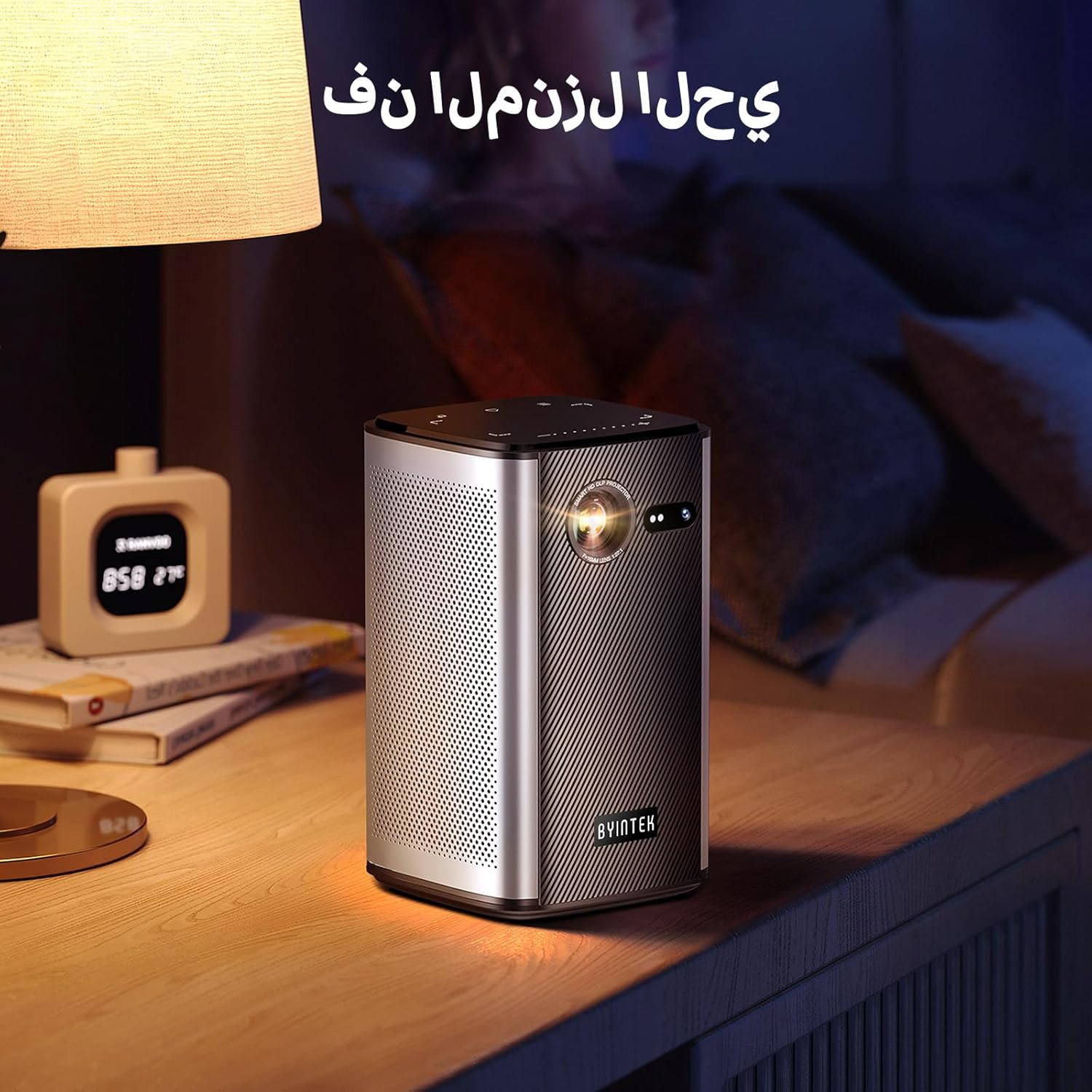
Image: The BYINTEK P70 projector placed on a bedside table, ready for indoor use.
3.3 Aan-/afskakel
Press and hold the power button on the projector or remote control to turn the device on or off.
3.4 Fokus- en Keystone-korreksie
The BYINTEK P70 features automatic focus. For keystone correction, navigate to the settings menu using the remote control. The 6D keystone correction allows for precise image adjustment, even with side projection.

Image: A visual representation of the projector's auto-focus feature, showing a clear image projected onto a wall.
4. Bedryfsinstruksies
4.1 Navigasie deur die Android-bedryfstelsel
Use the remote control to navigate the Android 9.0 interface. The home screen provides access to pre-installed apps and settings. You can download additional applications from the app store.

Image: The projector displaying its Android operating system interface with various application icons like Miracast, Settings, AirPlay, Market, File Explorer, YouTube, and Netflix.
4.2 Draadlose Skermspieëling
The projector supports wireless screen mirroring for Android, iOS, and PC devices. Access the 'Miracast' or 'AirPlay' app on the projector's home screen and follow the on-screen instructions to connect your device.
4.3 Wired Screen Mirroring
For iOS devices and some Android devices, you can use a USB data cable for wired screen synchronization. Connect your device to the projector's USB port using its original data cable.
4.4 3D-terugspeel
The BYINTEK P70 supports 3D content. To enjoy 3D movies, ensure your media file is in a compatible 3D format (e.g., Blu-ray 3D, SBS, TNB) and use active shutter 3D glasses (sold separately).

Image: A family wearing 3D glasses, enjoying a 3D movie projected by the BYINTEK P70, showcasing its 3D capability.
4.5 Digitale zoom
Adjust the image size from 50% to 100% using the digital zoom function on the remote control. This allows you to fit the image perfectly to your screen without moving the projector.
5. Onderhoud
5.1 Skoonmaak van die lens
Use a soft, lint-free cloth specifically designed for optical lenses to gently wipe the projector lens. Avoid using abrasive materials or harsh chemicals.
5.2 Skoonmaak van die buitekant
Wipe the exterior of the projector with a soft, dry cloth. Do not use liquid cleaners or sprays directly on the device.
5.3 Berging
When not in use, store the projector in a cool, dry place, away from direct sunlight and extreme temperatures. Use the provided storage bag to protect it from dust and scratches.
5.4 Batterysorg
Om die batterylewe te verleng, vermy om die battery gereeld heeltemal te ontlaai. As jy dit vir 'n lang tydperk bêre, laai die battery tot ongeveer 50% en herlaai dit elke paar maande.
6. Probleemoplossing
| Probleem | Moontlike oorsaak | Oplossing |
|---|---|---|
| Geen beeld geprojekteer nie | Projector not powered on; input source not selected; cable not connected. | Ensure projector is on. Select correct input source (HDMI, USB, Wireless). Check cable connections. |
| Beeld is vaag | Out of focus; projector too close/far from screen; lens dirty. | Allow auto-focus to adjust. Adjust projector distance. Clean the lens. |
| Afstandbeheer werk nie | Batteries low/dead; remote not paired; obstruction. | Replace remote batteries. Ensure line of sight to projector's IR receiver. Re-pair remote if necessary (refer to specific pairing instructions in the full manual). |
| Geen klank nie | Volume too low; external audio device connected; audio format not supported. | Increase projector volume. Disconnect external audio devices. Check audio format compatibility. |
| Probleme met draadlose spieëling | Poor Wi-Fi signal; device compatibility; firewall settings. | Ensure strong Wi-Fi signal. Check device compatibility with Miracast/AirPlay. Disable firewalls temporarily for testing. |
| Projektor oorverhit | Geblokkeerde ventilasie; langdurige gebruik in warm omgewing. | Ensure vents are clear. Operate in a well-ventilated area. Allow projector to cool down. |
7. Spesifikasies
| Kenmerk | Spesifikasie |
|---|---|
| Handelsmerk | BYINTEK |
| Modelnommer | P70 |
| Produk afmetings | 8.2 x 8.2 x 14.2 cm |
| Item gewig | 1.58 kilogram |
| Battery | 1 Lithium Ion battery (included), 8000mAh, 29.6 Wh |
| Bedryfstelsel | Android |
| Vertoon resolusie | 960 x 540 |
| Max Display Resolution | 4K Ultra HD Megapixel |
| Verbindingstegnologie | Wi-Fi |
| Spesiale kenmerke | Auto-focus, 3D Ready, Built-in Wi-Fi Receiver |
| Aanbevole gebruike | Tuisbioskoop |
| Tipe vertoon | DLP |
| Vormfaktor | Draagbaar |
| Montage tipe | Driepoot Mount |
| USB 3.0-poorte | 1 |
| HDMI-poorte | 1 |
| Voltage | 12 Volt |
| Wattage | 25 Watt |
| Kragbron | AC & Battery |
8. Waarborg en Ondersteuning
The BYINTEK P70 Smart WiFi Projector comes with a standard manufacturer's warranty. For specific warranty details, please refer to the warranty card included in your product packaging or contact BYINTEK customer support.
If you encounter any issues or have questions regarding your projector, please contact BYINTEK customer support through their official website or the contact information provided in your product documentation. Please have your model number (P70) and purchase details ready when contacting support.