
Produk verbyview
The Delton S12 Ergonomic Vertical Wireless Mouse is designed for comfort and efficiency, promoting a natural hand and wrist posture. It features a 2.4GHz wireless connection, six buttons, and three adjustable DPI levels for precise control. This manual provides instructions for setup, operation, maintenance, and troubleshooting.

Image: The Delton S12 Ergonomic Vertical Wireless Mouse, showcasing its vertical design.
Opstelling
1. Uitpak
Carefully remove the mouse and its accessories from the packaging. Ensure all components are present: the Delton S12 Vertical Wireless Mouse and the USB dongle.
2. Battery Installasie
The Delton S12 mouse requires two (2) AAA batteries (not included). Follow these steps to install them:
- Vind die batterykompartement aan die onderkant van die muis.
- Skuif die batteryklep se deksel versigtig oop.
- Plaas twee AAA-batterye in en maak seker dat die polariteit (+/-) korrek is.
- Maak die batteryklepdeksel toe totdat dit stewig vasklik.
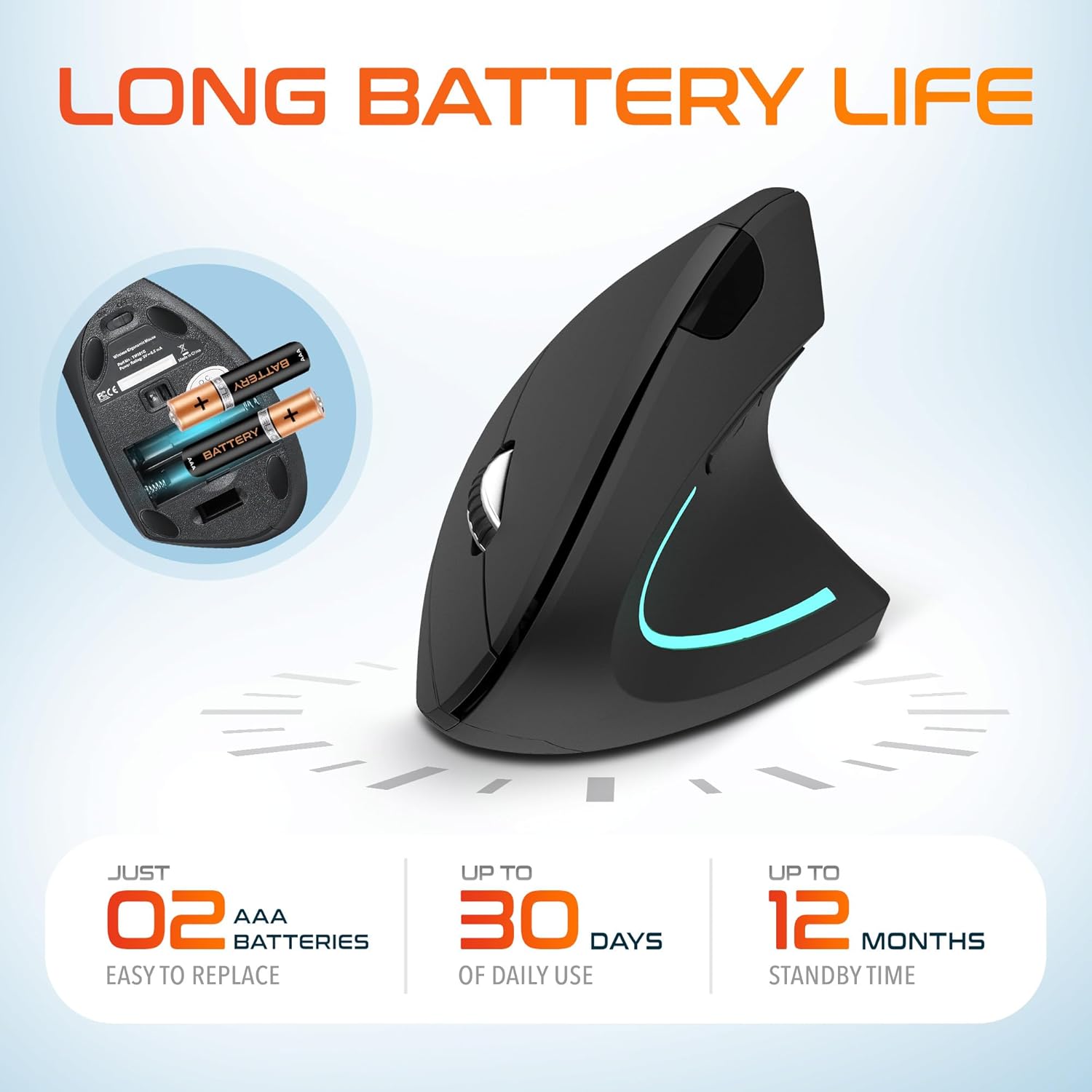
Image: The underside of the Delton S12 mouse with the battery compartment open, showing the correct placement for two AAA batteries.
3. Connecting the USB Dongle
The mouse connects wirelessly via a 2.4GHz USB dongle. No drivers are typically required for most operating systems.
- Remove the USB dongle from its storage slot, usually located near the battery compartment.
- Plug the USB dongle into an available USB port on your computer (PC, Laptop, Mac, Chromebook, etc.).
- The computer should automatically detect and install the necessary drivers. The mouse is ready for use once detected.

Image: The Delton S12 mouse positioned next to its USB dongle, ready for connection to a computer.
Bedien jou muis
The Delton S12 mouse features six buttons and a scroll wheel for enhanced functionality.
1. Knoppie Funksies
- Links klik: Primary selection and activation button.
- Regs klik: Kry toegang tot kontekstuele spyskaarte.
- Rolwiel: Blaai vertikaal deur dokumente en web bladsye. Kan ook geklik word vir middelklik-funksionaliteit.
- DPI-skakelaarknoppie: Pas wysergevoeligheid (DPI) aan.
- Aanstuur-knoppie: Navigeer vorentoe in web blaaiers of file ontdekkingsreisigers.
- Terug-knoppie: Navigeer agteruit in web blaaiers of file ontdekkingsreisigers.

Image: Diagram illustrating the location and function of the six buttons on the Delton S12 Ergonomic Vertical Wireless Mouse.
2. DPI-aanpassing
The mouse offers three adjustable DPI levels (800, 1200, 2400) to suit different tasks and preferences. Press the DPI Switch Button (located behind the scroll wheel) to cycle through the settings. An indicator LED will change color to show the current DPI level:
- Blou LED: 800 DPI (Lower sensitivity, suitable for precise work)
- Rooi LED: 1200 DPI (Medium sensitivity, standard use)
- Groen LED: 2400 DPI (Higher sensitivity, suitable for faster cursor movement)

Image: Close-up of the Delton S12 mouse showing the DPI indicator LED changing colors (blue, red, green) for different sensitivity settings.
Onderhoud
1. Skoonmaak
Om optimale werkverrigting te handhaaf, maak jou muis gereeld skoon. Gebruik 'n sagte, droë lap om die oppervlak af te vee. Vir hardnekkige vuiligheid, gebruik 'n effens droë lap.amp ’n Lap kan gebruik word, maar maak seker dat geen vog die interne komponente binnedring nie. Vermy harde chemikalieë of skuurmiddels.
2. Battery vervanging
When the mouse performance degrades or it stops responding, it's time to replace the batteries. Follow the battery installation steps outlined in the Setup section. Dispose of used batteries responsibly according to local regulations.
Probleemoplossing
Muis reageer nie:
- Maak seker dat die muis aangeskakel is.
- Kontroleer of die batterye korrek geïnstalleer is en voldoende gelaai is. Vervang indien nodig.
- Verify the USB dongle is securely plugged into a working USB port on your computer. Try a different USB port.
- Move the mouse closer to the USB dongle to ensure it's within the 30-foot operating range.
- Herbegin jou rekenaar.
Onreëlmatige wyserbeweging:
- Maak die optiese sensor aan die onderkant van die muis skoon met 'n sagte, droë lap.
- Maak seker dat jy die muis op 'n geskikte oppervlak gebruik. Vermy hoogs weerkaatsende of deursigtige oppervlaktes. 'n Muismat word aanbeveel.
- Kyk vir steuring van ander draadlose toestelle.
DPI Indicator Light Not Changing:
- Press the DPI switch button firmly. If the issue persists, ensure batteries are fresh.
Spesifikasies
| Handelsmerk | Delton |
| Modelnommer | S12 |
| Verbindingstegnologie | 2.4GHz Draadloos (USB Dongle) |
| Bewegingsopsporingstegnologie | Opties |
| DPI-vlakke | 800, 1200, 2400 |
| Aantal knoppies | 6 |
| Hand Oriëntasie | Reg |
| Kragbron | Battery-aangedrewe (2 x AAA-batterye benodig) |
| Battery Gemiddelde Lewe | Up to 30 days (daily use) |
| Wireless Range | Tot 30 voet |
| Versoenbare toestelle | PC, Laptop, Mac, Chromebook, iOS devices |
| Bedryfstelsel | Windows 11/10/9/8/7/XP, Mac OS 9/8/7, Linux, Chrome OS |
| Materiaal | Plastiek |
Waarborg en Ondersteuning
Waarborginligting:
This Delton S12 Ergonomic Vertical Wireless Mouse comes with a 1-Year Manufacturer Warranty. This warranty covers defects in materials and workmanship under normal use. For warranty claims, please retain your proof of purchase.
Kliëntediens:
For technical assistance, troubleshooting, or any questions regarding your Delton S12 mouse, please contact Delton customer support. Refer to the product packaging or the official Delton webwebwerf vir die mees onlangse kontakinligting.