
kinstone KST102MF
kinstone 10.1" Android Tablet Gebruikershandleiding
Model: KST102MF
1. Inleiding
This manual provides detailed instructions for the setup, operation, maintenance, and troubleshooting of your kinstone 10.1-inch Android Tablet. Please read this manual thoroughly before using the device to ensure proper functionality and to prevent damage.
The kinstone tablet is designed for versatile use, featuring an Octa-Core processor, 6GB RAM, 128GB ROM (expandable up to 1TB), dual-band Wi-Fi (2.4G+5G), Bluetooth 5.0, Widevine L1 support, and Face ID. It offers a 10.1-inch IPS HD display with a resolution of 1280x800 pixels and eye health mode for comfortable viewing.
2. Veiligheidsinligting
- Moenie die tablet blootstel aan uiterste temperature, direkte sonlig of hoë humiditeit nie.
- Vermy om die tablet te laat val of aan harde impakte bloot te stel.
- Use only the charger and accessories approved by kinstone.
- Do not attempt to disassemble or repair the tablet yourself. Refer to qualified service personnel.
- Hou die tablet weg van water en ander vloeistowwe.
- Gooi die tablet en sy battery verantwoordelik weg volgens plaaslike regulasies.
3. Pakketinhoud
Verifieer dat alle items in die pakket teenwoordig is:
- kinstone 10.1" Android Tablet
- USB Type-C kabel
- Kragadapter (indien ingesluit)
- Gebruikershandleiding (hierdie dokument)
4. Toestel oorview
Familiarize yourself with the tablet's physical features and ports.

Beeld: Voor en agter view of the kinstone 10.1-inch Android Tablet, showcasing its blue finish and camera module.
- Voorste kamera: Located on the top bezel when held horizontally.
- Agterste kamera: Located on the back panel, typically in the upper left corner.
- Kragknoppie: Used to turn the tablet on/off or put it to sleep/wake.
- Volume knoppies: Word gebruik om die klankvolume aan te pas.
- USB Tipe C-poort: Vir laai en data-oordrag.
- MicroSD -kaartgleuf: Vir die uitbreiding van stoorplek tot 1 TB.
- Luidsprekers: Dual smart BOX speakers for audio output.
5. Opstelling
5.1 Aanvanklike laai
Laai die tablet volledig voor die eerste gebruik. Koppel die USB Tipe-C-kabel aan die tablet se laaipoort en die ander kant aan die kragadapter. Steek die adapter in 'n muursok. Die battery-aanwyser op die skerm sal die laaivordering wys.

Image: The tablet connected to a charger, displaying a 100% charge indicator and highlighting its 6000mAh battery capacity.
5.2 Aan-/afskakel
- Om aan te skakel: Press and hold the Power button until the kinstone logo appears.
- Om af te skakel: Druk en hou die aan/af-knoppie in totdat die kragopsies-kieslys verskyn, en kies dan "Skakel af".
- Om te slaap/wakker te word: Druk kortliks die Power-knoppie.
5.3 Aanvanklike Opstellingsassistent
Wanneer die tablet vir die eerste keer aangeskakel word, sal dit jou deur 'n aanvanklike opstellingsproses lei. Volg die aanwysings op die skerm om:
- Kies jou taal.
- Koppel aan 'n Wi-Fi-netwerk.
- Meld aan met jou Google-rekening of skep 'n nuwe een.
- Set up screen lock (PIN, Pattern, Password, or Face ID).
- Review en aanvaar die bepalings en voorwaardes.

Image: A visual representation of the Google Certified Android 12 OS interface on the tablet, showing various app icons and the Google Play Store.
5.4 Invoeging van 'n MicroSD-kaart (opsioneel)
To expand the tablet's storage, you can insert a MicroSD card (up to 1TB). Locate the MicroSD card slot on the side of the tablet. Gently insert the card with the gold contacts facing down until it clicks into place.

Image: The tablet displaying its memory specifications: 6GB RAM, 128GB internal storage, and the option for 1TB expandable storage via MicroSD card.
6. Bediening van die tablet
6.1 Navigasie
- Raakgebare: Tik, swiep, knyp-om-te-zoem is standaard Android-gebare.
- Tuisskerm: The main interface where you can access apps and widgets.
- App-laai: Swiep op vanaf die tuisskerm na view alle geïnstalleerde toepassings.
- Kennisgewingpaneel: Vee van die bokant van die skerm af om toegang tot kennisgewings en kitsinstellings te verkry.
6.2 Wi-Fi- en Bluetooth-konnektiwiteit
The tablet supports dual-band Wi-Fi (2.4G and 5G) and Bluetooth 5.0 for stable and fast connections.
- Wi-Fi: Gaan na Instellings > Netwerk en internet > Wi-FiSkakel Wi-Fi aan en kies jou verlangde netwerk. Voer die wagwoord in indien gevra.
- Bluetooth: Gaan na Instellings> Gekoppelde toestelle> Verbindingsvoorkeure> Bluetooth. Turn Bluetooth on and pair with compatible devices.
6.3 Vertooninstellings
The 10.1-inch IPS HD display offers vibrant colors and a 178-degree viewing angle. The tablet includes an Eye Health Mode to reduce blue light and eye strain.

Image: The tablet screen displaying a vibrant image, emphasizing its "Eye-Pleasing" 10.1-inch 1280x800 IPS display.
- Helderheid: Adjust in Quick Settings or Settings > Display > Brightness level.
- Eye Health Mode: Enable or disable in Instellings > Vertoon to filter blue light.
- Skermuitteltyd: Set the duration before the screen turns off automatically in Instellings > Skerm > Skermtydverstryking.
6.4 Oudio-instellings
The tablet is equipped with dual smart BOX speakers for an immersive audio experience.

Image: The tablet displaying a musical performance, highlighting its "Dual Smart BOX Speakers" for stunning sound.
- Volumebeheer: Use the physical volume buttons or adjust in Instellings > Klank en vibrasie.
- Klank Profiles: Kies 'n ander klankprofiles (e.g., Silent, Vibrate, Ring) in Instellings > Klank en vibrasie.
6.5 Gesig ID
The tablet supports Face ID for convenient and secure unlocking.
- Setup Face ID: Gaan na Instellings > Sekuriteit en privaatheid > Toestelontsluiting > Gesigontsluiting. Follow the on-screen instructions to register your face.
- Using Face ID: Simply look at the front camera when the screen is on to unlock the tablet.
6.6 Widevine L1 Support
The tablet supports Widevine L1, allowing you to stream high-definition content from platforms like Netflix.
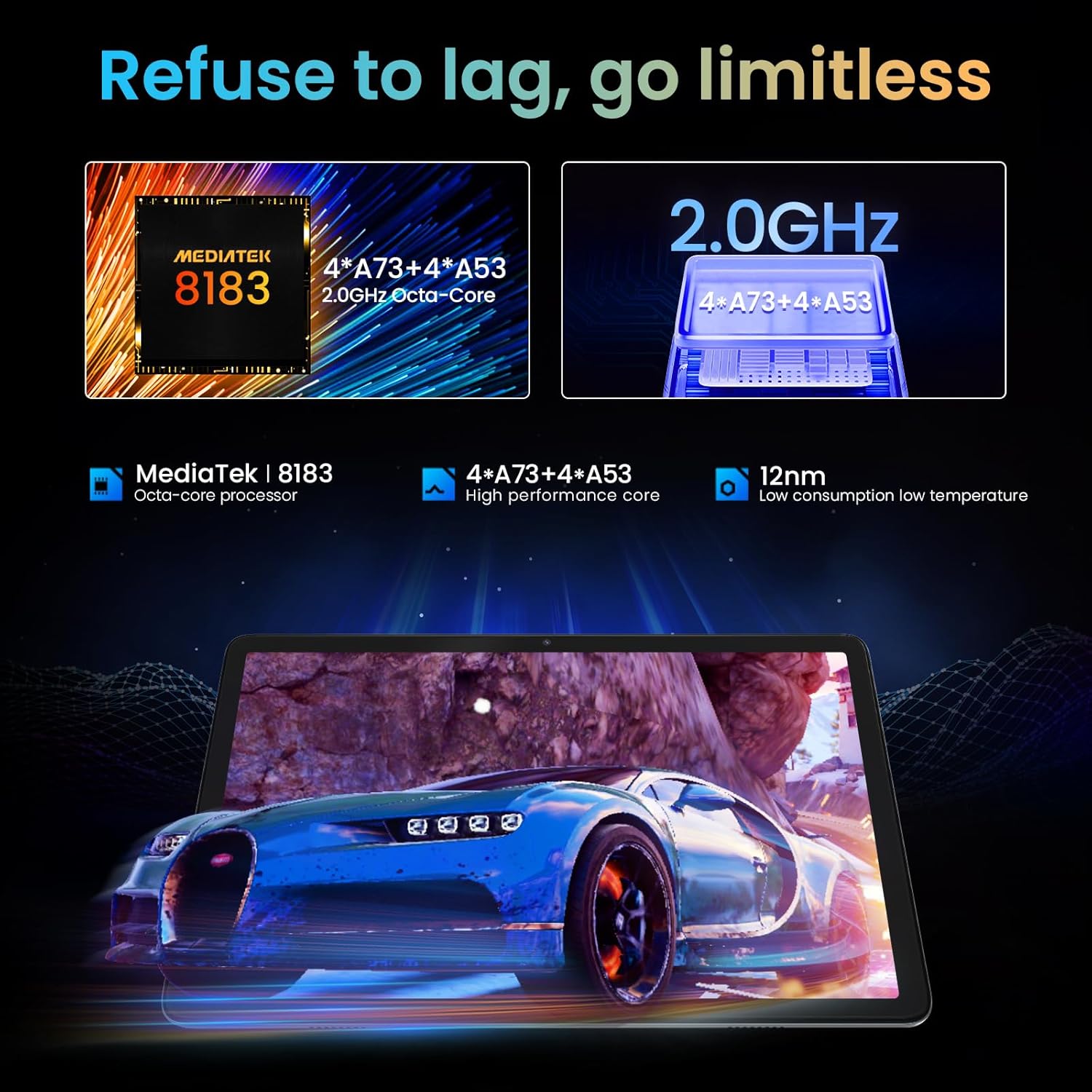
Image: A person watching a high-definition video on the tablet, illustrating its support for Netflix L1 and Widevine L1 for enhanced streaming quality.
7. Onderhoud
7.1 Skoonmaak van die tablet
- Gebruik 'n sagte, pluisvrye lap om die skerm en liggaam van die tablet skoon te maak.
- Vir hardnekkige vlekke, effens dampMaak die lap skoon met water of 'n skermreiniger wat spesifiek vir elektronika ontwerp is.
- Vermy die gebruik van harde chemikalieë, skuurmiddels of aërosolspuitmiddels.
7.2 Batterysorg
- Om die batterylewe te verleng, vermy om die battery gereeld heeltemal te ontlaai.
- Moenie die tablet vir lang tye aan die laaier gekoppel laat nadat dit volledig gelaai is nie.
- Store the tablet in a cool, dry place if not used for a long time.
7.3 Sagteware-opdaterings
Kontroleer gereeld vir sagteware-opdaterings en installeer dit om optimale werkverrigting, sekuriteit en toegang tot nuwe funksies te verseker.
- Gaan na Instellings > Stelsel > Stelselopdatering om te kyk vir beskikbare opdaterings.
- Ensure the tablet has sufficient battery and a stable Wi-Fi connection before performing an update.
8. Probleemoplossing
8.1 Algemene kwessies en oplossings
| Probleem | Moontlike oorsaak | Oplossing |
|---|---|---|
| Tablet skakel nie aan nie. | Lae battery; sagteware-ineenstorting. | Charge the tablet for at least 30 minutes. Press and hold the Power button for 10-15 seconds to force restart. |
| Wi-Fi-verbindingsprobleme. | Verkeerde wagwoord; routerprobleem; tablet Wi-Fi gedeaktiveer. | Ensure correct password. Restart router. Toggle Wi-Fi off/on on tablet. |
| Programme stort vas of vries. | Onvoldoende RAM; toepassingfout; verouderde toepassing. | Maak agtergrondprogramme toe. Maak programkas skoon (Instellings > Programme > [Programnaam] > Berging en kas > Vee kas uit). Update the app from Google Play Store. |
| Stadige werkverrigting. | Te veel programme loop; min stoorplek; verouderde sagteware. | Maak ongebruikte programme toe. Maak stoorplek vry deur onnodige programme te verwyder. files. Check for system updates. |
8.2 Fabrieksterugstelling
Indien probleme voortduur, kan 'n fabrieksherstel dit oplos. Waarskuwing: Dit sal alle data op jou tablet uitvee. Rugsteun belangrike data voordat jy voortgaan.
- Gaan na Instellings > Stelsel > Herstel opsies > Vee alle data uit (fabriekterugstelling).
- Bevestig jou besluit en volg die aanwysings op die skerm.
9. Spesifikasies
| Kenmerk | Detail |
|---|---|
| Model Naam | KST102MF |
| Bedryfstelsel | Android 12 |
| Verwerker | Agtkern (Unisoc, 1.98 GHz) |
| RAM | 6 GB |
| Interne berging | 128 GB |
| Uitbreidbare berging | Up to 1 TB (MicroSD) |
| Vertoon grootte | 10.1 duim |
| Vertoon resolusie | 1280 x 800 Pixels (IPS HD) |
| Grafiese skyfiestel | ARM Mali-G72 MP3 |
| Wi-Fi konneksie | 802.11ac, 802.11b, 802.11g, 802.11n (2.4GHz + 5.0GHz Dual-band) |
| Bluetooth | Bluetooth 5.0 |
| Koppelvlak | USB 3.1 Tipe C |
| Batterylewe | Ongeveer. 10 uur |
| Battery Tipe | Lithium-polymer (included) |
| Afmetings (L x B x H) | 30.48 x 17.78 x 3.56 cm |
| Gewig | 500 gram |
| Spesiale kenmerke | Stereo Speakers, USB OTG Support, Expandable Storage, Face ID, Widevine L1 |
10. Waarborginligting
The kinstone tablet comes with a standard manufacturer's warranty. Please refer to the warranty card included in your product packaging for specific terms, conditions, and duration. Keep your purchase receipt as proof of purchase for warranty claims.
For warranty service, contact kinstone customer support or the retailer from whom you purchased the device.
11. Kliëntediens
If you encounter any issues not covered in this manual or require further assistance, please contact kinstone customer support.
- Vervaardiger: kinstone
- Verkoper: Kinstone-直営店 (Kinstone-Direct Store)
- For the most up-to-date support contact information, please visit the official kinstone website or the seller's page on Amazon.
Ask a question about this manual
Ask about setup, troubleshooting, compatibility, parts, safety, or missing instructions. Manuals+ will review the question and use this page’s manual context to help answer it.