
1. Inleiding
Welcome to the user manual for your Havit Gaming Mouse MS1032. This document provides essential information for setting up, operating, maintaining, and troubleshooting your device. Please read it carefully to ensure optimal performance and longevity of your mouse.
The Havit MS1032 is a gaming mouse featuring six adjustable DPI settings, a comfortable ergonomic design, and a non-slip surface. It is engineered for smooth and quiet operation, aiming to reduce fatigue during extended use.
2. Opstelling
2.1 Pakketinhoud
- Havit Gaming Mouse MS1032
- Gebruikershandleiding
2.2 Stelselvereistes
- Operating System: Windows XP, Windows 7, Linux
- Beskikbare USB-poort
2.3 Die muis koppel
- Unpack the Havit Gaming Mouse MS1032 from its packaging.
- Vind 'n beskikbare USB-poort op jou rekenaar.
- Plaas die USB-aansluiting van die muis in die USB-poort.
- Jou bedryfstelsel behoort outomaties die nodige drywers op te spoor en te installeer. Hierdie proses kan 'n paar oomblikke neem.
- Sodra die installasie voltooi is, is die muis gereed vir gebruik.
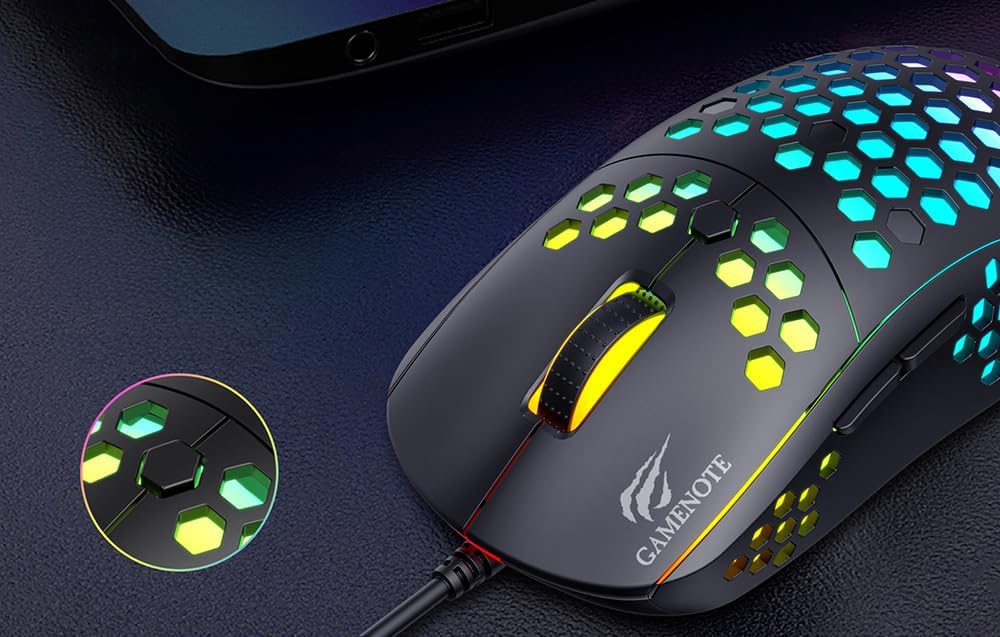
Figure 1: Havit MS1032 Gaming Mouse connected via USB.
3. Bedryfsinstruksies
3.1 Basiese Funksies
- Links klik: Primary action, selection, activation.
- Regs klik: Opens context menus, performs secondary actions.
- Rolwiel: Scrolls up/down documents or web bladsye. Kan ook gedruk word vir middelklik-funksionaliteit.
- Syknoppies: Gewoonlik gebruik vir vorentoe/agtertoe navigasie in web browsers or custom functions in games.
3.2 DPI-aanpassing
The Havit MS1032 features six adjustable DPI (Dots Per Inch) settings, allowing you to change the mouse sensitivity on the fly. This is useful for adapting to different tasks, such as precise aiming in games or fast navigation across multiple monitors.
To adjust the DPI, locate the DPI button, typically positioned behind the scroll wheel. Press this button to cycle through the available DPI settings. The LED lighting on the mouse may change to indicate the current DPI level, providing visual feedback for your selection.
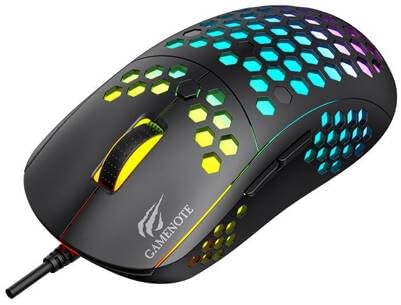
Figure 2: Location of the DPI button (behind the scroll wheel).
4. Onderhoud
4.1 Skoonmaak
Om optimale werkverrigting en voorkoms te handhaaf, maak jou muis gereeld skoon:
- Ontkoppel die muis van jou rekenaar voordat jy dit skoonmaak.
- Gebruik 'n sagte, pluisvrye lap effens dampmet water of 'n sagte, nie-skurende skoonmaakoplossing afgespoel.
- Gently wipe the surface of the mouse.
- For crevices and the optical sensor, use a cotton swab or compressed air to remove dust and debris.
- Avoid using harsh chemicals, abrasive cleaners, or excessive moisture, as these can damage the mouse's finish or internal components.
4.2 Berging
When not in use, store the mouse in a clean, dry environment away from direct sunlight and extreme temperatures to prevent damage.
4.3 Algemene sorg
- Vermy om die muis te laat val of dit aan harde impakte bloot te stel.
- Do not attempt to disassemble the mouse, as this will void the warranty and may cause irreparable damage.
- Keep the mouse away from liquids to prevent electrical damage.
5. Probleemoplossing
If you encounter issues with your Havit Gaming Mouse MS1032, please refer to the following common solutions:
5.1 Muis reageer nie
- Gaan USB-verbinding na: Maak seker dat die USB-kabel stewig in 'n werkende USB-poort op jou rekenaar ingeprop is. Probeer 'n ander USB-poort.
- Herbegin rekenaar: Sometimes a simple computer restart can resolve connectivity issues.
- Toets op 'n ander rekenaar: Indien moontlik, toets die muis op 'n ander rekenaar om te bepaal of die probleem met die muis of jou rekenaar se opstelling is.
5.2 Wyserbeweging is wisselvallig of springerig
- Maak sensor skoon: Ensure the optical sensor on the bottom of the mouse is clean and free of dust or debris.
- Kontroleer Oppervlak: Use the mouse on a clean, non-reflective, and uniform surface (e.g., a mouse pad). Avoid glass or highly reflective surfaces.
- Pas DPI aan: If the cursor is too fast or too slow, adjust the DPI setting using the DPI button.
5.3 Knoppies Werk Nie
- Kyk vir obstruksies: Maak seker dat daar geen puin onder die knope vassit nie.
- Sagtewarekonflik: If you have custom mouse software installed, try uninstalling it temporarily to see if it resolves the issue.
5.4 LED-ligte werk nie
- Kontroleer verbinding: Ensure the mouse is properly connected to the computer.
- Krag siklus: Disconnect and reconnect the mouse to reset its power.
6. Spesifikasies

Figure 3: Havit MS1032 Gaming Mouse design overview.
| Kenmerk | Detail |
|---|---|
| Model | MS1032 |
| Handelsmerk | Havit |
| Afmetings | 15 x 8 x 5.2 cm |
| Gewig | 200g |
| DPI-instellings | 6 verstelbare vlakke |
| Bedryfstelsels | Linux, Windows 7, Windows XP |
| Konnektiwiteit | Bedraad USB |
| Batterye benodig | Nee |
7. Waarborg en Ondersteuning
For detailed warranty information and technical support, please refer to the official Havit website or contact your local retailer where the product was purchased. It is recommended to keep your purchase receipt as proof of purchase for any warranty claims.
Vervaardiger: Havit
Modelnommer: MS1032