
1. Produk verbyview
The GIGABYTE G24F 2 is a 23.8-inch gaming monitor designed for an immersive visual experience. It features a Super Speed IPS panel, Full HD (1920 x 1080) resolution, and a high refresh rate for smooth gameplay.

Figuur 1.1: Voorkant view of the GIGABYTE G24F 2 gaming monitor.
Sleutel kenmerke:
- Paneelgrootte: 23.8-inch SS IPS display
- Resolusie: 1920 1080 x XNUMX XNUMX (FHD)
- Reaksie Tyd: 1 ms MPRT
- Herlaaitempo: 165Hz (Oorklokbaar tot 180Hz)
- Kleurversadiging: 95% DCI-P3, 125% sRGB
- Helderheid: 300 cd / m2 (TYP)
- Kontrasverhouding: 1100:1
- Verbinding: 2 x HDMI 2.0, 1 x DisplayPort 1.2 (HDR capable), 2 x USB 3.2 Gen 1 Downstream, 1 x USB 3.2 Gen 1 Upstream, 1 x Earphone Jack
- Spesiale kenmerke: OSD Sidekick, Aim Stabilizer, Black Equalizer, Dashboard, Crosshair, Timer, Counter, Auto-Update, Smart OD, HDR Ready, Flicker-free, Kensington lock
2. Veiligheidsinligting
Lees asseblief alle instruksies sorgvuldig deur voordat u die monitor gebruik. Bewaar hierdie handleiding vir toekomstige verwysing.
- Moenie die monitor aan reën of vog blootstel om brand- of skokgevare te vermy.
- Moenie die monitor oopmaak nie casing. Daar is geen onderdele binne wat deur die gebruiker onderhou kan word nie. Verwys alle onderhoud na gekwalifiseerde personeel.
- Plaas die monitor op 'n stabiele, plat oppervlak om te verhoed dat dit val.
- Verseker behoorlike ventilasie rondom die monitor. Moenie ventilasie-openinge blokkeer nie.
- Gebruik slegs die kragadapter en kabels wat deur die vervaardiger verskaf word.
- Ontkoppel die monitor van die kragtoevoer tydens weerligstorms of wanneer dit vir lang tye nie gebruik word nie.
- Clean the screen with a soft, lint-free cloth. Avoid using liquid cleaners directly on the screen.
3. Pakketinhoud
Verifieer dat alle items in jou pakket teenwoordig is:
- GIGABYTE G24F 2 Monitor
- Monitorstaander (basis en nek)
- Kragkabel
- HDMI kabel
- USB Cable (Upstream)
- Vinnige aanvangsgids (QSG)
- Waarborgkaart

Figuur 3.1: Agter view of the monitor, illustrating the stand attachment area.
4. Opstelling
4.1 Montering van die Staanplek
- Verwyder die monitor- en staanderkomponente versigtig uit die verpakking.
- Heg die staander se nek aan die monitorpaneel vas. Maak seker dat dit stewig in plek klik of met skroewe vasgemaak is indien voorsien.
- Attach the stand base to the stand neck. Tighten the thumb screw or screws at the bottom of the base.
- Plaas die gemonteerde monitor op 'n stabiele, plat oppervlak.
4.2 Koppel die monitor
Connect the monitor to your computer and other devices using the appropriate cables.

Figure 4.1: Monitor connectivity ports.
- Kragverbinding: Koppel die kragkabel aan die monitor se kragtoevoer en dan aan 'n kragaansluiting.
- Videoverbinding:
- For optimal performance, use the DisplayPort 1.2 cable to connect to your computer's graphics card.
- Alternatively, use one of the two HDMI 2.0 ports.
- USB Upstream Connection: Connect the provided USB 3.2 Gen 1 Upstream cable from your computer to the monitor's upstream USB port to enable the monitor's downstream USB ports.
- USB Downstream Connections: Connect USB devices (e.g., keyboard, mouse) to the monitor's two USB 3.2 Gen 1 Downstream ports.
- Oudio-uitvoer: Koppel oorfone of eksterne luidsprekers aan die oorfone-aansluiting.
5. Bedien die monitor
5.1 Krag aan/af
Press the power button, usually located on the bottom or rear of the monitor, to turn the monitor on or off. The power indicator light will show the monitor's status.
5.2 Skermvertoning (OSD) Kieslys
The OSD menu allows you to adjust various monitor settings. Navigate the OSD using the joystick or buttons typically found on the rear of the monitor.

Figure 5.1: OSD Sidekick software for convenient monitor control.
For advanced control, install the OSD Sidekick software on your PC. This utility allows you to adjust monitor settings directly from your desktop.
5.3 Speletjie-kenmerke
The GIGABYTE G24F 2 includes several features to enhance your gaming experience:
- Aim Stabilizer: Reduces motion blur and improves visual clarity in fast-paced games.
- Swart gelykmaker: Enhances visibility in dark areas of the game without overexposing bright areas.

Figure 5.2: Black Equalizer in action.
- Dashboard: Displays real-time hardware information (e.g., CPU/GPU temperature, usage) directly on the screen.

Figure 5.3: Dashboard displaying system metrics.
- Kruishaar: Provides a customizable on-screen crosshair to assist with aiming.

Figure 5.4: On-screen Crosshair.
- Timer/Counter: On-screen timers and counters for in-game tracking.
- Smart OD: Optimizes overdrive settings for the best response time.
- Outo-opdatering: Ensures the monitor's firmware and OSD Sidekick software are up-to-date.
5.4 Vertooninstellings
- Herlaaitempo: The monitor supports up to 165Hz, with an overclock option to 180Hz, for fluid motion.
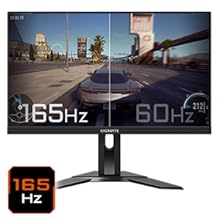
Figure 5.5: Visual comparison of 165Hz vs. 60Hz refresh rate.
- Reaksie Tyd: Enjoy a 1ms MPRT (Moving Picture Response Time) for minimal ghosting.
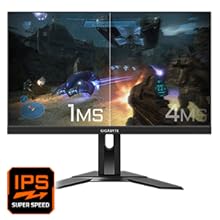
Figure 5.6: Visual comparison of 1ms vs. 4ms response time.
- Kleurspektrum: The monitor covers 95% DCI-P3 and 125% sRGB for vibrant and accurate colors.
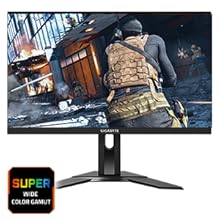
Figure 5.7: Wide color gamut for rich visuals.
- Lae blou lig: Reduces blue light emissions to protect your eyes during extended use.
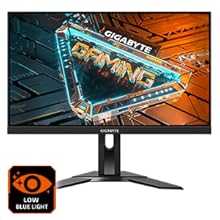
Figure 5.8: Low Blue Light feature for reduced eye strain.
- Flikkervry: Elimineer skermflikkering vir 'n meer gemaklike viewondervinding.

Figure 5.9: Flicker-Free technology for comfortable viewing.
5.5 Product Feature Video
Video 5.1: 'n Oorview of the GIGABYTE G24F 2 monitor's features and specifications.
6. Onderhoud
Behoorlike onderhoud verseker die lang lewensduur van jou monitor.
- Skoonmaak van die skerm: Vee die skerm liggies af met 'n sagte, droë, pluisvrye lap. Vir hardnekkige merke, vee liggiesampMaak die lap skoon met water of 'n gespesialiseerde skermreiniger (dien op die lap aan, nie direk op die skerm nie).
- Maak die C skoonasing: Gebruik 'n sagte, droë lap om die monitor af te veeasing. Vermy skuurmiddels.
- Ventilasie: Ensure the ventilation openings on the monitor are clear of dust and obstructions.
- Skakel af: Turn off and unplug the monitor when not in use for extended periods.
7. Probleemoplossing
If you encounter issues with your monitor, refer to the following table for common problems and solutions.
| Probleem | Moontlike oorsaak | Oplossing |
|---|---|---|
| Geen beeld op die skerm nie | Power cable not connected; Video cable not connected; Incorrect input source selected | Kontroleer krag- en videokabelverbindings; Kies die korrekte invoerbron via OSD. |
| Beeld is vaag of verwring | Verkeerde resolusie; Los videokabel | Stel skermresolusie op 1920x1080; Maak seker dat die videokabel stewig gekoppel is. |
| Geen klank van oorfone/luidsprekers nie | Audio cable not connected; Volume too low; Incorrect audio output selected on PC | Check audio cable connection; Adjust volume; Select monitor as audio output on PC. |
| USB-poorte werk nie | USB upstream cable not connected | Connect the USB 3.2 Gen 1 Upstream cable from the monitor to your PC. |
| Flikkerende skerm | Refresh rate issue; Faulty cable | Ensure refresh rate is set correctly; Try a different video cable. |
8. Spesifikasies
Detailed technical specifications for the GIGABYTE G24F 2 monitor.

Figuur 8.1: Monitorafmetings.
| Kenmerk | Detail |
|---|---|
| Handelsmerk | GIGABYTE |
| Model Naam | G24F 2 |
| Modelnommer | 9DG24F2-00-1ABIN |
| Skerm grootte | 23.8 duim |
| Resolusie | 1920 x 1080 piksels (FHD 1080p) |
| Aspekverhouding | 16:9 |
| Tipe vertoon | LCD (SS IPS Panel) |
| Herlaaitempo | 165 Hz (180Hz OC) |
| Reaksie Tyd | 1 Milliseconds (MPRT) |
| Helderheid | 300 candela_per_square_meter (TYP) |
| Kontrasverhouding | 1100:1 |
| Kleurversadiging | 95% DCI-P3, 125% sRGB |
| Viewing Hoek | 178 grade |
| Konnektiwiteit | 2 x HDMI 2.0, 1 x DisplayPort 1.2, 2 x USB 3.2 Gen 1 Downstream, 1 x USB 3.2 Gen 1 Upstream, 1 x Earphone Jack |
| Aanpasbare sinkronisering | FreeSync Premium |
| Kragverbruik | 17.5 Watt |
| Item gewig | 3.2 kilogram |
| Itemafmetings (D x B x H) | 5.3D x 54.1B x 32.6H Sentimeter |
| Montage tipe | Muurmontering |
| Produk Kenmerke | Flicker-Free, Height Adjustment, High Dynamic Range, Tilt Adjustment |
9. Waarborg en Ondersteuning
The GIGABYTE G24F 2 monitor comes with a 3 jaar waarborg van die vervaardiger.
For technical support, warranty claims, or further inquiries, please contact GIGABYTE customer service:
- Vervaardiger: GIGABYTE Technology (India) Pvt Ltd
- Adres: B-808, Naman Midtown, Elphinstone Road, Mumbai – 400013 – INDIA
- Telefoon: +91-22-40633222
Bewaar asseblief u aankoopbewys vir waarborgdiens.