
Inleiding
This manual provides essential information for setting up, operating, maintaining, and troubleshooting your CUPEISI 7-inch Android 14 Tablet. Please read this guide thoroughly to ensure proper use and to maximize your tablet's performance and longevity.
Wat is in die boks
Verifieer dat alle items teenwoordig is wanneer u die boks uitpak:
- CUPEISI 7-inch Android 14 Tablet
- Tipe C-kabel
- Gebruikershandleiding (hierdie dokument)
Produk verbyview
The CUPEISI Q2S tablet features a 7-inch HD IPS display, powered by a 1.6GHz Quad-core processor and running Android 14. It includes 8GB RAM (4GB physical + 4GB virtual) and 32GB internal storage, expandable up to 1TB via microSD card. The tablet is equipped with dual cameras and supports Wi-Fi and Bluetooth connectivity.
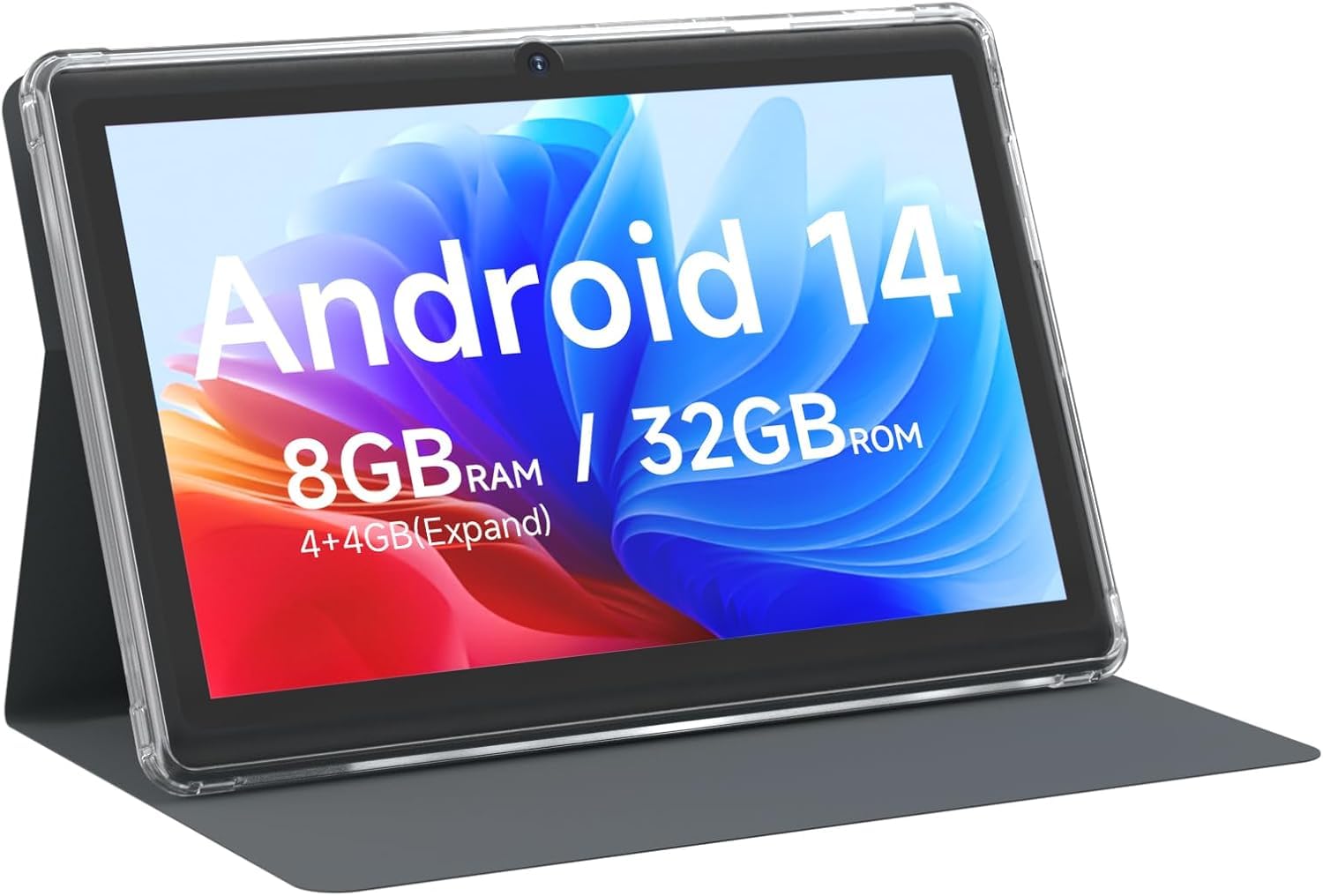
CUPEISI 7-inch Android 14 Tablet, front view.

verbyview of CUPEISI 7-inch Android 14 Tablet features including OS, CPU, RAM, ROM, Screen, Camera, Battery, and WiFi.
Opstelling
1. Laai die tablet
Before first use, fully charge the tablet. Connect the provided Type-C cable to the tablet's charging port and the other end to a compatible USB power adapter (not included) or a computer's USB port. The battery indicator on the screen will show charging status.
2. Aanskakeling en aanvanklike opstelling
- Hou die aan / uit -knoppie ingedruk totdat die skerm brand.
- Follow the on-screen prompts to select your language, region, and other initial settings.
3. Koppel aan Wi-Fi
- Gaan na Instellings > Netwerk en internet > Wi-Fi.
- Wi-Fi wissel On.
- Kies jou verlangde Wi-Fi-netwerk uit die lys.
- Voer die netwerkwagwoord in indien gevra, en tik dan Koppel.
4. Google Account Setup
A Google account is required to download apps from Google Play Store and access Google services. You can sign in with an existing account or create a new one during the initial setup or later via Instellings > Rekeninge.
Bedien jou tablet
1. Basic Navigation and Gestures
- Tik: Kies 'n item of maak 'n toepassing oop.
- Swiep: Blaai deur skerms of lyste.
- Knyp: Zoem in of uit op beelde en web bladsye.
- Lang pers: Kry toegang tot kontekstuele spyskaarte of skuif ikone.
2. Bestuur van Toepassings

Tablet screen showing various application icons, illustrating the 8GB RAM and 32GB ROM storage capacity.
- Installeer toepassings: Open the Google Play Store app, search for your desired app, and tap Installeer.
- Deïnstalleer toepassings: Long-press an app icon on the home screen or app drawer, then drag it to the Deïnstalleer opsie, of gaan na Instellings > Toepassings > select the app > Deïnstalleer.
3. Bergingbestuur
The tablet has 32GB of internal storage. You can expand this by inserting a microSD card (up to 1TB) into the designated slot. To manage storage, go to Instellings > Berging.
4. Gebruik die kamera
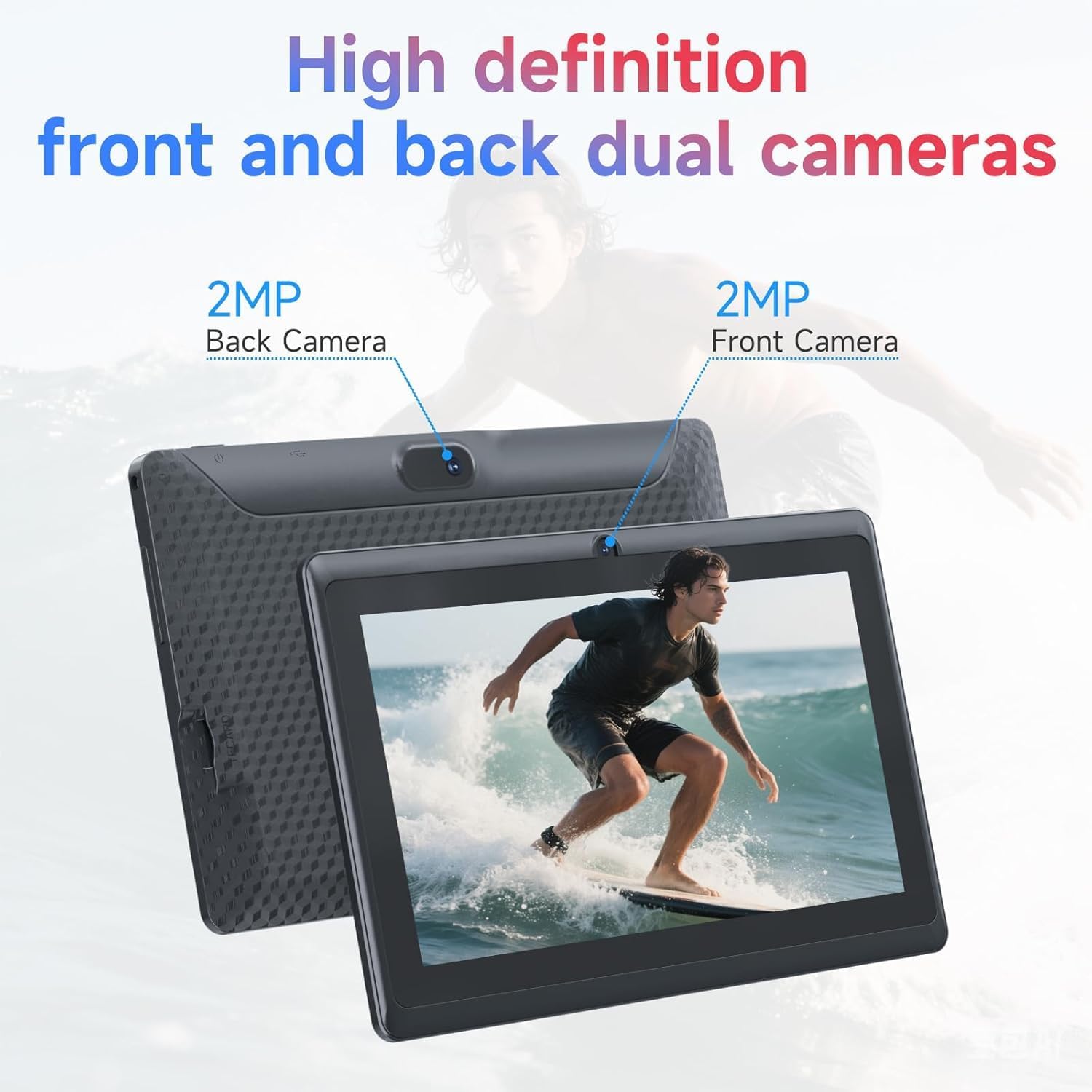
Illustration of the tablet's dual cameras, featuring a 5MP front camera and an 8MP rear camera.
The tablet features a 5MP front camera and an 8MP rear camera. Open the Kamera app to take photos or record videos. Tap the camera icon to switch between front and rear cameras.
5. Connectivity (Bluetooth)
Om Bluetooth-toestelle te koppel:
- Gaan na Instellings > Gekoppelde toestelle > Bluetooth.
- Wissel Bluetooth On.
- Kies Koppel nuwe toestel and choose your device from the list.
6. Eye Protection Mode

The 7-inch IPS HD screen of the tablet displaying a colorful image, highlighting its 1024x600 resolution.
The tablet's display is designed to reduce blue light emission for eye comfort. You can enable or adjust eye protection settings in Instellings > Vertoon.

A user engaged in a video conference on the tablet, demonstrating its suitability for work and study.
Onderhoud
1. Skoonmaak en versorging
- Gebruik 'n sagte, pluisvrye lap om die skerm en liggaam van die tablet skoon te maak.
- Vermy die gebruik van harde chemikalieë of skuurmateriaal.
- Keep the tablet away from extreme temperatures, direct sunlight, and moisture.

An image depicting the tablet's drop protection feature, showing it withstands impacts.
2. Sagteware-opdaterings
Kontroleer gereeld vir sagteware-opdaterings en installeer dit om optimale werkverrigting en sekuriteit te verseker. Gaan na Instellings > Stelsel > Stelselopdatering.
3. Battery-optimalisering
- To prolong battery life, reduce screen brightness, disable Wi-Fi/Bluetooth when not in use, and close background apps.
- Vermy om die battery gereeld heeltemal te ontlaai.
Probleemoplossing
| Kwessie | Moontlike Oplossing |
|---|---|
| Tablet skakel nie aan nie | Ensure the tablet is charged. Connect to a power source and wait a few minutes before attempting to power on again. |
| Wi-Fi-verbindingskwessies | Check if Wi-Fi is enabled in settings. Restart your router and the tablet. Ensure you have entered the correct password. |
| Stadige prestasie | Close unnecessary background applications. Clear cache from apps in Settings > Apps. Consider performing a factory reset if issues persist (back up data first). |
| Programme wat vasval of vries | Update the app to the latest version. Clear the app's cache and data in Settings > Apps. Reinstall the app. |
Spesifikasies
| Handelsmerk | CUPEISI |
| Modelnommer | Q2S |
| Bedryfstelsel | Android 14 |
| Verwerker | 1.6 GHz Quad-core (ARM Cortex) |
| RAM | 8 GB (4GB fixed + 4GB virtual) |
| Interne berging | 32 GB |
| Uitbreidbare berging | Tot 1 TB via microSD-kaart |
| Skerm grootte | 7 duim |
| Vertoon resolusie | 1024 x 600 Pixels IPS HD |
| Voorste kamera | 5 MP |
| Agterste kamera | 8 MP |
| Battery kapasiteit | 3000 mAh |
| Gemiddelde batterylewe | 6 ure |
| Konnektiwiteit | Wi-Fi (802.11g), Bluetooth |
| Koppelvlak | USB Tipe-C |
| Afmetings (L x B x D) | 7.5" x 4.3" x 0.3" |
| Item gewig | 0.38 kilogram |
Waarborg inligting
The CUPEISI Q2S Tablet comes with a 1-year limited warranty from the date of purchase. This warranty covers manufacturing defects and workmanship under normal use. It does not cover damage caused by misuse, accidents, unauthorized modifications, or external factors. Please retain your proof of purchase for warranty claims.
Kliënte ondersteuning
For further assistance, technical support, or warranty inquiries, please refer to the contact information provided with your product packaging or visit the official CUPEISI website. When contacting support, please have your tablet model number (Q2S) and proof of purchase ready.