
Unitech MS852-AUCB00-SG
Unitech MS852 Rugged 2D Imager Streepkodeskandeerder Gebruikershandleiding
Model: MS852-AUCB00-SG | Brand: Unitech
Inleiding
This manual provides comprehensive instructions for the setup, operation, and maintenance of the Unitech MS852 Rugged 2D Imager Barcode Scanner. The MS852 is designed for efficient and reliable barcode scanning in various environments, including retail, hospitality, and general purpose applications. Its intuitive design and robust construction ensure ease of use and long-term durability.
Sleutel kenmerke
- Liggewig ontwerp: Weighs only 147g without the cable, ensuring comfortable extended use.
- Versatile Barcode Support: Capable of scanning most 1D and 2D barcodes, including those on mobile screens, and even damaged or poorly printed codes.
- Durable Trigger: Features a long lifecycle trigger designed for up to 10,000,000 activations, ensuring continuous productivity.
- Outomatiese moduswisseling: Automatically switches between trigger mode and presentation mode when used with its stand, enhancing user experience.
- Ultra-Rugged Construction: IP42 rated for protection against dust and moisture, and tested to withstand 2.1-meter drops to concrete.
Opstelling
1. Aanvanklike inspeksie
Upon unpacking, inspect the scanner and all accessories for any signs of damage. Ensure all components listed in the packaging are present.

Figuur 1: Voor-regs view of the Unitech MS852 Barcode Scanner.
2. Die skandeerder koppel
The MS852 scanner is a plug-and-play device. Connect the USB cable from the scanner to an available USB port on your computer or point-of-sale system. No additional driver installation is typically required.
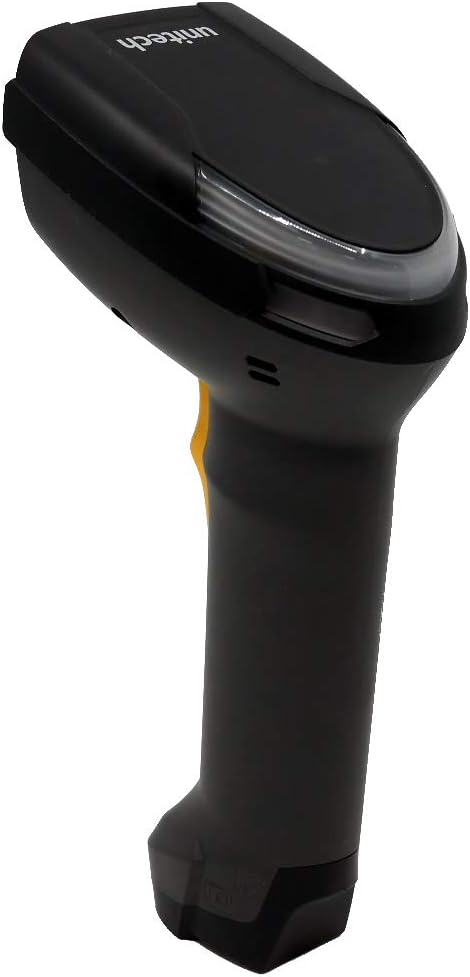
Figuur 2: Kant view of the Unitech MS852 Barcode Scanner, showing its ergonomic design.
3. Using the Scanner Stand (Optional)
If your package includes a scanner stand, assemble it according to the instructions provided with the stand. Placing the scanner in the stand will automatically switch it to presentation mode, allowing for hands-free scanning.
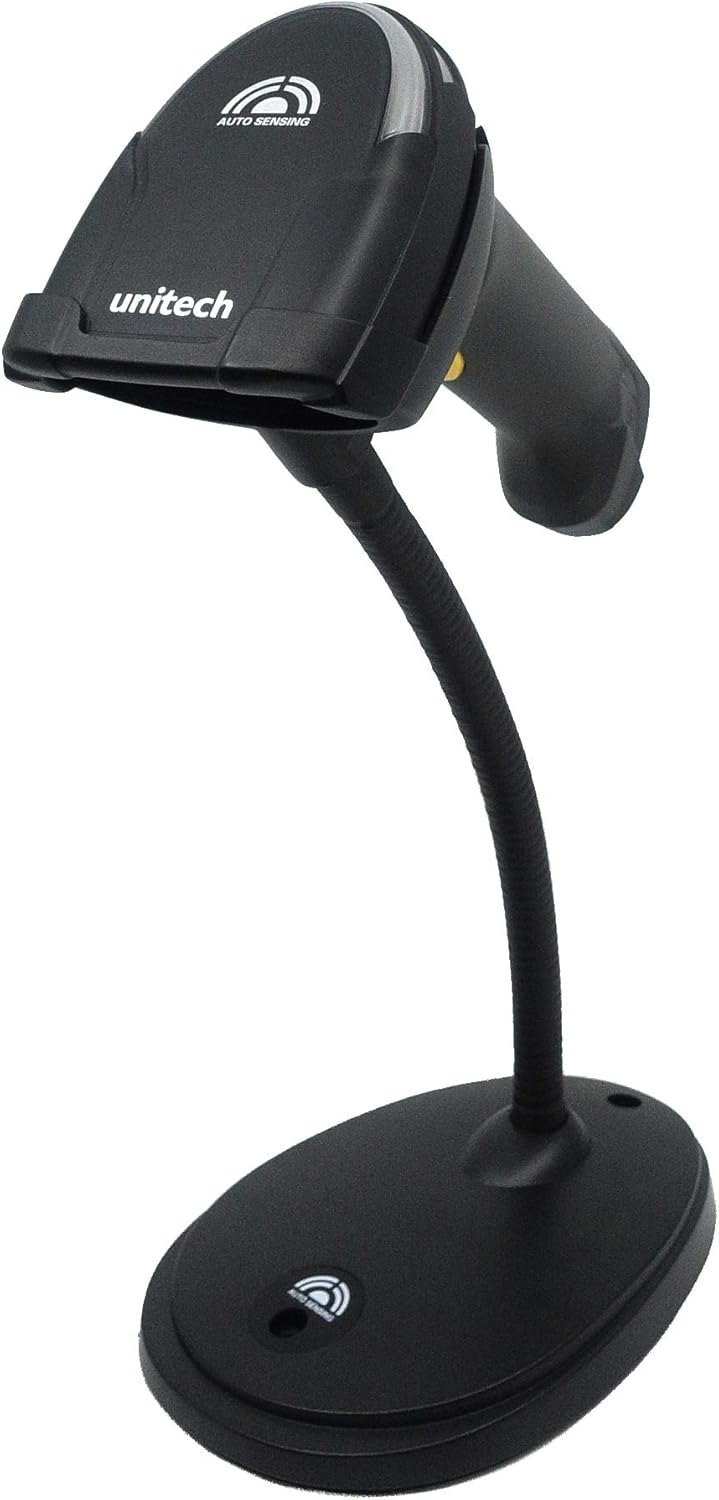
Figure 3: The Unitech MS852 Barcode Scanner mounted on its flexible stand, ready for presentation mode.

Figure 4: Illustration of the Unitech MS852 Barcode Scanner's versatile mounting options, including wall mount and desktop stand configurations.
Bedryfsinstruksies
1. Basiese skandering
To scan a barcode, point the scanner's window at the barcode and press the trigger button. A successful scan will be indicated by an audible beep and a visual LED indicator.
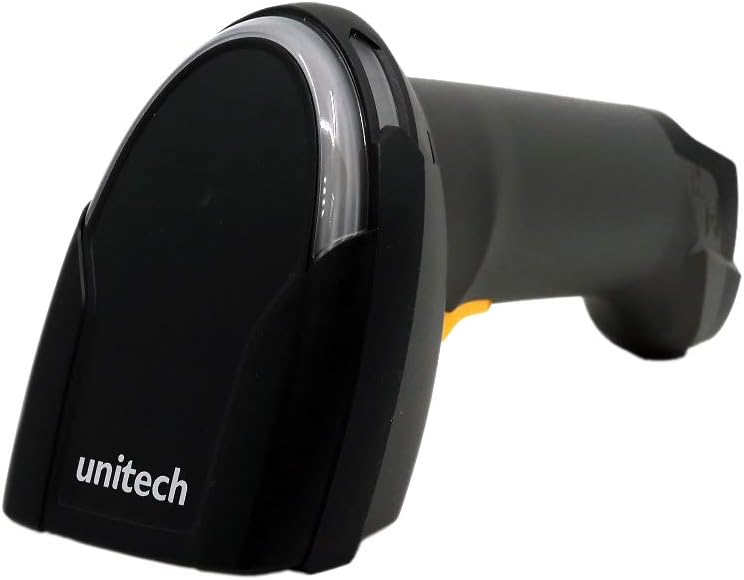
Figuur 5: Voorkant view of the Unitech MS852 Barcode Scanner, highlighting the scan window.
2. Skandeermodusse
- Snellermodus: The scanner activates the scan engine only when the trigger button is pressed. This is ideal for targeted scanning.
- Aanbiedingsmodus: When placed in its stand, the scanner automatically detects objects in its field of view and scans them without requiring a trigger press. This mode is suitable for high-volume, hands-free scanning.
3. Feedback Indicators
- beeper: A loud beeper provides audible confirmation of successful scans.
- LED-aanwyser: A bright LED indicator provides visual confirmation of successful scans, especially useful in noisy environments.
Onderhoud
1. Skoonmaak
To maintain optimal performance, regularly clean the scanner's window and exterior. Use a soft, lint-free cloth lightly dampened with water or a mild, non-abrasive cleaning solution. Do not use harsh chemicals or abrasive materials.
2. Berging
Store the scanner in a cool, dry place away from direct sunlight and extreme temperatures. When not in use for extended periods, disconnect it from the power source.
Probleemoplossing
| Probleem | Moontlike oorsaak | Oplossing |
|---|---|---|
| Scanner not responding | Loose USB connection; Incorrect USB port; Computer issue. | Ensure USB cable is securely connected. Try a different USB port. Restart the computer. |
| Kan nie strepieskodes skandeer nie | Barcode damaged/poorly printed; Incorrect symbology enabled; Scanner window dirty; Insufficient lighting. | Try scanning a known good barcode. Refer to the programming guide for symbology settings. Clean the scanner window. Ensure adequate lighting. |
| No beep/LED feedback | Feedback settings disabled; Hardware malfunction. | Check scanner programming guide for feedback settings. If issue persists, contact support. |
Spesifikasies
| Kenmerk | Detail |
|---|---|
| Modelnommer | MS852-AUCB00-SG |
| Produk afmetings | 3.4 x 2.8 x 6.9 duim |
| Item gewig | 10.6 onse (ongeveer 300 g) |
| Verbindingstegnologie | USB Cable (Wired) |
| Kragbron | Elektries met koord, USB-kabel |
| Versoenbare toestelle | Laptop, Smartphone, Tablet, iPhone (via USB OTG if supported) |
| Drop Spesifikasie | 2.1 meters to concrete |
| IP-gradering | IP42 (Protection against solid objects >1mm and splashing water) |
| Trigger Lifecycle | Tot 10,000,000 keer |
| Vervaardiger | Unitech |
Waarborg inligting
Unitech products are manufactured to the highest quality standards. For specific warranty terms and conditions applicable to your MS852 scanner, please refer to the warranty card included with your product or visit the official Unitech webwebwerf. Bewaar u bewys van aankoop vir waarborgeise.
Ondersteuning
For technical assistance, product inquiries, or service requests, please contact Unitech customer support. Contact information can typically be found on the Unitech official webwebwerf of in die dokumentasie wat saam met u produk verskaf word.
Aanlyn hulpbronne: Visit the Unitech website for FAQs, driver downloads, and additional product information.
Ask a question about this manual
Ask about setup, troubleshooting, compatibility, parts, safety, or missing instructions. Manuals+ will review the question and use this page’s manual context to help answer it.