
Inleiding
This manual provides comprehensive instructions for the FUWANG Magnetic Detachable 7-Color Backlit Folio Cover Keyboard Case. This accessory is designed to enhance your iPad experience by offering protection, versatile viewing angles, and a comfortable typing solution. Please read this manual thoroughly before using the product to ensure proper operation and longevity.
Verenigbaarheid
Hierdie sleutelbordkas is spesifiek ontwerp vir die volgende iPad-modelle:
- iPad (A16) 11th Generation 11-inch 2025 (Model Numbers: A3354, A3355, A3356)
- iPad 10th Generation 10.9 inch 2022 (Model Numbers: A2696, A2757, A2777, A3162)
To confirm your iPad model number, please check the back of your tablet for the 'AXXXX' designation. This case is not compatible with any other iPad models.
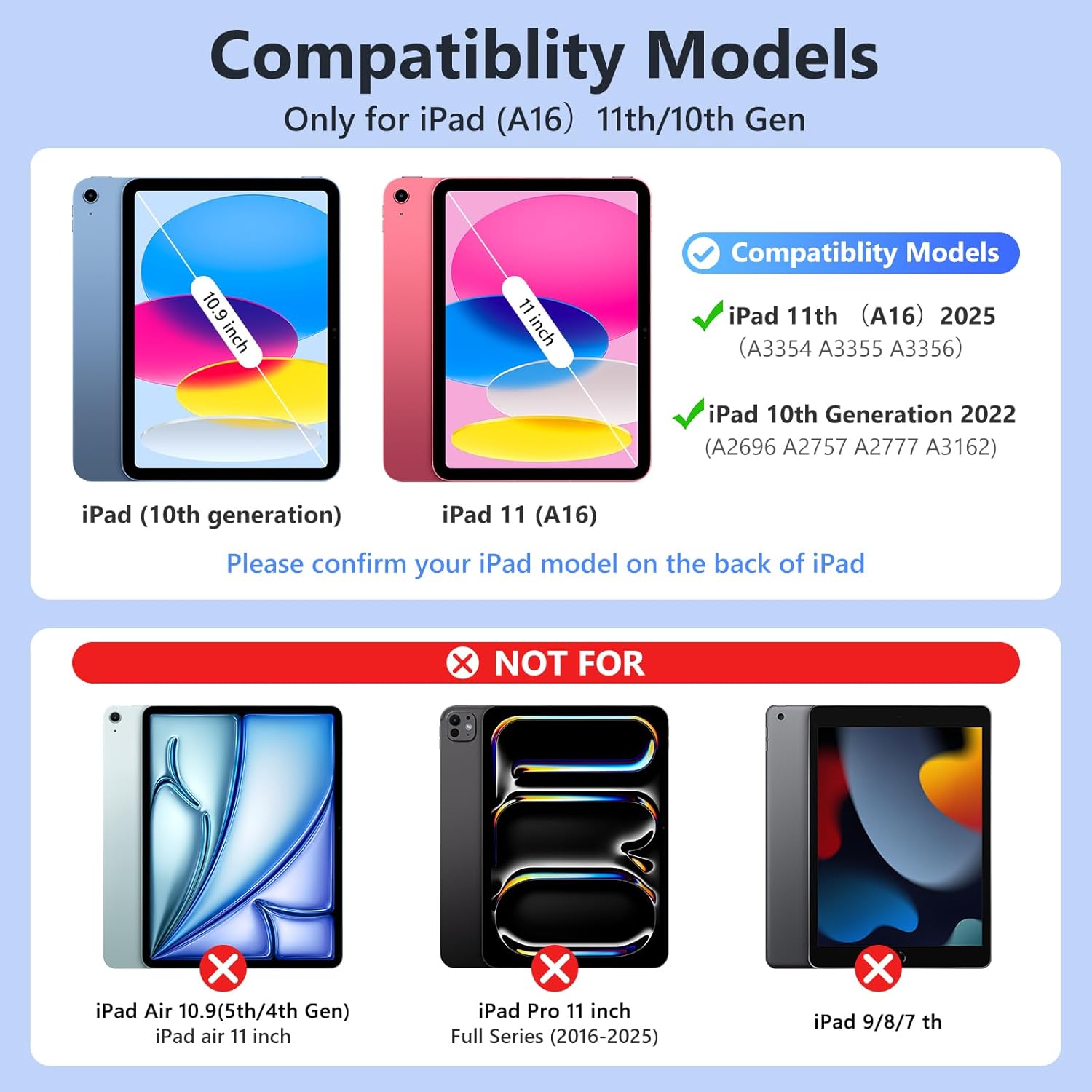
Image: Compatibility chart illustrating compatible iPad models (10th and 11th generation) and incompatible models (iPad Air, iPad Pro, older iPads).
Wat is in die boks
Wanneer u u pakkie oopmaak, maak asseblief seker dat al die volgende items teenwoordig is:
- 1 x FUWANG Keyboard Case for iPad (A16) 11th/10th Generation
- 1 x Wireless Backlit Keyboard
- 1 x Tipe-C-laaikabel
- 1 x Gebruikershandleiding (hierdie dokument)
Note: The iPad tablet and stylus are not included with this product.

Image: Visual representation of the package contents, including the keyboard case, wireless keyboard, Type-C charging cable, and user manual.
Opstel instruksies
1. Installeer jou iPad in die omhulsel
- Gently align your iPad with the protective shell of the case.
- Press the iPad firmly into the case, ensuring all corners and edges are securely fitted. The precise cutouts should align with your iPad's camera, speakers, and buttons.

Image: Step-by-step visual guide for inserting the iPad into the case.
2. Laai die sleutelbord
Before initial use, fully charge the wireless keyboard. Connect the provided Type-C charging cable to the keyboard's charging port and a suitable USB power source. The Charge LED (Red) will light up during charging and turn off when fully charged. A full charge typically takes 2-3 hours.

Beeld: Gedetailleerd view of the Type-C charging port on the keyboard.
3. Pairing the Keyboard via Bluetooth
- Turn on the keyboard by sliding the 'ON/OFF' switch to the 'ON' position. The Power LED (Blue) will light up for 2 seconds.
- Press the 'CONNECT' button on the keyboard. The BT LED (Blue) will start flashing, indicating it's in pairing mode.
- On your iPad, go to 'Settings' > 'Bluetooth' and turn Bluetooth 'On'.
- Look for 'Bluetooth Keyboard' in the 'MY DEVICES' list and tap to connect. The BT LED will turn off automatically once paired.

Image: Visual guide for Bluetooth pairing process, including keyboard buttons and iPad settings screen.
Video: Demonstrates the unboxing, iPad installation, and Bluetooth pairing process for the FUWANG keyboard case.
Bedryfsinstruksies
1. Aanpassing Viewing Hoeke
The case features multiple grooves to securely hold your iPad at various viewing angles, allowing for comfortable typing, drawing, or media consumption. Simply adjust the iPad's position within the grooves to find your preferred angle.

Image: Illustrates various usage modes: drawing, work, typing, and reading, showcasing the case's flexibility.
2. Gebruik van die agterbeligte sleutelbord
The keyboard features 7 backlight colors and 3 brightness levels. To cycle through the backlight colors, press the Gloeilamp key. To adjust brightness, press the Son key (often combined with the Light Bulb key or a dedicated brightness key).

Image: User interacting with the backlit keyboard, highlighting the 7-color and 3-level brightness features.
Video: Demonstrates the various backlight colors and brightness settings of the keyboard.
3. Keyboard Shortcut Keys
The keyboard includes a row of dedicated shortcut keys for increased productivity. These keys provide quick access to common functions such as volume control, media playback, and screen lock.

Beeld: Gedetailleerd view of the keyboard's shortcut key row, highlighting their functions.
4. Outomatiese Slaap/Wakker-funksie
The case supports the iPad's auto sleep/wake function, which helps conserve battery life. When you close the case, your iPad will automatically go to sleep, and when you open it, the iPad will wake up. For optimal performance of this feature, it is recommended to remove the wireless Bluetooth keyboard from the case, as the keyboard's internal magnets may interfere with the case's magnetic attraction to the iPad.

Image: Illustration of the auto sleep/wake feature, showing the iPad entering sleep mode when the case is closed and waking when opened.
Onderhoud
1. Cleaning the Case and Keyboard
- Geval: Wipe the PU leather exterior with a soft, damp lap. Vermy harde chemikalieë of skuurmiddels.
- Sleutelbord: Use a soft, dry cloth to clean the keys. For stubborn dirt, a slightly damp cloth can be used, ensuring no moisture enters the keyboard. Do not immerse the keyboard in water.
2. Berging
When not in use for extended periods, store the keyboard case and keyboard in a cool, dry place. Ensure the keyboard is turned off to preserve battery life.
3. Batteryversorging
To maintain optimal battery health, avoid fully discharging the keyboard battery frequently. Recharge the keyboard when the battery level is low.
Probleemoplossing
Sleutelbord Koppel Nie Via Bluetooth Nie
- Check Keyboard Power: Maak seker dat die sleutelbord aangeskakel is en dat die battery voldoende gelaai is.
- iPad Bluetooth: Verifieer dat Bluetooth op jou iPad geaktiveer is (Instellings > Bluetooth).
- Vergeet toestel: If the keyboard was previously paired but is not connecting, go to your iPad's Bluetooth settings, tap the 'i' icon next to 'Bluetooth Keyboard', and select 'Forget This Device'. Then, attempt to pair again following the 'Pairing the Keyboard via Bluetooth' steps.
- Herbegin toestelle: Turn off both your iPad and the keyboard, then restart them and attempt pairing again.
- Inmenging: Ensure there are no other Bluetooth devices causing interference nearby.
Backlight Not Working/Changing
- Gaan battery na: Low battery can affect backlight functionality. Ensure the keyboard is charged.
- Press Light Bulb Key: Druk herhaaldelik op die Gloeilamp key to cycle through colors and ensure the backlight is active.
- Pas Helderheid aan: Gebruik die Son key to adjust brightness levels.
Spesifikasies
| Produk afmetings | 10.24 x 8.23 x 1.06 duim |
| Item gewig | 1.76 onse |
| Vervaardiger | FUWANG |
| Versoenbare toestelle | iPad A16 11th Generation 11-inch 2025 (Model: A3354, A3355, A3356), iPad 10th Generation 10.9inch 2022 (Model: A2696, A2757, A2777, A3162) |
| Battery Tipe | 1 Litium-ioonbattery (ingesluit) |
| Battery kapasiteit | 500mAh |
| Laai tyd | Ongeveer. 2-3 uur |
| Werkstyd | Ongeveer. 120 uur |
| Bystandtyd | Oor 130 dae |
| Konnektiwiteit | Bluetooth |
| sleutelbord Backlight | 7 kleure, 3 helderheidsvlakke |
| Materiaal | Flexible TPU inner shell, PU leather exterior |
Waarborg en Ondersteuning
FUWANG is committed to providing high-quality products and customer satisfaction. This product comes with attentive customer service. If you encounter any questions or issues regarding your keyboard case, please do not hesitate to contact FUWANG customer service. We aim to provide support within 24 hours.