
1. Inleiding
Dankie vir die aankoopasing the EVICIV 17.3-inch 2K 144Hz Portable Monitor. This manual provides essential information for setting up, operating, and maintaining your device. Please read it thoroughly before use and keep it for future reference.
2. Produkkenmerke
- Draagbare ontwerp: 17.3-inch large screen with a thin and lightweight design, ideal for portability.
- High Resolution & Refresh Rate: 2560x1440 (2K QHD) resolution with a 144Hz refresh rate for smooth visuals and immersive gaming.
- IPS-paneel: 178 ° wyd viewing angle IPS panel ensures vivid image quality from various perspectives.
- Color Accuracy & Brightness: 100% sRGB color gamut for excellent color reproduction, 350nit high brightness, and 1000:1 contrast ratio for clear visibility in bright environments.
- Ingeboude staander: Integrated stand allows for stable viewing angle adjustment without additional accessories.
- Veelsydige verbindings: Equipped with Type-C and mini HDMI ports, compatible with various devices including laptops, gaming consoles (X-BOX, Switch), PCs, and Macs.
- Single Cable Connection: Supports single Type-C cable for video signal and power delivery with compatible devices.
- VESA Mount Versoenbaar: Features VESA mounting holes (75x75mm) for wall or arm bracket installation.
- Ingeboude luidsprekers: Integrated speakers provide audio for an enhanced viewondervinding.
3. Pakketinhoud
Kontroleer asseblief die pakket vir die volgende items:
- EVICIV 17.3-inch Portable Monitor
- USB Type-C na Type-C kabel
- Mini HDMI na HDMI kabel
- USB Type-A to Type-C Power Cable
- Kragadapter
- Gebruikershandleiding
4. Monitor oorview
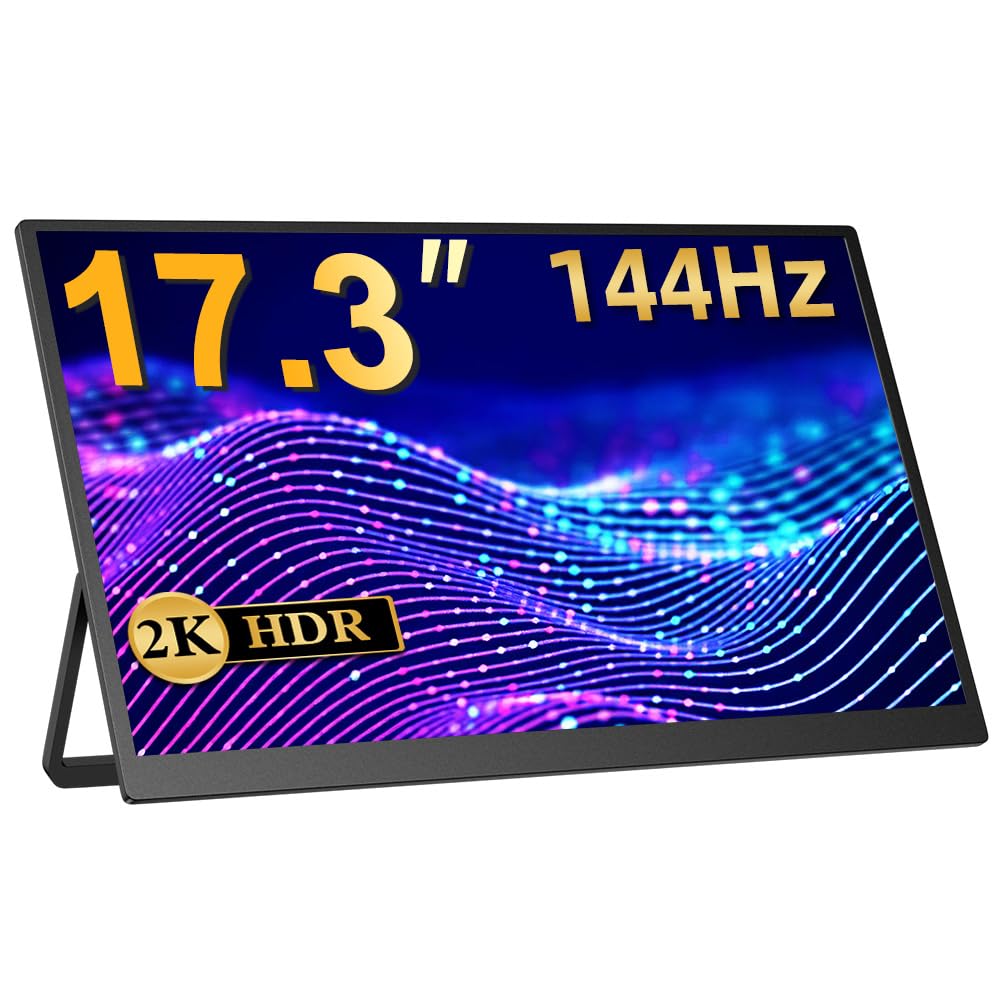
Figuur 1: Voorkant view of the EVICIV 17.3-inch Portable Monitor.
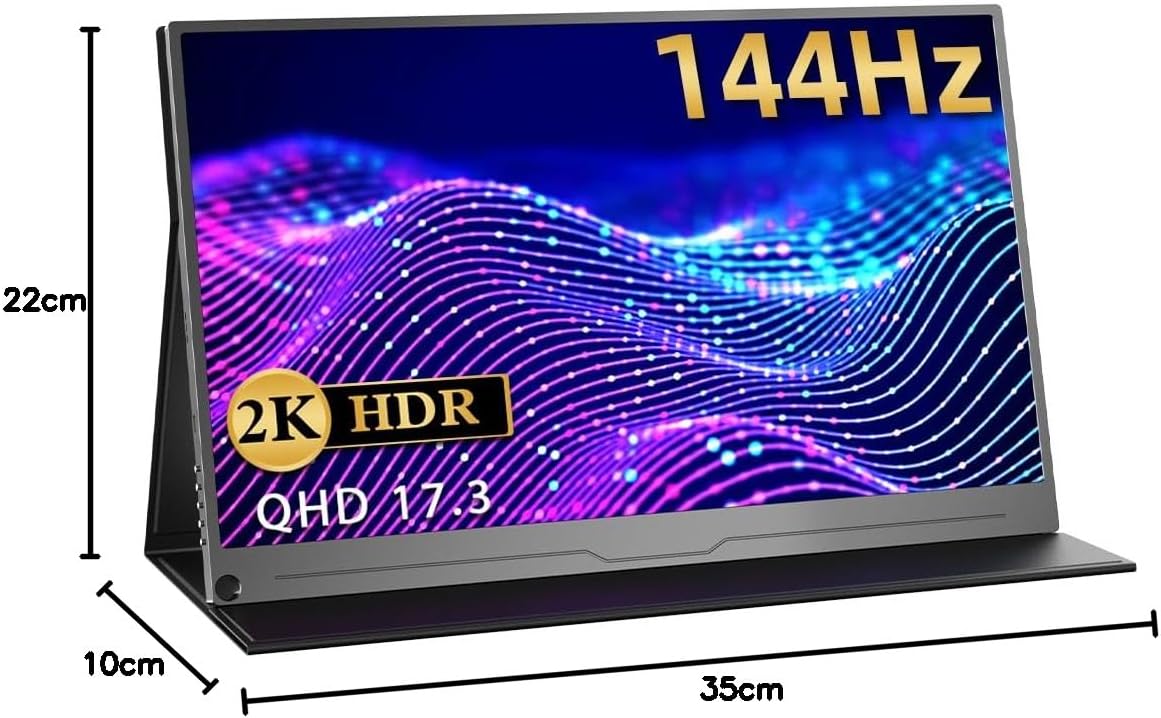
Figuur 2: Agter view of the monitor, highlighting the VESA mount compatibility (75x75mm).

Figuur 3: Syprofile illustrating the thin and lightweight design of the monitor.

Figure 4: Close-up of the monitor's slim bezel, approximately 4mm, for an expansive viewondervinding.

Figure 5: Detail of the built-in speakers, providing integrated audio.
5. Opstelling en verbindings
5.1 Aanskakel
- Koppel die kragadapter aan die monitor se kragtoevoer.
- Druk die kragknoppie om die monitor aan te skakel.
5.2 Koppel aan toestelle
Die monitor ondersteun verskeie verbindingsmetodes:
- USB Type-C (Full-featured): For compatible devices (e.g., laptops, smartphones, some gaming consoles), a single Type-C cable can transmit video, audio, and power. Ensure your device's Type-C port supports DisplayPort Alternate Mode and power delivery.
- Mini HDMI: Use the provided Mini HDMI to HDMI cable to connect to devices like PCs, laptops, or gaming consoles (e.g., X-BOX, Switch). An additional power source (via Type-C) may be required.

Figure 6: Monitor connected to a smartphone via a single Type-C cable, demonstrating video and power transmission.

Figure 7: Monitor connected to a Nintendo Switch for an enhanced gaming experience.
6. Bedryfsinstruksies
6.1 Skermvertoning (OSD) Kieslys
The OSD menu allows you to adjust various display settings. Use the control buttons on the side of the monitor to navigate and select options.
- Helderheid/kontras: Adjust image brightness and contrast levels.
- Kleurinstellings: Verander kleurtemperatuur, skakering en versadiging.
- Invoerbron: Manually select the input source (Type-C, HDMI).
- Aspekverhouding: Choose between different aspect ratio modes.
- HDR-modus: Enable or disable HDR (High Dynamic Range) for compatible content.
- Volume: Adjust the volume of the built-in speakers or connected headphones.
6.2 Stand Adjustment
The integrated stand allows for flexible angle adjustments to suit your viewing preference. Simply unfold the stand to the desired angle for stable positioning.
7. Gebruikscenario's
7.1 Dual Display for Productivity
Extend your laptop or PC screen to create a dual-monitor setup, enhancing multitasking and workflow efficiency. Ideal for remote work, presentations, and creative tasks.

Figure 8: Monitor used to extend a laptop display for increased productivity in a work environment.
7.2 Immersive Gaming
Connect to your gaming console (PS5, X-BOX, Switch) via HDMI or compatible Type-C for a larger, more immersive gaming experience with the 144Hz refresh rate.

Figure 9: Monitor displaying a game, illustrating a smooth gaming experience.
7.3 Mediaverbruik
Enjoy movies, videos, and other media content on the vibrant 2K display. Connect your smartphone or tablet for a larger viewing gebied.
Video 1: This video demonstrates the EVICIV 17.3-inch portable monitor (FHD 1920x1200 model) being used for media consumption and gaming. Please note that the resolution shown in the video is FHD (1920x1200), while this product is a 2K (2560x1440) model.
8. Spesifikasies
| Handelsmerk | EVICIV |
| Model | EVC-1704 |
| Skerm grootte | 17.3 duim |
| Resolusie | 2560 x 1440 (QHD 2K) |
| Herlaaitempo | 144Hz |
| Paneel tipe | IPS |
| Helderheid | 350 Nit |
| Kleur Omvang | 100% sRGB |
| Aspekverhouding | 16:9 |
| Oppervlakbehandeling | Nie-glans |
| Konnektiwiteit | 2x Type-C, 1x Mini HDMI |
| Oudio | Ingeboude luidsprekers, 3.5 mm-klankaansluiting |
| VESA Mount | 75 x 75 mm |
| Afmetings | 44.9 x 29.3 x 6.9 cm (Packaged) |
| Gewig | 1.89 kg (Packaged) |
9. Probleemoplossing
9.1 Geen sein / Swart skerm
- Ensure the monitor is powered on and the power adapter is securely connected.
- Verify that the video cable (Type-C or HDMI) is correctly connected to both the monitor and your source device.
- Check if your source device is outputting a video signal. Try connecting it to another display if possible.
- If using a single Type-C cable, ensure your device's Type-C port supports DisplayPort Alternate Mode and power delivery. Try connecting the monitor to an external power source.
- Try switching input sources manually via the OSD menu.
9.2 Beeldflikkering of -vervorming
- Kontroleer die videokabel vir skade of los verbindings. Probeer 'n ander kabel indien beskikbaar.
- Ensure the monitor is receiving sufficient power. Use the provided power adapter.
- Adjust the resolution and refresh rate settings on your source device to match the monitor's capabilities (2560x1440, 144Hz).
- Disable any FreeSync or adaptive sync settings on your source device if experiencing issues, as noted in some user reviews.
9.3 Geen klank nie
- Increase the volume on both the monitor (via OSD menu) and your source device.
- Ensure the correct audio output device is selected on your source device.
- If using headphones, ensure they are properly connected to the 3.5mm audio jack.
10. Onderhoud
- Skoonmaak van die skerm: Gently wipe the screen with a soft, lint-free cloth. For stubborn marks, use a screen-cleaning solution specifically designed for displays, applied to the cloth, not directly to the screen.
- Maak die liggaam skoon: Use a soft, dry cloth to wipe the monitor's body. Avoid abrasive cleaners or solvents.
- Berging: When not in use, store the monitor in a cool, dry place, away from direct sunlight and extreme temperatures. Use the protective sleeve or original packaging for transport.
- Hantering: Vermy om oormatige druk op die skerm uit te oefen of die monitor te laat val.
11. Waarborg en Ondersteuning
EVICIV products typically come with a manufacturer's warranty. For specific warranty terms, duration, and support inquiries, please refer to the warranty card included in your product packaging or visit the official EVICIV webwebwerf. Jy kan ook die verkoper direk kontak vir hulp.
For further support, please visit the EVICIV store on Amazon: EVICIV Amazon Store