
1. Produk verbyview
The UNV NVR302-16E2 is a high-performance Network Video Recorder (NVR) designed for advanced surveillance systems. It supports 4K resolution recording and playback, offering robust video management capabilities for up to 32 channels. This NVR is compatible with various camera protocols, including ONVIF, and features Ultra H.265 compression for efficient storage.
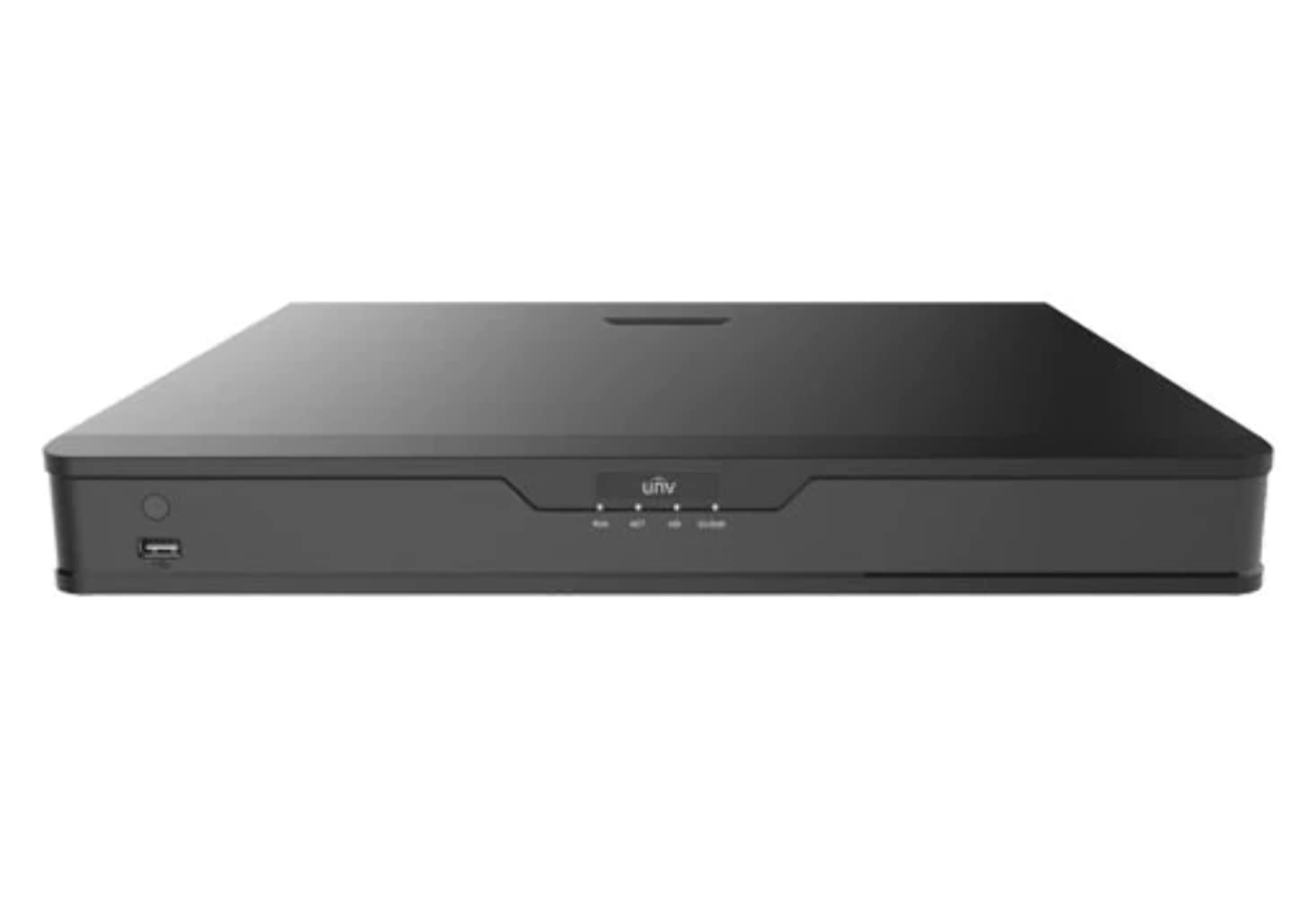
Figuur 1: Voorkant view of the UNV NVR302-16E2 4K NVR. The front panel includes a power button, a USB port, and indicator lights for power, HDD activity, network status, and alarm.
2. Sleutel kenmerke
- Supports Ultra H.265/H.265/H.264 video formats for efficient compression.
- 8/16-channel input with Plug & Play functionality via independent PoE network interfaces.
- Compatibility with mainstream cameras supporting ONVIF conformance (Profile Ja, Profile G, Profile T) and RTSP protocols.
- Equipped with 1-channel HDMI and 1-channel VGA outputs, with HDMI supporting up to 4K (3840x2160) resolution.
- Independent HDMI and VGA outputs for flexible display options.
- Supports recording resolutions up to 12 Megapixels.
- Accommodates 2 SATA HDDs, with support for up to 10TB per HDD.
- Features various fisheye dewarping modes for live view and playback, accessible via both web interface and GUI.
- Incorporates ANR (Automatic Network Replenishment) technology to enhance storage reliability during network disconnections.
- Supports cloud upgrade for convenient firmware updates.
3. Pakketinhoud
Please check the package contents upon unboxing. If any items are missing or damaged, contact your vendor immediately.
- UNV NVR302-16E2 NVR Unit
- Kragadapter
- USB-muis
- SATA Data Cables (for HDD installation)
- HDD Mounting Screws
- Vinnige Begingids
4. Opstelling
4.1 Fisiese installasie
- HDD installasie:
Unscrew and remove the NVR cover. Securely mount the SATA hard disk drives (HDDs) into the designated bays using the provided screws. Connect the SATA data and power cables from the NVR motherboard to the HDDs. Replace the NVR cover and secure it with screws.
- Verbind skerm:
Connect a monitor to the NVR's HDMI or VGA output port using a compatible cable.
- Koppel muis:
Koppel die USB-muis aan een van die NVR se USB-poorte.
- Koppel netwerk:
Connect an Ethernet cable from the NVR's LAN port to your network router or switch.
- Koppel kameras:
For PoE cameras, connect them directly to the NVR's independent PoE ports. For non-PoE cameras, ensure they are connected to the same network as the NVR and powered separately.
- Koppel krag:
Koppel die kragadapter aan die NVR se kragtoevoer en prop dit dan in 'n kragaansluiting. Die NVR sal outomaties aanskakel.
4.2 Aanvanklike konfigurasie
Upon the first boot, the NVR will guide you through an initial setup wizard. Follow the on-screen prompts to configure essential settings.
- Set Administrator Password: Create a strong password for the 'admin' user. This is crucial for security.
- Netwerkinstellings: Configure the NVR's IP address (DHCP or Static IP). Ensure it is on the same network as your cameras for proper communication.
- Datum en Tyd: Stel die korrekte datum, tyd en tydsone in.
- HDD-inisialisering: The NVR will prompt you to initialize (format) the newly installed HDDs. This step is necessary before recording can begin.
- Camera Search and Add: The NVR will automatically search for connected cameras. Select and add the cameras you wish to manage.
5. Bediening van die NVR
5.1 Lewendig View
After setup, the NVR will display the live view van gekoppelde kameras. Jy kan wissel tussen enkelkamera- view, multi-kamera rooster view, and customize the display layout.
- Kanaalkeuse: Click on a channel window to select it.
- PTZ-beheer: If using PTZ cameras, use the on-screen controls or joystick (if connected) to pan, tilt, and zoom.
- Onmiddellike terugspeel: Right-click on a channel and select "Instant Playback" to view onlangse opnames.
5.2 Opnamebestuur
The NVR supports various recording modes.
- Geskeduleerde opname: Configure recording schedules based on time, day, and event (e.g., motion detection).
- Bewegingsopsporing opname: Stel bewegingsopsporingsones en sensitiwiteit vir elke kamera op om opname slegs te aktiveer wanneer beweging bespeur word.
- Handmatige opname: Start or stop recording manually from the live view koppelvlak.
5.3 Afspeel
Toegang opgeneem footage vir weerview.
- Navigate to the "Playback" menu.
- Select the camera(s) and date/time range for playback.
- Use the timeline to navigate through recordings.
- Options include fast forward, rewind, pause, and frame-by-frame playback.
5.4 Rugsteun
Export recorded video clips to an external USB drive.
- Insert a USB flash drive into the NVR's USB port.
- Go to the "Backup" menu.
- Select the camera, time range, and desired video format for export.
- Start the backup process.
5.5 Afstandtoegang
Kry toegang tot jou NVR op afstand via 'n web blaaier of mobiele toepassing.
- Web Blaaier: Enter the NVR's IP address into a web browser on a computer connected to the same network. Log in with your credentials.
- Mobiele toepassing: Laai die amptelike Uni afview mobile application (e.g., EZView). Register an account, add your NVR by scanning the QR code or entering its serial number, and view live feeds or playback remotely.
6. Onderhoud
6.1 Firmware-opdaterings
Regularly check for and install firmware updates to ensure optimal performance, security, and access to new features. Updates can typically be performed via the NVR's web interface or local GUI, often with cloud upgrade support.
6.2 HDD-bestuur
Monitor the health and status of your hard drives. The NVR provides tools to check HDD status, format drives, and configure overwrite settings when storage is full.
6.3 Stelsellogboeke
Review system logs for any errors, warnings, or important events. This can assist in troubleshooting and system monitoring.
7. Probleemoplossing
| Probleem | Moontlike oorsaak | Oplossing |
|---|---|---|
| Geen video-uitvoer op monitor nie. | Loose cable connection; incorrect display resolution; NVR not powered on. | Check HDMI/VGA cable connections. Ensure NVR is powered. Try a different monitor or cable. Adjust NVR output resolution if possible. |
| Kameras wys nie. | Network issue; incorrect camera IP; camera not powered; camera not added to NVR. | Verify network connectivity. Ensure cameras are powered. Check camera IP addresses and add them to the NVR if not already done. |
| Kan nie op afstand toegang tot NVR kry nie. | Network configuration issue (port forwarding, DDNS); NVR offline; incorrect credentials. | Verify NVR's network settings. Ensure necessary ports are forwarded on your router. Check internet connection. Confirm login credentials. |
| Geen opname nie. | HDD not initialized or full; recording schedule not set; camera not recording. | Initialize the HDD. Check recording schedules and ensure they are active. Verify camera status and ensure it's configured to record. |
8. Spesifikasies
| Kenmerk | Detail |
|---|---|
| Modelnommer | NVR302-16E2 |
| Videoformate ondersteun | Ultra H.265 / H.265 / H.264 |
| Kanaalinvoer | 8/16-channel (with independent PoE interfaces) |
| HDMI-uitset | 1-channel, up to 4K (3840x2160) resolution |
| VGA-uitset | 1-kanaal |
| Maksimum opname resolusie | Tot 12 megapixels |
| HDD-ondersteuning | 2 SATA HDDs, up to 10TB each (20TB total) |
| Verbindingstegnologie | HDMI, VGA, Ethernet, USB |
| Versoenbare toestelle | IP Cameras (ONVIF Profile S, G, T; RTSP) |
| Produk afmetings | 18 x 14 x 4 duim (45.72 x 35.56 x 10.16 cm) |
| Item gewig | 3.97 pond (1.8 kg) |
| Vervaardiger | Uniview |
9. Waarborg en Ondersteuning
Uniview products typically come with a limited manufacturer's warranty. For specific warranty terms and conditions, please refer to the warranty card included with your product or visit the official Uniview webwebwerf.
For technical support, troubleshooting assistance, or service inquiries, please contact Uniview customer support through their official channels. You can usually find contact information, FAQs, and support resources on the Uniview webwerf (www.uniview.com).