
1. Inleiding
Welcome to the HyperX Armada 25 Gaming Monitor user manual. This document provides essential information for setting up, operating, maintaining, and troubleshooting your new monitor. The HyperX Armada 25 is designed for competitive gaming, featuring a 24.5-inch Full HD (1920x1080) IPS panel, a 240Hz refresh rate, and a 1ms response time, ensuring smooth and responsive visuals. It also includes NVIDIA G-SYNC compatibility to eliminate screen tearing and minimize input latency. A desk mount is included for convenient setup and to maximize desk space.
Sleutel kenmerke:
- Alles-in-een pakket: Includes an ergonomic arm and desk mount for easy setup and space-saving.
- Hoë verversingstempo en reaksietyd: 240Hz refresh rate and 1ms response time for ultra-smooth gaming.
- Vibrant IPS Panel: 24.5-inch Full HD (1920x1080) IPS panel delivers stunning visuals with accurate colors and wide viewhoeke.
- NVIDIA G-SYNC Versoenbaar: Eliminates screen tearing and reduces stuttering for a fluid gaming experience.

Amptelike produkvideo:
2. Opstelling
This section guides you through the initial setup of your HyperX Armada 25 Gaming Monitor, including assembly and connection to your computer.
2.1. Assembling the Desk Mount
The HyperX Armada 25 comes with an integrated ergonomic desk mount. Follow the instructions provided in the separate quick start guide for detailed assembly steps. The monitor head easily snaps into the arm, allowing for quick and secure installation.

2.2. Koppel die monitor
Connect the monitor to your computer using the appropriate cables. The HyperX Armada 25 supports both HDMI and DisplayPort connections.
- Koppel die een kant van die HDMI- of DisplayPort-kabel aan die ooreenstemmende poort op jou rekenaar se grafiese kaart.
- Connect the other end of the cable to an available HDMI 2.0 or DisplayPort 1.4 port on the back of your monitor.
- Koppel die kragkabel aan die monitor en dan aan 'n kragpunt.
- Druk die aan/uit-knoppie op die monitor om dit aan te skakel.

3. Bedien die monitor
This section covers basic operation and navigation of the monitor's On-Screen Display (OSD) menu.
3.1. On-Screen Display (OSD) Navigasie
The OSD menu is controlled using a joystick located on the back of the monitor. This joystick allows you to power on/off the monitor and navigate through various settings.
- Druk die joystick: Om die OSD-kieslys oop te maak of 'n keuse te bevestig.
- Move the joystick Up/Down/Left/Right: To navigate through menu options and adjust settings.
- Hold the joystick: To power off the monitor.

3.2. Aanpassing van monitorposisie
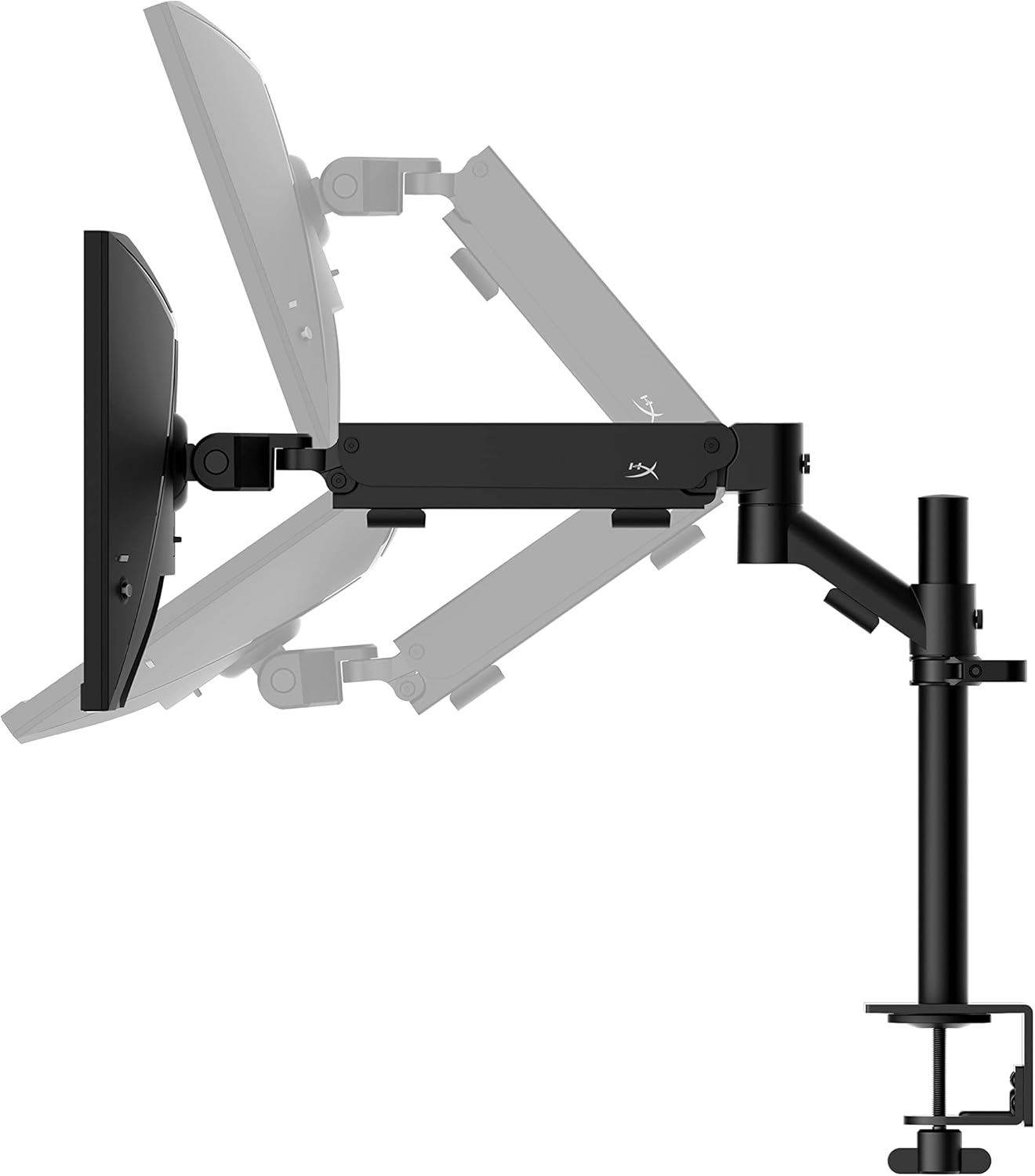
The ergonomic desk mount allows for flexible positioning of your monitor. You can adjust the height, tilt, swivel, and pivot to find your optimal viewing hoek.

4. Onderhoud
Proper maintenance ensures the longevity and optimal performance of your HyperX Armada 25 Gaming Monitor.
- Skoonmaak van die skerm: Gebruik 'n sagte, pluisvrye lap liggies dampened with water or a specialized screen cleaner. Avoid using harsh chemicals, abrasive materials, or direct spraying onto the screen.
- Maak die C skoonasing: Vee die monitor af casing met 'n sagte, droë lap.
- Ventilasie: Maak seker dat die monitor se ventilasie-openinge nie geblokkeer is om oorverhitting te voorkom nie.
- Skakel af wanneer dit nie gebruik word nie: Skakel die monitor af wanneer dit nie vir lang tye gebruik word nie om energie te bespaar en die lewensduur daarvan te verleng.
5. Probleemoplossing
Indien u probleme met u monitor ondervind, raadpleeg die volgende algemene probleemoplossingstappe.
- Geen krag:
- Kyk of die kragkabel stewig aan beide die monitor en die kragaansluiting gekoppel is.
- Maak seker dat die kragaansluiting korrek funksioneer.
- Druk die kragknoppie op die monitor.
- Geen sein:
- Verifieer dat die HDMI- of DisplayPort-kabel stewig aan beide die monitor en jou rekenaar gekoppel is.
- Maak seker dat jou rekenaar aangeskakel is en nie in slaapmodus is nie.
- Kies die korrekte invoerbron met behulp van die OSD-kieslys.
- Flickering Screen or Image Issues:
- Check the display cable for damage or loose connections.
- Maak seker dat jou grafiese kaart se drywers op datum is.
- Pas die verversingstempo in jou rekenaar se skerminstellings aan.
- If G-SYNC is enabled, try disabling it temporarily to see if the issue persists.
- Buttons Not Responding (OSD Joystick):
- Maak seker dat die monitor aangeskakel is.
- Try restarting the monitor by unplugging and replugging the power cable.
- Clean around the joystick to ensure no debris is obstructing its movement.
6. Spesifikasies
Detailed technical specifications for the HyperX Armada 25 Gaming Monitor.
| Kenmerk | Detail |
|---|---|
| Produk afmetings | 21.94 x 25.79 x 31.12 duim; 16.98 pond |
| Item Modelnommer | HyperX Armada 25 |
| Datum Eerste Beskikbaar | 24 Augustus 2022 |
| Vervaardiger | HP Inc. |
| ASIN | B0B2C1G356 |
| Vertoon grootte | 24.5-duim Diagonaal |
| Resolusie | FHD (1920x1080) |
| Herlaaitempo | 240Hz |
| Paneel tipe | IPS paneel |
| Reaksie Tyd | 1 ms |
| Sync-tegnologie | NVIDIA® G-SYNC® Versoenbaar |
| Included Mount | Desk Mount Included |
| Konnektiwiteit | HDMI and Display Port |
7. Waarborg en Ondersteuning
For warranty information, technical support, or to access additional resources, please visit the official HyperX webwebwerf of kontak hul kliëntediens.
- Amptelike HyperX Webwebwerf: www.hyperx.com
- Produkondersteuningsbladsy: Refer to the support section on the HyperX webwebwerf vir jou spesifieke model.